Do Wi Fi USB Sticks Work or Are They Worth Your Money
Yes, Wi-Fi USB sticks work and are a simple way to add wireless internet to any computer. They plug right into a USB port and connect your desktop or laptop to a wireless network without needing built-in Wi-Fi. This guide covers how they work, what to look for, and whether they are worth your money.
Have you ever plugged in a Wi-Fi USB stick and wondered if it would really work? Maybe your desktop computer does not have built-in wireless, or your laptop’s Wi-Fi card is old and slow. A small USB adapter might be the fix you need. But do these little devices actually deliver the internet speeds you expect?
The short answer is yes. Wi-Fi USB sticks work and they are one of the easiest ways to get a wireless internet connection on almost any computer. Whether you are setting up a home office or trying to connect an older machine, these small adapters can make a big difference. Let us walk through everything you need to know.
Key Takeaways
- Wi-Fi USB sticks are a plug-and-play solution that adds wireless internet to any computer with a free USB port.
- They work on both desktops and laptops, making them a versatile tool for home and office use.
- Not all Wi-Fi sticks are equal — look for dual-band support and the right standard for your needs.
- You can add Wi-Fi to a PC without opening the case or installing internal hardware.
- Wi-Fi USB sticks are affordable and often cheaper than replacing a laptop’s internal Wi-Fi card.
📑 Table of Contents
What Is a Wi-Fi USB Stick?
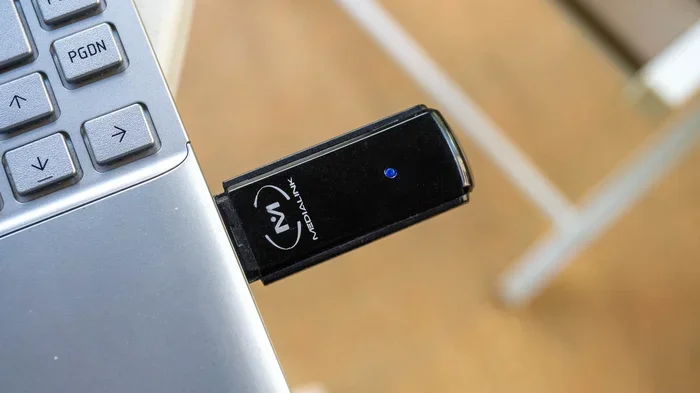
A Wi-Fi USB stick is a small adapter that plugs into a USB port on your computer. It allows your PC or laptop to connect to a wireless network without needing built-in Wi-Fi hardware. Think of it as a tiny radio that sends and receives wireless signals.
These sticks are also called wireless adapters or Wi-Fi dongles. They come in different shapes and sizes. Some are tiny enough to stay plugged in all the time. Others are bulkier but offer better performance. Most of them use a simple plug-and-play setup, which means you do not need to be a tech expert to get them working.
How Is It Different from a Built-in Wi-Fi Card?
A built-in Wi-Fi card is installed inside your computer on the motherboard. A Wi-Fi USB stick sits outside the computer and connects through a USB port. Both do the same job — they connect you to a wireless network — but the USB stick is much easier to add or remove. If you add Wi-Fi to your PC with a USB stick, you skip opening the case entirely.
One thing to keep in mind is that a USB stick shares your computer’s USB bus for data. This means it is slightly less efficient than an internal card in some cases. For most everyday users, though, the difference is barely noticeable.
How Does a Wi-Fi USB Stick Work?
Understanding how a Wi-Fi USB stick works is simpler than you might think. The stick contains a small antenna and a wireless chip. When you plug it into a USB port, the chip connects to your computer’s operating system. The operating system then recognizes the adapter and installs the needed drivers.
Once the drivers are installed, the stick starts searching for nearby wireless networks. It connects to your router just like your computer’s built-in Wi-Fi would. The stick receives the wireless Wi-Fi signal and translates it into data your computer can use. It also sends data back out through the wireless network.
The Role of Wi-Fi Standards
Not all Wi-Fi adapters are the same. They follow different wireless standards that determine speed and range. Here are the most common ones you will see:
- 802.11n (Wi-Fi 4): Older standard. Speeds up to 600 Mbps. Good for basic browsing.
- 802.11ac (Wi-Fi 5): Faster standard. Speeds up to 1.3 Gbps. Great for streaming and video calls.
- 802.11ax (Wi-Fi 6): Newest standard. Speeds up to 9.6 Gbps. Best for modern networks and heavy use.
When shopping for a Wi-Fi USB stick, check which standard it supports. A Wi-Fi 5 or Wi-Fi 6 stick will give you much better wireless connectivity than an older Wi-Fi 4 model.
Does the USB Port Matter?
Yes, it does. Most Wi-Fi USB sticks work fine in a standard USB 2.0 or USB 3.0 port. However, if you use a USB 2.0 port, it can slow down your Wi-Fi speed. This is because USB 2.0 has a lower data transfer limit. For the best performance, plug your stick into a USB 3.0 port. This will let the adapter reach its full Wi-Fi speed potential.
Benefits of Using a Wi-Fi USB Stick
There are many reasons to use a Wi-Fi USB stick. Here are the biggest benefits that make them a popular choice for both home and office users.
Easy Setup — No Technical Skills Needed
Most Wi-Fi USB sticks are truly plug and play. You insert the stick into a USB port, wait a few seconds, and the computer recognizes it. You then select your wireless network and enter the password. That is it. You do not need to open your computer or install any internal parts.
This makes Wi-Fi USB sticks perfect for people who are not comfortable with hardware. Even if you are not tech-savvy, you can get online in minutes.
Works on Desktops and Laptops
One of the best things about a Wi-Fi USB stick is its versatility. It works on desktop computers that lack built-in Wi-Fi. It also works on laptops with broken or outdated wireless cards. If you connect your PC to Wi-Fi without Ethernet, a USB stick is one of the simplest ways to do it.
Travelers love them too. You can carry a small wireless adapter in your laptop bag and connect to Wi-Fi at hotels, cafes, or anywhere else you go.
Affordable Way to Get Wireless Internet
A good Wi-Fi USB stick costs between $15 and $50. Compare that to the cost of replacing a laptop’s internal Wi-Fi card or buying a new computer. A USB stick is a budget-friendly option that gets the job done. You can find reliable models from brands like TP-Link, Netgear, and Asus without spending a fortune.
Portable and Lightweight
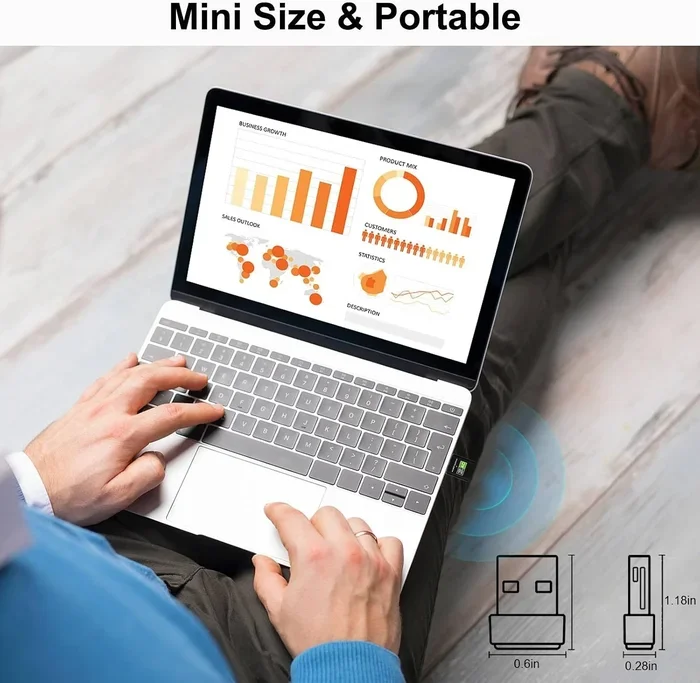
Most Wi-Fi USB sticks are small enough to fit on a keychain. You can leave one plugged into your desktop and not even notice it. Or you can unplug it and take it with you to use on another computer. This portability is a huge advantage over internal Wi-Fi cards.
What to Look for When Buying a Wi-Fi USB Stick
Not every Wi-Fi USB stick is the same. Before you buy one, there are a few important things to check. Here is what to look for to make sure you get a stick that actually works well for you.
Check the Wi-Fi Standard
As we mentioned earlier, the Wi-Fi standard matters a lot. Look for a stick that supports Wi-Fi 5 (802.11ac) at minimum. If you can afford it, go with Wi-Fi 6 (802.11ax) for the best wireless performance. These newer standards offer faster speeds and better range.
Dual-Band vs. Single-Band
This is an important feature. A dual-band Wi-Fi adapter can connect to both 2.4 GHz and 5 GHz networks. The 2.4 GHz band has a longer Wi-Fi range but slower speeds. The 5 GHz band offers faster speeds but shorter range. A single-band stick only works on 2.4 GHz, which can be crowded and slow in apartment buildings or offices.
For the best results, always choose a dual-band wireless adapter. It gives you more flexibility and better wireless connectivity in all situations.
Check Your Operating System
Make sure the Wi-Fi USB stick you buy is compatible with your operating system. Most sticks work with Windows 10 and 11. Some also support macOS and Linux. Check the product details before purchasing. If you replace your laptop’s Wi-Fi card, compatibility is also a concern, but USB sticks tend to have broader OS support.
Antenna Type and Design
Some Wi-Fi USB sticks have built-in antennas. Others have external antennas that you can position for better signal. External antennas generally provide a stronger Wi-Fi signal and better range. If your computer is far from your router, look for a stick with an external antenna.
Read Reviews and Check Speed Claims
Before you buy, read user reviews. Look for real-world feedback on Wi-Fi speed and reliability. Pay attention to comments about range and driver support. A stick that claims great speeds in the lab might not perform the same way in your home.
Common Problems and How to Fix Them
Wi-Fi USB sticks are reliable, but they can sometimes cause issues. Here are the most common problems and how to solve them.
Driver Issues
Sometimes your computer does not recognize the stick right away. This is usually a driver problem. Go to the manufacturer’s website and download the latest driver for your model. Install it and restart your computer. The stick should work after that.
Slow Wi-Fi Speeds
If your Wi-Fi USB stick is slow, check a few things first. Make sure it is plugged into a USB 3.0 port. Check if your router is using the 5 GHz band. Move closer to your router to rule out distance as the issue. If none of this helps, your stick may be too old for modern wireless networks.
Connection Drops
A stick that keeps disconnecting can be frustrating. This often happens when the antenna is blocked or when the stick is plugged into a USB hub. Try plugging it directly into a USB port on your computer. Also, update the drivers and check for interference from other USB devices.
Compatibility with Your PC
Not every Wi-Fi adapter works with every computer. Some older desktops may not support newer USB standards. Some laptops may have driver conflicts. Before buying, check that your computer’s USB ports and operating system are compatible with the stick.
Are Wi-Fi USB Sticks Worth Your Money?
The final question is whether a Wi-Fi USB stick is actually worth your money. The answer depends on your situation, but for most people, the answer is yes.
If you have a desktop computer without built-in Wi-Fi, a USB stick is the easiest and cheapest way to get online. You do not need to open the case, install an internal card, or deal with complicated setup. Just plug it in and go. If you want to add Wi-Fi to your PC without spending a lot, this is the way to do it.
If your laptop has a broken or outdated Wi-Fi card, a USB stick is a great temporary or even permanent fix. It is much cheaper than replacing the internal card. And you can easily switch it between computers if needed.
On the other hand, if you already have a computer with good built-in Wi-Fi, you probably do not need a USB stick. The built-in card will likely perform better and more reliably. But if you travel often or need a backup connection, a Wi-Fi USB stick is a smart investment.
In short, Wi-Fi USB sticks work well and offer great value. They are affordable, easy to use, and effective. For anyone who needs a simple way to connect to wireless internet, they are absolutely worth the money.
Final Thoughts
A Wi-Fi USB stick is one of the simplest and most affordable ways to add wireless internet to any computer. Whether you have a desktop without built-in Wi-Fi or a laptop with an old wireless card, these small adapters get the job done. They are easy to set up, portable, and work on both Windows and Mac systems.
Just remember to check the Wi-Fi standard, go with a dual-band model, and make sure it is compatible with your computer. With the right Wi-Fi USB stick, you will be browsing, streaming, and working online in no time. Do not let a lack of built-in Wi-Fi hold you back. A small USB stick can make a big difference in your wireless connectivity and daily productivity.
If you are ready to upgrade your internet setup, grab a Wi-Fi USB stick today and enjoy the freedom of wireless internet on any computer. You will wonder how you ever lived without it.
Frequently Asked Questions
Do Wi-Fi USB sticks really work?
Yes, Wi-Fi USB sticks work very well for most users. They plug into a USB port and connect your computer to a wireless network. As long as you choose a stick that matches your needs and your computer supports it, you will get a reliable internet connection.
Can I use a Wi-Fi USB stick on any computer?
Most Wi-Fi USB sticks work on any computer with a free USB port and a supported operating system. They work on both Windows and Mac systems. Just check the product details to make sure it is compatible with your specific computer before buying.
Do Wi-Fi USB sticks slow down internet speed?
A Wi-Fi USB stick can slightly limit your speed compared to a built-in Wi-Fi card, especially if you use a USB 2.0 port. To avoid this, plug the stick into a USB 3.0 port and choose a stick that supports Wi-Fi 5 or Wi-Fi 6. This will minimize any speed loss.
Is a Wi-Fi USB stick better than a built-in Wi-Fi card?
An internal Wi-Fi card is usually slightly faster and more stable. But a Wi-Fi USB stick is much easier to install and more portable. For most everyday tasks like browsing, streaming, and video calls, a USB stick works just as well and costs a fraction of the price.
How far can a Wi-Fi USB stick reach from the router?
The Wi-Fi range of a USB stick depends on the antenna and the Wi-Fi standard. Most dual-band sticks can reach a standard router from 30 to 50 feet indoors. If you need better range, look for a stick with an external antenna that you can position for a stronger Wi-Fi signal.
Can I leave a Wi-Fi USB stick plugged in all the time?
Yes, you can leave a Wi-Fi USB stick plugged in all the time. Most sticks are designed for continuous use. They use very little power and will not wear out from being left connected. Just make sure it does not block other USB ports if space is tight.