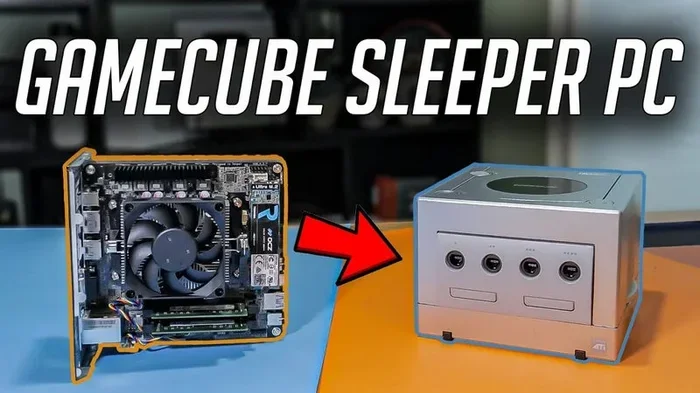
Can I Connect My Gamecube To My Computer And Play Games
Yes, you can connect your GameCube to your computer and play games. You will need the right cables, adapters, or an emulator to make it work. This guide covers every method, from direct video capture to software emulation, so you can enjoy your favorite GameCube titles on a bigger screen with better controls.
If you have a GameCube sitting in a closet and a computer on your desk, you might wonder if there is a way to bring those two together. The good news is that you can connect your GameCube to your computer and play games in more ways than one. Whether you want to stream your gameplay, use your PC monitor as a display, or simply relive classic Nintendo titles, the options are real and accessible.
Many people think connecting an old console to a modern PC is too hard or too technical. That is not true at all. With a few simple tools and a little patience, you can get your GameCube running on your computer screen. This guide walks you through every method, every cable, and every step you need to know. You do not need to be a tech expert to make it work.
So, can you connect your GameCube to your computer and play games? Absolutely. Let us dive into how to do it the right way.
Key Takeaways
- Multiple Connection Methods: You can link a GameCube to a PC using video capture cards, VGA adapters, or USB controllers for a seamless setup.
- Emulation Is the Easiest Route: The Dolphin emulator lets you play GameCube games directly on your computer without any extra hardware.
- You Need the Right Cables: Component cables, composite cables, and HDMI converters are the most common ways to get GameCube video on a PC.
- USB Adapters Make Controlling Easy: You can use a GameCube controller on your PC with a USB adapter or a Bluetooth solution.
- Audio and Video Quality Varies: The method you choose affects both the picture quality and the sound you get on your computer.
- Common Issues Have Simple Fixes: Most problems with connecting a GameCube to a PC come from cable mismatches or driver issues.
- It Is Worth the Effort: Whether for retro gaming, streaming, or preserving classic titles, connecting a GameCube to a PC opens up new possibilities.
📑 Table of Contents
- Why Connect a GameCube to Your Computer?
- What You Need to Connect a GameCube to a PC
- Method 1: Using a Video Capture Card
- Method 2: Using a VGA or HDMI Adapter
- Method 3: Using the Dolphin Emulator
- Connecting Your GameCube Controller to a PC
- Common Problems and How to Fix Them
- Is It Worth Connecting a GameCube to Your Computer?
- Final Thoughts
Why Connect a GameCube to Your Computer?
Before we get into the how, let us talk about the why. There are many good reasons to link a GameCube to a PC. Some people want a bigger screen. Others want to record their gameplay for YouTube or Twitch. And some just want to keep their old games alive in a modern setup.
Better Display Quality
Your old TV might not look great anymore. A computer monitor or a modern TV connected to your PC can show GameCube games with much more clarity. You get sharper colors, better contrast, and a cleaner picture overall. This alone is a big reason many retro gamers make the switch.
Streaming and Recording
If you want to share your gameplay with friends or an online audience, your PC is the best tool for the job. You can use software like OBS to capture both video and audio from your GameCube in real time. This makes streaming much easier than using a capture device on a standard TV setup.
Using GameCube Controllers on PC
GameCube controllers are some of the best ever made. By connecting your GameCube to your computer, you can use those controllers for other games too. Many PC games support GameCube-style input, and adapters make this process simple and reliable.
What You Need to Connect a GameCube to a PC
To get started, you need a few things. The exact items depend on which method you choose. Here is a full list of what you might need.
- A GameCube console in working condition
- A composite or component video cable that came with the GameCube
- A USB video capture card or a VGA adapter
- A GameCube controller and USB adapter
- A PC with decent processing power for emulation or capture
- An HDMI converter if you want digital output
- Audio cables for sound input to your computer
Not all of these are required for every method. But having them on hand gives you the most flexibility. You can always skip what you do not need.
Understanding Video Output Options
The GameCube outputs video through composite or component cables. Composite uses a single yellow RCA plug for video. Component splits the video signal into three cables for better quality. Some models also support S-Video, but that is rarer. Your choice of cable affects the picture quality you get on your PC.
For the best results, use component cables. They give you a clearer image than composite. If your PC only has HDMI input, you will also need an analog-to-digital converter to turn the GameCube signal into something your computer can read.
Method 1: Using a Video Capture Card
This is the most popular way to connect a GameCube to a computer for live viewing and streaming. A capture card acts as a bridge between your console and your PC. It takes the analog signal from the GameCube and turns it into a digital signal your computer can display and record.
How It Works
You plug your GameCube video cable into the capture card. Then you connect the capture card to your PC using a USB cable. The computer recognizes the capture card as a video source. You can then open any streaming or recording software and see your GameCube gameplay on screen.
Popular capture cards include the Elgato HD60 and the AVerMedia Live Gamer. These devices are easy to set up and work well with retro consoles like the GameCube. They usually come with their own software, which makes recording a breeze.
Step-by-Step Setup
- Connect your GameCube to the capture card using the composite or component cable.
- Plug the capture card into a USB port on your computer.
- Install the capture card drivers and software.
- Open your streaming or recording app and select the capture card as the video source.
- Power on your GameCube and start playing.
That is it. You should see your GameCube menu on your PC screen within minutes. The quality depends on your capture card and the cables you use. A good capture card will give you smooth, clear video with minimal delay.
Quick Tips for Best Results
- Use a USB 3.0 capture card for smoother performance.
- Close background apps on your PC to free up resources.
- Set your GameCube to output 480p if your model supports it.
- Use a powered USB hub if your computer has limited USB power.
Method 2: Using a VGA or HDMI Adapter
If you want a direct digital connection, a VGA or HDMI adapter is a great choice. These adapters convert the GameCube analog signal into a digital output that your monitor or TV can display. Some adapters also let you connect directly to a PC.
VGA Adapters for GameCube
The GameCube does not have a built-in VGA port. But you can use a third-party VGA adapter that plugs into the digital AV port on the bottom of the console. These adapters are made by companies like RetroTINK and GCP-00200. They provide a sharp, clean image on VGA monitors.
To use a VGA adapter, you need a GameCube model that supports digital output. The DOL-001 model (the original black GameCube) works best for this. Other models may need a mod chip to enable digital video output.
HDMI Converters
HDMI converters work similarly but give you an HDMI output. This is useful if you want to connect your GameCube to a modern TV or a capture card that only accepts HDMI input. Some HDMI converters include built-in upscaling, which improves the image quality automatically.
The downside is that most HDMI converters for the GameCube cost more than basic capture cards. They also may add a small amount of input lag. For casual gaming, this is usually not a problem. For competitive play, you might notice the delay.
Which One Should You Choose?
If you want the easiest setup, go with a USB capture card. If you want the best image quality and do not mind a bit of extra cost, choose a VGA or HDMI adapter. Both methods let you connect your GameCube to your computer and play games with great results.
Method 3: Using the Dolphin Emulator
This is the method that most people prefer when they ask, can I connect my Gamecube to my computer. Emulation means using software to mimic the GameCube hardware on your PC. You do not need the actual console at all. You just need the game files and a program called Dolphin.
What Is Dolphin?
Dolphin is a free, open-source emulator that can run GameCube and Wii games on your computer. It is one of the most accurate emulators available. It supports high-definition output, custom resolutions, and even netplay for multiplayer games over the internet.
Dolphin runs on Windows, Mac, and Linux. It works well on most modern computers. You do not need a super powerful PC to run GameCube games. Even a mid-range laptop can handle them smoothly.
How to Set Up Dolphin
- Download the Dolphin emulator from the official website.
- Extract the files to a folder on your computer.
- Find your GameCube game files in the .iso or .gcm format.
- Open Dolphin and load the game file.
- Configure your controls using a keyboard, mouse, or a GameCube USB adapter.
- Adjust the graphics settings for your PC and start playing.
Dolphin also lets you connect a real GameCube controller to your PC using a USB adapter. This gives you the authentic feel of playing on the original hardware while enjoying the benefits of PC gaming.
Benefits of Using Dolphin
- No hardware needed: You do not need cables, adapters, or the actual console.
- HD output: You can run games at 1080p or even 4K resolution.
- Save states: You can save and load your progress at any point.
- Controller support: You can use GameCube controllers, Wiimotes, or keyboard and mouse.
- Free and legal: The emulator itself is completely free to download and use.
Common Mistakes When Using Dolphin
One common mistake is downloading Dolphin from an unofficial site. Always get it from the official Dolphin website to avoid malware. Another mistake is not updating your graphics drivers. Outdated drivers can cause crashes or poor performance. Also, do not use games you do not own. Emulators are legal, but downloading copyrighted game files is not.
Connecting Your GameCube Controller to a PC
One of the best parts about connecting a GameCube to your computer is using the original controller. GameCube controllers are comfortable, responsive, and loved by gamers of all ages. You can use them on your PC for Dolphin, fighting games, and even some modern titles.
USB GameCube Adapters
The easiest way to use a GameCube controller on your PC is with a USB adapter. You plug the controller into the adapter, and the adapter plugs into a USB port on your computer. The PC recognizes it as a gamepad input device.
Popular options include the Mayflash adapter and the Tristar adapter. These adapters work with Dolphin and many PC games. They are plug-and-play, which means no complicated setup is required.
Bluetooth Options
If you do not want to deal with cables, there are Bluetooth adapters that let you use a GameCube controller wirelessly. These adapters connect to the controller and pair with your PC via Bluetooth. They are a bit more expensive but offer more freedom of movement.
Setting Up Controller Input in Dolphin
Open Dolphin and go to the control settings. Select your controller type and map each button to your keyboard or the adapter input. Dolphin makes this process very easy and intuitive. You can also save multiple controller profiles for different games.
Common Problems and How to Fix Them
Even with the right setup, you might run into some issues. Here are the most common problems and their solutions.
No Video Signal on PC
If your PC does not show any image from the GameCube, check your cable connections first. Make sure the yellow RCA plug is secure. Try a different cable if the first one does not work. Also, check that your capture card or adapter is properly recognized by your computer.
Audio Is Not Working
GameCube audio comes through the same cable as the video. If you are using a capture card, make sure the audio input is enabled in your software. Some capture cards require you to manually select the audio source. Check your sound settings on your PC to make sure the correct input device is selected.
Lag or Delay in Gameplay
A small amount of lag is normal when using a capture card. If the lag is too bad, try lowering the resolution in your capture software. Make sure you are using a USB 3.0 port instead of USB 2.0. Also, close any other programs that might be using your PC resources.
Dolphin Crashes or Runs Slowly
Update your graphics drivers and make sure your PC meets the minimum requirements for Dolphin. Lower the internal resolution in Dolphin settings if performance is poor. You can also try different CPU and GPU backends in the settings menu.
Is It Worth Connecting a GameCube to Your Computer?
The short answer is yes. Connecting your GameCube to your computer opens up a world of possibilities. You get a better display, the ability to stream your gameplay, and the option to use your favorite controller on modern games. Whether you choose a capture card setup or go the emulation route, the experience is rewarding.
If you are a casual retro gamer, emulation through Dolphin is the simplest path. If you want the authentic console experience on a PC monitor, a capture card or VGA adapter is the way to go. Both methods let you connect your GameCube to your computer and play games with ease.
The best part is that you do not have to choose just one method. Many retro gamers use both. They emulate games they do not own physically and use capture cards for their actual GameCube hardware. The choice is yours, and the options are better than ever.
Final Thoughts
Connecting a GameCube to a computer is easier than most people think. Whether you want to use a capture card, a VGA adapter, or the Dolphin emulator, you have solid options that work well. Each method has its own benefits, and all of them let you enjoy GameCube games on a bigger, better screen.
Start with the method that fits your needs and budget. If you just want to play games, Dolphin is your best friend. If you want the real console experience, grab a capture card and a few cables. Either way, you will be playing your favorite GameCube titles on your computer in no time.
So go ahead and give it a try. You might just discover a new way to enjoy your favorite classic games. The GameCube has some of the best titles ever made, and your computer is the perfect place to experience them again.
Frequently Asked Questions
Do I need a special capture card to connect a GameCube to my computer?
Not necessarily. You can use a standard USB video capture card that works with composite or component video. Many affordable options work great for retro consoles. Just make sure the capture card supports the video input your GameCube uses.
Can I use my GameCube controller on my PC without the console?
Yes. You can buy a USB GameCube adapter that lets you connect the controller directly to your computer. This works with emulators like Dolphin and many PC games that support gamepad input.
Is it legal to use a GameCube emulator on my computer?
Yes, emulators themselves are legal to download and use. However, you should only use game files that you own. Downloading copyrighted game files without owning the original disc is illegal in most countries.
What is the best video quality when connecting a GameCube to a PC?
Component cables provide the best analog video quality from the GameCube. If you use a VGA adapter or HDMI converter, you can get an even cleaner digital signal. For emulation, Dolphin can output games at 1080p or higher, which looks much better than the original console.
Can I stream GameCube gameplay from my computer to Twitch or YouTube?
Absolutely. If you use a capture card or the Dolphin emulator, you can stream directly from your PC using software like OBS Studio. Both methods capture video and audio cleanly for live streaming or video recording.
Will connecting a GameCube to my computer damage either device?
No. Using the right cables and adapters will not damage your GameCube or your computer. Just make sure you use compatible connections and follow the setup instructions carefully. Avoid cheap adapters that do not meet safety standards.
=== CONCLUSION ===
So, can you connect your GameCube to your computer and play games? The answer is a clear and definite yes. You have multiple paths to choose from, and each one works well. Whether you use a capture card, a VGA adapter, or the Dolphin emulator, you can bring your favorite GameCube games to life on your PC screen.
The process is simpler than you might think. With the right cables, a little patience, and this guide, you will be gaming in no time. Do not let that old GameCube collect dust. Give it a new home on your computer and enjoy those classic titles the way they were meant to be played.