Can I Clean My Laptop Screen With Water Without Damage
Yes, you can clean your laptop screen with water, but only if you use the right type and technique. Distilled water paired with a soft microfiber cloth is the safest approach. Never use tap water, harsh chemicals, or soak your screen directly, as this can cause permanent damage to your display.
Can I clean my laptop screen with water? This is one of the most common questions laptop users ask. You spill a sip of coffee. Your screen gets smudged from everyday use. You look around and wonder if plain water is enough to fix it.
The short answer is yes. You can clean your laptop screen with water without damage, as long as you follow the right steps. But there is a lot more to it than just grabbing a glass of water and wiping your screen. Using the wrong method can leave streaks, cause water damage, or even ruin your display permanently.
In this guide, we will walk you through everything you need to know. We will cover why water works, what type of water to use, the step-by-step cleaning process, common mistakes to avoid, and expert tips to keep your screen looking brand new. Whether you have a budget laptop or a premium ultrabook, this guide applies to you.
Your laptop screen is one of the most delicate parts of your entire device. The display is made of thin layers of glass, liquid crystals, and coatings designed to reduce glare and improve clarity. These coatings are sensitive to moisture, heat, and chemicals. That is why understanding how to clean a laptop screen properly matters so much.
Many people reach for window cleaners, alcohol wipes, or even paper towels when their screen gets dirty. These are all bad ideas. Window cleaners contain ammonia and other harsh chemicals that can strip the anti-glare coating on your display. Paper towels are too rough and can leave tiny scratches. And alcohol-based wipes can damage the protective layer over time.
Water, on the other hand, is gentle. It does not contain chemicals that react with your screen coating. When used correctly, it lifts dust, fingerprints, and light smudges without harming your display. The key is knowing how to use it the right way.
Key Takeaways
- Distilled water is safe: It is the best type of water to use on your laptop screen without causing damage or streaks.
- Microfiber cloth is essential: Always pair water with a lint-free microfiber cloth to avoid scratches on your LCD or LED display.
- Never spray water directly: Always apply water to the cloth first, not to the screen, to prevent moisture from seeping into internal components.
- Avoid tap water and household cleaners: Tap water contains minerals that leave residue, and chemical cleaners can strip anti-glare coatings.
- Power off before cleaning: Always turn off your laptop and let the screen cool before starting any cleaning routine.
- Know when to use a cleaning solution: For stubborn smudges, a dedicated screen cleaning solution is safer than adding extra water or household products.
📑 Table of Contents
- Why Water Is a Safe Choice for Laptop Screen Cleaning
- Step-by-Step Guide to Cleaning Your Laptop Screen With Water
- What Not to Use When Cleaning Your Laptop Screen
- How Often Should You Clean Your Laptop Screen?
- When Water Is Not Enough: Using a Screen Cleaning Solution
- Common Mistakes People Make When Cleaning Laptop Screens
- Expert Tips for Keeping Your Laptop Screen Clean Longer
- Can I Clean My Laptop Screen With Water: Final Verdict
Why Water Is a Safe Choice for Laptop Screen Cleaning
Let us start with the basics. Why is water considered safe for cleaning electronic screens? The answer comes down to what water does not contain. Pure water has no ammonia, no alcohol, no bleach, and no abrasive particles. This makes it one of the gentlest cleaning agents you can use on a sensitive surface like a laptop display.
Understanding Your Laptop Screen
Before you start cleaning, it helps to understand what your screen is made of. Most modern laptops use either an LCD (Liquid Crystal Display) or an LED (Light Emitting Diode) screen. Both types have a thin panel covered by a layer of glass or plastic. On top of that, there is often an anti-glare coating or a matte finish designed to reduce reflections.
These coatings are what make your screen easy to look at in bright rooms. They also make the screen vulnerable to certain cleaning products. When you use the wrong cleaner, you can wear down this coating over time. The result is a dull, discolored, or streaky display that no amount of cleaning can fix.
Water respects these coatings. It does not dissolve them or wear them down. It simply lifts dirt and oils from the surface. This is why laptop screen cleaning with water is widely recommended by tech experts and manufacturers alike.
The Role of Distilled Water
Not all water is created equal. When we talk about using water to clean your screen, we mean distilled water. Tap water contains minerals like calcium and magnesium. When tap water dries on your screen, it leaves behind white spots and residue. These spots can be hard to remove and may build up over time.
Distilled water has been purified to remove all minerals and impurities. It leaves no residue when it dries. This makes it the ideal choice for display cleaning. You can buy distilled water at any grocery store or pharmacy for just a few dollars. A small bottle lasts a long time if you use it carefully.
If you cannot find distilled water, you can also use filtered water from a pitcher filter. It is not as pure as distilled water, but it is much better than tap water. The goal is to avoid mineral deposits on your screen.
Step-by-Step Guide to Cleaning Your Laptop Screen With Water
Now that you know why water works, let us get into the how. Cleaning your laptop screen with water is simple, but you need to follow the correct steps to avoid any risk of damage. Here is a foolproof method you can use every time.
Step 1: Power Off and Unplug Your Laptop
Before you touch your screen, turn off your laptop completely. Do not just put it to sleep. Shut it down. Then unplug the power cable and any other peripherals connected to your device. This is an important safety step. Cleaning a powered-on screen can lead to electrical issues, and the dark screen makes it much easier to see dirt and smudges.
Let the laptop cool down for a few minutes if it has been running. A warm screen can cause water to evaporate too quickly, which may leave streaks or even cause minor damage to the display layers.
Step 2: Remove Loose Dust With a Dry Microfiber Cloth
Before using any water, grab a clean microfiber cloth. Gently wipe the screen in a circular motion to remove loose dust and particles. Microfiber cloths are soft and lint-free, making them perfect for screen wipe tasks.
Do not use a regular cotton t-shirt or paper towel. These materials are too rough and can scratch your screen. If there is a lot of dust on the screen, rubbing it with a dry cloth first prevents you from grinding particles into the surface when you add water later.
Step 3: Dampen the Cloth, Not the Screen
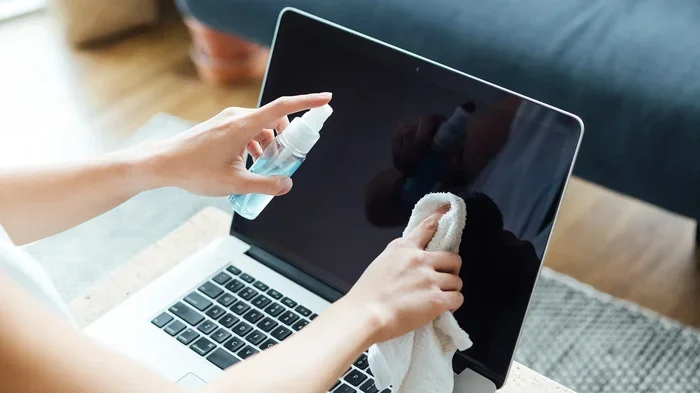
This is the most important rule. Never spray water directly onto your laptop screen. Moisture can seep through the edges and damage the internal electronics. Instead, dampen your microfiber cloth with a small amount of distilled water.
Wring the cloth out so it is just slightly damp. It should not be dripping wet. A lightly moistened cloth is all you need to lift dirt and oils from the screen surface. If the cloth is too wet, you risk excess moisture reaching the screen frame and internal components.
Step 4: Wipe Gently in Circular Motions
Now, gently wipe the screen using soft, circular motions. Start from the center and work your way outward. Do not press too hard. Let the damp cloth do the work. Applying too much pressure can damage the LCD panel underneath the surface layer.
For stubborn smudges, you can lightly breathe on the screen first to create a thin layer of moisture, then wipe with the damp cloth. This technique works surprisingly well for fingerprint marks and light grease.
Step 5: Dry the Screen Completely
After wiping, use the dry side of your microfiber cloth to gently dry the screen. This removes any remaining moisture and prevents water spots from forming. Make sure the screen is completely dry before you turn your laptop back on.
Do not let your laptop air dry with water still on the screen. Even distilled water can leave faint marks if it evaporates on the surface. A quick dry pass with a clean, dry microfiber cloth ensures a streak-free finish.
What Not to Use When Cleaning Your Laptop Screen
Knowing what to avoid is just as important as knowing what to use. Many common household products can cause serious harm to your laptop display. Here is a list of things you should never put on your screen.
Tap Water
We mentioned this earlier, but it deserves its own section. Tap water contains dissolved minerals that leave white spots on your screen as it dries. Over time, these spots can build up and become difficult to remove. Always reach for distilled water instead.
Window and Glass Cleaners
Products like Windex or other glass cleaners contain ammonia and other harsh chemicals. These are great for your windows but terrible for your laptop screen. Ammonia can strip the anti-glare and anti-reflective coatings on your display. Once these coatings are damaged, there is no way to repair them without replacing the entire screen.
Alcohol and Ammonia-Based Wipes
Disinfecting wipes and alcohol-based cleaners are tempting because they seem effective at removing grease. However, they are too harsh for electronic screens. The alcohol can dissolve the protective coatings and cause discoloration. If you need to disinfect your screen, use a screen-safe cleaning solution designed for electronics.
Paper Towels and Rough Fabrics
Paper towels may feel soft, but they are actually quite abrasive at a microscopic level. They can leave tiny scratches on your screen over time. The same goes for old t-shirts, towels, and napkins. Always stick with a quality microfiber cloth for laptop maintenance and screen cleaning.
Excessive Water or Soaking the Cloth
More water does not mean a cleaner screen. Using too much water increases the risk of moisture seeping into the laptop frame. A damp cloth is all you need. If water drips onto the keyboard or enters the laptop through the bezels, it can cause short circuits or internal corrosion.
How Often Should You Clean Your Laptop Screen?
How often you should clean your screen depends on your environment and usage habits. If you work in a dusty office or near a window, your screen will collect more grime. If you eat at your desk or have pets, you will notice more fingerprints and fur on your display.
As a general rule, give your screen a quick dry wipe with a microfiber cloth once a week. This removes dust and prevents buildup. For a deeper clean with water, do it once every two weeks or whenever you notice visible smudges and streaks.
Do not wait until your screen looks really dirty. Regular light cleaning is much safer and easier than tackling a buildup of grime. Think of it like brushing your teeth. A little effort every day saves you from bigger problems later.
When Water Is Not Enough: Using a Screen Cleaning Solution
There are times when water alone will not cut it. Heavy grease stains, sticky residue, or long-standing smudges may require a bit more cleaning power. In these cases, a dedicated screen cleaning solution is your best friend.
Look for a cleaning solution specifically designed for electronic screens. These solutions are alcohol-free and ammonia-free. They are formulated to be safe for LCD and LED displays. You can spray a small amount onto your microfiber cloth, not directly onto the screen, and wipe gently.
Some popular options include pre-moistened screen wipes that come in sealed packets. These are great for travel and quick cleanups. Just make sure the wipes are labeled as safe for electronic displays. Avoid any wipe that contains alcohol or harsh solvents.
If you prefer a DIY approach, you can make a gentle cleaning solution by mixing equal parts distilled water and white vinegar. The vinegar helps cut through grease without damaging your screen. Spray it onto the cloth and wipe as usual. This is a cost-effective alternative to store-bought solutions and works well for most light to moderate smudges.
Common Mistakes People Make When Cleaning Laptop Screens
Even with the best intentions, many people make mistakes that can damage their screens. Here are the most common errors to watch out for.
Using Too Much Pressure
Your laptop screen is not a whiteboard. You do not need to scrub it hard to get it clean. Pressing too hard can damage the LCD panel, cause dead pixels, or create pressure points that lead to long-term display issues. Always use a light touch and let the cloth do the work.
Skipping the Dry Wipe
Some people dampen the cloth, wipe the screen, and call it done. But leaving moisture on the screen can lead to water spots and streaks. Always finish with a dry pass using a clean part of your microfiber cloth.
Cleaning in Direct Sunlight
It might seem convenient to clean your screen near a window, but direct sunlight causes water and cleaning solutions to evaporate too quickly. This leaves behind residue and streaks. Move to a shaded area or clean your screen indoors for the best results.
Ignoring the Bezels and Frame
Dirt and oil build up not just on the screen but also on the bezel and frame around it. When you clean only the screen, the dirt on the frame can transfer back onto the clean surface. Wipe down the entire lid, including the edges and hinges, for a truly clean look.
Using Household Cleaning Sprays
All-purpose cleaners, disinfectant sprays, and kitchen sprays are not designed for electronic screens. They contain chemicals that can damage your display coating. Stick to products made specifically for screens, or use distilled water for a safe and simple clean.
Expert Tips for Keeping Your Laptop Screen Clean Longer
Cleaning your screen is only half the battle. Preventing dirt and smudges in the first place can save you time and keep your display looking great for years. Here are some expert-backed tips.
- Wash your hands before using your laptop. Oils and dirt from your hands are the number one cause of screen smudges. Clean hands mean a cleaner screen.
- Use a laptop sleeve or case when traveling. This protects your screen from dust, scratches, and accidental spills during transport.
- Keep your laptop away from food and drinks. Crumbs and liquid spills are the enemies of a clean display. Try to keep eating and drinking away from your workspace.
- Store your laptop in a dust-free environment. Dust settles on screens quickly, especially if you keep your laptop out in the open. A closed laptop or a carrying case helps reduce dust buildup.
- Replace your microfiber cloth regularly. A dirty cloth can scratch your screen or push dirt around instead of removing it. Wash your microfiber cloths frequently and use a clean one each time.
- Consider an anti-glare screen protector. These thin films add an extra layer of protection to your display. They make cleaning easier and help reduce fingerprint marks.
These small habits make a big difference over time. A little prevention goes a long way in keeping your laptop display care routine simple and effective.
Can I Clean My Laptop Screen With Water: Final Verdict
So, can I clean my laptop screen with water? The answer is a clear yes. Water is one of the safest and most effective ways to clean your laptop screen when used correctly. Distilled water, a quality microfiber cloth, and a gentle touch are all you need.
Remember the key rules. Never spray water directly on the screen. Always power off before cleaning. Use distilled water to avoid mineral spots. And dry the screen thoroughly after wiping. Follow these steps, and your screen will stay clean and damage-free for the long haul.
If you ever need extra cleaning power, a dedicated screen cleaning solution or a vinegar-and-water mix can handle tougher jobs. Just avoid harsh chemicals, paper towels, and excessive pressure. Treat your screen with care, and it will reward you with a clear, bright display for years to come.
Cleaning your laptop screen does not have to be intimidating. With the right knowledge and a few simple supplies, it is a quick and easy task anyone can do. So the next time your screen gets smudged, you will know exactly what to do. Grab your microfiber cloth, reach for some distilled water, and give your display the care it deserves.
Frequently Asked Questions
Can I use tap water to clean my laptop screen?
It is best to avoid tap water because it contains minerals that can leave white spots and residue on your screen. Distilled water is a much safer choice since it is pure and leaves no marks when it dries.
Is it safe to use a damp cloth on my laptop screen?
Yes, a slightly damp microfiber cloth is perfectly safe for cleaning your laptop screen. Just make sure the cloth is not soaking wet. Wring out excess water before wiping, and never spray liquid directly onto the screen.
Can water damage my laptop screen?
Water itself will not damage your screen if used correctly. The risk comes from using too much water or letting moisture seep into the laptop frame. Always use a damp cloth, not a wet one, and make sure the screen is completely dry before turning the laptop back on.
How often should I clean my laptop screen with water?
A light dry wipe with a microfiber cloth once a week is usually enough for regular maintenance. For a deeper clean with water, do it every two weeks or whenever you notice smudges and fingerprints building up on the display.
What is the best cloth to use when cleaning my laptop screen?
A microfiber cloth is the best choice. It is soft, lint-free, and gentle on screen surfaces. Avoid paper towels, rough fabrics, or old t-shirts, as these can scratch or leave fibers on your display.
Can I use vinegar and water to clean my laptop screen?
Yes, a mix of equal parts distilled water and white vinegar makes an effective and safe cleaning solution for laptop screens. Spray it onto the cloth, not the screen, and wipe gently. This works well for removing grease and stubborn smudges.
=== CONCLUSION ===
Cleaning your laptop screen with water is simple, safe, and effective when you follow the right steps. Distilled water and a microfiber cloth are all you need for most cleaning jobs. Avoid tap water, harsh chemicals, and excessive moisture. Make it a habit to clean your screen regularly and gently, and your display will stay bright and clear for years. Start today, and you will notice the difference the very next time you open your laptop.