Can All Hp Laptop Keyboards Light Up On Every Model
Not all HP laptop keyboards light up on every model. Backlit keyboards are available on select HP laptop lines, including HP Spectre, HP Envy, HP Omen, and some HP Pavilion models. Understanding which HP laptops offer keyboard backlighting and how to activate it can save you time and frustration.
This is a comprehensive guide about Can All Hp Laptop Keyboards Light Up.
Key Takeaways
- Not universal: Only certain HP laptop models feature illuminated keyboards.
- Premium lines lead: HP Spectre, HP Envy, and HP Omen laptops commonly include backlit keyboards.
- Budget models often lack it: Many HP Pavilion and HP Stream laptops do not have keyboard lighting.
- Easy to activate: Use the Fn key combination or HP settings to toggle keyboard backlight on most supported models.
- Troubleshooting helps: Driver updates and BIOS settings can fix keyboard lighting problems on compatible laptops.
- Third-party options exist: External USB keyboards with backlighting work on any HP laptop.
[FEATURED_IMAGE_PLACEHOLDER]
Can All HP Laptop Keyboards Light Up On Every Model?
Have you ever sat down at your HP laptop in a dim room and wished your keys glowed so you could type easily? You are not alone. Many people assume that HP laptop keyboard lighting comes standard on every machine. The truth is, the answer is more nuanced than a simple yes or no.
The short answer is no. Not all HP laptop keyboards light up on every model. Backlit keyboards are a feature found on select HP laptop lines, and the presence of keyboard illumination depends heavily on the model, the series, and even the specific configuration you purchased. If you are shopping for a new laptop or trying to figure out why your keys stay dark, this guide has you covered.
In this article, we will walk through everything you need to know about HP laptop keyboard backlighting. We will cover which HP models support it, how to turn it on, common issues you might face, and what to do if your laptop does not have built-in keyboard lighting. By the end, you will have a clear picture of HP notebook keyboard illumination across the entire lineup.
Understanding HP Laptop Keyboard Lighting
Before diving into specific models, it helps to understand what keyboard lighting actually means on an HP laptop. Not all backlighting is the same. Some laptops offer a simple white glow, while others provide customizable RGB lighting with multiple colors and zones.
Types of Keyboard Backlighting on HP Laptops
HP uses a few different approaches to keyboard illumination across its product lines:
- Single-color backlight: A soft white glow that illuminates all keys evenly. This is the most common type found on HP Envy and select HP Pavilion models.
- Adjustable brightness backlight: Allows you to cycle through multiple brightness levels using a keyboard shortcut. Found on most HP laptops with lighting support.
- RGB per-key lighting: Each key can display a different color. This is exclusive to the HP Omen gaming line and some premium HP Spectre models.
- Zone-based lighting: Groups of keys light up together in different color zones. Seen on select HP Omen and HP Envy models.
Knowing which type your laptop has helps you set the right expectations. If you bought a budget-friendly machine, you might have a simple non-backlit keyboard. But if you invested in a premium model, you could be enjoying full RGB keyboard lighting on your HP device.
Which HP Laptop Models Have Backlit Keyboards?
Now let us get into the details. HP laptop keyboard lighting varies significantly across product lines. Here is a breakdown of the major HP series and their keyboard backlight support.
HP Spectre Series
The HP Spectre lineup is one of HP’s premium consumer series. Almost every model in the Spectre family comes with a backlit HP laptop keyboard. Whether you own an HP Spectre x360, HP Spectre Folio, or the latest HP Spectre 16, you can expect keyboard illumination as a standard feature. The Spectre series often includes adjustable brightness levels, and some newer models offer subtle white backlighting that complements the sleek design.
HP Envy Series
HP Envy laptops are positioned as mid-to-premium machines. The vast majority of HP Envy models include keyboard backlight HP Envy as a standard feature. This applies to the HP Envy x360, HP Envy 13, HP Envy 15, and HP Envy 17 series. The backlighting is typically single-color white with adjustable brightness. It is not as flashy as RGB, but it gets the job done for typing in low-light conditions.
HP Omen Series
If you are a gamer, the HP Omen series is where you will find the most advanced keyboard lighting. HP Omen keyboard RGB lighting is one of the standout features of this lineup. Omen laptops feature per-key RGB illumination, zone lighting, and software customization through the HP OMEN Gaming Hub. Models like the HP Omen 15, HP Omen 16, and HP Omen 17 all come with fully backlit keyboards as standard.
HP Pavilion Series
The HP Pavilion series is HP’s mainstream consumer line. Here is where things get mixed. Some higher-end HP Pavilion models do include a basic backlit keyboard, but many budget-friendly Pavilion laptops do not. If you are looking for HP Pavilion keyboard backlight, check the product specifications carefully before purchasing. The presence of lighting often depends on the specific SKU and trim level.
HP Stream and Budget Models
HP Stream laptops and other budget-oriented HP notebooks typically do not include keyboard backlighting. These machines are designed with cost savings in mind, and a backlit keyboard adds to the manufacturing expense. If you own an HP Stream 11 or HP Stream 14, there is a good chance your keyboard does not light up. This is not a defect; it is simply a feature that was omitted to keep the price low.
How to Turn On Keyboard Light on HP Laptops
If your HP laptop supports keyboard lighting, you might be wondering how to activate it. The process is straightforward on most models, though the exact steps can vary slightly depending on your specific laptop.
Method 1: Use the Keyboard Shortcut
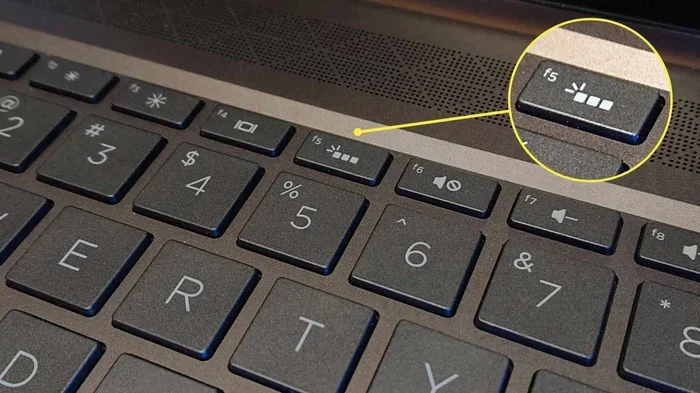
The fastest way to toggle HP laptop keyboard lighting is through a keyboard shortcut. On most HP laptops, this involves the Fn key combined with a function key. Here is what to do:
- Look at the top row of your keyboard for the function keys (F1 through F12).
- Find the key with a small keyboard or light icon. This is usually F5 or F10.
- Press and hold the Fn key, then press the illuminated keyboard icon key.
- The backlight should toggle on or off, or cycle through brightness levels.
On some HP Omen laptops, the shortcut might involve the Fn key and a dedicated lighting key with a glowing icon. Experiment with different function keys if the first one does not work.
Method 2: Use HP Command Center
Many newer HP laptops come with HP Command Center or HP OMEN Gaming Hub installed. These apps let you adjust keyboard lighting from the software side:
- Open HP Command Center from the Start menu.
- Navigate to the keyboard or lighting section.
- Adjust the brightness or choose your lighting mode.
- On Omen laptops, you can customize per-key colors and create lighting profiles.
Method 3: Check BIOS Settings
In rare cases, keyboard backlighting might be disabled in the BIOS. To check this:
- Restart your HP laptop.
- Press F10 repeatedly during startup to enter BIOS.
- Navigate to the Advanced or Device Settings section.
- Look for an option related to keyboard backlighting or illumination.
- Enable it if it is turned off.
- Save and exit.
Why Your HP Laptop Keyboard Might Not Light Up
You have an HP laptop that should support keyboard lighting, but the keys stay dark. What went wrong? Several factors can cause keyboard backlight not working HP issues. Let us walk through the most common reasons.
Driver or Software Issues
The most frequent cause of keyboard lighting problems is outdated or missing drivers. HP uses specific drivers to manage keyboard illumination. If these drivers are not installed or are out of date, the backlight will not function. To fix this:
- Open Device Manager on your laptop.
- Look for keyboard or HID device entries.
- Right-click and select Update Driver.
- Alternatively, visit the HP Support website and download the latest keyboard drivers for your specific model.
Brightness Level Set to Zero
This sounds obvious, but it happens more often than you might think. If you accidentally set the keyboard backlight brightness to the lowest level, it can appear as if the keyboard is not lighting up at all. Use the Fn + function key shortcut to cycle through all brightness levels and make sure it is not stuck at zero.
Power Management Settings
Some HP laptops automatically disable keyboard backlighting to conserve battery power. If your laptop is running on battery and the power-saving mode is active, the keyboard light might turn off. To fix this:
- Go to Settings > System > Power & Sleep.
- Click on Additional Power Settings.
- Look for a plan setting related to keyboard lighting or USB selective suspend.
- Adjust the settings to keep the keyboard backlight active.
Hardware Defect
In rare cases, a hardware defect could be the culprit. If you have tried all software solutions and the keyboard still does not light up, the backlight strip or connector might be damaged. This is more common on laptops that have been dropped or exposed to liquid. Contact HP Support for a warranty claim or repair if you suspect a hardware issue.
HP Laptop Keyboard Lighting Comparison by Model Line
To make things even clearer, here is a comparison of keyboard lighting across the major HP laptop lines.
| HP Laptop Series | Backlit Keyboard | Adjustable Brightness | RGB Lighting | Typical Price Range |
|---|---|---|---|---|
| HP Spectre | Yes | Yes | No (white only) | $900 – $1,800 |
| HP Envy | Yes | Yes | No (white only) | $600 – $1,200 |
| HP Omen | Yes | Yes | Yes (per-key RGB) | $800 – $2,500 |
| HP Pavilion (high-end) | Yes | Yes | No | $500 – $800 |
| HP Pavilion (budget) | No | N/A | No | $300 – $500 |
| HP Stream | No | N/A | No | $200 – $350 |
| HP ProBook | Some models | Varies | No | $700 – $1,400 |
| HP EliteBook | Some models | Varies | No | $1,000 – $2,000 |
As you can see from the table, HP laptop keyboard lighting is not a one-size-fits-all feature. The premium and gaming lines almost always include it, while budget and entry-level models often skip it entirely.
Can You Add Keyboard Backlighting to Any HP Laptop?
If your HP laptop does not have a backlit keyboard, you are not completely out of luck. There are a few options to add keyboard illumination to any HP notebook.
External USB Backlit Keyboards
The simplest solution is to use an external USB keyboard with built-in backlighting. These keyboards come in various sizes, layouts, and lighting styles. You can plug one into any HP laptop and enjoy illuminated typing regardless of your laptop’s built-in keyboard capabilities. Look for keyboards with adjustable brightness and RGB options if you want a customized look.
Keyboard Stickers and Key Caps
While not true backlighting, illuminated key cap stickers can help you type in the dark. These stickers have a phosphorescent coating that absorbs light and glows in the dark. They are a cheap and easy workaround, though they do not provide the same experience as a true backlit keyboard.
Internal Modification (Not Recommended)
Some tech enthusiasts attempt to install backlight strips inside a non-backlit laptop keyboard. This is a complex process that involves disassembling the laptop and adding LED strips beneath the keys. It is not recommended for most users because it can void your warranty and potentially damage the laptop. If you are not experienced with laptop disassembly, skip this option.
Tips for Getting the Most Out of Your HP Keyboard Backlight
If your HP laptop does have a backlit keyboard, here are some tips to make the most of this feature:
- Adjust brightness for the environment: In a brightly lit room, you do not need maximum backlight. Lower the brightness to save battery and reduce eye strain.
- Turn it off when not needed: Keyboard backlight draws power. Turn it off when you are in a well-lit environment to extend your battery life.
- Keep your drivers updated: Regular driver updates from HP can improve keyboard lighting performance and fix bugs.
- Use the HP Support Assistant: This built-in tool can automatically detect and install the latest drivers for your specific HP model.
- Clean your keyboard regularly: Dust and debris can reduce the visual effect of backlighting. Use compressed air to keep your keys clean.
Common Mistakes People Make with HP Keyboard Lighting
Avoid these common pitfalls when dealing with HP laptop keyboard backlight issues:
- Assuming all HP laptops have it: This is the biggest mistake. Always check the specifications before assuming your laptop supports keyboard lighting.
- Ignoring the Fn Lock key: On some HP laptops, the Fn Lock key can interfere with function key shortcuts, including the keyboard backlight toggle.
- Not checking the power plan: Power-saving settings can disable keyboard lighting automatically, and many users never think to check this.
- Skipping driver updates: Outdated drivers are the number one cause of keyboard lighting issues on HP laptops that should support it.
- Confusing screen backlight with keyboard backlight: Some users adjust the screen brightness thinking it will affect the keyboard light. These are separate controls.
Expert Insights on HP Laptop Keyboard Illumination
HP keyboard lighting technology has evolved significantly over the years. Early HP laptops that offered backlighting used simple LED strips with limited brightness. Modern HP laptops, especially those in the Omen and Spectre lines, use advanced micro-LED technology that provides even illumination across all keys with minimal power draw.
According to HP’s product engineering team, the decision to include keyboard backlighting comes down to the target audience and price point. Gaming laptops and premium consumer laptops almost always feature it because users expect it. Budget laptops and Chromebook-tier devices often omit it to keep costs competitive.
If you are in the market for a new HP laptop and keyboard lighting matters to you, focus your search on the HP Spectre, HP Envy, or HP Omen lines. These series consistently deliver excellent backlit keyboard HP experiences across their entire lineup.
Conclusion
So, can all HP laptop keyboards light up on every model? The answer is clearly no. HP laptop keyboard backlighting is a feature found on select models, primarily in the premium Spectre and Envy lines, the gaming Omen series, and some higher-end Pavilion configurations. Budget models like the HP Stream and lower-end Pavilion laptops typically do not include this feature.
The good news is that if your HP laptop does support keyboard lighting, it is usually easy to activate using a simple Fn key shortcut. And if your laptop does not have built-in lighting, external USB keyboards offer a reliable workaround.
Understanding which HP models include keyboard backlight and how to troubleshoot common issues puts you in control. Whether you are a student typing late-night essays, a professional working in a dimly lit café, or a gamer navigating dark environments, knowing your laptop’s keyboard lighting capabilities makes a real difference.
Take a moment to check your HP laptop’s specifications if you are unsure. And if you are shopping for a new machine, prioritize the HP lines that deliver the HP notebook keyboard illumination you need. A well-lit keyboard is a small feature that makes a big impact on your daily computing experience.
Can I add keyboard backlight to my HP laptop if it doesn’t have one?
The most practical way is to use an external USB backlit keyboard. Internal modifications are possible but not recommended because they can void your warranty and risk damaging your laptop. Stick with external solutions for a safe and easy upgrade.
Why does my HP keyboard backlight keep turning off by itself?
This is usually caused by power management settings. Your HP laptop may be configured to disable keyboard lighting to save battery when running on power. Check your power plan settings and adjust the keyboard illumination timeout to prevent this from happening.
Do all HP Omen laptops have RGB keyboard lighting?
Yes, all HP Omen laptops come with per-key RGB keyboard lighting as a standard feature. The OMEN Gaming Hub software lets you customize colors, effects, and lighting profiles for each key individually.
Can I change the color of my HP laptop keyboard backlight?
Only if your laptop has RGB lighting, which is found on HP Omen gaming laptops and some premium HP Spectre models. Standard single-color backlit keyboards on HP Envy and Pavilion models only offer white light with adjustable brightness.
Is HP keyboard backlight covered under warranty?
If the keyboard backlight stops working due to a manufacturing defect, it is typically covered under HP’s standard warranty. However, physical damage or accidental liquid spills usually are not covered. Check your specific warranty terms for details.
What HP laptop has the best keyboard lighting?
The HP Omen series offers the most advanced keyboard lighting with per-key RGB customization. For non-gaming users, the HP Spectre and HP Envy series provide excellent single-color backlighting with adjustable brightness that works well for everyday use.
Frequently Asked Questions
What is Can All Hp Laptop Keyboards Light Up?
Can All Hp Laptop Keyboards Light Up is an important topic with many practical applications.