Can A Bluetooth Keyboard Connect To 2 Computers Now
Yes, a Bluetooth keyboard can connect to 2 computers, and it is easier than most people think. You can switch between devices using built-in Bluetooth multipoint technology or manual pairing methods. This guide covers every method, tip, and troubleshooting step you need to set up your Bluetooth keyboard with two computers right now.
Have you ever wanted to use one Bluetooth keyboard with two different computers? Maybe you have a desktop at work and a laptop at home. Or perhaps you switch between a personal machine and a work laptop throughout the day. The idea of using a single keyboard for both sounds amazing.
The good news is that it is absolutely possible. Can a Bluetooth keyboard connect to 2 computers? Yes, it can. But how you do it depends on your keyboard model and what features it supports. In this guide, I will walk you through every method, every tip, and every solution you need.
Whether you have a multipoint Bluetooth keyboard or a basic wireless model, you will find practical steps here. I will also cover common problems and how to fix them. By the end, you will know exactly how to set up your dual computer keyboard arrangement without any headaches.
Key Takeaways
- Dual Connectivity Is Possible: A Bluetooth keyboard can pair with two computers at the same time using multipoint technology or manual switching.
- Multipoint Keyboards Are the Easiest Option: These keyboards let you switch between devices without unpairing and re-pairing every time.
- Manual Pairing Works Too: Even without multipoint support, you can connect to two computers by unpairing and reconnecting as needed.
- Watch Out for Range Limits: Bluetooth range is typically around 30 feet, so placement matters in a dual setup.
- Common Issues Have Simple Fixes: Most connection problems stem from outdated drivers, interference, or incorrect pairing mode.
- Keyboard Shortcuts Speed Things Up: Many Bluetooth keyboards offer dedicated keys to toggle between paired devices instantly.
📑 Table of Contents
How Bluetooth Keyboard Pairing Works
Before we dive into connecting two computers, let us understand the basics. Bluetooth is a wireless technology that lets devices communicate over short distances. Your keyboard uses Bluetooth to send signals to a computer. Think of it like a tiny invisible bridge between the two devices.
When you pair a wireless keyboard with a computer, they exchange a unique code. This code creates a secure connection. Once paired, the keyboard and computer recognize each other automatically. The Bluetooth protocol handles all of this in the background.
What Happens During Pairing
Here is a simple breakdown of the pairing process:
- The keyboard enters pairing mode and becomes visible to nearby devices.
- The computer scans for available Bluetooth devices.
- You select the keyboard from the list.
- The two devices exchange a pairing code.
- The connection is established and saved for future use.
Most computers remember paired devices. This means you do not need to repeat the process every time. The Bluetooth adapter on your computer manages these connections. Some computers have built-in Bluetooth. Others need a small USB Bluetooth dongle to add the feature.
Can One Bluetooth Keyboard Connect To Two Computers
This is the big question, and the answer is more nuanced than a simple yes or no. It depends on what kind of keyboard you own and how you set things up. Let us break it down into the two main scenarios.
Scenario 1: Using a Multipoint Bluetooth Keyboard
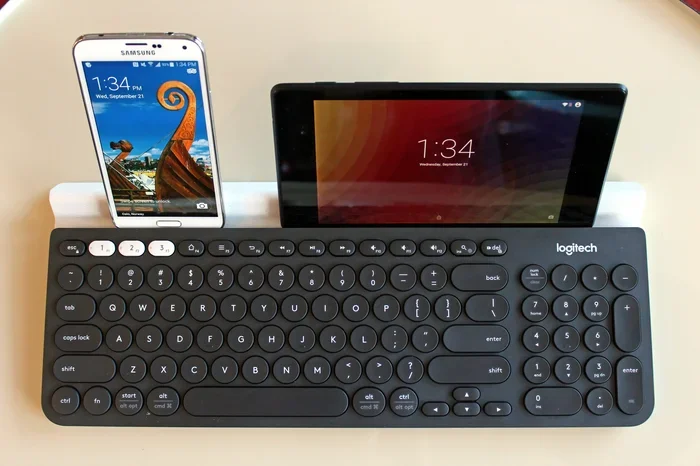
A multipoint Bluetooth keyboard is designed to connect to multiple devices at once. These keyboards can pair with two or even three computers simultaneously. You just press a button or a key combination to switch between them.
This is the easiest and most convenient method. Popular brands like Logitech, Apple, and Keychron offer keyboards with Bluetooth multipoint support. Here are some examples:
- Logitech K380: Connects to three devices. You can toggle between them with a single button press.
- Apple Magic Keyboard: Supports two simultaneous Bluetooth connections for Mac users.
- Keychron K3: A great option for both Windows and Mac users with dual-device pairing.
With a multipoint keyboard, you never have to disconnect and reconnect. The keyboard stays linked to both computers at all times. You just start typing on the one you want to use.
Scenario 2: Using a Standard Bluetooth Keyboard
If your keyboard does not support multipoint, you can still connect it to two computers. But you will need to unpair from one and pair with the other. This takes a few extra steps, but it works fine.
Here is how it works:
- Pair the keyboard with Computer A first.
- When you want to use Computer B, go to your Bluetooth settings on Computer A and unpair the keyboard.
- Put the keyboard back into pairing mode.
- Go to Computer B and pair the keyboard.
This method is less convenient, but it gets the job done. It works well if you do not switch between computers very often. If you switch every few minutes, you will want to upgrade to a multipoint keyboard instead.
Methods To Connect A Bluetooth Keyboard To Two Computers
Now that you understand the two scenarios, let us look at the specific methods you can use. Each method has its own advantages and limitations.
Method 1: Bluetooth Multipoint Switching
This is the best method if your keyboard supports it. Most multipoint keyboards have a dedicated switch or key combination for changing devices. The process is usually this simple:
- Turn on the keyboard.
- Press the device toggle button or key combination.
- The keyboard disconnects from the current computer and connects to the next one.
Some keyboards even let you name each connected device. This makes it easy to know which computer you are about to switch to. The keyboard shortcuts vary by brand, so check your manual.
Method 2: Manual Pairing and Unpairing
This method works with any Bluetooth keyboard. It requires a bit more effort, but it is reliable. Here is a step-by-step guide:
- Open Bluetooth settings on Computer A.
- Remove or unpair the keyboard from the list.
- Turn off the keyboard and then turn it back on to enter pairing mode.
- Open Bluetooth settings on Computer B.
- Find the keyboard in the list and pair it.
- Repeat the process when you want to switch back.
This method works well for people who use two computers at different times of the day. For example, you might use your desktop in the morning and your laptop in the evening.
Method 3: Using a Bluetooth USB Adapter
Some computers have weak or no built-in Bluetooth. In these cases, a Bluetooth USB adapter can help. Plug the adapter into the USB port, and your computer gains Bluetooth capability.
This method is useful when one computer has Bluetooth and the other does not. You can use the same adapter with both computers by unplugging it and plugging it into the other machine.
Bluetooth Multipoint: The Game Changer
If you are serious about using one keyboard with two computers, Bluetooth multipoint is the way to go. This technology lets your keyboard maintain active connections with multiple devices at the same time. It is a game changer for anyone who works across multiple machines.
Here is why multipoint is so powerful:
- Instant Switching: You can move from one computer to another in seconds. No need to unpair or wait for reconnection.
- No Interruptions: Both computers stay connected. When you switch, the keyboard simply routes your input to the active device.
- Less Clutter: One keyboard instead of two. Your desk stays clean and organized.
- Cost Effective: You save money by not buying a second keyboard.
When shopping for a multi-device keyboard, look for the term “multipoint” or “dual device” in the product description. Not all wireless keyboards have this feature, so it is important to check before you buy.
Top Multipoint Keyboards To Consider
| Keyboard Model | Max Devices | Price Range | Best For |
|---|---|---|---|
| Logitech K380 | 3 | $30 – $40 | Budget-friendly multi-device use |
| Apple Magic Keyboard | 2 | $99 – $129 | Mac users |
| Keychron K3 | 2 | $50 – $70 | Windows and Mac users |
| Logitech MX Keys | 3 | $80 – $100 | Professional setups |
| Microsoft Sculpt Ergonomic | 2 | $60 – $80 | Ergonomic comfort |
Each of these keyboards handles dual computer connectivity differently. The Logitech K380 is a popular choice because of its low price and easy switching. The Apple Magic Keyboard is ideal for those already in the Apple ecosystem. Choose the one that fits your needs and budget best.
Common Problems And How To Fix Them
Even with the right setup, you might run into issues. Here are the most common problems and their solutions.
Keyboard Not Showing Up in Bluetooth List
This is the most common issue. If your computer cannot find the keyboard, try these steps:
- Make sure the keyboard is in pairing mode. Most keyboards have a dedicated Bluetooth button or a key combination to activate it.
- Check that Bluetooth is turned on in your computer settings.
- Restart the Bluetooth service on your computer.
- Move the keyboard closer to the computer. Bluetooth range is usually around 30 feet.
- Remove any other Bluetooth devices that might be causing interference.
Connection Drops Frequently
If your wireless keyboard keeps disconnecting, the issue might be signal interference. Other Bluetooth devices, USB 3.0 ports, and even Wi-Fi routers can cause interference.
Here is how to fix it:
- Move the keyboard closer to the computer.
- Keep the keyboard away from other wireless devices.
- Update your computer’s Bluetooth drivers.
- Try a different USB port if you are using a Bluetooth dongle.
Keyboard Types Input on the Wrong Computer
With multipoint keyboards, this can happen if the active device has not changed properly. The fix is simple:
- Press the device toggle button on the keyboard again.
- Make sure the correct computer is selected as the active device.
- Restart the keyboard and try switching again.
Expert Insight
From a tech expert: “The biggest mistake people make is assuming all Bluetooth keyboards support multiple connections. Always check the product specifications before purchasing. Look for ‘multipoint’ or ‘dual-device’ in the features list.”
Tips For A Smooth Dual Computer Setup
Setting up one keyboard for two computers is straightforward once you know the right approach. Here are some practical tips to make the process smooth.
Quick Tips
- Label your devices: If your keyboard lets you name connected devices, use clear names like “Work Desktop” and “Home Laptop.”
- Keep drivers updated: Outdated Bluetooth drivers cause many connection issues. Check for updates regularly.
- Use a keyboard with dedicated device keys: This makes switching faster and more convenient.
- Place your keyboard centrally: If both computers are on the same desk, the keyboard will be within range of both.
- Turn off unused Bluetooth devices: This reduces interference and keeps your connection stable.
Common Mistakes To Avoid
- Assuming all keyboards work the same way: Not every wireless keyboard supports dual connections. Always verify before buying.
- Ignoring firmware updates: Keyboard firmware updates can improve Bluetooth performance and fix bugs.
- Placing the keyboard too far away: Bluetooth has a limited range. Stay within 30 feet for the best results.
- Pairing both computers at the same time on non-multipoint keyboards: Standard keyboards can only maintain one active connection at a time.
How To Choose The Right Keyboard For Your Needs
When picking a Bluetooth keyboard for two computers, consider these factors:
- Multipoint support: This is the most important feature for dual-computer use.
- Compatibility: Make sure the keyboard works with both operating systems you use.
- Ergonomics: If you type for long hours, choose a keyboard that feels comfortable.
- Battery life: A longer-lasting battery means less charging and more typing.
- Build quality: A sturdy keyboard will last longer and feel better to use every day.
Frequently Asked Questions
Can Any Bluetooth Keyboard Connect To 2 Computers?
Not all Bluetooth keyboards can connect to two computers at the same time. Only keyboards with multipoint Bluetooth support can maintain simultaneous connections. Standard Bluetooth keyboards can only connect to one computer at a time and require manual unpairing and re-pairing to switch.
How Do I Switch Between Two Computers With A Bluetooth Keyboard?
If you have a multipoint keyboard, simply press the device toggle button or key combination. The keyboard will disconnect from one computer and connect to the other. With standard keyboards, you need to unpair from one computer and pair with the other through your Bluetooth settings.
Does Using A Bluetooth Keyboard With 2 Computers Cause Lag?
Generally, no. Bluetooth keyboard latency is very low and most users do not notice any delay. However, if there is heavy wireless interference or the keyboard is far from the computer, you might experience slight lag. Keeping the keyboard close and minimizing interference helps maintain a fast, responsive connection.
Can I Use A Bluetooth Keyboard With A Desktop And A Laptop At The Same Time?
Yes, but only if your keyboard supports Bluetooth multipoint. A multipoint keyboard can stay connected to both a desktop and a laptop simultaneously. You can type on either machine by simply switching the active device with a button press.
Do I Need Any Special Software To Connect A Keyboard To 2 Computers?
No special software is needed for most setups. The Bluetooth wireless connection is handled by your computer’s built-in Bluetooth software. Some keyboard brands offer companion apps that let you customize device switching and key mappings, but these are optional.
What Is The Maximum Bluetooth Range For A Keyboard?
Most Bluetooth keyboards have a range of about 30 feet (10 meters). This means your keyboard can be up to 30 feet away from the connected computer and still work. Walls and other obstacles can reduce this range. For a dual setup on the same desk, range is usually not a concern at all.
Conclusion
Can a Bluetooth keyboard connect to 2 computers? Absolutely yes. Whether you use a multipoint Bluetooth keyboard or a standard wireless model, you can set up a dual computer keyboard arrangement that works for you. The key is choosing the right method and the right keyboard for your needs.
If you switch between computers often, invest in a multipoint keyboard. It saves time and makes the whole process seamless. If you only switch occasionally, manual pairing and unpairing will work just fine. Both methods get the job done.
Remember to keep your Bluetooth drivers updated, place your keyboard within range, and minimize wireless interference. These simple steps will keep your Bluetooth connectivity strong and reliable. With the right setup, one keyboard can serve two computers perfectly.
Now you have everything you need to get started. Pick your method, choose your keyboard, and enjoy the convenience of a wireless keyboard that works across all your devices.