Can A Raspberry Pi Be A Wifi Hotspot And Share Internet
Can a Raspberry Pi be a wifi hotspot? Absolutely yes! You can easily turn your Raspberry Pi into a wifi hotspot and share internet with phones, laptops, and tablets. This guide walks you through every step from hardware setup to configuration. You will learn how to set up Raspberry Pi wifi hotspot mode, share your internet connection, and troubleshoot common issues like a pro.
Key Takeaways
- Raspberry Pi Can Act As A Wifi Hotspot: Any Pi with a wifi adapter can become a full access point that shares your internet connection.
- Minimal Hardware Is Needed: A Raspberry Pi 3 or 4, a power supply, and an SD card are all you need to get started.
- Setup Is Straightforward: Using hostapd and dnsmasq, you can configure your Pi as a wifi hotspot in under 30 minutes.
- Multiple Devices Can Connect: Your Raspberry Pi wifi hotspot can handle several connected devices at once for sharing.
- Troubleshooting Is Simple: Most issues come from config file errors or driver problems, and they are easy to fix.
- Real World Uses Are Abundant: From travel hotspots to home network extenders, a Raspberry Pi hotspot has many practical applications.
📑 Table of Contents
- Can A Raspberry Pi Be A Wifi Hotspot And Share Internet
- What Is A Raspberry Pi Wifi Hotspot
- Hardware You Need To Get Started
- Step By Step Setup Guide
- Sharing Internet Through Your Raspberry Pi Hotspot
- Practical Uses For A Raspberry Pi Wifi Hotspot
- Troubleshooting Your Raspberry Pi Hotspot
- Expert Insights On Raspberry Pi Hotspots
- Key Takeaways
- Conclusion
Can A Raspberry Pi Be A Wifi Hotspot And Share Internet
Can a Raspberry Pi be a wifi hotspot? The short answer is a big yes. A Raspberry Pi can easily transform into a wifi hotspot and share internet with any nearby device. Whether you want to create a Raspberry Pi wifi hotspot at home, on the road, or in a workshop, this tiny computer can do it all.
Many people do not realize that a Raspberry Pi has built in wifi capabilities on newer models. This means you do not need expensive routers or extra equipment to set up a Raspberry Pi access point. With just a few simple steps, you can turn your Pi into a powerful wifi sharing tool.
In this guide, we will cover everything you need to know. From hardware requirements to step by step setup, you will find clear instructions that are easy to follow. By the end, you will know exactly how to set up your own Raspberry Pi wifi hotspot and start sharing internet right away.
Can a Raspberry Pi be a wifi hotspot for sharing internet? Yes, and it is simpler than you think. Let us dive into the details and get your Pi up and running as a full fledged access point.
What Is A Raspberry Pi Wifi Hotspot
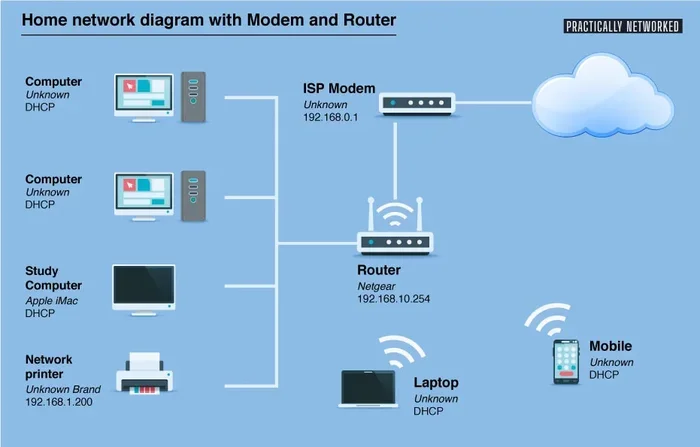
A Raspberry Pi wifi hotspot is a setup where your Pi acts as a wireless access point. It broadcasts a wifi signal that other devices can connect to. Once connected, those devices can access the internet through your Pi.
Think of it like a mini router. Your Pi receives internet from one source, such as an Ethernet cable or USB connection, and then shares it over wifi. This process is called internet sharing or wifi bridging.
How Does Internet Sharing Work On A Pi
When you set up your Raspberry Pi access point, the Pi uses two network interfaces. One interface connects to the internet source. The other interface broadcasts a wifi signal. The Pi then forwards traffic between these two connections.
This is similar to what your home router does every day. The difference is that a Raspberry Pi is much smaller, cheaper, and very flexible. You can customize every setting to fit your exact needs.
Why Would You Want To Share Internet Through A Raspberry Pi
There are many great reasons to set up a Raspberry Pi wifi hotspot. Here are some of the most common ones:
- Travel Internet Sharing: Use your Pi as a portable hotspot when you are on the go.
- Home Network Extension: Boost wifi coverage in areas with weak signal.
- Learning And Experimentation: Practice networking skills in a safe environment.
- IoT Projects: Create a dedicated network for smart home devices.
- Guest Network: Give visitors internet access without sharing your main network password.
- Event Networking: Set up a wifi network for a small gathering or workshop.
Can a Raspberry Pi be a wifi hotspot for all of these uses? Absolutely. The flexibility of the Pi makes it perfect for any situation where you need to share internet wirelessly.
Hardware You Need To Get Started
Before you start setting up your Raspberry Pi wifi hotspot, you need the right hardware. The good news is that you do not need much. Here is what you will need:
Best Raspberry Pi Models For Wifi Hotspot Use
Not all Raspberry Pi models have built in wifi. Here is a quick look at which ones work best for creating a wifi access point:
- Raspberry Pi 4: The best choice. It has dual band wifi and strong performance.
- Raspberry Pi 3 Model B+: Great option with excellent wifi capabilities.
- Raspberry Pi 3 Model B: Works well but only supports 2.4Ghz wifi.
- Raspberry Pi Zero W: Budget friendly and has wifi built in, but limited power.
If you want the best Raspberry Pi wifi hotspot experience, go with a Pi 4 or Pi 3 B+. These models have dedicated wifi chips that handle access point mode very well.
Required Accessories
Besides the Pi itself, here are the other items you will need:
- Micro SD Card: At least 16GB with Raspberry Pi OS installed.
- Power Supply: A reliable 5V power source, preferably the official one.
- Ethernet Cable: To connect your Pi to an internet source.
- Case: Optional but helps protect your Pi.
- USB Wifi Adapter: Only needed if your Pi model lacks built in wifi.
Can a Raspberry Pi be a wifi hotspot without extra accessories? Yes, if you have a Pi 3 or Pi 4 with built in wifi. You only need the Pi, a power supply, and an SD card to get started.
Step By Step Setup Guide
Now let us get into the fun part. Setting up your Raspberry Pi wifi hotspot is a straightforward process. Follow these steps carefully and you will have a working hotspot in no time.
Step 1: Install Raspberry Pi OS
First, make sure your Pi is running the latest version of Raspberry Pi OS. You can download it from the official Raspberry Pi website and flash it onto your SD card using the Raspberry Pi Imager tool.
Once the OS is installed, boot up your Pi and connect it to the internet via Ethernet. Open a terminal and run the following commands to update your system:
sudo apt updatesudo apt upgrade
These commands make sure all your packages are up to date before you begin the hotspot setup.
Step 2: Install The Hotspot Software
To create a Raspberry Pi access point, you need two key software packages: hostapd and dnsmasq. These tools handle the wifi broadcasting and IP address assignment.
Run these commands to install them:
sudo apt install hostapd dnsmasq
After installation, you need to stop these services temporarily so you can configure them properly:
sudo systemctl unmask hostapdsudo systemctl stop hostapdsudo systemctl stop dnsmasq
Step 3: Configure The Wifi Hotspot Settings
Now it is time to set up your Raspberry Pi wifi hotspot configuration. You need to edit a few config files to tell the Pi how to broadcast its wifi signal.
First, open the hostapd configuration file:
sudo nano /etc/hostapd/hostapd.conf
Add the following lines to the file:
interface=wlan0driver=nl80211ssid=MyPiHotspothw_mode=gchannel=7wmm_enabled=0macaddr_acl=0auth_algs=1ignore_broadcast_ssid=0wpa=2wpa_passphrase=YourPassword123wpa_key_mgmt=WPA-PSKrsn_pairwise=CCMP
Make sure to change the SSID and password to something you like. This is the name and password that other devices will use to connect to your Raspberry Pi wifi hotspot.
Step 4: Set Up IP Address And DHCP
Next, you need to configure the Pi to assign IP addresses to devices that connect to your hotspot. Edit the dhcpcd configuration file:
sudo nano /etc/dhcpcd.conf
Add this line at the bottom of the file:
interface wlan0static ip_address=192.168.4.1/24
Then configure dnsmasq to handle IP assignments:
sudo nano /etc/dnsmasq.conf
Add these lines at the end:
interface=wlan0dhcp-range=192.168.4.2,192.168.4.20,255.255.255.0,24h
These settings create a small private network that devices can connect to when they join your Raspberry Pi access point.
Step 5: Enable Internet Sharing
This is the key step that makes your Raspberry Pi wifi hotspot actually share internet. You need to tell the Pi to forward traffic between its ethernet connection and its wifi connection.
First, enable IP forwarding:
sudo nano /etc/sysctl.conf
Uncomment this line by removing the # symbol:
net.ipv4.ip_forward=1
Then set up NAT (Network Address Translation) using iptables:
sudo iptables -t nat -A POSTROUTING -o eth0 -j MASQUERADEsudo iptables -A FORWARD -i eth0 -o wlan0 -m state --state RELATED,ESTABLISHED -j ACCEPTsudo iptables -A FORWARD -i wlan0 -o eth0 -j ACCEPT
Save the iptables rules so they persist after reboot:
sudo sh -c "iptables-save > /etc/iptables.ipv4.nat"
Add this line to /etc/rc.local to restore rules on boot:
iptables-restore < /etc/iptables.ipv4.nat
Step 6: Start The Hotspot
Now everything is configured. Start the services and enable them to launch on boot:
sudo systemctl start hostapdsudo systemctl start dnsmasqsudo systemctl unmask hostapdsudo systemctl enable hostapdsudo systemctl enable dnsmasq
Reboot your Pi with sudo reboot. After it restarts, your Raspberry Pi wifi hotspot should be broadcasting. You can now search for your wifi network on any device and connect using the password you set earlier.
Can a Raspberry Pi be a wifi hotspot after following these steps? Yes! You have just created a fully functional wifi access point using a Raspberry Pi.
Sharing Internet Through Your Raspberry Pi Hotspot
Once your Raspberry Pi wifi hotspot is running, you can share internet with any connected device. The Pi forwards internet traffic from its ethernet connection to the wifi network it broadcasts.
How Internet Sharing Works In Practice
When a phone or laptop connects to your Raspberry Pi access point, it receives an IP address from the Pi. All internet requests from that device are routed through the Pi and then out to the internet via the ethernet connection. This happens seamlessly in the background.
The connected devices do not need to know anything about how the sharing works. They simply connect to the wifi network and browse the internet as normal.
Common Connection Methods For Your Pi
There are several ways to provide internet to your Raspberry Pi wifi hotspot:
- Ethernet Cable: The most reliable method. Plug your Pi directly into a modem or router.
- USB Tethering: Connect a phone via USB and share its mobile data with the Pi.
- USB Wifi Adapter: Use a second wifi adapter to connect to another wifi network and share it.
- 4G USB Dongle: Great for portable setups where you need mobile internet sharing.
Each method works well for different situations. Ethernet is best for a permanent setup at home. USB tethering is ideal for travel. A 4G dongle makes your Pi hotspot truly portable.
Can a Raspberry Pi be a wifi hotspot that shares internet from a USB dongle? Yes, the setup process is very similar. You just configure the Pi to use the USB interface as the internet source instead of ethernet.
Practical Uses For A Raspberry Pi Wifi Hotspot
A Raspberry Pi wifi hotspot is not just a fun project. It has many real world applications that can be genuinely useful in your daily life.
Home Network Extension
If you have dead spots in your home where wifi signal is weak, a Raspberry Pi hotspot can help. Place your Pi in the weak signal area and connect it to your main router via a long ethernet cable or powerline adapter. The Pi will then broadcast a new wifi signal in that area.
This is a cheap and effective way to extend your home network without buying a new router or range extender.
Travel And Portable Hotspot
Taking a Raspberry Pi on a trip? You can turn it into a portable wifi hotspot using a 4G USB dongle or USB tethering from your phone. This gives you a private, secure network wherever you go.
Many people use this setup for camping trips, hotel stays, or remote work locations. The Pi runs on a USB power bank, making it completely portable.
Learning And Networking Practice
If you are learning about networking, a Raspberry Pi hotspot is a perfect sandbox. You can practice configuring access points, setting up firewalls, and managing DHCP servers. It is a safe environment to experiment without affecting your main network.
Many networking courses and certifications use Raspberry Pi setups for hands on practice. It is a great way to build real world skills.
IoT And Smart Home Projects
A Raspberry Pi wifi hotspot can serve as a dedicated network for your smart home devices. This keeps IoT devices isolated from your main network, which is a smart security practice.
You can also use the Pi as a central hub to manage and monitor all your connected devices from one place.
Troubleshooting Your Raspberry Pi Hotspot
Sometimes things do not work as expected. Here are some common issues and how to fix them when setting up your Raspberry Pi wifi hotspot.
Quick Tips For A Smooth Setup
- Check Your Config Files: A single typo can break your hotspot. Double check every file carefully.
- Use The Right Channel: Channels 1, 6, and 11 are the best choices for 2.4Ghz wifi. They avoid overlap with other networks.
- Restart Services After Changes: Always restart hostapd and dnsmasq after editing their config files.
- Check Logs For Errors: Use
sudo journalctl -u hostapdto see if there are any error messages. - Keep Your Pi Cool: A hot Pi can cause stability issues. Use a heatsink or fan if needed.
Common Mistakes To Avoid
Here are some mistakes that beginners often make when setting up a Raspberry Pi access point:
- Forgetting To Enable IP Forwarding: Without this, your Pi cannot forward internet traffic between interfaces.
- Using The Wrong Interface Name: Make sure wlan0 matches your actual wifi interface. Check with
iwconfig. - Overlapping IP Ranges: Make sure your hotspot subnet does not conflict with your main network.
- Skipping The Firewall Rules: The iptables rules are essential for NAT and traffic forwarding.
- Not Saving Iptables Rules: If you do not save them, they will be lost after a reboot.
Can a Raspberry Pi be a wifi hotspot that works perfectly every time? With careful setup and attention to detail, yes. Most issues come from small configuration errors that are easy to fix.
Expert Insights On Raspberry Pi Hotspots
Setting up a Raspberry Pi wifi hotspot is one of the most popular projects in the Raspberry Pi community. Experts love it because it teaches core networking concepts while producing something practical.
The beauty of using a Raspberry Pi as a wifi access point is its flexibility. You can change settings anytime, add new features, and integrate it with other projects. Unlike a commercial router, the Pi gives you full control over every aspect of your network.
If you are new to this, start with a simple setup using ethernet internet sharing. Once you are comfortable, you can explore more advanced features like bandwidth limiting, client isolation, and captive portals.
Many makers use their Raspberry Pi wifi hotspot as a permanent part of their home setup. It is reliable, energy efficient, and costs a fraction of what a commercial solution would.
Key Takeaways
- Raspberry Pi Can Be A Wifi Hotspot: Any Pi with wifi capabilities can broadcast its own network and share internet.
- Hardware Requirements Are Minimal: A Pi 3 or 4, power supply, and SD card are all you need.
- Setup Takes Under 30 Minutes: With the right instructions, you can have a working hotspot quickly.
- Internet Sharing Is Straightforward: Use NAT and IP forwarding to route traffic between ethernet and wifi.
- Practical Uses Are Endless: From home network extension to portable travel hotspots, the possibilities are vast.
- Troubleshooting Is Manageable: Most issues are simple config errors that can be fixed easily.
- It Is A Great Learning Tool: Building a Pi hotspot teaches valuable networking and Linux skills.
Conclusion
Can a Raspberry Pi be a wifi hotspot? The answer is a definitive yes. A Raspberry Pi can be a wifi hotspot and share internet with any device nearby. It is one of the most rewarding and practical projects you can build with a Pi.
Whether you want to extend your home network, create a portable hotspot for travel, or simply learn about networking, a Raspberry Pi wifi hotspot delivers real value. The setup process is straightforward, the hardware requirements are minimal, and the results are impressive.
Can a Raspberry Pi be a wifi hotspot for sharing internet? Absolutely. With just a few software packages and some basic configuration, your Pi becomes a fully functional wifi access point. You control the network name, password, and every setting.
We encourage you to try this project yourself. Follow the steps in this guide carefully, and you will have a working Raspberry Pi access point in less than half an hour. Once you see your devices connecting to the Pi hosted network, you will feel a real sense of accomplishment.
Start small, experiment, and have fun. The world of Raspberry Pi networking is wide open, and a wifi hotspot is the perfect place to begin your journey.
Frequently Asked Questions
Can A Raspberry Pi 3 Be A Wifi Hotspot?
Yes, a Raspberry Pi 3 can absolutely be a wifi hotspot. It has built in wifi that supports access point mode. You can set it up to share internet just like a Pi 4, though the Pi 4 offers better performance and dual band wifi support.
How Many Devices Can Connect To A Raspberry Pi Wifi Hotspot?
A Raspberry Pi wifi hotspot can typically handle 10 to 20 connected devices at once. The exact number depends on your Pi model, the workload, and the type of traffic. For most home uses, 5 to 10 devices is a comfortable limit.
Is It Legal To Share Internet Through A Raspberry Pi?
Yes, sharing your own internet connection through a Raspberry Pi is completely legal in most countries. Just make sure you are not violating your internet service provider terms. Also, always use a strong password to keep your hotspot secure.
Can A Raspberry Pi Hotspot Work Without An Internet Connection?
Yes, your Raspberry Pi can still broadcast a wifi network even without internet access. Devices can connect to the hotspot and communicate with each other on a local network. This is useful for file sharing, local servers, and IoT projects.
What Is The Difference Between A Raspberry Pi Hotspot And A Regular Router?
A regular router is designed specifically for networking and has advanced features like QoS, parental controls, and better hardware. A Raspberry Pi hotspot is more flexible and customizable but may not handle heavy traffic as well. The Pi approach is great for learning and small scale use.
Can I Use A Raspberry Pi 400 As A Wifi Hotspot?
Yes, the Raspberry Pi 400 has the same internals as the Pi 4, including built in wifi. It can be set up as a wifi hotspot and share internet just like any other Pi 4 model. You may need to use a USB wifi adapter if the built in wifi is not available in your specific configuration.