Can You Make Calls Just Using Wi Fi Without a Phone
Yes, you can make calls just using Wi-Fi without a traditional phone. Wi-Fi calling lets you place voice calls over an internet connection instead of a cellular network. Whether you are traveling, in a dead zone, or using a tablet, Wi-Fi-based voice calls keep you connected. VoIP technology and several free apps make this possible on almost any device. Read on to learn exactly how it works and which tools you need.
Have you ever found yourself in a place with no cell signal but a strong Wi-Fi connection? Maybe you are in a basement, a remote cabin, or a crowded stadium. The frustration of not being able to make a call is real. But here is the good news. You can make calls just using Wi-Fi without a phone. This is not a magic trick. It is a real technology that millions of people use every single day.
Wi-Fi calling has changed the way we think about staying connected. You no longer need a traditional SIM card or a cellular plan to place a voice call. All you need is a reliable internet connection and the right app or device. Whether you are using a tablet, a laptop, or a smart home device, internet-based voice calls are more accessible than ever. In this guide, we will walk you through everything you need to know. We will cover how it works, which apps to use, setup steps, benefits, limitations, and expert tips.
So if you have ever wondered whether you can ditch your phone and still make calls, the answer is a clear yes. Let us dive in and explore the world of Wi-Fi-only calling together.
Key Takeaways
- Wi-Fi calling works without a phone: You can use tablets, laptops, and smart devices to make calls over Wi-Fi.
- VoIP apps are the backbone: Apps like Skype, WhatsApp, and Zoom power internet-based calling without a SIM card.
- Setup is simple: Most devices let you enable Wi-Fi calling in just a few minutes.
- Quality depends on your connection: A strong broadband connection ensures clear voice calls.
- Free and paid options exist: Many Wi-Fi calling apps are completely free, while others offer premium features.
- Limitations exist: Emergency calls and rural areas can pose challenges for Wi-Fi-only calling.
📑 Table of Contents
- What Is Wi-Fi Calling and How Does It Work?
- Can You Make Calls Just Using Wi-Fi Without a Phone?
- Best Apps for Wi-Fi Calling Without a Phone
- How to Set Up Wi-Fi Calling on Any Device
- Benefits and Limitations of Wi-Fi-Only Calls
- Expert Tips for Better Wi-Fi Calls
- Common Mistakes People Make With Wi-Fi Calling
- Conclusion
What Is Wi-Fi Calling and How Does It Work?
Wi-Fi calling is a technology that lets you make voice calls using a wireless internet connection instead of a traditional cellular network. Instead of routing your call through cell towers, your voice data travels over the internet. This is the same basic idea behind VoIP, which stands for Voice over Internet Protocol.
When you make a Wi-Fi voice call, your device converts your voice into small data packets. These packets travel through your broadband connection to the recipient. The recipient’s device then reassembles those packets back into sound. The whole process happens in milliseconds. You barely notice any delay in most cases.
How Is Wi-Fi Calling Different From Regular Cellular Calls?
Regular cellular calls rely on radio waves transmitted through cell towers. Your phone connects to the nearest tower, and your voice travels through the carrier’s network. Wi-Fi-based calling skips the cell towers entirely. Your voice data moves through your home or office router and out to the internet.
Here are the key differences:
- Cellular calls need a SIM card and a mobile signal.
- Wi-Fi calls need an internet connection and a compatible device.
- Cellular coverage depends on tower proximity.
- Wi-Fi calling works anywhere with a broadband connection.
- Cellular calls may drop in rural or remote areas.
- Wi-Fi calls stay strong as long as your internet is stable.
What Technology Powers Wi-Fi Calling?
The technology behind internet telephony has been around for decades. Early versions of VoIP appeared in the late 1990s. Companies like Skype popularized it in the 2000s. Today, Wi-Fi calling is built into most modern smartphones, tablets, and even some laptops. The technology uses codecs to compress and decompress your voice data. This ensures smooth, real-time communication without eating up too much bandwidth.
Broadband calling has also evolved to support video, group chats, and file sharing. So it is not just about voice anymore. You can share your screen, send documents, and even make conference calls over Wi-Fi. The possibilities are vast.
Can You Make Calls Just Using Wi-Fi Without a Phone?
The short answer is absolutely yes. Can you make calls just using Wi-Fi without holding a traditional phone? You bet. Many people do this every day without even realizing it. If you have ever used WhatsApp to call a friend or FaceTimed a family member, you have already made a Wi-Fi call without a phone in the traditional sense.
You do not need a dedicated mobile device to place calls. Any device that connects to Wi-Fi can potentially make calls. This includes tablets, laptops, desktop computers, smart speakers, and even some smartwatches. As long as the device has a microphone, speaker, and internet access, you are good to go.
Devices You Can Use for Wi-Fi-Only Calls
Let us look at the devices that support Wi-Fi-based calling without needing a phone:
- Tablets: iPads and Android tablets can make calls through apps like WhatsApp, Skype, and Zoom.
- Laptops and desktops: Computers with a microphone and internet can use VoIP services for voice calls.
- Smart speakers: Devices like Amazon Echo and Google Nest allow voice calls over Wi-Fi.
- Smartwatches: Some watches can make calls when connected to Wi-Fi, even without a paired phone nearby.
- VoIP adapters: These devices plug into your router and turn any regular phone into a Wi-Fi calling device.
Do You Need a SIM Card for Wi-Fi Calls?
No, you do not. A SIM card is only needed for cellular network access. Wi-Fi calling bypasses the cellular network entirely. This means you can make calls with a SIM-free device or even a device that never had a SIM card inserted. This is especially useful for people who prefer SIM-free calling or who travel internationally and want to avoid roaming charges.
However, some apps may require you to create an account. For example, Skype and WhatsApp require a phone number for verification during setup. But once set up, you can use them on any Wi-Fi-connected device without a SIM card.
Best Apps for Wi-Fi Calling Without a Phone
Not all apps are created equal when it comes to Wi-Fi-based voice calls. Some are free, some offer premium features, and some work better on certain devices. Here are the best options for making internet-based calls without a phone.
1. WhatsApp
WhatsApp is one of the most popular VoIP apps in the world. It supports voice and video calls over Wi-Fi. The app is free to use and works on both Android and iOS devices. You just need a Wi-Fi connection and the app installed. WhatsApp is great for casual calls and group chats.
2. Skype
Skype has been a pioneer in internet telephony for years. It offers high-quality voice calls, video calls, and even the ability to call landlines and mobile numbers for a small fee. Skype works well on computers, tablets, and phones. It is a solid choice for both personal and professional Wi-Fi-only calls.
3. Zoom
Zoom exploded in popularity during recent years, and for good reason. It supports group voice and video calls over Wi-Fi. The free version allows up to 100 participants for group calls. Zoom is excellent for business calls, online classes, and family gatherings.
4. Google Meet
Google Meet is another strong option for Wi-Fi-based calling. It integrates well with Google services and works directly in your web browser. You do not even need to install an app on a computer. Google Meet is free for personal use and supports up to 100 participants.
5. FaceTime
FaceTime is Apple’s built-in calling app. It works seamlessly across iPhones, iPads, and Macs. FaceTime calls over Wi-Fi are crystal clear and completely free between Apple users. However, it only works within the Apple ecosystem, so Android and Windows users cannot join FaceTime calls.
6. Viber
Viber offers free voice and video calls over Wi-Fi. It also supports Wi-Fi messaging and group calls. Viber works on both Android and iOS and is a great alternative to WhatsApp for internet-based voice communication.
How to Set Up Wi-Fi Calling on Any Device
Setting up Wi-Fi calling is straightforward. The process varies slightly depending on your device, but the basic steps are similar. Here is a practical guide to get you started.
Setting Up Wi-Fi Calling on an iPhone
Apple makes it easy to enable Wi-Fi calling on iPhones. Follow these steps:
- Open the Settings app on your iPhone.
- Tap on “Phone.”
- Select “Wi-Fi Calling.”
- Toggle “Wi-Fi Calling on This iPhone” to on.
- Enter your address for emergency services if prompted.
- Your iPhone will now make calls over Wi-Fi automatically when cellular signal is weak.
Setting Up Wi-Fi Calling on an Android Device
Android devices also support Wi-Fi-based calling. The exact steps may vary by manufacturer:
- Open the Settings app.
- Go to “Network and Internet” or “Connections.”
- Tap on “Wi-Fi Calling” or “Calling Accounts.”
- Enable “Wi-Fi Calling.”
- Accept the terms and conditions.
- Your phone will now route calls through Wi-Fi when available.
Using Wi-Fi Calling Apps on Tablets and Laptops
For devices that do not have built-in Wi-Fi calling, you can use third-party apps. Simply download an app like WhatsApp, Skype, or Zoom from the app store. Sign in with your account, connect to Wi-Fi, and start calling. The setup takes less than five minutes in most cases.
Quick Tips for a Smooth Setup
- Make sure your Wi-Fi signal is strong in the area where you will be calling.
- Use a 5GHz network for better call quality if available.
- Close other apps that might use bandwidth during a call.
- Use a headset or earbuds for clearer audio.
- Keep your device charged, as calls can drain battery faster.
Benefits and Limitations of Wi-Fi-Only Calls
Like any technology, Wi-Fi calling has its advantages and drawbacks. Understanding both sides helps you make the best choice for your communication needs.
Benefits of Making Calls Over Wi-Fi
Wi-Fi-based voice calls offer several real-world benefits:
- No cellular signal needed: You can call from anywhere with Wi-Fi, even in areas with no cell coverage.
- Cost savings: Many Wi-Fi calling apps are completely free. You avoid expensive cellular plans and international roaming fees.
- Flexibility: You can call from any Wi-Fi-connected device, not just your phone.
- Better quality: With a strong broadband connection, Wi-Fi voice calls can be clearer than traditional calls.
- Multi-device support: You can start a call on your phone and switch to your tablet or laptop seamlessly.
- International calling: Many apps let you call international numbers for free or at very low cost.
Limitations You Should Know About
Wi-Fi-only calling is not perfect. Here are some limitations to keep in mind:
- Internet dependency: If your Wi-Fi goes down, your calls go down too.
- Emergency calling challenges: Some Wi-Fi-based calling services may not accurately relay your location to emergency services.
- Quality varies: A weak or congested Wi-Fi network can cause dropped calls or poor audio.
- App compatibility: Not all apps work on all devices. Some require specific operating systems.
- Data usage: Voice calls use data, which can be a concern if you are on a limited data plan.
- Rural broadband issues: In areas with slow or unreliable internet, Wi-Fi calling may not work well.
Comparison Table: Popular Wi-Fi Calling Apps
| App | Free Voice Calls | Video Calls | Call Landlines | Platforms |
|---|---|---|---|---|
| Yes | Yes | No | Android, iOS | |
| Skype | Yes | Yes | Yes (paid) | All platforms |
| Zoom | Yes (1-on-1) | Yes | No | All platforms |
| Google Meet | Yes | Yes | No | All platforms |
| FaceTime | Yes | Yes | No | Apple only |
| Viber | Yes | Yes | Yes (paid) | Android, iOS |
Expert Tips for Better Wi-Fi Calls
Want to get the most out of Wi-Fi-based calling? Here are some expert insights to improve your experience.
Optimize Your Wi-Fi Network for Calls
A strong, stable connection is the foundation of great Wi-Fi voice calls. Place your router in a central location in your home. Avoid thick walls and metal objects near the router. If possible, use a 5GHz frequency band for faster speeds and lower latency.
Use a Wired Connection When Possible
If you are calling from a laptop or desktop, consider using an Ethernet cable instead of Wi-Fi. A wired connection is more stable and less prone to drops. This is especially important for important business calls or long conversations.
Close Background Apps
Other apps running in the background can consume bandwidth and affect call quality. Close unnecessary apps before making a Wi-Fi call. This ensures your call gets the full speed of your connection.
Invest in a Good Headset
A quality headset or earbuds can make a huge difference in call clarity. Look for headsets with noise cancellation for the best results. This is especially helpful if you are in a noisy environment.
Test Your Setup Before Important Calls
Do not wait until an important call to test your Wi-Fi calling setup. Make a test call with a friend or family member beforehand. Check the audio quality, connection stability, and microphone performance. This small step can save you from awkward technical issues during a real call.
Consider a Mesh Wi-Fi System
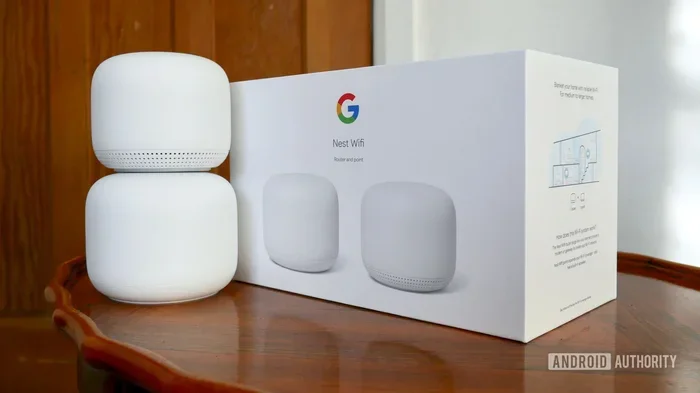
If you have a large home or office, a single router may not provide consistent coverage everywhere. A mesh Wi-Fi system uses multiple nodes to spread your signal evenly. This ensures you can make Wi-Fi-only calls from any room without worrying about dead zones.
Common Mistakes People Make With Wi-Fi Calling
Even though Wi-Fi calling is simple, people still make avoidable mistakes. Here are some common pitfalls to watch out for.
Assuming All Wi-Fi Calls Are Free
While many apps offer free calls, some services charge for calling landlines or mobile numbers. Always check the pricing before making international or non-app calls. Services like Skype and Viber offer paid options for calling traditional phone numbers.
Ignoring Wi-Fi Security
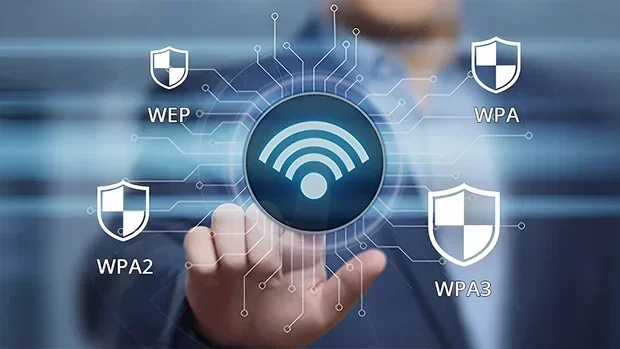
Public Wi-Fi networks are convenient but can be risky. Avoid making sensitive calls on public networks. Use a VPN if you must call over public Wi-Fi. Your Wi-Fi-based voice calls could be intercepted on unsecured networks.
Not Checking Your Internet Speed
Voice calls need a minimum internet speed to work well. A connection slower than 1 Mbps can cause choppy audio. Before an important call, check your broadband speed using a free online tool. If your speed is low, consider switching to a less congested network.
Forgetting to Enable Wi-Fi Calling
Some people assume their phone automatically routes calls over Wi-Fi. This is not always true. Make sure you have manually enabled Wi-Fi calling in your device settings. Otherwise, your calls will still try to use the cellular network first.
Using Outdated Apps
App updates often include bug fixes and performance improvements. Using an outdated version of a VoIP app can lead to poor call quality or crashes. Keep your apps updated for the best experience.
Conclusion
Can you make calls just using Wi-Fi without a phone? The answer is a resounding yes. Wi-Fi calling has transformed the way we communicate. You no longer need a traditional phone or cellular plan to stay in touch with the people who matter. Whether you are using a tablet, laptop, smart speaker, or any other Wi-Fi-connected device, internet-based voice calls are within your reach.
The technology behind Wi-Fi-based calling continues to improve. Apps are getting better, connections are getting faster, and more devices are becoming Wi-Fi calling-compatible. With the right setup and a strong broadband connection, you can make crystal-clear calls from virtually anywhere in the world.
So the next time you find yourself without cell signal or without a phone in hand, remember that your options are not limited. Embrace Wi-Fi-only calling and stay connected on your terms. The future of communication is here, and it runs on Wi-Fi.
Frequently Asked Questions
Can I make emergency calls using Wi-Fi without a phone?
Most Wi-Fi calling apps do not support direct emergency calls like 911. However, some devices can route emergency calls through Wi-Fi if you have enabled this feature in your settings. Always check with your carrier or device manufacturer for emergency calling capabilities on Wi-Fi-based calls.
Do I need a phone number to make Wi-Fi calls?
Not always. Apps like WhatsApp, Skype, and Zoom let you call other users without sharing your phone number. However, some services require a phone number for account verification during setup. After that, you can call using your username or email instead.
Is Wi-Fi calling free?
Most Wi-Fi calling apps are free for calls between app users. Apps like WhatsApp, FaceTime, and Skype allow free voice and video calls over Wi-Fi. However, calling traditional landlines or mobile numbers through some services may incur small charges.
Can I use Wi-Fi calling internationally?
Yes, absolutely. Wi-Fi-based calling works internationally as long as you have an internet connection. Many apps let you make free international calls to other app users. Some services also offer affordable rates for calling international phone numbers, saving you from expensive roaming charges.
What internet speed do I need for good Wi-Fi calls?
A minimum upload and download speed of 1 Mbps is sufficient for standard voice calls. For HD or video calls, you should aim for at least 3 to 5 Mbps. A stable connection is more important than raw speed. A wired Ethernet connection often provides the most reliable experience for Wi-Fi voice calls.
Can I make Wi-Fi calls from a smart TV or gaming console?
Some smart TVs and gaming consoles support VoIP apps like Skype or Zoom. You can use these devices to make calls over Wi-Fi if they have a built-in microphone or if you connect an external one. However, the experience is usually better on devices designed for communication, like tablets or computers.