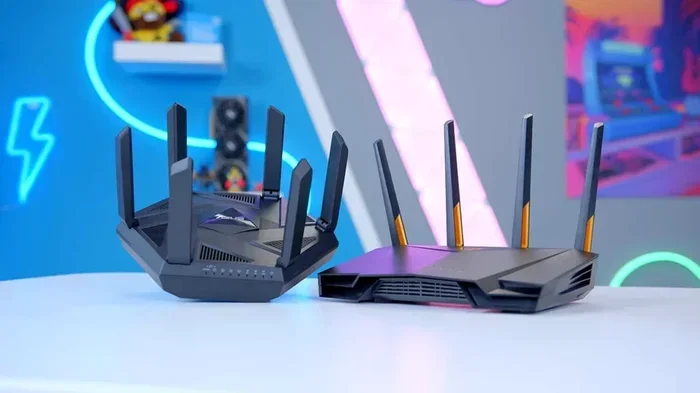
Can You Have Two Wi Fi Networks With The Same Ssid
Yes, you can run two Wi-Fi networks with the same SSID. This setup lets devices roam seamlessly between routers, but it can cause interference and confusion if not done right. You’ll need to configure each router’s wireless settings, choose the right mode, and manage channels carefully. This guide walks you through the entire process, from basic setup to avoiding common pitfalls, so you can decide if a unified network name fits your home or office.
Can You Have Two Wi-Fi Networks With The Same SSID? The short answer is yes. You can give two different routers the exact same wireless network name, and your devices will treat them as a single network. This approach is popular in larger homes, offices, and venues where a single router can’t cover every corner. But it comes with trade-offs that you need to understand before you start changing settings.
When you set up a second router with the same SSID, you’re essentially creating a unified wireless network. Your phone, laptop, and smart home gadgets can move from one access point to another without you having to manually switch networks. The goal is convenience and better coverage. However, if the configuration is wrong, you might face slow speeds, dropped connections, or devices that refuse to connect. This guide explains everything you need to know, from the basics of what an SSID is to step-by-step setup instructions and expert tips for avoiding common problems.
Key Takeaways
- Same SSID is possible: Two routers can broadcast the exact same wireless network name without breaking anything.
- Seamless roaming is the main benefit: Devices switch between access points more smoothly when the network name is identical.
- Interference is a real risk: Overlapping channels and dual-band conflicts can slow down your connection if you’re not careful.
- Bridge mode or repeater mode matters: Choose the right setup to avoid double NAT and IP conflicts.
- Not for every situation: Some devices struggle with identical SSIDs, and separate names can be easier to troubleshoot.
- Follow best practices: Use different channels, enable band steering, and keep firmware updated for a stable experience.
📑 Table of Contents
- Can You Have Two Wi-Fi Networks With The Same SSID? Here’s the Short Answer
- What Is an SSID and Why Would You Duplicate It?
- How to Set Up Two Routers with the Same SSID
- Pros and Cons of Identical SSIDs
- Potential Problems and How to Avoid Them
- Best Practices for Seamless Roaming
- When to Use Different SSIDs Instead
Can You Have Two Wi-Fi Networks With The Same SSID? Here’s the Short Answer
Yes, you can have two Wi-Fi networks with the same SSID. The SSID, or Service Set Identifier, is simply the name that appears when you scan for wireless networks. By setting the same SSID and password on two routers, you create a single logical network that spans multiple access points. Devices will connect to the strongest signal without you needing to choose between network names.
This setup is different from running two completely separate networks, which would show up as “HomeNetwork” and “HomeNetwork_2” on your phone. With a shared SSID, your phone sees only one “HomeNetwork” and switches to whichever router provides the best signal. It sounds simple, but the behind-the-scenes configuration can get tricky. You have to manage IP addresses, channel assignments, and roaming behavior carefully.
Many people use this method to extend coverage in a large house. For example, you might have a main router in the living room and a second router in the basement. Giving them the same SSID means you can walk downstairs with your laptop and stay connected without any interruption. The key is to set it up correctly so the two routers work together instead of fighting each other.
What Is an SSID and Why Would You Duplicate It?
Understanding SSID Basics
An SSID is the human-readable name of your wireless network. It’s the label you see on your phone when you look for Wi-Fi. Every router broadcasts its SSID, and devices use that name to identify and connect to the network. By default, many routers use generic names like “NETGEAR” or “Linksys,” but you can change it to anything you want.
The SSID is not a secret. It’s broadcast over the air so devices can find it. You can also hide it, but that just makes it invisible to casual scans; it doesn’t add real security. When you duplicate an SSID, you’re telling two or more routers to announce the same name and password. The devices then treat them as one network, even though there are two separate physical radios doing the work.
Common Reasons for Using the Same SSID
There are several reasons people choose to run two Wi-Fi networks with the same SSID. The most common is to extend wireless coverage. A single router might not reach the back of the house, the garage, or a second floor. Adding a second router with the same SSID fills in the gaps without forcing you to create a new network name.
Another reason is seamless roaming. If you have a smart home with many devices, you want them to stay connected as you move around. A single SSID makes that easier because devices can hand off from one access point to another without dropping the connection. Some people also do it for aesthetic reasons—they want their network to appear as one clean entry in the Wi-Fi list, not a confusing mess of similar names.
In business settings, identical SSIDs help with load balancing. You can place multiple access points throughout a store or office, all using the same name, so customers and staff can move freely without losing signal. The same principle applies to large apartment buildings or guest networks where simplicity is key.
How to Set Up Two Routers with the Same SSID
Step-by-Step Configuration
Setting up two routers with the same SSID is straightforward, but you need to pay attention to a few details. Here’s a simple walkthrough you can follow.
- Connect the second router to the first. Use an Ethernet cable from a LAN port on the main router to the WAN or LAN port on the second router, depending on the mode you choose.
- Access the second router’s admin panel. Open a browser and type the router’s IP address, usually 192.168.1.1 or 192.168.0.1.
- Disable the DHCP server on the second router. This prevents IP address conflicts. The main router should be the only one handing out addresses.
- Set the SSID and password identical to the main router. Type the exact same network name and security key in the wireless settings.
- Choose a different Wi-Fi channel for each router. If the main router uses channel 1, set the second router to channel 6 or 11 to avoid interference.
- Save and reboot both routers. Give them a minute to restart, then scan for networks on your phone to confirm they show as one.
Quick Tip: If your second router supports bridge mode or access point mode, use that. It simplifies the setup and reduces the chance of double NAT issues. Double NAT can cause problems with online gaming, port forwarding, and some streaming services.
Bridging vs. Repeating: Which to Choose
When you extend a network, you have two main options: bridge mode and repeater mode. Bridge mode connects the second router directly to the main router via Ethernet. It creates a single network with multiple access points, and it offers the best performance because the wired backhaul doesn’t lose speed.
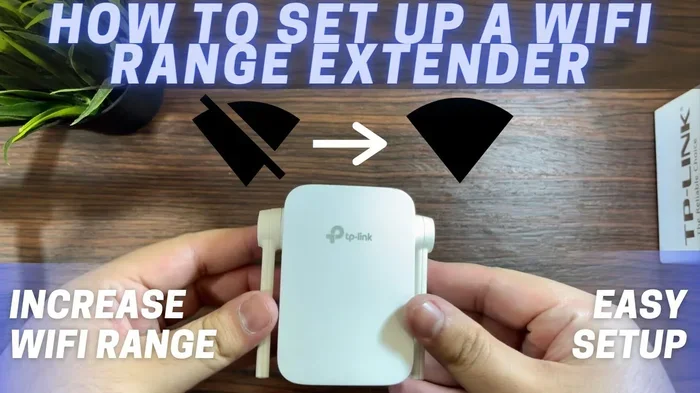
Repeater mode, also called extender mode, uses wireless to connect to the main router. The second router repeats the signal, which can cut your bandwidth in half. If you can’t run an Ethernet cable, a repeater is better than nothing, but a bridge or access point setup is always faster. For the best results with a shared SSID, use a wired connection between the routers whenever possible.
| Feature | Bridge Mode (Wired) | Repeater Mode (Wireless) |
|---|---|---|
| Speed Loss | Minimal | Up to 50% |
| Setup Complexity | Moderate | Easy |
| Reliability | High | Lower |
| Best For | Permanent installations | Quick extensions |
Pros and Cons of Identical SSIDs
Advantages of Sharing a Network Name
Using the same SSID on two routers has some clear benefits. First, it offers seamless roaming. Your phone and tablet stay connected as you walk from room to room because they see only one network and automatically switch to the strongest signal. This is especially helpful for video calls and streaming, where a dropped connection is frustrating.
Second, it simplifies the user experience. Guests don’t have to know which network to pick; they just enter the password once and can move anywhere in the house. Third, it reduces the number of network entries on your device list, which keeps things clean and organized. For smart home devices, a single SSID can make pairing and management easier.
Drawbacks You Need to Know
The biggest downside is interference. If two routers with the same SSID broadcast on overlapping channels, they can cause signal noise and slow down your connection. Devices might also struggle to decide which router to use, leading to roaming delays or stubborn connections to a weak signal.
Another issue is device confusion. Some older devices don’t handle multiple access points with the same SSID well. They might stick to a distant router even when a stronger one is nearby, or they might disconnect unexpectedly. Security can also be trickier. If one router is compromised, the entire shared network is at risk because the SSID and password are the same.
Finally, troubleshooting becomes harder. When something goes wrong, you can’t just reboot one router; you have to check both. Identifying which access point is causing a problem requires more technical knowledge. For these reasons, a shared SSID isn’t always the best choice, especially in small apartments where a single router would suffice.
Potential Problems and How to Avoid Them
Interference and Channel Overlap
Wi-Fi signals operate on specific channels within the 2.4 GHz and 5 GHz bands. If two routers with the same SSID use the same or overlapping channels, they interfere with each other. This creates noise that slows down speeds and increases latency. To avoid this, always assign non-overlapping channels. In the 2.4 GHz band, channels 1, 6, and 11 are the safe choices. In the 5 GHz band, you have many more options, so pick channels that are at least 20 MHz apart.
Quick Tip: Use a Wi-Fi analyzer app on your phone to see which channels are least congested before you set up the second router. This small step can make a big difference in performance.
Device Confusion and Roaming Issues
Some devices are stubborn about which router they stick to. They might cling to a weak signal because they don’t realize a stronger one is available. This is called poor roaming behavior. To help devices switch smoothly, make sure both routers use the same security type (like WPA2 or WPA3) and the same password. Also, enable band steering if your routers support it, which nudges dual-band devices to use the faster 5 GHz band when possible.
Common Mistake: Don’t set different passwords on the two routers, even if you’re tempted. Identical SSIDs must have identical security settings, or devices will refuse to connect or will drop off unexpectedly.
Common Mistakes to Avoid
- Forgetting to disable DHCP on the second router. This causes IP address conflicts and can break internet access for some devices.
- Using the same channel on both routers. This leads to interference and slower speeds for everyone.
- Leaving the second router in router mode instead of bridge or access point mode. This creates double NAT, which can block online gaming and port forwarding.
- Hiding one SSID but not the other. If one router broadcasts and the other doesn’t, devices get confused and may not connect properly.
Best Practices for Seamless Roaming
Enabling Band Steering and Fast Roaming
Band steering is a feature that pushes dual-band devices to the 5 GHz band when they’re close to a router. This keeps the 2.4 GHz band less crowded for older devices or those further away. Many modern routers support band steering, but you need to enable it in the settings. When both routers use the same SSID, band steering works across the entire network, giving you a smoother experience.
Fast roaming, also known as 802.11r, helps devices switch between access points in milliseconds. It’s especially useful for voice over Wi-Fi and video streaming. If your routers support it, turn it on. It works hand-in-hand with a shared SSID to make movement around your home feel invisible.
Expert Insights from Network Engineers
Network engineers often recommend a wired backhaul when using a shared SSID. “The golden rule is to connect the second router with an Ethernet cable whenever you can,” says a senior network specialist. “Wireless repeaters degrade speed, but a wired bridge gives you full performance on both access points. If you must go wireless, use a dedicated wireless bridge or a mesh system designed for seamless roaming.”
Another expert tip is to keep the SSID hidden on neither router. “Hiding an SSID doesn’t improve security, and it can cause connection issues with some smart devices,” they add. “Let both routers broadcast the same name, and make sure the password is strong and the encryption is set to WPA3 or WPA2-AES.”
When to Use Different SSIDs Instead
Scenarios Where Separate Names Make Sense
There are times when running two separate networks is the better choice. In a small apartment, a single router usually covers everything, so adding a second router with a different SSID is unnecessary. If you’re setting up a guest network, you want a separate SSID so visitors can’t access your main devices. A guest network with a different name keeps your private data safe while still giving guests internet access.
You might also choose different SSIDs when you need to prioritize certain devices. For example, you could name one network “HomeNetwork_2G” for smart home gadgets and “HomeNetwork_5G” for phones and laptops. This separation helps you manage bandwidth and reduce interference between older and newer devices.
Final Verdict: Same SSID or Different?
If you need to cover a large area and want seamless roaming, using the same SSID is a great solution. Just follow the setup steps carefully, manage channels, and avoid the common mistakes listed above. If you’re in a small space, or if you want simple troubleshooting and guest isolation, different SSIDs are the way to go. The best choice depends on your layout, your devices, and how much control you want over your network.
Remember, the goal is a stable, fast, and easy-to-use wireless network. Whether you use one SSID or two, the key is proper configuration and regular maintenance. Update your router firmware, check for interference, and reboot your routers occasionally to keep everything running smoothly.
Key Takeaways
- A shared SSID enables seamless roaming across multiple access points.
- Use bridge mode and a wired connection for the best performance.
- Always assign different, non-overlapping channels to avoid interference.
- Disable DHCP on the second router to prevent IP conflicts.
- Separate SSIDs are better for guest networks and device prioritization.
Frequently Asked Questions
Can I use two different router brands with the same SSID?
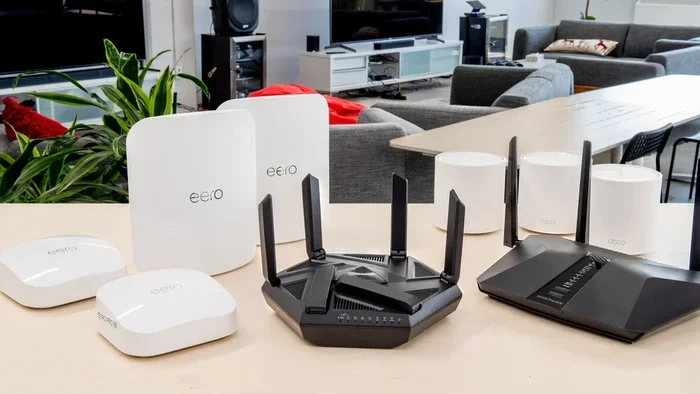
Yes, you can mix router brands as long as both support the same wireless standards and you set the SSID and password identically. The key is to configure the second router in bridge or access point mode and disable its DHCP server. Different brands may have slightly different admin interfaces, but the core settings are the same.
Will my phone automatically switch to the stronger router?
Most modern phones and laptops will roam to the stronger signal when using a shared SSID. However, some older devices are slow to switch and may stick to a weak router. You can improve roaming by enabling fast roaming (802.11r) and band steering on your routers, and by keeping the SSID and security settings identical.
Is it safe to use the same SSID and password for both routers?
It’s safe from a security standpoint because the encryption and password are the same. Anyone who connects to either router gets access to the same network. If you want to isolate guests or IoT devices, a separate SSID is a better choice. Otherwise, a shared SSID with a strong WPA3 password is perfectly fine.
What happens if both routers use the same channel?
Using the same channel on two routers with the same SSID causes channel overlap and interference. This leads to slower speeds, higher latency, and dropped packets. Always set the routers to different, non-overlapping channels—like channel 1 and channel 6 on the 2.4 GHz band—to keep the network fast and stable.
Can I have more than two routers with the same SSID?
Yes, you can add a third, fourth, or even more routers with the same SSID. This is common in large offices or apartment buildings. Each additional router acts as another access point. The same rules apply: use a wired backhaul, disable DHCP, assign unique channels, and keep the SSID and password identical for seamless roaming.
Does a shared SSID affect internet speed?
A shared SSID itself doesn’t slow down your internet speed. However, if the routers interfere with each other on the same channel, or if you use wireless repeating instead of a wired bridge, you can lose significant bandwidth. Proper channel planning and a wired connection between routers will maintain full speed across the network.