Can You Do 1440p On Hdmi And Get Amazing Picture Quality
Yes, you can absolutely do 1440p on HDMI, and the results can be breathtaking. Your picture quality depends on the HDMI cable version, your source device, and the right bandwidth support. This guide walks you through every detail so you can set up the best 1440p resolution experience.
Key Takeaways
- 1440p works on HDMI: You need an HDMI 2.0 or higher cable to get smooth 1440p output with great picture quality.
- HDMI version matters: HDMI 2.0 supports 1440p at 60Hz, while HDMI 2.1 unlocks 1440p at 120Hz and beyond.
- Bandwidth is key: The right bandwidth ensures your display resolution stays sharp without flickering or signal loss.
- Your source device counts: A capable graphics card or gaming console determines whether you can push 1440p content effectively.
- Cable quality affects results: Using a cheap or outdated HDMI cable can limit your ultra HD experience and hurt overall picture quality.
📑 Table of Contents
- Can You Do 1440p On HDMI And Get Amazing Picture Quality?
- Understanding 1440p Resolution and HDMI Basics
- Which HDMI Version Do You Need for 1440p?
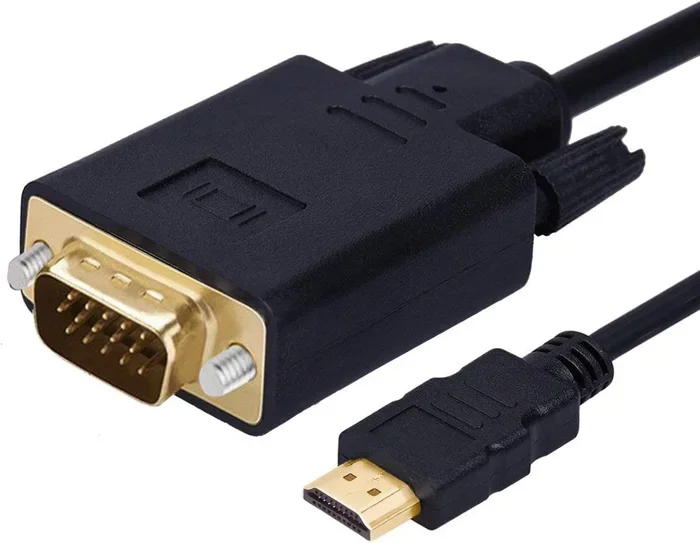
- Choosing the Right HDMI Cable for 1440p
- Device Compatibility: Getting 1440p to Work
- Maximizing Picture Quality at 1440p Over HDMI
- Common Mistakes That Ruin 1440p HDMI Quality
- How Does 1440p HDMI Compare to Other Resolutions?
- Final Thoughts on 1440p HDMI Setup
Can You Do 1440p On HDMI And Get Amazing Picture Quality?
If you have been asking yourself, “Can you do 1440p on HDMI and get amazing picture quality?” the short answer is yes. 1440p resolution on an HDMI connection is not only possible but also incredibly rewarding when you set things up correctly. Whether you are gaming, watching movies, or working on creative projects, 1440p delivers a sharp and vibrant viewing experience that beats standard HD and keeps you one step below true 4K.
Getting great picture quality from 1440p on HDMI depends on a few things. Your cable version, your device’s output capabilities, and the bandwidth available all play a role. In this article, we break down exactly what you need to know. We cover cable types, device compatibility, and tips to make sure your 1440p setup looks its absolute best.
Many people assume that any HDMI cable will handle 1440p. That is not always true. Older cables or lower HDMI versions may struggle with the data needed for high-definition output. Let us walk through everything so you can avoid frustration and enjoy stunning visuals every time you turn on your screen.
Understanding 1440p Resolution and HDMI Basics
What Is 1440p Resolution?
1440p is also known as QHD or Quad HD. It has a resolution of 2560 by 1440 pixels. That is four times the pixel count of standard 720p and twice the pixels of 1080p Full HD. The result is a much sharper and more detailed image on your screen.
When you connect a device using an HDMI cable, the display resolution travels from your source device to your monitor or TV. The video signal carries all the pixel data, and the better the cable and HDMI version, the cleaner and smoother that signal stays.
How HDMI Handles Video Signals
HDMI stands for High-Definition Multimedia Interface. It is the most common way to connect a source device like a PC, laptop, or console to a display. The cable carries both audio and video in one single line. This makes it super convenient compared to older setups that needed multiple cables.
Each version of HDMI supports different levels of bandwidth. Bandwidth is the amount of data the cable can carry per second. Higher bandwidth means the cable can handle higher resolutions and refresh rates without any issues.
For 1440p, you need enough bandwidth to push over 4 million pixels at a smooth frame rate. If your HDMI cable does not have enough bandwidth, you may see a blank screen, a low-resolution fallback, or flickering. That is why choosing the right HDMI cable is so important for your 1440p setup.
Which HDMI Version Do You Need for 1440p?
HDMI 1.4 and 1440p
HDMI 1.4 can technically support 1440p, but only at 30Hz. That means your screen refreshes 30 times per second. For basic tasks like reading text or browsing, this works fine. But for gaming or fast-moving video, 30Hz feels choppy and unresponsive.
If you are stuck with HDMI 1.4, you can still get 1440p working, but the experience will not be smooth for anything that requires motion. You may notice a slight delay or stutter during gameplay or when watching sports. For the best results, you want to move to a newer HDMI version.
HDMI 2.0: The Sweet Spot for 1440p
HDMI 2.0 is the version that truly unlocks 1440p at 60Hz. This is the standard most people should aim for. At 60Hz, your screen refreshes 60 times per second, which feels smooth and natural for both work and play.
Most modern monitors and TVs support HDMI 2.0. If your graphics card or console has an HDMI 2.0 port, you are in great shape for 1440p gaming and media. The picture quality will be crisp, colors will pop, and everything will feel responsive.
Make sure your HDMI cable is rated for HDMI 2.0 as well. A cable labeled “High Speed HDMI” should handle 1440p at 60Hz without problems. Using the wrong cable is one of the most common mistakes people make when setting up their display.
HDMI 2.1: The Future of 1440p
HDMI 2.1 takes things even further. It supports 1440p at 120Hz and even higher frame rates. If you are a competitive gamer or someone who loves super smooth visuals, HDMI 2.1 is the way to go.
With HDMI 2.1, you also get features like Variable Refresh Rate (VRR) and Auto Low Latency Mode (ALLM). These features reduce screen tearing and input lag, making your gaming experience much more enjoyable. The extra bandwidth of HDMI 2.1 also means you can use the same cable for 4K at 60Hz if you ever upgrade your display.
Not all devices support HDMI 2.1 yet, but the list is growing fast. Check your source device specifications to see what version it supports. If you are building a new setup, going with HDMI 2.1 cables and ports is a smart investment.
Choosing the Right HDMI Cable for 1440p
Cable Categories Explained
Not all HDMI cables are created equal. Here is a quick look at the main types you will encounter when shopping for a cable that supports 1440p:
- Standard HDMI Cable: Supports up to 1080p. Not enough for 1440p. Avoid this for your setup.
- High Speed HDMI Cable: Supports up to 1440p at 60Hz. This is the minimum you need for a solid 1440p experience.
- Premium High Speed HDMI Cable: Certified for higher bandwidth. Great for 1440p at 60Hz and some 4K setups.
- Ultra High Speed HDMI Cable: Supports HDMI 2.1 and all future resolutions. Best choice if you want to future-proof your setup.
Cable Length Matters
Longer HDMI cables can lose signal strength. If you need a cable longer than 6 feet, look for one that is actively amplified or certified for high bandwidth over long distances. A cheap long cable might work for 1080p but fail when you push it to 1440p.
Keep your HDMI cable as short as possible while still reaching your devices comfortably. If you must go long, invest in a quality cable with good shielding to protect the video signal from interference.
Device Compatibility: Getting 1440p to Work
Graphics Cards and 1440p Output
Your graphics card is the engine behind your 1440p output. Most modern GPUs from both NVIDIA and AMD support 1440p over HDMI. Make sure your card has an HDMI 2.0 or newer port to get the full 1440p at 60Hz experience.
Older graphics cards might only have HDMI 1.4 ports. In that case, you can still output 1440p, but you will be limited to 30Hz. For a smoother experience, consider using a DisplayPort connection or upgrading your GPU.
Gaming Consoles and 1440p
Some gaming consoles support 1440p output. The PS5, for example, can render games at 1440p and output them over HDMI 2.1. The Xbox Series X also supports 1440p with its HDMI 2.1 port. Check your console settings to make sure the display resolution is set to 1440p for the best results.
Monitors and TVs with 1440p Support
Most 1440p monitors on the market today come with at least one HDMI 2.0 input. Some higher-end models include HDMI 2.1 ports. When shopping for a new monitor, check the HDMI version on the back of the box or in the specs.
If you are using a TV as a monitor, make sure it supports 1440p natively. Some TVs only accept 1080p or 4K inputs and may scale 1440p awkwardly. Reading the manual or checking the manufacturer’s website can save you a lot of headaches.
Maximizing Picture Quality at 1440p Over HDMI
Adjusting Display Settings
Once you have the right HDMI cable and compatible devices, you need to set your display correctly. Go into your operating system display settings and set the screen resolution to 2560 by 1440. Make sure the refresh rate is set to 60Hz or higher if your monitor supports it.
On Windows, right-click your desktop, select Display Settings, scroll to Display Resolution, and choose 2560 by 1440. On macOS, go to System Settings, click Displays, and select the 1440p option. These simple steps make a huge difference in how sharp and clear your image looks.
Enabling HDR for Better Colors
If your monitor or TV supports HDR (High Dynamic Range), turn it on. HDR expands the range of colors and brightness levels your display can show. Combined with 1440p, HDR makes everything look more vivid and lifelike.
You will also need to enable HDR in your source device settings. Both Windows and gaming consoles have HDR toggle options. Check that your HDMI cable supports HDR as well, since some older cables may not pass the HDR signal correctly.
Quick Tips for the Best 1440p HDMI Setup
- Always use a certified HDMI cable rated for the resolution and refresh rate you want.
- Check your source device specs to confirm it supports 1440p output.
- Update your graphics drivers regularly for the best display resolution performance.
- Keep cables away from power cords to reduce signal interference.
- Use the shortest cable length possible for the strongest video signal.
- If you experience issues, try a different HDMI port on your display or source device.
Common Mistakes That Ruin 1440p HDMI Quality
Using the Wrong Cable
The most common mistake is using a cable that does not support 1440p. A standard HDMI cable rated for 1080p will not carry the data needed for 1440p. You will either get no signal or a degraded image. Always check the cable rating before purchasing.
Ignoring Refresh Rate Settings
Even with the right HDMI cable, your refresh rate might be set too low. A 30Hz or 60Hz limit can make 1440p feel sluggish. Go into your display settings and push the refresh rate as high as your monitor and cable allow.
Not Checking HDCP Compatibility
HDCP stands for High-bandwidth Digital Content Protection. It is a copy protection system used by movies and streaming services. If your HDMI cable or any device in the chain does not support HDCP, you may see a blank screen or an error message when trying to watch 1440p content from streaming platforms.
Make sure all devices and cables in your chain are HDCP compliant. This is especially important if you are streaming ultra HD content from services like Netflix or Disney+.
How Does 1440p HDMI Compare to Other Resolutions?
To understand where 1440p sits in the bigger picture, it helps to compare it to other common resolutions. 1440p offers a great balance between sharpness and performance. It is sharper than 1080p but does not require as much bandwidth or GPU power as 4K.
For gaming, 1440p is widely considered the sweet spot. It delivers excellent visual detail while still allowing high frame rates on most modern hardware. For content creation, the extra screen real estate compared to 1080p makes a noticeable difference in productivity.
Streaming 1440p content is also becoming more common. Many platforms now offer content in 1440p or close to it. As long as your internet connection is fast enough and you have the right HDMI setup, you can enjoy this resolution with stunning clarity.
Some people wonder how 1440p compares to their phone screen. If you have ever checked your iPhone display settings and wondered about pixel density, you might find it interesting that modern phones can have even higher pixel density than a 1440p monitor at the same screen size. You can learn more about managing display settings on your phone by exploring how to add prefixes to numbers on iPhone for better organization.
Final Thoughts on 1440p HDMI Setup
The answer to “Can you do 1440p on HDMI and get amazing picture quality?” is a resounding yes. With the right HDMI cable, a compatible source device, and proper settings, your 1440p display can deliver visuals that are sharp, colorful, and incredibly immersive.
Start by checking your HDMI version and upgrading if needed. Choose a certified HDMI cable that matches your desired resolution and refresh rate. Adjust your display settings to get the most out of your hardware. Avoid the common mistakes that can hold you back.
1440p on HDMI is one of the best ways to enjoy premium visual quality without spending a fortune on 4K equipment. Whether you are a gamer, a content creator, or just someone who loves a great picture, setting up 1440p over HDMI is one of the best upgrades you can make to your home entertainment or workspace.
Take the time to get your setup right. The difference in picture quality and clarity is immediately noticeable once you make the switch to 1440p. Your eyes will thank you every time you sit down to work, game, or watch your favorite show.
Frequently Asked Questions
Can any HDMI cable support 1440p?
No, not every HDMI cable supports 1440p. You need at least a High Speed HDMI cable rated for HDMI 2.0 to get 1440p at 60Hz. Older or standard cables may only handle 1080p or lower resolutions.
Do I need a special graphics card for 1440p over HDMI?
Most modern graphics cards support 1440p output over HDMI. You just need to make sure your GPU has an HDMI 2.0 or newer port. Check your card specifications to confirm compatibility before purchasing.
Can I get 1440p at 144Hz over HDMI?
Yes, but only with HDMI 2.1. HDMI 2.1 provides enough bandwidth for 1440p at 144Hz or even higher. Older HDMI versions will cap you at 60Hz for 1440p.
Why does my 1440p HDMI screen look blurry?
A blurry 1440p image usually means the display resolution is not set correctly. Check your operating system settings and make sure the resolution is set to 2560 by 1440. Also ensure you are using the correct HDMI cable and that it is fully seated in the port.
Is 1440p over HDMI good for gaming?
Absolutely. 1440p is one of the most popular gaming resolutions today. It offers a great balance between visual detail and performance. With HDMI 2.0 or HDMI 2.1, you can enjoy smooth gameplay at high frame rates with excellent picture quality.
Does cable length affect 1440p HDMI quality?
Yes, longer cables can weaken the video signal and reduce quality. Try to keep your HDMI cable under 6 feet for the best results. If you need a longer run, use a certified high-quality cable with active signal boosting.