Can You Connect Lightning To Hdmi And Watch On Big Screens
Yes, you can connect Lightning to HDMI and enjoy your favorite content on a big screen. With the right adapter, you can mirror your iPhone or iPad display directly to your TV or monitor. This guide covers everything you need to know about Lightning to HDMI connections, from choosing the right adapter to troubleshooting common issues.
Key Takeaways
- Lightning to HDMI adapters let you mirror your iOS device screen to any TV or monitor with an HDMI port.
- Apple’s official Digital AV Adapter offers the best compatibility and supports 1080p resolution.
- Third-party adapters are cheaper but may have limitations like lower resolution or audio issues.
- Setting up a Lightning to HDMI connection is simple and takes just a few minutes.
- Common issues like no signal or no audio can usually be fixed with basic troubleshooting steps.
- Lightning to HDMI is great for presentations, gaming, and streaming on a larger display.
- Always check your device compatibility before purchasing an adapter.
📑 Table of Contents
What Is a Lightning to HDMI Connection?
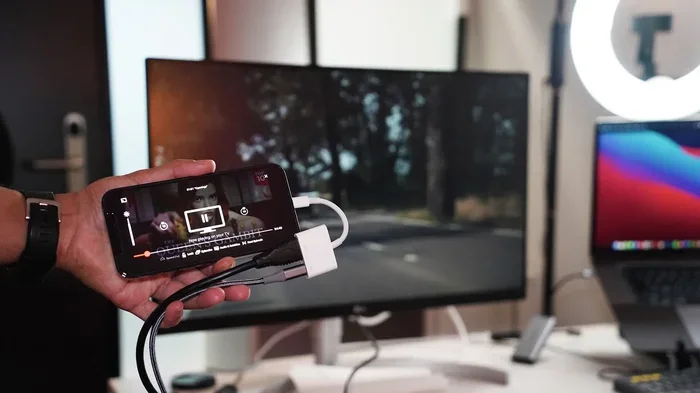
A Lightning to HDMI connection is a simple way to send video and audio from your iPhone or iPad to a television or monitor. Instead of looking at a small screen, you can view your content on a much larger display. This connection uses a special adapter that plugs into the Lightning port on your Apple device.
The adapter takes the digital signal from your device and converts it into an HDMI signal. That signal then travels through an HDMI cable to your TV or monitor. The result is a clear, high-quality picture that fills a big screen.
Many people want to know can you connect Lightning to HDMI because they want a better viewing experience. Whether you are watching movies, sharing photos, or giving a presentation, a wired connection offers reliability. It does not depend on Wi-Fi strength or wireless streaming delays.
How Lightning and HDMI Work Together
The Lightning port on your iPhone or iPad handles both charging and data transfer. When you use an adapter, it taps into that data connection. The adapter then outputs the same video and audio signals through an HDMI port.
HDMI cables are standard in most homes. Nearly every modern TV has at least one HDMI input. This makes the Lightning to HDMI setup very accessible. You do not need special equipment beyond the adapter and a standard HDMI cable.
Why You Might Need This Connection
There are many reasons to set up a Lightning to HDMI connection. Here are some of the most common ones:
- Watching movies or shows on a TV instead of a small phone screen.
- Sharing photos or videos with a group of people in a larger format.
- Presenting at work or school where a projector or monitor is needed.
- Gaming on a bigger display for a more immersive experience.
- Using your iPad as a secondary screen for your computer setup.
A wired connection also means no lag. Wireless screen mirroring can sometimes stutter or delay. A direct cable connection gives you smooth, real-time playback. This is especially important for gaming or live presentations.
For those who also manage their phone settings, learning how to handle adding prefixes to numbers on iPhone can be a useful companion skill when managing your device.
Types of Lightning to HDMI Adapters
Not all adapters are the same. When you search for a Lightning to HDMI adapter, you will find many options. They differ in price, quality, and features. Understanding these differences helps you pick the right one.
Apple’s Official Digital AV Adapter
Apple sells its own Digital AV Adapter. This is the official adapter made by Apple for Lightning devices. It costs more than third-party options, but it offers several advantages:
- Guaranteed compatibility with all Lightning devices.
- Support for 1080p HD resolution for clear picture quality.
- Reliable audio and video output with no dropouts.
- Direct support from Apple if you encounter issues.
The official adapter also supports VGA output in some models. This gives you flexibility if your display uses a VGA input instead of HDMI.
Third-Party Adapter Options
Many companies sell Lightning to HDMI adapters at lower prices. Brands like Belkin, Amazon Basics, and Anker offer popular options. These adapters work well for most users. However, there are some things to watch out for:
- Lower resolution support on some budget models.
- Audio sync issues that may require a firmware update.
- Shorter lifespan compared to Apple’s official adapter.
- Inconsistent MFi certification on cheaper brands.
MFi certification stands for “Made for iPhone.” This is Apple’s licensing program. Only certified accessories are guaranteed to work with iOS devices. Always look for the MFi badge when buying a third-party adapter.
Comparison Table: Apple vs. Third-Party Adapters
| Feature | Apple Digital AV Adapter | Third-Party Adapter |
|---|---|---|
| Price Range | $40-$50 | $10-$25 |
| Resolution Support | 1080p HD | 720p to 1080p |
| MFi Certified | Yes | Varies |
| Audio Quality | Excellent | Good to Average |
| Warranty | Apple Limited Warranty | Varies by Brand |
| Durability | High | Moderate |
| Compatibility | All Lightning Devices | Most Lightning Devices |
For most people, the Apple adapter is the safest choice. But if you are on a budget, a certified third-party adapter can work just as well. Just make sure it has MFi certification and good user reviews.
Step-by-Step: How to Connect Lightning to HDMI
Setting up a Lightning to HDMI connection is straightforward. You do not need technical skills or special tools. Follow these simple steps and you will be watching big screen content in minutes.
What You Will Need
Before you start, gather these items:
- A Lightning to HDMI adapter (Apple official or MFi certified third-party).
- An HDMI cable (standard HDMI, any length works).
- An iPhone, iPad, or iPod with a Lightning port.
- A TV or monitor with an available HDMI input.
Setup Instructions
Once you have your items ready, follow these steps:
Step 1: Plug the Lightning end of the adapter into your iPhone or iPad. Make sure it clicks in firmly.
Step 2: Connect one end of the HDMI cable to the adapter. The fit should be snug and secure.
Step 3: Plug the other end of the HDMI cable into your TV or monitor. Use any available HDMI port.
Step 4: Switch your TV to the correct HDMI input. Use your remote to select the right port number.
Step 5: Your iPhone or iPad screen should now appear on the TV. If it does not, try unplugging and replugging the adapter.
Step 6: Adjust your TV settings for the best picture. You may need to change the aspect ratio or resolution.
That is it! You are now connected and ready to enjoy big screen viewing from your iOS device. The entire process takes less than five minutes.
Common Uses for Lightning to HDMI Connections
Once you have your Lightning to HDMI setup working, the possibilities are wide open. People use this connection in many different ways. Here are some of the most popular uses.
Streaming and Entertainment
The most common use is streaming movies and TV shows on your television. Services like Netflix, Disney Plus, and YouTube all work great through a wired connection. The picture quality is often better than wireless mirroring because there is no compression or lag.
You can also use this setup for family movie nights. Instead of everyone crowding around a small phone screen, project the content onto your TV. This makes viewing much more comfortable and enjoyable for everyone.
Presentations and Screen Sharing
If you use your iPad for work or school, a Lightning to HDMI connection is a game changer. You can connect to a projector or monitor during meetings and presentations. The wired connection ensures your display stays stable and clear.
Teachers also benefit from this setup. You can mirror your iPad on a classroom TV or projector. This makes lessons more engaging and easier for students to follow.
Gaming on a Bigger Screen
Gamers love the idea of playing mobile games on a big screen. While not all games support external displays, many do. Racing games, puzzle games, and strategy games all look and feel better on a larger screen.
The wired connection also means zero input lag. This is crucial for fast-paced games where timing matters. Wireless connections can introduce delays that ruin the gaming experience.
For more ideas on tech accessories that can improve your setup, check out these Troubleshooting Common Issues
Even with a simple setup, you might run into problems. Most issues are easy to fix. Here are the most common problems and their solutions. If your TV shows “No Signal” or a blank screen, try these steps: Sometimes the adapter needs a moment to initialize. Wait 10 to 15 seconds after plugging everything in before assuming there is a problem. If you have video but no sound, here is what to check: If your picture looks blurry or distorted: Most issues resolve with basic troubleshooting. If problems persist, contact Apple Support or the adapter manufacturer for help. To get the most out of your Lightning to HDMI setup, follow these helpful tips. They will save you time and frustration. Here are some mistakes people make when setting up a Lightning to HDMI connection: Tech experts recommend testing your adapter before any important presentation or event. Set it up the night before and make sure everything works smoothly. This prevents awkward technical difficulties when it matters most. Experts also suggest keeping a spare adapter in your bag or office. Having a backup means you are never stuck without a big screen connection when you need one most. A good adapter is a small investment that pays off many times over. For those interested in expanding their tech knowledge, understanding how your devices communicate is key. Whether you are setting up a home office or troubleshooting a connection, knowing the basics of wired connections gives you an edge. You might also enjoy exploring how to optimize your iPhone for different use cases, such as learning how to add prefixes to numbers on iPhone for better contact management. Most iPhones with a Lightning port can connect to HDMI using the right adapter. This includes iPhone 5 and later models. However, iPhone 15 and newer models use USB-C instead of Lightning. You will need a different adapter for those devices. Always check your device model before purchasing an adapter. No, you do not need Wi-Fi at all. A Lightning to HDMI adapter uses a wired connection. This is one of its biggest advantages. You can mirror your screen even in areas with no internet connection. The adapter handles the signal conversion directly through the cable. This depends on the adapter you use. Apple’s official Digital AV Adapter has a pass-through Lightning port. This allows you to plug in a charging cable at the same time. Many third-party adapters also support charging. Check the product description to confirm this feature before buying. Apple’s official adapter supports up to 1080p HD resolution. Most third-party adapters also support 1080p, but some budget options may only reach 720p. For the best picture quality, always choose an MFi certified adapter. Your TV must also support the resolution you are sending. No, they are different. HDMI mirroring uses a wired connection for a direct, stable link. AirPlay uses Wi-Fi for wireless streaming. Wired connections have no lag and do not depend on network quality. AirPlay offers more convenience but can experience delays or stuttering on crowded networks. Yes, Lightning to HDMI adapters work with all iPads that have a Lightning port. This includes iPad Air, iPad mini, and many iPad Pro models. The setup process is the same as with an iPhone. Just plug in the adapter, connect the HDMI cable, and switch your TV to the right input. The answer to can you connect Lightning to HDMI is a clear yes. With the right adapter and a standard HDMI cable, you can turn any TV or monitor into a display for your iPhone or iPad. This simple setup opens up a world of possibilities for entertainment, work, and gaming. Lightning to HDMI connections offer reliability, high quality, and ease of use. Whether you choose Apple’s official adapter or a trusted third-party option, you will enjoy a stable wired connection every time. No Wi-Fi dependency, no lag, and no complicated setup. Follow the tips and troubleshooting steps in this guide to get the most from your setup. Start with the right adapter, use quality cables, and keep your device updated. Soon you will be enjoying your favorite content on a big screen with confidence. Give it a try today. Connect your Lightning device to your TV and experience the difference a wired connection makes. Once you see your content on a large display, you will wonder how you ever managed without it.No Signal on the TV
Audio Issues
Resolution and Quality Problems
Tips and Best Practices
Quick Tips for Best Performance
Common Mistakes to Avoid
Expert Insights
Frequently Asked Questions
Can all iPhones connect to HDMI?
Do I need Wi-Fi to use a Lightning to HDMI adapter?
Can I charge my iPhone while using the HDMI adapter?
What resolution can I expect from a Lightning to HDMI connection?
Is screen mirroring through HDMI the same as AirPlay?
Can I use a Lightning to HDMI adapter with an iPad?
Conclusion