Can You Connect Av To Hdmi Here Is Everything You Need
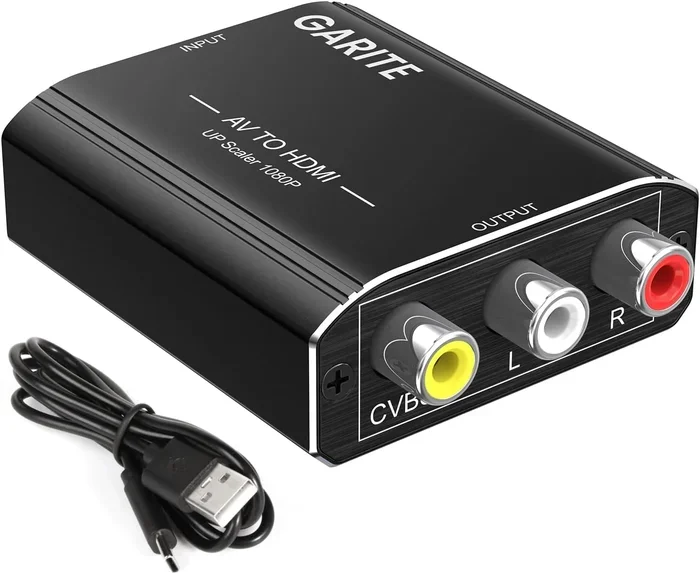
Yes, you can connect AV to HDMI using a converter or adapter. This simple process lets you use older devices with modern TVs and displays. Whether you have a VCR, DVD player, or retro gaming console, this guide covers every method, tool, and tip you need to get a clear picture and sound.
Key Takeaways
- You can connect AV to HDMI: Use an AV to HDMI converter or adapter to bridge older devices with modern displays.
- Multiple converter types exist: Composite, component, and RCA converters all serve different needs and budgets.
- Setup is simple: Plug in the cables, connect the converter, and switch your TV to the right input.
- Common issues are fixable: No signal, poor quality, and audio problems usually have easy solutions.
- Check compatibility first: Not all converters work with all devices, so verify specs before buying.
- Quality matters: Cheap adapters may cause lag or low resolution, so invest in a reliable brand.
📑 Table of Contents
Can You Connect AV To HDMI And Why It Matters
So, can you connect AV to HDMI? The short answer is yes. You can absolutely hook up older AV devices to modern HDMI TVs and monitors. The process is simpler than most people think. You just need the right converter or adapter.
Many of us still have old devices sitting around the house. Maybe it is a vintage DVD player. Perhaps it is a retro gaming console. Or an old VCR that holds precious family recordings. These devices use AV cables with red, white, and yellow connectors. But most modern TVs only have HDMI ports. That creates a problem.
The good news is that AV to HDMI conversion solves this perfectly. A small converter box bridges the gap between old and new technology. You get to keep your favorite devices and still enjoy them on a big, crisp screen. This guide will walk you through every step of the process.
You will learn what tools you need, how to set things up, and what to do when problems pop up. By the end, you will feel confident connecting any AV source to any HDMI display. Let us get into it.
Understanding AV and HDMI Connections
Before you grab a converter, it helps to understand what each connection type does. AV stands for audio and video. Traditional AV cables carry analog signals. These are the classic red, white, and yellow RCA plugs most people recognize.
HDMI stands for High Definition Multimedia Interface. It carries both high-definition video and audio through a single cable. HDMI is the standard for modern TVs, monitors, and projectors. It delivers better picture and sound quality than older AV cables.
What Makes AV and HDMI Different
The main difference is the signal type. AV cables use analog signals. These signals degrade over distance and are more prone to interference. HDMI uses digital signals, which stay clean and strong over longer cable runs.
Here is a quick comparison of the two:
- Signal Type: AV is analog, HDMI is digital
- Cables: AV uses multiple color-coded cables, HDMI uses one cable
- Video Quality: AV maxes out at standard definition, HDMI supports up to 4K and beyond
- Audio: AV separates audio into two channels, HDMI supports multi-channel surround sound
- Compatibility: AV works with older devices, HDMI works with modern displays
Because of these differences, you need a signal converter to go from AV to HDMI. The converter takes the analog signal and transforms it into a digital one. Then it sends that digital signal through an HDMI cable to your TV.
When Do You Need This Conversion
You might need AV to HDMI conversion in several situations. Maybe you bought a new TV but want to keep your old gaming system. Perhaps you inherited a collection of VHS tapes and need a VCR to work with a flat-screen TV. Or you are setting up a retro gaming room with classic consoles.
Some people also use converters in classrooms or offices. Older presentation equipment often uses AV outputs. A converter lets you display that content on a modern projector or monitor. The versatility of these adapters makes them really handy.
How to Connect AV to HDMI Step by Step
Now let us walk through the actual setup process. Connecting AV to HDMI is straightforward once you know the steps. You do not need any special technical skills. Anyone can do this in just a few minutes.
Step One: Gather Your Equipment
Here is what you will need before you start:
- An AV to HDMI converter (also called an RCA to HDMI adapter)
- AV cables (the red, white, and yellow RCA cables)
- An HDMI cable
- A power source for the converter (usually USB or a wall adapter)
- Your AV device (VCR, DVD player, retro console, etc.)
- Your HDMI display (TV, monitor, or projector)
Make sure you have all of these items ready before you begin. It is frustrating to get halfway through setup and realize you are missing a cable.
Step Two: Connect the AV Cables
Take your red, white, and yellow cables. Plug the yellow cable into the video output on your AV device. Connect the red and white cables to the left and right audio outputs. Match the colors to the correct ports.
Then plug the other ends of these cables into the corresponding inputs on your AV to HDMI converter. The color matching makes this very foolproof. Yellow goes to video in. Red goes to right audio in. White goes to left audio in.
Step Three: Connect the HDMI Cable
Take your HDMI cable and plug one end into the HDMI output on the converter. Plug the other end into an available HDMI port on your TV or monitor. It does not matter which HDMI port you use, but try to pick one that is easy to reach.
Now plug the power adapter into your converter. Some converters draw power through the USB port on your TV. Others need a wall plug. Check your specific model to see which it uses.
Step Four: Switch Your TV Input
Turn on your TV and use the remote to switch to the correct HDMI input. If you plugged into HDMI port 2, press the input or source button on your remote and select HDMI 2. You should see a picture from your AV device on the screen.
If you see a blank screen, do not panic. Try a different HDMI port. Check that all cables are firmly connected. Make sure the converter is powered on. Most issues resolve with these simple checks.
Step Five: Adjust Settings
Once you have a picture, you may want to tweak the settings. Many converters have a small button that lets you switch between NTSC and PAL formats. This matters if you are using devices from different regions. Some converters also let you adjust the output resolution. Try 720p or 1080p for the best results on most modern TVs.
Types of AV to HDMI Converters
Not all converters are the same. Different devices need different types of conversion. Understanding your options helps you pick the right one for your setup.
Composite AV to HDMI Converters
These are the most common type. They accept the standard red, white, and yellow RCA cables. Composite converters handle standard definition video. They are perfect for VCRs, older DVD players, and retro gaming consoles like the Nintendo Wii or original PlayStation.
Most composite converters are affordable. You can find reliable ones for under 30 dollars. They do a great job of upscaling the video signal to look much better on a modern HDTV.
Component AV to HDMI Converters
Component cables use three separate video cables (green, blue, and red) plus red and white audio cables. These carry a better quality signal than composite cables. Component to HDMI converters are ideal for older DVD players and some gaming consoles that support component output.
The picture quality from component connections is noticeably better than composite. If your device supports component output, always choose that option over composite for a sharper image.
SCART to HDMI Converters
SCART connectors are common in Europe and some other regions. These bulky rectangular plugs carry both audio and video. SCART to HDMI converters are available but less common in North America. If you have European AV equipment, this is the type you need.
Built-in AV to HDMI on Devices
Some modern devices come with AV inputs built in. Certain TV tuner boxes and streaming devices include composite or component inputs alongside HDMI outputs. This eliminates the need for a separate converter. Check your device specifications before buying extra equipment.
Common Problems and How to Fix Them
Even with a simple setup, things can go wrong. Here are the most common issues and their solutions.
No Picture on the Screen
If you see a black screen, start by checking your connections. Make sure every cable is firmly plugged in. A loose connection is the number one cause of no picture. Try unplugging and replugging each cable.
Next, make sure your TV is on the right input. Press the input or source button on your remote and cycle through the options. Sometimes the TV defaults to the wrong input, especially after a power outage.
If the input is correct and cables are secure, try a different HDMI port on your TV. The port you are using might not be working. Also try a different HDMI cable if you have one available.
Poor Picture Quality
blurry or pixelated picture usually means the converter is not upscaling properly. Cheap converters often produce weak results. If you are using a very low-cost adapter, consider upgrading to a better model.
Also check the resolution settings on your converter. Switch it to 720p or 1080p if possible. Make sure your TV is set to display at the native resolution. These small adjustments can make a big difference in picture clarity.
No Sound or Poor Audio
If the picture looks good but there is no sound, check your audio connections. Make sure the red and white audio cables are plugged in correctly. Some converters have a separate audio output you can connect to external speakers.
On your TV, make sure the volume is not muted and the audio output is set to HDMI. Some TVs default to other audio outputs, which can cause silence when using a converter.
Interference or Static
Wavy lines or static on the screen usually come from interference. Keep your AV cables away from power cords and other electronic devices. Shorter cable runs produce cleaner signals. If you must run cables long distances, use shielded cables designed for AV connections.
Converter Not Powering On
If the converter does not turn on, check the power source. Try a different USB port on your TV or a different wall adapter. Some converters are picky about power requirements. Using the included power adapter is always the safest bet.
Best Practices for AV to HDMI Connections
Follow these tips to get the best results from your AV to HDMI setup.
Buy a Quality Converter
Not all converters are created equal. A cheap no-name adapter might seem like a good deal, but it can cause headaches. Look for converters from reputable brands that support the resolution you need. Reading customer reviews helps you avoid duds.
If you are unsure which converter to buy, ask for recommendations in tech forums or from friends who have similar setups. A reliable converter pays for itself in hassle-free viewing.
Keep Cables Organized
With multiple cables involved, your setup can quickly become messy. Use cable ties or Velcro straps to keep things neat. Organized cables not only look better but also reduce the risk of loose connections.
Label Your Cables
If you have multiple AV devices connected to one TV, labeling cables helps a lot. Use small pieces of tape or cable tags to mark which cable goes where. This saves time when troubleshooting or switching between devices.
Store Old Devices Properly
If you are not using a device every day, store it properly. Keep it in a cool, dry place. Cover connectors with caps to prevent dust buildup. Proper storage extends the life of your older equipment and keeps connections clean.
Consider a Home Theater Setup
If you are connecting multiple devices, consider a full home theater setup. An AV receiver can manage multiple inputs and outputs. It simplifies switching between devices and improves overall sound quality. Many modern receivers include both HDMI and AV inputs, giving you maximum flexibility.
For families looking to simplify their entertainment setup, there are plenty of smart gadgets that can help. Check out these 10 Gadgets To Make Moms Life Easier for ideas on streamlining your home tech.
Is Connecting AV to HDMI Worth the Effort
The short answer is absolutely yes. Connecting older AV devices to modern HDMI displays brings new life to equipment you already own. You do not need to replace your favorite devices just because you upgraded your TV.
A good converter costs very little compared to replacing an entire collection of devices. Your vintage DVD player, retro gaming console, or old VCR still has plenty of life in it. With the right adapter, you can enjoy all of it on a beautiful high-definition screen.
Plus, the process is genuinely simple. Most people complete the entire setup in under 15 minutes. No special tools, no technical expertise, no complicated software. Just plug in the cables and go. Once you have everything connected, you can enjoy your favorite content exactly as it was meant to be seen.
Whether you are a tech enthusiast with a collection of retro gear or someone who just wants to use an old device in a new home, connecting AV to HDMI is a practical and rewarding solution. It bridges the gap between past and present technology beautifully.
So go ahead and give it a try. Pull out that old device, grab a converter, and reconnect with your favorite movies, games, and recordings. You will be surprised how satisfying it is to see classic content on a crisp modern display.
Conclusion
Can you connect AV to HDMI? Yes, and it is easier than you probably think. With the right converter, the correct cables, and a few minutes of your time, you can bring your older devices into the modern era. The process works for VCRs, DVD players, retro consoles, and more.
Remember to choose a quality converter that matches your specific needs. Composite converters work for most standard definition devices. Component converters deliver better quality when available. And always check your connections if something goes wrong.
AV to HDMI conversion is a simple, affordable way to get more life out of your favorite older devices. Do not let outdated connectors stop you from enjoying your media. Take the leap, grab a converter, and start watching today.
With this knowledge in hand, you are fully equipped to handle any AV to HDMI connection challenge. Your old devices deserve a second chance on a modern screen, and now you know exactly how to make it happen.
Frequently Asked Questions
Do I need a special converter to connect AV to HDMI?
Yes, you need an AV to HDMI converter or adapter. These devices take the analog signal from your AV cables and convert it into a digital HDMI signal. They are affordable and widely available online and in electronics stores.
Can I connect a VCR to a modern TV using HDMI?
Absolutely. You just need a composite AV to HDMI converter. Connect the VCR’s yellow, white, and red cables to the converter, then use an HDMI cable from the converter to your TV. Power on the converter, switch your TV to the right input, and you are good to go.
Will the picture quality improve when I convert AV to HDMI?
Yes, in most cases. Modern TVs have better upscaling than older AV equipment. A decent converter will enhance the picture quality by converting the analog signal to a clean digital format. However, the original source quality still matters. A VHS tape will not look like 4K Blu-ray, but it will look much better on a modern display.
Can I connect multiple AV devices to one HDMI port?
You can use an HDMI switch along with your AV converter. An HDMI switch lets you plug in multiple sources and toggle between them. This is great for setups with several older devices sharing one TV input.
Are wireless AV to HDMI options available?
Yes, some wireless HDMI transmitters can work with AV sources when paired with a wired converter. However, wired connections are more reliable and produce less lag. For the best experience with older AV devices, a wired converter and cable setup is recommended.
What is the difference between composite and component AV cables?
Composite cables use a single yellow video cable plus red and white audio cables. They carry standard definition video. Component cables split the video signal into three separate cables (green, blue, and red) for better quality. Component connections deliver sharper images than composite when used with compatible devices.
=== META TITLE ===
Can You Connect AV to HDMI? Here Is Everything
=== URL SLUG ===
can-you-connect-av-to-hdmi
=== INTERNAL LINKS USED ===