Can You Buy Your Own Wi Fi Router And Why It Matters
Yes, you can buy your own Wi-Fi router, and doing so gives you more control over your home network, internet speed, and monthly bills. Buying your own router instead of renting from your internet service provider can save you significant money over time. This guide covers everything you need to know about router purchase, compatibility, setup, and choosing the best wireless router for your needs.
Have you ever wondered, can you buy your own Wi Fi router? The short answer is a resounding yes. Most people do not realize that they are not required to rent a router from their internet service provider. You have the freedom to purchase your own equipment and take full control of your home network.
Buying your own wireless router is one of the simplest ways to improve your internet speed, save money each month, and enjoy better Wi-Fi coverage throughout your home. Yet many people stick with the router their ISP gives them out of habit or confusion. This guide will walk you through everything you need to know about making your own router purchase, from understanding the basics to setting up your new equipment.
Whether you are a casual internet user or someone who works from home and needs a reliable broadband connection, owning your own networking equipment makes a real difference. Let us dive in and explore why buying your own router is a decision worth considering.
Key Takeaways
- You absolutely can buy your own Wi-Fi router: You are not locked into renting from your ISP, and purchasing your own equipment is perfectly legal and often smarter.
- Owning your router saves money: Eliminating the monthly rental fee can save you $120 to $180 per year or more.
- Better performance and coverage: A personal router often delivers stronger Wi-Fi performance and wider Wi-Fi coverage than ISP-provided units.
- Check compatibility first: Make sure your router works with your broadband connection and internet plan before purchasing.
- Setup is straightforward: Most modern routers come with simple apps and guided setup processes.
- Network security matters: Owning your router lets you control network security settings and keep firmware updates current.
📑 Table of Contents
What Is a Wi-Fi Router and Why Do You Need One?
A Wi-Fi router is the device that connects your home to the internet and broadcasts a wireless signal to your phones, laptops, tablets, and smart devices. Think of it as the gateway between your internet plan and everything you do online. Without a router, your devices would not be able to access the web wirelessly.
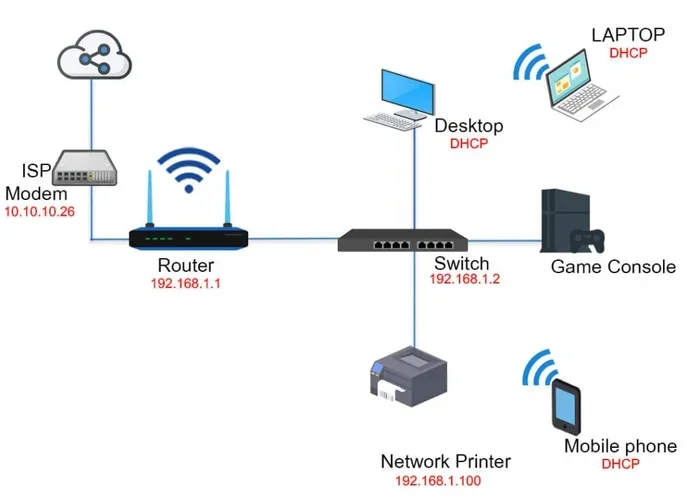
Your internet service provider typically sends a signal to your home through a modem. The router then takes that signal and distributes it to all your devices. Many ISPs combine the modem and router into a single unit, which they often rent to customers for a monthly fee.
How Does a Router Affect Your Internet Experience?
The router you use has a direct impact on your Wi-Fi performance. A basic or older router may struggle to handle multiple devices at once. It might also have a weaker signal, meaning dead zones in your home where the connection drops. A quality router, on the other hand, can handle dozens of devices and deliver strong speeds to every room.
Here are a few ways your router shapes your online experience:
- Speed: A better router can handle faster internet plans without bottlenecking your connection.
- Range: Stronger antennas and advanced technology mean better coverage across larger homes.
- Stability: Quality routers maintain consistent connections even during peak usage hours.
- Device capacity: Modern routers support many more connected devices than older models.
Can You Buy Your Own Wi Fi Router?
The answer is yes. Can you buy your own Wi Fi router and use it with any provider? In most cases, absolutely. You are not tied to renting equipment from your ISP. You can walk into any electronics store or order a router online and set it up with your existing internet plan.
When you buy your own router, you own the equipment outright. There is no monthly rental fee, no contract, and no need to return the device if you switch providers. You simply plug it in, configure it, and enjoy your connection.
Is It Legal to Use Your Own Router?
Yes, it is completely legal. The FCC (Federal Communications Commission) supports consumers’ right to use their own equipment. Your ISP cannot force you to rent their router. While some providers may try to discourage you or charge a fee for using non-leased equipment, you have every right to bring your own networking equipment.
Before making a router purchase, it is a good idea to check with your ISP. Some providers may require you to register your device or update your account settings. This is usually a quick and painless process. A quick call or online chat with customer support can clear things up.
Do You Need a Modem Too?
In many cases, yes. If your ISP provides a modem-router combo unit, you will need to replace both devices when you switch to your own equipment. However, if you already have a separate modem, you only need to buy a wireless router. Some people choose to buy a modem and router separately for maximum flexibility and performance.
Benefits of Owning Your Own Router
Switching from a rented router to one you own comes with several meaningful advantages. Let us look at the biggest benefits.
Save Money Every Month
The most obvious benefit is cost savings. Most ISPs charge between $10 and $15 per month to rent their router. Over a year, that adds up to $120 to $180. A good personal router typically costs between $80 and $200, which means you break even within a year and then save money every month after that.
Over a three- or five-year period, the savings are substantial. Instead of paying your ISP month after month, you make a single upfront investment and keep the savings.
Better Wi-Fi Coverage and Speed
ISP-provided routers are often basic models designed to work for the widest range of customers, not to deliver the best possible performance. When you buy your own Wi-Fi router, you can choose a model that matches your specific needs.
For example, if you live in a larger home, you can invest in a mesh network system that blankets every room with a strong signal. If you are a heavy gamer or stream 4K content, you can choose a router with advanced features like Quality of Service (QoS) settings that prioritize your traffic.
More Control and Customization
When you own your router, you control the router settings. You can change the network name, set up guest networks, configure parental controls, and adjust security protocols. ISP routers often limit these options or hide them behind complicated menus.
Owning your equipment also means you can install custom firmware updates and take advantage of the latest features as soon as they become available. You are not stuck waiting for your ISP to push an update on their schedule.
Improved Network Security
Your network security depends heavily on your router. When you own your device, you can keep the firmware update cycle current and apply the latest security patches. ISP routers sometimes lag behind in updates, leaving your home network vulnerable.
You can also choose routers with built-in security features like WPA3 encryption, intrusion detection, and automatic threat blocking. These features give you peace of mind that your personal data stays safe.
What to Consider Before You Buy
Not all routers are the same, and choosing the right one for your home takes a little research. Here are the key factors to keep in mind.
Check Router Compatibility
Before you buy, make sure the router is compatible with your broadband connection. Most modern routers work with any ISP, but it is always worth double-checking. Look at the specifications and confirm that the router supports your internet speed tier.
For example, if you have a gigabit internet plan, you need a router that can handle those speeds. A basic router rated for 100 Mbps would bottleneck your connection and waste your investment.
Consider Your Home Size
The size of your home plays a big role in choosing the right router. A small apartment may only need a single standard router. A larger home with multiple floors and thick walls may require a mesh system with multiple nodes for full coverage.
Think about how many rooms need a strong signal and how many devices will be connected at once. This helps you determine the right type and power level for your wireless router.
Think About Your Internet Plan
Your internet plan should guide your router choice. If you pay for fast internet but use a slow router, you will not get the speeds you are paying for. Match your router to your plan to get the best results.
Here is a quick reference:
- Basic plans (up to 100 Mbps): A standard dual-band router works well.
- Mid-tier plans (100 to 500 Mbps): Look for a router with better processing power and beamforming technology.
- Gigabit plans (500 Mbps to 1 Gbps+): Choose a high-performance router or mesh system with Wi-Fi 6 or Wi-Fi 6E support.
Budget and Brand
Routers range in price from around $40 to over $300. You do not need to spend a fortune to get a great experience. Popular and reliable router brands include ASUS, Netgear, TP-Link, Linksys, and Google Nest. Each brand offers options at different price points, so you can find something that fits your budget.
Best Routers on the Market Today
With so many options available, picking the right router can feel overwhelming. Here are some top choices across different budgets and needs.
Best Budget Option
The TP-Link Archer A7 is a fantastic entry-level router that delivers solid performance at an affordable price. It supports dual-band Wi-Fi, handles up to 1,750 Mbps, and works well for small to medium homes. At around $60 to $70, it is an excellent value.
Best Mid-Range Option
The ASUS RT-AX58U offers Wi-Fi 6 technology and excellent range for its price. It handles multiple devices with ease and includes advanced features like parental controls and QoS settings. It typically costs between $100 and $130, making it a great middle-ground choice.
Best for Large Homes
The Google Nest Wi-Fi Pro or a similar mesh system is ideal for larger homes. These systems use multiple nodes to extend Wi-Fi coverage throughout the house. They are easy to set up and manage through a simple app, and they deliver consistent speeds in every room.
Best for Power Users
The ASUS RT-AX86U Pro is a powerhouse router designed for heavy users. It supports the latest Wi-Fi standards, offers advanced security features, and handles demanding tasks like 4K streaming and competitive gaming with ease. It is priced at around $250 to $300 but delivers top-tier performance.
Setting Up Your Own Router
Setting up a new router is easier than most people think. You do not need to be a tech expert to get everything running smoothly. Here is a simple step-by-step guide.
Step 1: Connect the Modem
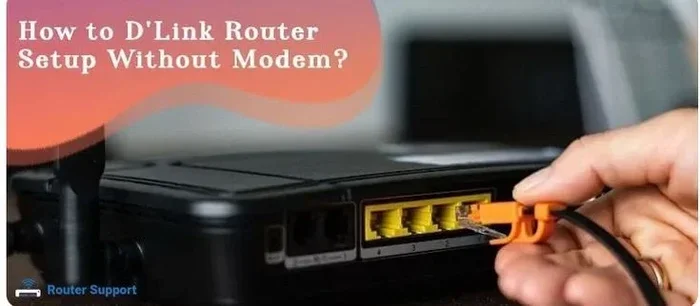
Start by connecting your modem to the new router using an Ethernet cable. Plug one end into the modem and the other into the router’s WAN or Internet port. Power on both devices and wait for them to fully start up.
Step 2: Access the Router Settings
Open a web browser or the router’s companion app on your phone. Look for the default IP address (usually printed on the router or in the manual) and enter it in the browser. You will be prompted to log in with default credentials, which are also printed on the device.
Step 3: Configure Your Network
Change the default network name (SSID) to something recognizable. Set a strong password using WPA3 or WPA2 encryption. Adjust the router settings to match your preferences, including the guest network and parental controls if needed.
Step 4: Run an Internet Speed Test
Once everything is set up, run an internet speed test to confirm you are getting the speeds you expect. Compare the results to your internet plan speeds. If the numbers are close, you are all set. If not, try repositioning the router or checking for interference.
Quick Tips for a Smooth Setup
- Place your router in a central location for the best Wi-Fi coverage.
- Keep it elevated and away from walls and metal objects.
- Update the firmware as soon as you set up the device.
- Save your settings in a safe place for future reference.
Common Mistakes to Avoid
Switching to your own router is a great move, but there are a few common pitfalls to watch out for.
Skipping Compatibility Checks
One of the biggest mistakes is buying a router without checking if it works with your ISP or broadband connection. Always verify compatibility before you make a purchase. A quick search online or a call to your ISP can save you time and frustration.
Ignoring Firmware Updates
Once you set up your new router, do not forget about it. Regular firmware updates keep your device secure and running at peak performance. Many modern routers offer automatic updates, but it is worth checking periodically.
Placing the Router Poorly
Where you put your router matters a lot. Hiding it in a closet or placing it next to thick walls weakens the signal. For the best Wi-Fi performance, keep it in an open, central area of your home.
Not Securing Your Network
Leaving your network open or using a weak password is a serious security risk. Always set a strong, unique password and enable the latest encryption standard available on your router. This protects your home network from unauthorized access.
Expert Tips for Maximizing Your Router
Once you have your own router set up, a few expert tips can help you get the most out of it.
Restart your router regularly. Just like any electronic device, routers benefit from occasional restarts. A quick reboot once a week can clear temporary issues and keep things running smoothly.
Use the 5 GHz band for demanding tasks. Most modern dual-band routers offer both 2.4 GHz and 5 GHz frequencies. The 5 GHz band is faster and less congested, making it ideal for streaming, gaming, and video calls.
Update your router placement over time. As you add more devices or rearrange your furniture, your signal needs may change. Experiment with different locations to find the sweet spot for the best Wi-Fi coverage.
Consider a mesh system if needed. If you still experience dead zones, a mesh network can extend coverage without the hassle of range extenders. These systems use multiple nodes that work together seamlessly.
Conclusion
Can you buy your own Wi Fi router? Absolutely, and doing so is one of the smartest decisions you can make for your home network. From saving money on monthly rental fees to enjoying faster speeds and better coverage, the benefits are clear and compelling.
Owning your own wireless router gives you control, flexibility, and peace of mind. You choose the equipment that fits your home, your budget, and your lifestyle. With a little research and a straightforward setup process, you can upgrade your internet experience in a single afternoon.
Take the time to evaluate your needs, check compatibility, and pick the right router for your household. The investment pays for itself quickly, and the improved internet speed and reliability are worth every penny. Your home network is only as good as the equipment powering it, so make the choice that works best for you.
Frequently Asked Questions
Do I need to contact my ISP before buying my own router?
It is a good idea to let your ISP know you are switching to your own equipment. Some providers require you to register the device or update your account settings. Most ISPs are fine with it and will not charge any extra fees. A quick phone call or chat with customer support can confirm the process.
Will buying my own router improve my internet speed?
Yes, it can. ISP-provided routers are often basic models that may not fully support faster internet plans. A quality personal router can handle higher speeds and deliver better Wi-Fi performance, especially if you have a gigabit or near-gigabit plan.
What is the difference between a modem and a router?
A modem connects your home to the internet through your broadband connection. A router takes that connection and distributes it wirelessly to your devices. Some ISPs provide a modem-router combo unit, but you can also use separate devices for better performance and flexibility.
Can I return a router if it does not work with my ISP?
Most retailers allow returns within 30 days if the product is unopened or in good condition. Before purchasing, check the return policy. You can also verify compatibility with your ISP online or by calling their support line to avoid any issues.
How often should I update my router firmware?
You should check for firmware updates at least once a month. Many modern routers have automatic update features, but it is still wise to check manually occasionally. Keeping your firmware current ensures the best network security and performance.
Is a mesh router system worth the extra cost?
Yes, if you have a larger home or experience weak signal in certain areas. A mesh network uses multiple nodes to extend Wi-Fi coverage evenly throughout your space. For homes over 2,000 square feet or homes with many walls and obstacles, a mesh system is a worthwhile investment.