Can I Plug A USB 2 0 Into A 3 0 Port And What Happens
Yes, you can plug a USB 2.0 device into a USB 3.0 port, and it will work thanks to backward compatibility. However, your data transfer speed will drop to USB 2.0 levels, and you may notice slower charging or performance. This guide covers everything you need to know about using older USB devices with newer ports safely and effectively.
Have you ever looked at your computer ports and wondered, Can I Plug A USB 2.0 Into A 3.0 Port? Maybe you have an older flash drive or an external hard drive that only supports USB 2.0, but your new laptop only has USB 3.0 ports. The good news is that the answer is yes. You can absolutely plug a USB 2.0 device into a USB 3.0 port, and it will work.
But “it will work” does not mean “it will work at the same speed.” There are some important differences you should understand before you start transferring files or charging devices. This guide walks you through everything you need to know about USB compatibility, what actually happens when you mix USB versions, and how to get the best results from your setup.
Whether you are using a flash drive for work, an external hard drive for backups, or a simple USB cable to charge your phone, understanding how these connections work saves you time and frustration. Let us break it all down in simple terms.
Key Takeaways
- USB 2.0 devices work in USB 3.0 ports: The connectors are designed to be backward compatible, so plugging in is always safe.
- Speed drops significantly: You will get USB 2.0 transfer rates (up to 480 Mbps) instead of USB 3.0 speeds (up to 5 Gbps).
- No damage risk: Using an older USB device in a newer port will not harm your equipment.
- Charging may be slower: USB 3.0 ports can deliver more power, but USB 2.0 devices only draw what they need.
- Plug and play works: Most modern operating systems recognize USB 2.0 devices instantly in USB 3.0 ports.
- Use the right cable: The cable quality matters just as much as the port version for performance.
📑 Table of Contents
- Understanding USB 2.0 and USB 3.0 Basics
- Can You Physically Plug USB 2.0 Into a USB 3.0 Port?
- What Happens When You Plug USB 2.0 Into a USB 3.0 Port?
- Speed Differences and Performance Impact
- Is It Safe to Use USB 2.0 Devices in USB 3.0 Ports?
- Tips for Getting the Best Performance
- Common Mistakes People Make with USB Compatibility
- Expert Insights on USB Compatibility
- Key Takeaways
- Conclusion
Understanding USB 2.0 and USB 3.0 Basics
Before we talk about plugging one into the other, let us quickly understand what makes USB 2.0 and USB 3.0 different. These are two different USB standards that define how fast data moves between your device and your computer.
What Is USB 2.0?
USB 2.0 came out in the year 2000. It was a huge step forward from the original USB 1.1 standard. With USB 2.0, you could transfer data at speeds up to 480 megabits per second, or Mbps. That sounds fast, but compared to newer standards, it is quite slow.
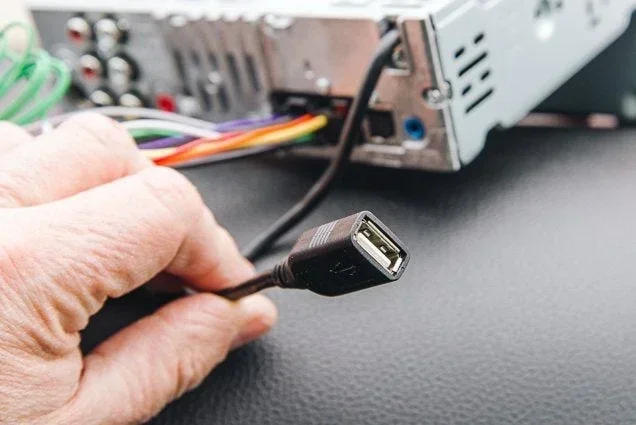
Most people know USB 2.0 as the standard that came with early flash drives, printers, and basic external hard drives. If you have an older device lying around, there is a good chance it uses USB 2.0. The connector is typically a standard USB Type-A shape, which is the flat rectangular plug you are probably familiar with.
What Is USB 3.0?
USB 3.0 arrived around 2008 and brought a massive speed boost. It can transfer data at up to 5 gigabits per second, or Gbps. That is more than ten times faster than USB 2.0. USB 3.0 is often called SuperSpeed USB because of this dramatic improvement.
USB 3.0 ports are now common on most modern computers, laptops, and desktops. They usually have a blue insert inside the port or the letters “SS” (SuperSpeed) printed next to it. The USB Type-A connector on USB 3.0 cables looks the same on the computer side, but the cable itself often has extra wires inside for faster data transfer.
Key Differences at a Glance
- USB 2.0 max speed: 480 Mbps
- USB 3.0 max speed: 5 Gbps (5,000 Mbps)
- USB 2.0 connector color: Usually black or white inside the port
- USB 3.0 connector color: Usually blue inside the port
- USB 2.0 power output: Up to 2.5 watts
- USB 3.0 power output: Up to 4.5 watts
- USB 2.0 cables: 4 pins inside
- USB 3.0 cables: 9 pins inside
These differences matter when you start mixing the two standards. But the good news is that the physical design of the connectors makes them work together. A USB 2.0 plug will fit into a USB 3.0 port without any force or adapters. This is what people mean when they say USB is backward compatible.
Can You Physically Plug USB 2.0 Into a USB 3.0 Port?
The short answer is yes. The USB Type-A connector shape has stayed the same across both USB 2.0 and USB 3.0. This means any USB 2.0 cable or device with a standard rectangular plug will fit right into a USB 3.0 port on your computer or hub.
There is no risk of breaking anything. The port and plug are designed to accept older connectors. You do not need any special adapter or converter. Just plug it in, and your computer will recognize the device.
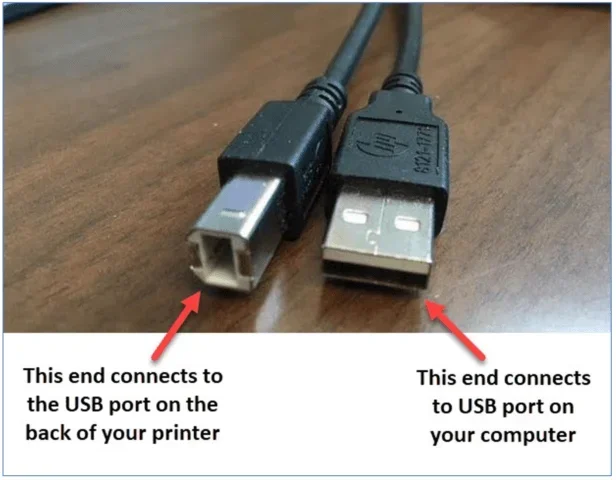
However, there is one small thing to watch out for. Some USB 3.0 USB Type-B connectors (the square-ish ones used for printers and external hard drives) have an extra piece of plastic inside that USB 2.0 cables do not have. In those cases, a USB 2.0 cable might not fit into a USB 3.0 Type-B port. But for the standard Type-A ports on your computer, there is no issue at all.
When you plug in your USB device, your operating system will automatically detect it. Windows, macOS, and most Linux distributions handle this instantly. You do not need to install drivers or restart your computer in most cases. It is truly a plug and play experience.
What Happens When You Plug USB 2.0 Into a USB 3.0 Port?
Now that we know it works, let us talk about what actually happens. Understanding this helps you set realistic expectations and avoid frustration.
Speed Drops to USB 2.0 Levels
This is the most important thing to know. When you connect a USB 2.0 device to a USB 3.0 port, the connection runs at USB 2.0 speed. The port does not magically upgrade your old device. Instead, both the device and the port negotiate the highest speed they both support. Since your USB 2.0 device can only handle 480 Mbps, that becomes your top speed.
Think of it like a highway. A USB 3.0 port is like a ten-lane highway, and a USB 2.0 device is like a car that can only go 60 miles per hour. No matter how wide the highway is, your car is still limited to 60. You get the same result whether you drive on the wide highway or a small country road.
If you are transferring a large file from a USB 2.0 flash drive to your computer, it will take just as long as it would on a USB 2.0 port. You will not see any speed improvement from using the USB 3.0 port.
Charging Speed May Change
USB 3.0 ports can deliver more power than USB 2.0 ports. A USB 3.0 port typically provides up to 900 milliamps of current, while a USB 2.0 port provides about 500 milliamps. However, your USB 2.0 device will only draw the power it needs. So if you plug a USB 2.0 phone charger into a USB 3.0 port, your phone will charge at its normal rate.
You might notice that some devices charge slightly faster in a USB 3.0 port, but the difference is usually small. The charging speed depends more on what your device can accept than on the port it is plugged into.
Your Computer Recognizes the Device
Operating systems today are very good at handling mixed USB standards. When you plug in a USB 2.0 device to a USB 3.0 port, your computer sees it and assigns the appropriate driver. You will see the device appear in File Explorer (Windows) or Finder (Mac) right away.
There is one thing to keep in mind. Sometimes, if you have many USB devices connected, the bandwidth gets shared. USB 3.0 and USB 2.0 devices on the same controller can slow each other down slightly. But for most everyday use, you will not notice this.
Data Integrity Stays Intact
One thing you do not need to worry about is data corruption. Using a USB 2.0 device in a USB 3.0 port does not put your files at risk. The data transfer remains reliable and error-free. Your files will copy correctly, and your device will work just as it did before.
If you are moving files between a USB drive and a program like Microsoft Excel, you can do so without any issues. Just be aware that if you ever run into trouble deleting a line in your spreadsheet, you can always refer to guides on fixing common Excel problems like A Line Wont Delete In Microsoft Excel to troubleshoot. The same goes for when you are organizing files on your USB drive for work or school.
No Extra Power Drain on Your Computer
Some people worry that plugging an older USB device into a newer port will drain their battery faster. This is not true. Your USB 2.0 device will only draw the power it needs, regardless of what port it is in. Your computer manages power delivery intelligently, so there is no wasted energy or extra drain.
Speed Differences and Performance Impact
Let us put the speed difference into real-world terms. This helps you understand when it matters and when it does not.
Transfer Speed Comparison
- USB 2.0 real-world speed: About 30 to 40 MB per second
- USB 3.0 real-world speed: About 100 to 200 MB per second
- Copying a 1 GB file on USB 2.0: About 25 to 35 seconds
- Copying a 1 GB file on USB 3.0: About 5 to 10 seconds
As you can see, the difference is huge. If you regularly transfer large files, photos, or video clips, using a USB 2.0 device in a USB 3.0 port will feel painfully slow compared to using a USB 3.0 device.
When Speed Does Not Matter
Not everything you do with a USB device requires fast speeds. If you are just storing documents, reading a simple text file, or using a USB keyboard or mouse, the speed difference does not matter at all. A USB 2.0 keyboard works perfectly fine in a USB 3.0 port because keyboards transfer very little data.
The same goes for basic peripherals like webcams, microphones, and simple printers. These devices do not need the high bandwidth that USB 3.0 offers. So even though your device is running at USB 2.0 speed, you will not notice any lag or problems in daily use.
When Speed Really Matters
On the other hand, some tasks really benefit from USB 3.0 speeds. If you work with large video files, back up your entire computer to an external drive, or transfer thousands of high-resolution photos, you will feel the bottleneck of a USB 2.0 connection.
In these cases, it is worth investing in a USB 3.0 flash drive or an external hard drive that supports SuperSpeed USB. The time savings add up quickly, especially if you do these transfers every day.
Is It Safe to Use USB 2.0 Devices in USB 3.0 Ports?
Safety is a top concern for most people when mixing technology. Let us address this directly.
Will It Damage Your Device or Port?
No. Plugging a USB 2.0 device into a USB 3.0 port will not damage either one. The USB standard was specifically designed to be backward compatible. The voltage and power levels are regulated to protect your devices regardless of the port version.
Your USB 2.0 flash drive, external hard drive, or peripheral is perfectly safe. The USB 3.0 port will deliver only the amount of power the device requests. There is no risk of overloading or frying your older equipment.
Can It Cause Data Loss?
No. Data loss is not a risk when mixing USB standards. The protocol ensures that data is transferred correctly, whether you are using USB 2.0 or USB 3.0. Your files will copy safely, and your device will work reliably.
Of course, it is always a good idea to safely eject your USB device before unplugging it. This practice protects your data regardless of which USB version you are using. If you ever need help with file management tasks, you might find useful tips in resources like A Line Wont Delete In Microsoft Excel for handling common spreadsheet issues that come up during file work.
What About Cable Quality?
One thing that does matter is the quality of your USB cable. A cheap or damaged cable can cause slow transfers, connection drops, or even data corruption. This problem exists regardless of whether you are using USB 2.0 or USB 3.0.
Always use cables from reputable brands or those that come with your device. If your cable is frayed, bent, or showing signs of wear, replace it. A good cable ensures a stable and reliable connection every time.
Tips for Getting the Best Performance
Even though your USB 2.0 device will run at USB 2.0 speeds in a USB 3.0 port, there are still things you can do to get the best possible performance from your setup.
Use the Shortest Cable You Can
Longer USB cables can reduce signal strength and slow down transfers. If you can use a shorter USB cable, do it. A 1-foot cable will almost always perform better than a 6-foot cable, especially at USB 2.0 speeds.
Avoid USB Hubs When Possible
USB hubs are convenient, but they can add latency and reduce speeds. If you plug your USB 2.0 device directly into your computer’s port, you will get the best performance. If you must use a hub, choose a powered USB 3.0 hub for the most reliable connection.
Keep Your Drivers Updated
While most operating systems handle USB devices automatically, keeping your USB drivers updated can help with stability and performance. Check for system updates regularly, especially after major operating system upgrades.
Close Unnecessary Programs During Transfers
If you are copying large files, close programs you are not using. This frees up system resources and helps your computer focus on the transfer. It is a simple tip, but it can make a noticeable difference, especially on older computers.
Consider Upgrading Your Device
If you find yourself constantly waiting on slow USB 2.0 transfers, it might be time to upgrade. A USB 3.0 flash drive costs very little these days and will make a world of difference. The investment pays for itself in saved time.
Common Mistakes People Make with USB Compatibility
There are a few common mistakes people make when dealing with mixed USB standards. Avoiding these will save you time and headaches.
- Assuming USB 3.0 ports make USB 2.0 devices faster: They do not. The device speed is limited by the device itself.
- Using damaged cables: A bad cable causes more problems than a mismatched USB version ever will.
- Ignoring port colors: Blue ports are USB 3.0, and black or white ports are usually USB 2.0. This helps you know what to expect.
- Forgetting to safely eject: Always eject your USB device before unplugging it, regardless of the port version.
- Overloading a single port with too many devices: This can cause bandwidth issues and slow down all connected devices.
Expert Insights on USB Compatibility
Technology experts agree that backward compatibility is one of the greatest strengths of the USB standard. It means you do not have to throw away your older devices just because you bought a new computer. Your USB 2.0 gear still has plenty of life in it.
However, experts also recommend being mindful of your workflow. If you regularly transfer large files, investing in USB 3.0 equipment is worth the small cost. The time savings compound over weeks and months of use. On the other hand, if you only use your USB device occasionally for small files, USB 2.0 in a USB 3.0 port works just fine.
One thing experts always emphasize is cable quality. Many people blame the port or the device for slow speeds when the real culprit is a cheap or damaged cable. Always start by checking your cable before troubleshooting anything else.
Another expert tip is to check your device manager (on Windows) or system information (on Mac) to see how your computer is recognizing the USB connection. This tells you whether your system is running the device at USB 2.0 or USB 3.0 speed, and it can help you troubleshoot if something is not working as expected.
Key Takeaways
- USB 2.0 devices work in USB 3.0 ports: The connectors are designed to be backward compatible, so plugging in is always safe.
- Speed drops significantly: You will get USB 2.0 transfer rates (up to 480 Mbps) instead of USB 3.0 speeds (up to 5 Gbps).
- No damage risk: Using an older USB device in a newer port will not harm your equipment.
- Charging may be slower: USB 3.0 ports can deliver more power, but USB 2.0 devices only draw what they need.
- Plug and play works: Most modern operating systems recognize USB 2.0 devices instantly in USB 3.0 ports.
- Use the right cable: The cable quality matters just as much as the port version for performance.
Conclusion
So, can I plug a USB 2.0 into a 3.0 port? Absolutely yes. The USB standard was built with backward compatibility in mind, and that means your older devices work seamlessly with newer ports. You can plug in your USB 2.0 flash drive, external hard drive, or any other USB device with confidence.
The trade-off is speed. Your device will run at USB 2.0 levels, which is perfectly fine for everyday tasks like document storage, basic file transfers, and using peripherals like keyboards and mice. But if you need fast transfers for large files, consider upgrading to a USB 3.0 device or cable.
Remember to always use good-quality cables, safely eject your devices, and keep your system updated. These simple habits will keep your USB connections working smoothly, no matter which version you are using.
Understanding how your USB ports and devices work together gives you more control over your tech setup. You will save time, avoid frustration, and get the most out of every connection. So go ahead, plug in that USB 2.0 device, and get to work with confidence.
Frequently Asked Questions
Can a USB 2.0 device damage a USB 3.0 port?
No, it cannot. USB ports are designed to be backward compatible and regulate power delivery safely. Your USB 3.0 port will not be damaged by connecting an older USB 2.0 device.
Why is my USB 2.0 flash drive so slow in a USB 3.0 port?
Your flash drive is limited by its own USB 2.0 standard, which caps the speed at 480 Mbps. The USB 3.0 port can only communicate with the device at the speed the device supports.
Do I need a special cable to use USB 2.0 in a USB 3.0 port?
No special cable is needed. A standard USB 2.0 cable works perfectly fine in a USB 3.0 port. Just make sure your cable is not damaged or worn out for the best results.
Will my USB 2.0 external hard drive work in a USB 3.0 port on my laptop?
Yes, it will work. Your laptop will recognize the hard drive immediately, and you can access your files normally. The transfer speed will be limited to USB 2.0 levels, but the device will function properly.
Can I charge my phone using a USB 2.0 cable in a USB 3.0 port?
Yes, you can charge your phone this way. The USB 3.0 port can supply more power, but your phone will only draw the amount it needs. Charging speed depends on your phone’s charging capability, not the port.
How do I know if my port is USB 2.0 or USB 3.0?
Look inside the port. USB 3.0 ports usually have a blue insert or the letters “SS” printed next to them. USB 2.0 ports are typically black or white inside. You can also check your device manager or system information for details.