Can I Connect Hdmi To Dvi Everything You Need To Know
Yes, you can connect HDMI to DVI using a simple adapter or cable. This guide covers everything from choosing the right adapter to solving audio issues and getting the best video quality.
Have you ever stared at your TV or monitor and wondered, “Can I connect HDMI to DVI?” You are not alone. Many people face this exact situation when they want to hook up a newer device to an older display. The good news is that it is absolutely doable. You just need the right HDMI to DVI adapter and a little know-how.
This guide will walk you through everything you need to know. From understanding the difference between HDMI and DVI to picking the right cable and solving audio problems, we have got you covered. By the end, you will feel confident making this connection yourself. Let us dive in and make your display connection work perfectly.
Key Takeaways
- HDMI to DVI connections are possible: You just need the right adapter or cable to bridge the two different ports.
- Video signals transfer easily: HDMI and DVI both carry digital video, making the conversion straightforward for most setups.
- Audio needs a separate solution: DVI does not carry audio, so you will need extra cables or an audio extractor for sound.
- Adapter quality matters: Cheap adapters can cause signal loss, so invest in a reliable HDMI to DVI adapter for the best results.
- Resolution depends on your DVI type: Single link DVI limits resolution, while dual link DVI supports higher resolutions.
- Common problems are fixable: Most HDMI to DVI issues can be solved with basic troubleshooting steps.
📑 Table of Contents
- What Is HDMI and What Is DVI?
- Can You Connect HDMI to DVI Directly?
- What You Need to Make the Connection Work
- Step-by-Step Connection Guide
- Audio Considerations When Using HDMI to DVI
- Common Problems and How to Fix Them
- Comparison Table: HDMI vs DVI
- Expert Tips for the Best Experience
- Frequently Asked Questions
- Final Thoughts
What Is HDMI and What Is DVI?
Before we get into the “how,” let us talk about the “what.” Understanding the basics of both connection types makes the whole process much easier. These two ports look different and serve slightly different purposes, but they share a key similarity.
What Is HDMI?
HDMI stands for High-Definition Multimedia Interface. It is the most common connection type on modern TVs, laptops, and streaming devices. One cable handles both video and audio signals. That is a huge advantage. You plug in one cable, and you get picture and sound. No extra wires needed.
HDMI has evolved over the years. Newer versions support higher resolutions, faster refresh rates, and even Ethernet connections. Most devices made after 2010 use HDMI in some form. It is the standard for high-definition content.
What Is DVI?
DVI stands for Digital Visual Interface. It was popular before HDMI became the standard. DVI primarily carries digital video signals. Unlike HDMI, DVI does not carry audio. You need a separate cable for sound if your setup requires it.
DVI comes in a few different forms. There is DVI-D, which is purely digital. There is DVI-A, which is analog. And then there is DVI-I, which supports both digital and analog signals. This matters when you choose your adapter type. The kind of DVI port you have determines what will work best.
How Do They Compare?
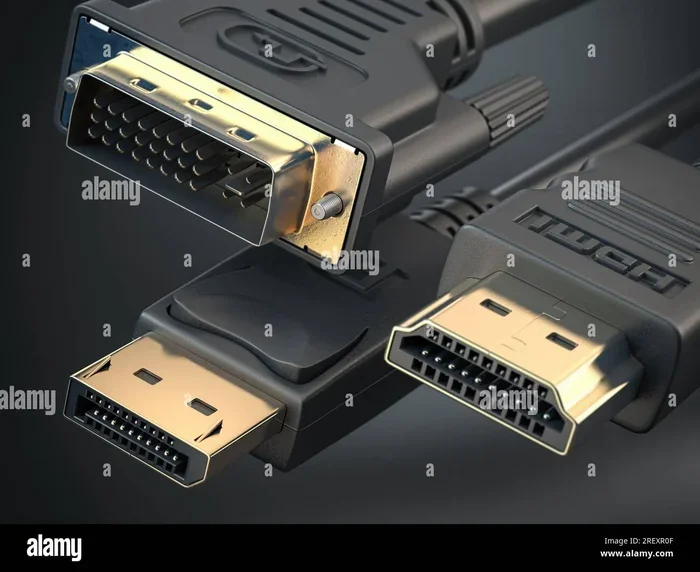
Both HDMI and DVI transmit digital video signals. This is the key reason why you can connect them. The video quality is often nearly identical when using a proper digital video connection. The main differences come down to audio support and physical shape. HDMI is smaller and carries sound. DVI is larger and video only.
Can You Connect HDMI to DVI Directly?
The short answer is yes. You can connect HDMI to DVI, but the method depends on what ports are available on your devices. Let us break down the scenarios so you know exactly what to do.
HDMI to DVI-D Connection
This is the most common and straightforward setup. DVI-D is a purely digital signal. HDMI is also digital. That means a simple HDMI to DVI-D cable or adapter works perfectly. You get full digital video quality without any signal conversion issues.
Look for a cable that has an HDMI connector on one end and a DVI-D connector on the other. These are widely available and affordable. They work great for connecting a laptop to a monitor or a streaming box to a display.
HDMI to DVI-I Connection
DVI-I supports both digital and analog signals. An HDMI to DVI-I connection also works well. You can use the same type of adapter or cable as with DVI-D. The DVI-I port will handle the digital signal from HDMI without any problems.
One thing to watch for is compatibility with older analog devices. If you are connecting to a system that uses analog signals, make sure your cable or adapter supports that conversion. Most modern setups will work fine with a standard adapter.
DVI-A to HDMI Connection
DVI-A is an analog signal. HDMI is digital. This means you need a signal converter, not just a simple cable. An analog to digital converter changes the DVI-A signal into something HDMI can read. These converters cost a bit more but are essential for older equipment.
If you have an older monitor with only DVI-A, do not worry. You can still connect it to an HDMI source. Just make sure you get the right type of converter. A simple cable will not work in this case.
What You Need to Make the Connection Work
Getting the right gear is the most important step. Without the proper adapter or cable, your HDMI to DVI setup will not work. Here is a breakdown of everything you might need.
Types of Adapters and Cables
Not all adapters are the same. The right one depends on the ports available on your devices. Here are the main options:
- HDMI to DVI-D cable: Best for most setups. Plug and play with no extra equipment needed.
- HDMI to DVI-I adapter: Works with DVI-I ports and handles digital signals smoothly.
- Active DVI to HDMI converter: Needed when converting DVI-A (analog) to HDMI. Requires external power in some cases.
- HDMI to DVI adapter with audio: Some adapters include a 3.5mm audio output. This solves the audio problem we will talk about next.
When shopping, always check the port type on your devices first. A quick look at the back of your TV or monitor tells you everything. Match the DVI type to the right adapter, and you are golden.
Quick Tips for Choosing the Right Adapter
- Check if your DVI port is DVI-D, DVI-I, or DVI-A before buying anything.
- Buy from a reputable brand to avoid signal loss and connection issues.
- Choose a cable length that fits your setup. Too long can weaken the signal.
- Look for adapters that support high-definition resolutions up to 1080p or higher.
- If you need audio, pick an adapter with a built-in audio output jack.
Sometimes the simplest setup works best. A direct HDMI to DVI cable eliminates the need for extra adapters. Just make sure both ends match your device ports exactly.
Helpful Gadgets That Simplify Connectivity
Setting up a new display connection can feel overwhelming at first. Having the right gadgets on hand makes a huge difference. If you are looking for ways to simplify your tech setup, check out our 10 Gadgets To Make Moms Life Easier list. Many of those items help organize cables and streamline your workspace. A clean setup leads to fewer connection headaches.
Step-by-Step Connection Guide
Now that you have your adapter or cable, let us walk through the actual setup. This process takes just a few minutes and requires no technical expertise.
Step 1: Turn Off Both Devices
Before plugging anything in, power off your source device and your display. This prevents any potential signal interference. It also protects your ports from static damage. A quick shutdown now saves you trouble later.
Step 2: Identify Your Ports
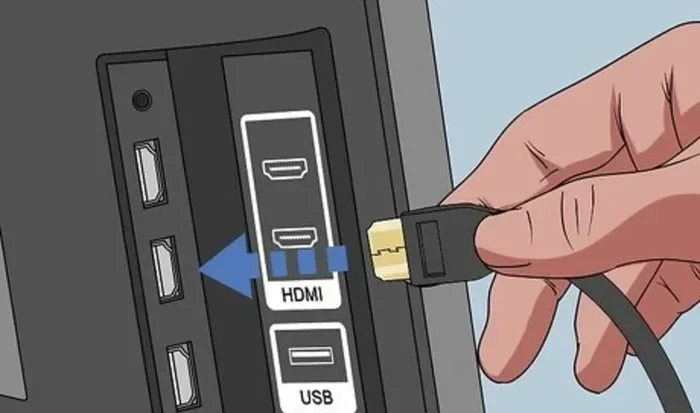
Look at the back of both devices. Find the HDMI port on your source device. Then find the DVI port on your display. Note whether it is DVI-D, DVI-I, or DVI-A. This determines which adapter you need.
Step 3: Connect the Adapter or Cable
Plug the HDMI end into your source device. Then plug the DVI end into your display. Make sure each connection is firm and secure. A loose connection is the number one cause of display problems.
Step 4: Connect Audio Separately (If Needed)
Remember that DVI does not carry audio. If you need sound, connect a separate audio cable. A simple 3.5mm aux cable from your source device to your speakers or sound system works perfectly.
Step 5: Power On and Adjust Settings
Turn on both devices. Your display should show the video signal from the HDMI source. If the image looks off, go into your display settings and adjust the resolution. Match it to what your DVI connection supports best.
Audio Considerations When Using HDMI to DVI
This is the one big limitation of HDMI to DVI connections. DVI does not carry audio. It only handles video. So if you want sound, you need a workaround. The good news is that the fix is simple and inexpensive.
Why DVI Does Not Support Audio
DVI was designed before audio over video cables became standard. It was built for video only. HDMI came along later and combined both into one convenient cable. So when you use an HDMI to DVI adapter, the audio signal simply has nowhere to go.
How to Get Sound With Your Setup
You have a few options for adding audio to your HDMI to DVI setup:
- Separate audio cable: Use a 3.5mm cable or RCA cables from your source device to your speakers.
- Audio extractor: This small device splits the HDMI signal into video (DVI) and audio (3.5mm or optical). It sits between your source and display.
- Built-in speaker systems: Some monitors and TVs have speakers that you can connect directly to your source device.
- Bluetooth speakers: Pair wireless speakers with your source device for a clean, cable-free audio setup.
An audio extractor is the cleanest solution. It keeps your video signal going through the DVI connection while sending audio to your speakers separately. These devices are small and easy to set up.
Quick Tip
If you are using a laptop, you can often route audio through the laptop speakers even when connected to a DVI display. Check your sound settings and make sure the output is set to your laptop, not the DVI monitor.
Common Problems and How to Fix Them
Even with the right adapter, you might run into issues. Do not panic. Most HDMI to DVI problems have simple solutions. Here are the most common issues and how to solve them.
No Signal on the Display
This is the most frequent problem. Usually, it means the connection is loose or the adapter is not seated properly. Try unplugging everything and plugging it back in firmly. Also, make sure your display is set to the correct input source.
Low Resolution or Poor Image Quality
If your picture looks blurry or pixelated, your resolution settings might be wrong. Go into your display settings and lower the resolution to match what your DVI connection supports. A single link DVI connection maxes out at 1920×1200. A dual link DVI connection can handle higher resolutions.
No Sound
Remember, DVI does not carry audio. If you have no sound, this is expected behavior. Connect a separate audio cable or use an audio extractor to get sound through your speakers.
Flickering or Intermittent Signal
A flickering display usually points to a faulty cable or adapter. Try a different HDMI to DVI adapter or cable. Also, check that your cable is not too long. Longer cables can lose signal strength.
Adapter Not Recognized
Sometimes your device will not detect the adapter at all. This can happen with cheap or incompatible adapters. Make sure your adapter matches your DVI port type. A DVI-D adapter will not work with a DVI-A port without a proper converter.
Expert Insight
According to display technology experts, brand-name adapters tend to perform much better than generic ones. Investing in a quality HDMI to DVI adapter from a trusted manufacturer saves you from frustration. Look for adapters that support the resolution and refresh rate you need.
Comparison Table: HDMI vs DVI
| Feature | HDMI | DVI |
|---|---|---|
| Carries Video | Yes | Yes |
| Carries Audio | Yes | No |
| Signal Type | Digital | Digital or Analog |
| Max Resolution (Single Link) | 4K and higher | 1920×1200 |
| Cable Size | Small | Large |
| Common On | Modern TVs, laptops, consoles | Older monitors, some GPUs |
| Ease of Use | Very Easy | Requires Adapter |
As you can see, HDMI is the more versatile option. But DVI still has its place, especially with older displays. A good HDMI to DVI adapter bridges the gap between old and new technology beautifully.
Expert Tips for the Best Experience
Here are some extra tips from people who deal with display connections every day. These small steps make a big difference in your setup quality.
- Keep your cables short: Shorter cables maintain stronger signal quality. Under 6 feet is ideal for most setups.
- Update your display drivers: Sometimes resolution issues come from outdated software. A quick driver update can fix everything.
- Label your cables: If you have multiple connections, label them. It saves a lot of confusion when troubleshooting.
- Use cable management: Tangled cables cause connection issues. Keep your setup neat and organized. If you want more ideas for simplifying your tech life, our 10 Gadgets To Make Moms Life Easier guide has great tips for staying organized.
- Test before mounting: Always test your connection before wall-mounting or permanently setting up your display. It is much easier to fix problems at this stage.
Another often-overlooked tip is to check your HDMI cable version. Older HDMI cables may not support the full resolution your DVI connection can handle. Using a newer HDMI cable ensures the best possible picture quality.
Frequently Asked Questions
Can I Connect HDMI to DVI Without an Adapter?
No, you cannot connect HDMI and DVI directly without an adapter. The ports have different shapes and pin configurations. You need either an HDMI to DVI cable or an HDMI to DVI adapter to make the connection work properly.
Does HDMI to DVI Support 4K Resolution?
It depends on your DVI type. Most DVI connections, especially single link DVI, do not support 4K. Dual link DVI can reach up to 2560×1600, but true 4K (3840×2160) usually requires an HDMI or DisplayPort connection. Check your specific DVI type before expecting 4K output.
Why Is There No Sound When I Connect HDMI to DVI?
This is completely normal. DVI only carries video signals. It does not transmit audio. To get sound, you need to connect a separate audio cable from your source device to your speakers or use an audio extractor.
Is an HDMI to DVI Adapter Expensive?
Not at all. Most HDMI to DVI adapters cost between $5 and $20. You can find reliable options at most electronics stores or online. Spending a little more on a quality adapter ensures better performance and fewer connection problems.
Can I Use a DVI to HDMI Cable Instead of an Adapter?
Yes, DVI to HDMI cables work the same way as adapters. They have a DVI connector on one end and an HDMI connector on the other. Just make sure you get the right type for your DVI port (DVI-D or DVI-I).
Will Connecting HDMI to DVI Affect My Display Quality?
Generally, no. As long as you use a quality adapter and a good cable, the video quality should remain excellent. The digital signal transfers cleanly between HDMI and DVI. Cheap adapters or damaged cables are the main culprits for quality loss.
Final Thoughts
Connecting HDMI to DVI is simpler than most people think. With the right HDMI to DVI adapter or cable, you can bridge old and new technology effortlessly. The key is knowing what type of DVI port you have and choosing the right adapter for it.
Remember that DVI does not carry audio. Plan for a separate audio solution if your setup needs sound. And always invest in a quality adapter from a trusted brand. It makes all the difference in signal quality and long-term reliability.
Whether you are connecting a laptop to a monitor, a streaming device to a TV, or a desktop to a display, this guide has you covered. The steps are simple, the equipment is affordable, and the results are excellent. You now have everything you need to make your HDMI to DVI connection work perfectly. Go ahead and give it a try. Your display setup is about to get a whole lot better.
For more tips on organizing your tech accessories and simplifying your setup, explore our other guides on adding prefixes to numbers on iPhone for better contact management and device organization. A well-organized setup makes every connection easier.