Can I Connect Hdmi Through Usb Here Is What You Need To Know
Yes, you can connect HDMI through USB using the right adapter or cable. This guide explains how USB to HDMI works, which devices support it, and how to set up your external display without hassle. Whether you want to extend your laptop screen or stream media, you will find clear steps and practical tips here.
Have you ever been in a situation where you need to hook up a second screen, but your laptop only has USB ports left? You are not alone. Many people ask the same question every day: can I connect HDMI through USB? The short answer is yes. But the full answer depends on your device, your ports, and the type of adapter you use.
In this guide, we will walk through everything you need to know about connecting HDMI through USB. We will cover how the technology works, which adapters to buy, setup steps, and common mistakes to avoid. By the end, you will feel confident setting up your external display in minutes.
Key Takeaways
- USB to HDMI adapters are real and widely available: They let you send video from a USB port to an HDMI display.
- USB-C is the most common modern option: Many new laptops and phones support USB-C to HDMI connections natively.
- Not all USB ports carry video signals: Older USB-A ports may need an active adapter with a built-in chip.
- Setup is usually plug and play: Most adapters work instantly without extra software on Windows, Mac, and Chromebooks.
- Check compatibility first: Your device must support display output over USB for the connection to work.
- Common issues are easy to fix: Driver updates, cable quality, and port selection solve most problems.
📑 Table of Contents
- What Does It Mean to Connect HDMI Through USB?
- Types of USB to HDMI Adapters and Cables
- Which Devices Can You Use to Connect HDMI Through USB?
- How to Set Up HDMI Through USB: Step by Step
- Common Problems When Connecting HDMI Through USB
- Expert Tips for the Best HDMI Over USB Experience
- Frequently Asked Questions
- Final Thoughts
What Does It Mean to Connect HDMI Through USB?
When we talk about connecting HDMI through USB, we mean sending a video and audio signal from a USB port to an HDMI display. This could be a TV, a monitor, or a projector. The USB port acts as a signal source, and the adapter converts that signal into something an HDMI cable can read.
Here is the key thing to understand. Not all USB ports were built to carry video. USB was originally designed for data transfer and charging. Over time, newer versions of USB gained the ability to handle display output too. This is why your older USB-A port might not work for video, while a modern USB-C port often can.
The process is called signal conversion. A small chip inside the adapter takes the digital data from the USB connection and turns it into an HDMI-compatible video and audio output. Think of it like a translator between two different languages. The adapter makes sure both sides understand each other.
How Signal Conversion Works in Simple Terms
Your computer sends visual data through the USB port. The adapter receives that data. Its internal chip processes it and outputs it as an HDMI signal. The HDMI cable then carries that signal to your TV or monitor. The whole process happens in milliseconds. You will not notice any delay in most everyday uses like browsing, working, or watching videos.
Types of USB to HDMI Adapters and Cables
Not all HDMI adapters are the same. There are several types on the market, and choosing the right one matters a lot. Let us break them down so you can pick the best fit for your needs.
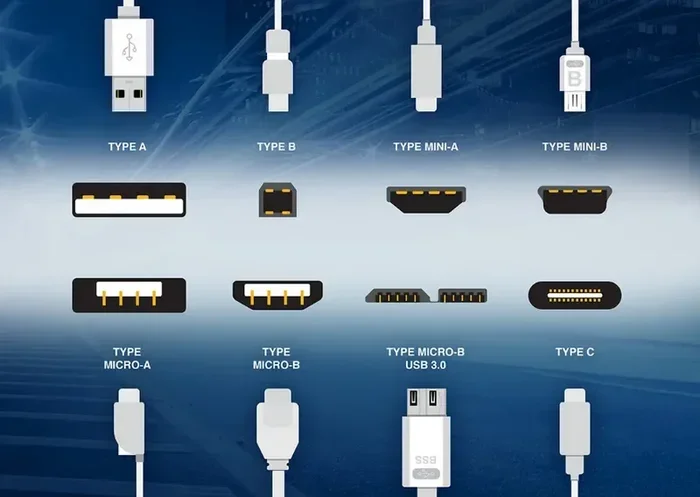
USB-A to HDMI Adapters
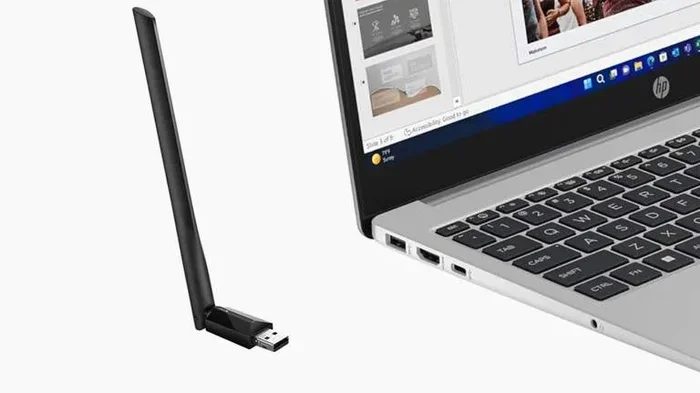
This is the most basic type. It plugs into the classic rectangular USB-A port found on older computers and laptops. These adapters usually need external power, often through a USB cable that plugs into another port. They work well for basic tasks but may struggle with high-resolution video on some devices.
USB-C to HDMI Adapters
USB-C is the modern standard. A USB-C to HDMI adapter is slim, reversible, and often supports high resolutions. Many newer laptops, tablets, and phones come with USB-C ports that can output video directly. If your device has USB-C, this is usually the best option.
Some USB-C ports support a feature called DisplayPort Alt Mode. This means the port can natively carry a video signal without needing extra processing. These ports give you the smoothest experience when you connect HDMI through USB.
USB-C HDMI Dongles vs. Full Adapters
A dongle is a small, compact adapter that plugs directly into your USB-C port. It usually has one HDMI output and sometimes a USB port for data or charging. A full adapter is larger and may offer multiple HDMI ports, extra USB ports, or an ethernet connection. Dongles are great for travel. Full adapters work better for desk setups where you need multiple connections.
Active vs. Passive Adapters
An active adapter has its own chip and sometimes its own power source. It can convert signals and boost them for longer cable runs. A passive adapter just routes the signal without any processing. For USB to HDMI, you almost always need an active adapter because the USB port is not natively designed for video output.
Which Devices Can You Use to Connect HDMI Through USB?
Most modern devices support some form of USB video output, but the details vary. Here is a quick look at common devices and what you can expect.
Laptops and Desktop Computers
Many Windows laptops made after 2018 have USB-C ports that support video output. You can plug in a USB-C to HDMI adapter and instantly use an external monitor. Some older laptops with only USB-A ports can still work, but you will need an active adapter with a built-in chip.
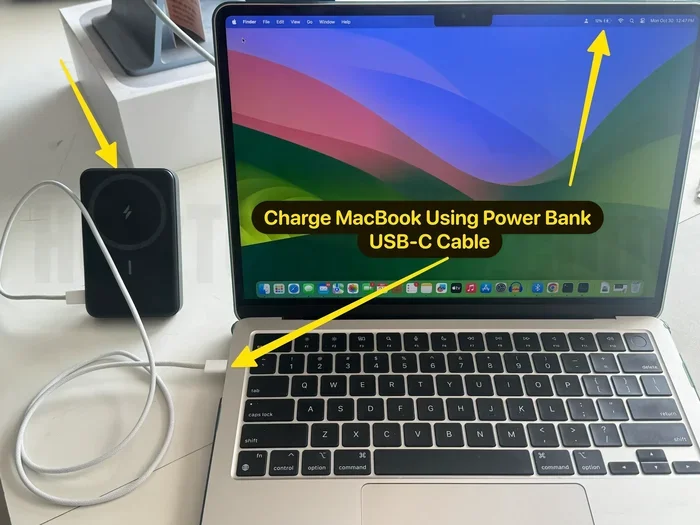
MacBooks are a great example. Apple has used USB-C and Thunderbolt ports for years, and they handle HDMI output beautifully. Just plug in a USB-C to HDMI cable or adapter, and your Mac can mirror or extend its display to any HDMI screen.
Chromebooks
Most Chromebooks now come with USB-C ports. They support external display connections through adapters. The setup is simple and usually requires no extra software. Just plug in the adapter, connect the HDMI cable, and your screen should appear on the external display right away.
Tablets and Phones
Android phones and tablets with USB-C ports can often connect to HDMI displays. iPhones do not have USB-C yet (except the newer models), so you will need a Lightning to HDMI adapter for Apple devices. These are different from standard USB to HDMI adapters, but the idea is the same.
Gaming Consoles and Streaming Devices
Some streaming sticks and mini PCs use USB ports for power and data. While they rarely support HDMI output over USB, certain docking stations can expand connectivity. If you want to use a streaming device with an HDMI display, always check the manufacturer’s specs first.
How to Set Up HDMI Through USB: Step by Step
Setting up an external display through USB is easier than most people think. Follow these steps and you will be up and running in no time.
Step 1: Check Your Device Ports
Look at your computer or device. Do you have a USB-C port? A USB-A port? Knowing what you have is the first step. If you only have USB-A, make sure to buy an active adapter. If you have USB-C, you have more options and better performance.
Step 2: Choose the Right Adapter
Pick an adapter that matches your port type. For USB-C, a simple USB-C to HDMI adapter works great. For USB-A, choose one with a built-in chip and external power if needed. Look for adapters that support at least 1080p resolution. For sharper images, look for 4K support.
Quick tips for choosing:
- Check the maximum resolution the adapter supports.
- Make sure it is compatible with your operating system.
- Read reviews to avoid cheap adapters that overheat or drop signals.
- Consider a docking station if you need multiple connections at once.
Step 3: Plug Everything In
Connect the adapter to your device’s USB port. Then plug the HDMI cable into the adapter and the other end into your TV or monitor. Switch your display to the correct HDMI input using your TV remote or monitor button.
Step 4: Configure Your Display Settings
On most devices, the external screen will activate automatically. If it does not, go to your display settings. On Windows, right-click the desktop and select Display Settings. On Mac, go to System Settings and then Displays. You can choose to mirror your screen or extend it as a second display.
Step 5: Adjust Resolution and Audio
Set the resolution to match your external display for the clearest picture. You can also choose where the audio plays. In most cases, audio will come through the HDMI connection automatically. You can switch audio output in your system sound settings if needed.
Common Problems When Connecting HDMI Through USB
Even with the right adapter, you might run into issues. Here are the most common ones and how to fix them.
No Signal on the External Display
This is the number one issue people face. If your screen stays black, try these fixes. First, check that the HDMI cable is firmly connected at both ends. Second, make sure the adapter is fully seated in the USB port. Third, try a different USB port if your device has more than one. Fourth, restart your device and check the display settings again.
Low Resolution or Fuzzy Picture
If the image looks blurry, your adapter might not support the display’s native resolution. Check the adapter specs and make sure it can handle 1080p or 4K. Also, update your device’s graphics drivers. On Windows, go to Device Manager and check for display adapter updates. On Mac, use Software Update to get the latest drivers.
No Audio Over HDMI
Sometimes the video works but you hear nothing. This usually happens when your system is still set to output audio through the laptop speakers. Go to your sound settings and change the output device to your HDMI display. On Windows, click the speaker icon in the taskbar and select the HDMI output. On Mac, go to Sound Settings and choose the HDMI display as the output.
Adapter Overheats
Some adapters run warm, especially during long video sessions. This is normal to a degree. But if the adapter gets too hot to touch, it may be underpowered or faulty. Use an adapter with its own power supply if you notice overheating. Also, make sure the adapter has proper ventilation and is not blocked by other devices on your desk.
Intermittent Signal or Flickering
A flickering screen often points to a loose connection or a low-quality cable. Try a different HDMI cable first. If the problem persists, the adapter may be defective. Replace it with a well-reviewed model from a trusted brand. Avoid the cheapest options you find online, as they often have poor signal quality.
Expert Tips for the Best HDMI Over USB Experience
Getting the most out of your USB to HDMI setup is all about small details. Here are some expert-backed tips that make a real difference.
Use a high-quality HDMI cable. A good cable ensures a clean signal with no interference. Look for cables rated for the resolution you need. A cheap cable can limit your experience even with the best adapter.
Keep your drivers updated. Graphics drivers control how your device sends video signals. Outdated drivers can cause compatibility issues. Check for updates regularly, especially after major system updates.
Use a powered USB hub if needed. Some adapters draw more power than a single USB port can provide. A powered USB hub gives the adapter stable power and prevents disconnects or performance drops.
Consider a docking station for permanent setups. If you use an external monitor every day, a docking station is a smarter investment than a simple adapter. Docking stations offer multiple ports, better cooling, and more reliable performance.
Match your adapter to your use case. If you just need to present slides in a meeting, a basic USB-C to HDMI adapter works fine. If you are editing video or playing games, invest in an adapter that supports high refresh rates and 4K resolution.
Frequently Asked Questions
Can I connect HDMI through USB on any computer?
Most modern computers can connect HDMI through USB, but it depends on the port type. USB-C ports almost always support video output. Older USB-A ports may need an active adapter with a signal conversion chip. Check your device specifications to confirm before buying an adapter.
Do I need to install drivers for a USB to HDMI adapter?
Many USB to HDMI adapters work plug and play without any driver installation. This is especially true for USB-C adapters on Windows, Mac, and Chromebook devices. Some older or more advanced adapters may require a quick driver download from the manufacturer’s website. Always check the product manual first.
Can I use a USB to HDMI adapter for gaming?
You can use a USB to HDMI adapter for casual gaming, but it is not ideal for high-performance games. The USB connection has lower bandwidth compared to a direct HDMI or DisplayPort connection. For competitive gaming or high-refresh-rate displays, a native HDMI or DisplayPort output will give you the best experience.
Does connecting HDMI through USB affect display quality?
In most cases, the display quality stays the same as long as you use a good adapter and cable. Cheap adapters or old USB versions may limit resolution or refresh rate. Stick with reputable brands and adapters that support your display’s native resolution for the best results.
Can I connect multiple monitors through USB?
Yes, you can connect multiple monitors through USB using separate adapters for each display. Some docking stations allow you to connect two or more HDMI monitors through a single USB-C connection. Just make sure your device’s graphics card can handle multiple external displays before setting this up.
Is it safe to leave a USB to HDMI adapter plugged in all the time?
It is generally safe to leave a USB to HDMI adapter plugged in. Most adapters are designed for continuous use and have built-in thermal protection. However, if you notice the adapter getting very hot, it is best to unplug it when not in use. Good ventilation and a quality adapter will keep things running safely.
Final Thoughts
The answer to can I connect HDMI through USB is a clear yes. With the right adapter, a compatible device, and a simple setup process, you can turn any HDMI display into an extension of your screen. Whether you are working from home, giving a presentation, or setting up a home theater, USB to HDMI connections make it all possible.
Remember to choose the right adapter type for your ports, keep your drivers updated, and use quality cables for the best experience. Avoid common mistakes like using passive adapters for video output or skipping driver updates. Small steps like these save you time and frustration down the road.
Connecting HDMI through USB is one of the easiest ways to expand your display setup without buying new hardware. You already have the ports. You just need the right bridge between them. Now that you know how it all works, you are ready to set up your external display with confidence.