Can Wi Fi Password Be Shared With Friends and Family
Can Wi Fi Password Be Shared with friends and family? Yes, it can, and it is a common thing many people do every day. Sharing your WiFi password lets guests get online quickly and keeps them connected at home. However, you should know the security risks and best ways to do it safely. This guide covers everything from simple sharing methods to protecting your home network while still being helpful.
Have you ever had a friend or family member ask you for your WiFi password? It happens all the time. Maybe they are visiting your home for the first time, or perhaps a relative is staying with you for a few days. The question is simple: Can Wi Fi Password Be Shared? The short answer is yes. But the full answer has more to it than just giving out a string of letters and numbers.
When you share your wireless network password, you are letting someone else into your digital space. That might sound scary, but it does not have to be. With the right steps and a little knowledge, you can share your WiFi connection safely and easily. This article will walk you through everything you need to know. You will learn how sharing works, what the risks are, and the best ways to keep your network safe.
We will also cover practical tips that you can use right away. Whether you want to set up a guest network, share a password using a QR code, or just understand how network security works, this guide has you covered. Let us dive in and make sure you are fully prepared the next time someone asks for your WiFi password.
Key Takeaways
- Yes, you can share: Sharing your WiFi password with friends and family is safe when done the right way.
- Guest networks are key: Setting up a guest network keeps your main network secure while still giving access.
- QR codes make it easy: You can share your WiFi password using a simple QR code that anyone can scan.
- Security risks exist: Sharing your password carelessly can expose your devices and data to threats.
- Change passwords after: Always update your WiFi password after sharing it with people you no longer trust.
- Speed matters: Too many devices on one network can slow down your internet speed for everyone.
- Know your router settings: Understanding your router admin panel helps you control who gets access and how much.
📑 Table of Contents
How Sharing a WiFi Password Works
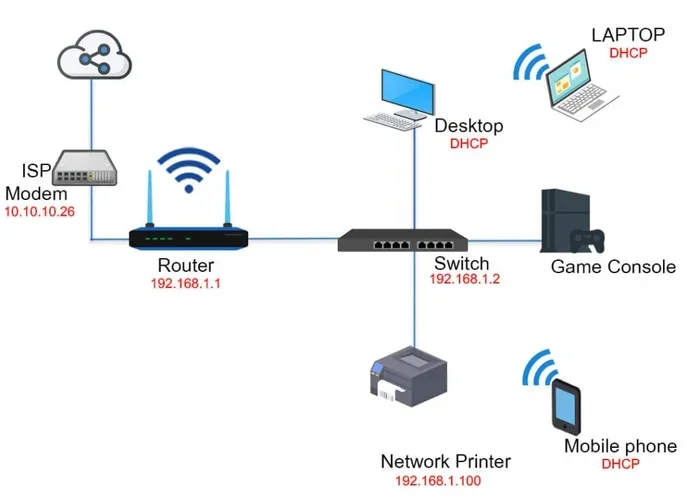
Sharing your WiFi password might feel like a big deal, but it is actually a simple process. When you give someone your network key, you are letting their device connect to your router. The router then sends a signal to the internet service provider, and your guest gets online. It works just like when you connect your own phone or laptop.
But there is more going on behind the scenes. Your router uses WPA2 encryption or WPA3 encryption to keep your data safe. When someone enters the correct password, the router unlocks the connection for that device. Every device that connects gets its own spot on the network. Think of it like seats at a dinner table. Everyone can eat, but there is only so much food to go around.
What Happens When You Share Your Network Key
The moment you give someone your WiFi password, several things happen. First, their phone or laptop stores the password. Next, the device sends a request to your router. If the password matches, the router grants access. Your guest can now browse the web, stream videos, and use apps that need internet.
Here is something important to remember. When someone connects to your network, they are on the same local network as you. This means they can see other devices on your network. In most cases, this is not a problem. But it is something to be aware of. You do not want a stranger on your network accessing your shared files or printers.
Devices That Can Connect
Almost any device can connect to a shared WiFi network. Here is a quick list of common devices:
- Smartphones and tablets
- Laptops and desktop computers
- Smart TVs and streaming devices like Roku or Fire Stick
- Gaming consoles such as PlayStation or Xbox
- Smart home devices like smart speakers and security cameras
Each of these devices takes up a spot on your network. The more devices connected, the more your internet speed can be affected. Keep this in mind when you are deciding how many people to share your password with.
Is It Safe to Share Your WiFi Password
This is the question most people worry about. And it is a good question to ask. Sharing your WiFi password does come with some risks. But those risks can be managed. The key is understanding what could go wrong and how to prevent it.
Understanding Network Security Risks
When you share your wireless network password, you are opening a door. Most of the time, that door leads to harmless internet browsing. But sometimes, it can lead to trouble. Here are some risks to consider:
- Unauthorized access: Someone who gets your password might share it with others without your permission.
- Data theft: On the same network, a tech-savvy person could try to access your shared files.
- Malware spread: If a connected device has a virus, it could spread to other devices on your network.
- Illegal activity: In rare cases, someone might use your connection for illegal activities, and it would show up on your account.
These risks sound scary, but they are easy to avoid. You do not need to be a tech expert. A few simple steps can keep your home network safe and sound.
How to Protect Your Network When Sharing
Protecting your network is simpler than you might think. Here are some easy steps you can take right now:
- Use a guest network. This is the single best thing you can do. A guest network keeps visitors separate from your main devices.
- Change your password regularly. If you have shared your password with someone, change it after they leave. This is especially important if the person is not a close family member.
- Enable WPA3 encryption. If your router supports it, use the latest security protocol. It is much harder to crack than older versions.
- Disable file sharing. Turn off network sharing on your devices when guests are around. This prevents anyone from accessing your files.
- Monitor connected devices. Check your router settings to see who is on your network. If you see an unknown device, remove it right away.
Following these steps means you can share your password without losing sleep. You stay connected and safe at the same time.
Best Ways to Share WiFi Passwords
Now that you know the risks and how to handle them, let us talk about the fun part. How do you actually share your WiFi password? There are several easy methods. Some are built right into your phone, and others are creative solutions that make life simpler.
Using QR Codes for Easy Sharing
Did you know you can turn your WiFi password into a QR code? It is one of the easiest ways to share. Here is how it works:
Most modern phones can generate a WiFi QR code. On an iPhone, you can use the Share WiFi feature. On Android, many phones have a built-in QR code generator in the WiFi settings. You just tap a button, and a QR code appears on your screen. The person you are sharing with simply scans the code with their phone, and boom, they are connected.
This method is great because you do not have to type out a long password. It also means you do not have to say the password out loud in front of others. That small detail matters for network security.
Setting Up a Guest Network
A guest network is like a VIP room at a party. Your guests get access to the internet, but they do not get access to your personal stuff. Here is how to set one up:
- Log into your router admin panel. You can usually do this by typing 192.168.1.1 or 192.168.0.1 into your browser.
- Look for the guest network setting. It is often found under wireless settings.
- Turn the guest network on and set a password.
- Give your guests the guest network password instead of your main one.
Setting up a guest network takes about five minutes. But it makes a huge difference for your home network setup. Your main devices stay private, and your guests still get the internet they need.
Sharing Through Phone Features
Both iPhone and Android make it easy to share WiFi passwords directly. On iPhone, when a friend tries to connect to your network, you will get a prompt. You can tap Share Password, and their phone connects automatically. On Android, you can go to WiFi settings, tap the network you are connected to, and select Share. A QR code or a text message option will appear.
These built-in features are designed to be simple and secure. They use encrypted methods to transfer the password. So you do not have to worry about someone eavesdropping when you share it.
Common Problems When Sharing WiFi Passwords
Sharing your WiFi password is not always smooth sailing. Sometimes things go wrong. But most problems have simple fixes. Let us look at the most common issues people face.
Devices Won’t Connect After Sharing
This is frustrating but very common. A device might refuse to connect even though you typed the password correctly. Here is what to do:
- Check for typos. WiFi passwords are case-sensitive. A capital letter where there should be a lowercase one will cause a fail.
- Restart the device. Sometimes a simple reboot fixes the connection issue.
- Forget the network. On the connecting device, go to WiFi settings, forget the network, and try connecting again.
- Check the router. Make sure your router is on and working properly. A quick restart of the router can work wonders.
If none of these steps work, you might want to look at your network troubleshooting options. Sometimes the router’s DHCP settings need a quick adjustment.
Slow Internet After Adding Users
Your WiFi speed can drop when too many people are connected. Think of it like a highway. More cars on the road means slower traffic. The same thing happens with your internet connection sharing. Here are some tips to keep speeds up:
- Limit the number of connected devices. Set a password that only you and your closest family members know.
- Use a dual-band router. These routers split traffic between two frequency bands, which helps with congestion.
- Set up a separate network for guests. This keeps your main devices running at full speed.
- Check for bandwidth-heavy activities. If someone is streaming 4K video, it will eat up a lot of your bandwidth.
Keeping an eye on your network usage helps everyone enjoy a fast and smooth connection.
How to Change or Reset Your WiFi Password
Sometimes you need to change your WiFi password after sharing it. Maybe a guest is no longer visiting, or maybe you just want extra security. Whatever the reason, changing your password is a smart move.
When to Update Your Network Password
You should consider changing your password in these situations:
- After a house guest leaves and you do not plan to see them again.
- If you suspect someone you shared with might have passed the password along.
- When you notice an unknown device on your network.
- As a regular security habit, at least once every few months.
Changing your password regularly is one of the best password-protected network habits you can build. It keeps your wireless network security strong and your data safe.
Steps to Change Router Password
Here is a simple step-by-step guide to changing your WiFi password:
- Open a web browser and type your router’s IP address. This is usually 192.168.1.1 or 192.168.0.1.
- Log in with your admin username and password. These are often printed on a sticker on the back of your router.
- Find the wireless settings section.
- Look for the security or password field.
- Enter your new WiFi password. Make it strong and unique.
- Save the changes and restart your router.
Once you change the password, all your devices will need to reconnect with the new one. Make sure you update the password on your own phone, laptop, and smart home devices first. Then you can share the new password with anyone who needs it.
Expert Tips for Family WiFi Sharing
If you are sharing your WiFi with family members on a regular basis, you need a plan. Casual sharing with a one-time visitor is one thing. But when family members live with you or visit often, you need a more structured approach.
Setting Speed Limits for Guests
Many modern routers let you set speed limits for different devices or networks. This is a great feature for families. You can give your guests enough speed for browsing and email, but limit their bandwidth so it does not affect your streaming or work calls. Check your router settings for Quality of Service or QoS options. This feature lets you prioritize certain devices or activities over others.
Keeping Your Main Network Secure
Your main network should always be locked down tight. Use a strong, unique password that you do not share casually. Change it every few months. And make sure your router firmware is up to date. Router manufacturers release updates that fix security holes. Keeping your firmware current is one of the simplest ways to stay protected.
Also, consider turning off WPS (Wi-Fi Protected Setup). While it is convenient, WPS can be a security vulnerability. Disabling it adds an extra layer of protection to your home network setup.
Teaching Family Members About Network Safety
If you have family members who are not tech-savvy, take a few minutes to teach them about network security. Explain why they should not share the password with people outside the family. Let them know that clicking on suspicious links while connected to your network can put everyone at risk. A little education goes a long way in keeping your entire household safe online.
Conclusion
So, can WiFi password be shared with friends and family? Absolutely. It is a normal, everyday thing that makes life easier for everyone. Whether you are hosting guests, helping a family member get online, or just being a good neighbor, sharing your WiFi is a kind and practical thing to do.
But sharing comes with responsibility. You need to understand the risks and take steps to protect your wireless network. Use a guest network when possible. Change your password after sharing it with people you do not know well. And always keep your router settings up to date.
The methods we covered in this article make sharing easy and safe. QR codes, phone features, and guest networks all work great. Pick the method that fits your situation best. And remember, your home network is your digital home. Treat it with the same care you would give your physical home.
Next time someone asks for your WiFi password, you will know exactly what to do. You will share it with confidence, knowing your network is secure and your guests are happy. That is a win-win situation for everyone involved.
Frequently Asked Questions
Can I share my WiFi password with neighbors safely?
You can, but it is not recommended unless you trust them completely. Sharing with neighbors increases the number of devices on your network and can slow down your speed. If you do share, use a guest network and change the password afterward.
What is the difference between a WiFi password and a router password?
Your WiFi password lets devices connect to your wireless network. Your router password lets you log into the router settings to change configurations. They are two different passwords, and you should keep both secure and unique.
How do I find my WiFi password if I forgot it?
You can find your WiFi password by logging into your router admin panel. On most phones, you can also find saved WiFi passwords in your WiFi settings under the network details. If all else fails, a factory reset on the router will restore the default password printed on the router label.
Can someone hack my network if I share my WiFi password?
Sharing your password does increase the risk slightly, but it is unlikely if you take basic precautions. Use a guest network, keep your encryption set to WPA2 or WPA3, and avoid sharing with people you do not trust. These steps greatly reduce any hacking risk.
How many devices can connect to a home WiFi network?
Most home routers can handle between 20 and 50 devices at once. However, the more devices connected, the slower your internet speed will be for each device. For best performance, limit the number of active users and consider upgrading your router if you have a large household.
Should I change my WiFi password after sharing it?
Yes, especially if you shared it with someone who is no longer visiting or is not a close family member. Changing your password regularly is a smart security habit that keeps your wireless network security strong and your personal data protected.