Can All Type C Connect To Hdmi And What You Need To Know
Not all Type C ports can connect to HDMI, even though they look the same. The ability to output video depends on your device’s USB-C Alt Mode support, the adapter or cable you use, and whether your device handles display output. This guide walks you through every scenario so you can connect with confidence and avoid buying the wrong gear.
You plug a USB-C cable into your laptop or phone, hoping to mirror the screen onto your TV or monitor. But nothing happens. Sound familiar? You are not alone. The question Can All Type C Connect To Hdmi comes up constantly, and the answer is not a simple yes or no.
USB-C has become the universal port we all love. It charges our devices, transfers files, and sometimes even sends video to external screens. But here is the catch. Just because a device has a USB-C port does not mean it can output an HDMI signal. The port might only handle power delivery or data transfer. Understanding this difference saves you from buying the wrong adapter and wasting money.
In this guide, we break down everything you need to know. We cover how USB-C and HDMI work together, what hardware you actually need, which devices support video output, and how to troubleshoot when things do not go as planned. Whether you want to connect a laptop to a projector, a phone to a smart TV, or a tablet to a monitor, this article has you covered.
Let us dive in and clear up the confusion once and for all.
Key Takeaways
- USB-C does not automatically mean HDMI output: Your device must support DisplayPort Alt Mode or a similar protocol.
- Not all USB-C cables are equal: Some carry data only, while others handle video and power simultaneously.
- Adapters and docking stations bridge the gap: They let non-HDMI USB-C devices connect to HDMI displays reliably.
- Resolution and refresh rate depend on your hardware: Older adapters may limit you to 1080p instead of 4K.
- Troubleshooting is straightforward: Most connection issues come from cable quality or missing drivers.
- Check your device specs first: This saves time, money, and frustration before you buy any accessory.
📑 Table of Contents
Understanding USB-C and HDMI Basics
Before we answer whether every USB-C port can connect to HDMI, let us understand what these two technologies actually do. They serve different purposes, even though they can work together.
What Is USB-C?
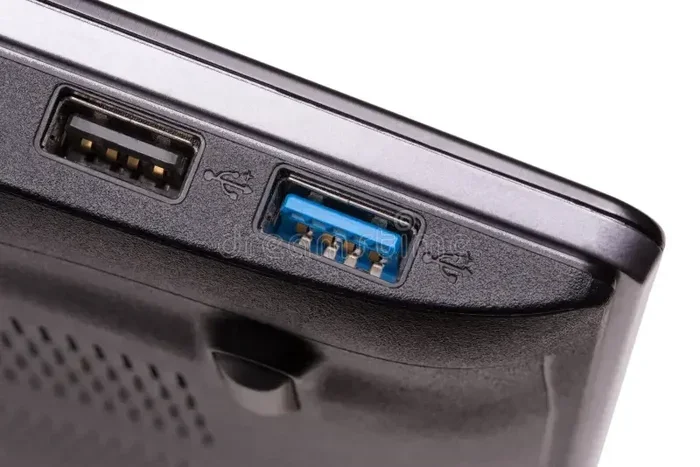
USB-C is a connector shape, not a specific technology. It is a small, reversible plug that fits into a port on your device. Many people confuse the connector with the protocol it supports. A USB-C port can carry different types of signals depending on what your device supports.
Here is what a USB-C port can handle:
- Power delivery: Charging your device up to 100 watts with USB Power Delivery.
- Data transfer: Moving files at speeds up to 40 Gbps with USB 3.2 or Thunderbolt.
- Video output: Sending a display signal through DisplayPort Alt Mode or Thunderbolt.
- Audio output: Transmitting sound to external speakers or headphones.
The key takeaway here is that USB-C is versatile. But versatility depends on your device’s hardware. Not every USB-C port supports every function listed above.
What Is HDMI?
HDMI stands for High-Definition Multimedia Interface. It is a dedicated cable standard designed to carry uncompressed video and audio from a source device to a display. You find HDMI ports on TVs, monitors, projectors, and soundbars.
HDMI has evolved over the years. Here is a quick look at the versions:
- HDMI 1.4: Supports 4K at 30Hz. Good for basic streaming.
- HDMI 2.0: Supports 4K at 60Hz. Great for smooth gaming and video.
- HDMI 2.1: Supports 4K at 120Hz and even 8K. Built for high-end displays.
Most modern TVs and monitors come with HDMI 2.0 or newer. The HDMI port on your display is almost always capable of receiving a video signal. The challenge lies on the source side, which is where USB-C comes in.
Can All Type C Connect To Hdmi?
This is the million-dollar question. The short answer is no. Not all USB-C ports can connect to HDMI directly. The long answer depends on several factors that we will break down below.
Why Some USB-C Ports Cannot Output HDMI
USB-C is just a shape. Think of it like a wall outlet. The shape is the same, but what flows through it depends on your wiring. Similarly, a USB-C port on your laptop or phone might only support charging and data. It might not support video output at all.
Here are the main reasons a USB-C port cannot connect to HDMI:
- No DisplayPort Alt Mode: This is the protocol that allows USB-C to carry video signals. Without it, the port cannot send a display output.
- Thunderbolt without video support: Some older Thunderbolt implementations focus only on data and power, not display output.
- Basic USB 2.0 or 3.0 ports: These ports handle data and power but lack the hardware for video transmission.
- Proprietary designs: Some manufacturers limit what their USB-C ports can do to save costs or differentiate products.
If your device falls into any of these categories, you cannot simply plug in a USB-C to HDMI cable and expect it to work. You need additional hardware or a different approach entirely.
Devices That Typically Support USB-C to HDMI
Many modern devices do support video output through USB-C. Here is a general breakdown:
- MacBooks: Most MacBook models from 2016 onward support video output via USB-C or Thunderbolt 3/4.
- Windows laptops: Many business and consumer laptops with USB-C support display output. Check your specs to confirm.
- Android phones: Flagship phones like Samsung Galaxy and Google Pixel often support USB-C video output.
- iPads: iPad Pro and iPad Air models with USB-C can connect to HDMI displays.
- Chromebooks: Many newer Chromebooks with USB-C ports support external display output.
Always check your device manual or the manufacturer’s website. Look for terms like “display output,” “video output,” or “DisplayPort Alt Mode” in the specifications. This one step prevents a lot of headaches later.
What You Need to Connect USB-C to HDMI
Assuming your device supports video output, you still need the right hardware to make the connection. Let us walk through the options.
USB-C to HDMI Adapters
An adapter is the simplest way to connect a USB-C device to an HDMI display. You plug the adapter into your device’s USB-C port, then connect a standard HDMI cable from the adapter to your TV or monitor.
Here is what to look for in a good adapter:
- Support for 4K resolution: Make sure the adapter handles the resolution you need.
- Plug-and-play functionality: The best adapters require no software or drivers.
- Build quality: Cheap adapters often overheat or drop signal. Stick with reputable brands.
- Simultaneous charging: Some adapters pass through power, so you can charge your device while using an external display.
A quality USB-C to HDMI adapter is a small investment that pays off quickly. It turns any compatible device into a powerful presentation or streaming tool.
USB-C Docking Stations
If you need more than just HDMI output, a docking station is the way to go. These hubs connect to your USB-C port and provide multiple outputs including HDMI, USB-A ports, Ethernet, and SD card slots.
Docking stations are especially useful for people who work at a desk. You connect one cable to your laptop and instantly have access to a monitor, keyboard, mouse, and wired internet. Some docking stations also support charging while displaying, which keeps your laptop powered throughout the day.
Popular brands in this space include Anker, CalDigit, and Belkin. Prices range from $30 for basic models to $200 for premium docks with multiple 4K outputs.
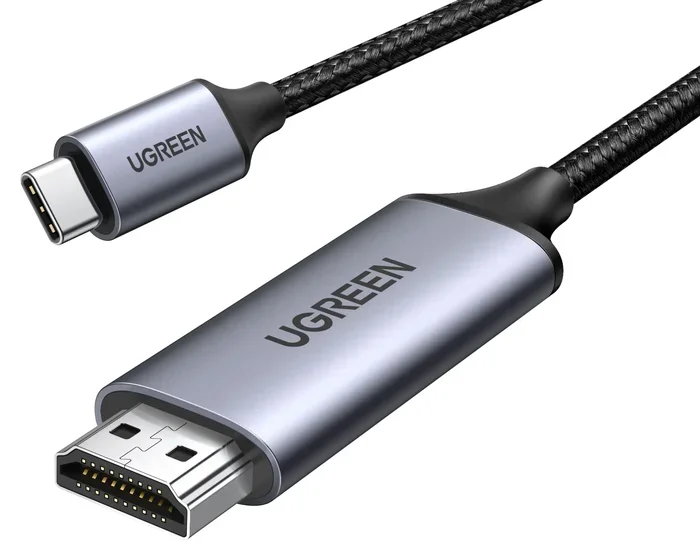
USB-C to HDMI Cables
Some cables combine both ends into one piece. A USB-C to HDMI cable has a USB-C plug on one end and an HDMI plug on the other. These are convenient for quick setups, but they have limitations.
Most USB-C to HDMI cables work only when both the source device and the cable itself support video output. They do not add any conversion capability. If your device does not support DisplayPort Alt Mode, a USB-C to HDMI cable will not help.
When shopping for these cables, check the product description carefully. Look for terms like “supports 4K,” “60Hz refresh rate,” and “compatible with Thunderbolt 3 and 4.” A reliable cable makes a noticeable difference in picture quality and reliability.
Comparison: Adapter vs. Cable vs. Dock
| Feature | USB-C to HDMI Adapter | USB-C to HDMI Cable | USB-C Docking Station |
|---|---|---|---|
| Price Range | $10 – $30 | $8 – $25 | $30 – $200+ |
| Setup Speed | Fast | Fastest | Moderate |
| Port Variety | HDMI only | HDMI only | Multiple ports |
| Charging Support | Some models | Rare | Usually yes |
| Portability | Excellent | Excellent | Bulky |
| Best For | Occasional use | Quick connections | Full workstation |
Choose based on your needs. If you only need HDMI output sometimes, an adapter works perfectly. For permanent desk setups, a docking station is the better investment.
How to Check If Your Device Supports Video Output
Before buying any accessory, verify that your device can actually send a video signal through USB-C. Here is how to do it on different platforms.
On Windows Laptops
Open the Device Manager and look for your USB-C controller under “System devices.” Search for terms like “DisplayPort” or “USB Display.” You can also check your laptop manufacturer’s website for the full specifications of your model. Many support pages list every port and its capabilities.
Another quick method is to right-click on your desktop, select Display Settings, and look for detect or multiple display options. If Windows detects an external display option when you plug in a USB-C to HDMI adapter, your device supports video output.
On MacBooks
Apple makes this easy. Click the Apple menu, then About This Mac, then System Report. Under the Thunderbolt section, you will see detailed information about each port. Look for “DisplayPort” in the protocol list. If it is there, your MacBook supports video output through that port.
Most modern MacBooks with USB-C or Thunderbolt 3/4 ports fully support HDMI output. You can connect to external monitors, projectors, and TVs without any issues.
On Android Phones and Tablets
Android devices vary widely in their USB-C capabilities. Flagship phones from Samsung, Google, and OnePlus generally support video output. Budget phones often do not.
Check your phone’s specifications page for “DisplayPort Alt Mode” or “MHL support.” These terms indicate that your phone can send video through USB-C. You can also download apps like “Display Tester” from the Google Play Store to check if your device recognizes an external display.
For a quick reference, here are some popular devices and their USB-C video support:
- Samsung Galaxy S23/S24: Yes, supports DisplayPort Alt Mode.
- Google Pixel 7/8: Yes, supports DisplayPort Alt Mode.
- iPhone 15/16 (USB-C): Yes, supports video output to HDMI with appropriate adapters.
- Budget Android phones: Often no video output support. Always check first.
Remember that some phones require a specific adapter that is certified for that device. Using a random adapter might not work even if the phone supports video output in general.
Common Connection Problems and How to Fix Them
Even with the right hardware, you might run into issues. Here are the most common problems and their solutions.
No Signal on the Display
This is the most frustrating problem. You plug everything in, but the screen stays black. Try these steps:
- Unplug the adapter and plug it back in firmly.
- Try a different HDMI cable. The cable might be faulty.
- Check if your TV or monitor is on the correct input source.
- Restart your device and try again.
- Update your device drivers if you are on Windows.
Sometimes the simplest fix is the right one. A loose connection or wrong input source causes most “no signal” problems.
Low Resolution or Flickering Screen
If your external display shows a blurry or flickering image, the problem is usually the adapter quality or cable bandwidth.
Solutions include:
- Upgrading to a higher-quality adapter that supports 4K at 60Hz.
- Using a shorter HDMI cable to reduce signal loss.
- Adjusting the resolution settings on your device to match the display’s capabilities.
- Checking if the adapter supports the refresh rate you need.
Cheap adapters often cap resolution at 1080p or cause intermittent flickering. Investing in a better adapter solves most of these issues permanently.
Audio Not Working
Sometimes the video works but you get no sound. This usually happens because the audio output is still set to your device’s internal speaker.
On Windows, right-click the speaker icon in the taskbar and select the HDMI output device. On Mac, go to System Preferences, then Sound, and choose the HDMI display as the output. On Android, you might need to adjust audio settings within the display settings menu.
Audio issues are almost always a software setting, not a hardware problem. A quick check of your output device solves this every time.
Pro Tips for Getting the Best USB-C to HDMI Experience
A few small tips can make a big difference in your setup. Here are some expert insights that most people overlook.
First, always buy from reputable brands. Generic no-name adapters might seem like a great deal, but they often fail within weeks. Brands like Anker, Belkin, and Cable Matters have a proven track record of quality and reliability.
Second, consider your power needs. If you are using your laptop while connected to an external display, make sure your adapter or dock supports pass-through charging. This way, your laptop stays powered while you work on the bigger screen.
Third, keep your cables organized. A messy cable setup leads to accidental disconnections and wear. Use cable ties or a desk cable manager to keep things tidy.
Fourth, update your device software regularly. Operating system updates often include fixes for display connectivity issues. A simple update can resolve problems that have been bothering you for months.
Finally, if you are setting up a home office or entertainment center, consider a docking station instead of a simple adapter. The extra ports and better build quality pay for themselves in convenience and reliability.
The Future of USB-C and HDMI
The tech world is moving toward USB-C as the universal connectivity standard. More devices are dropping legacy ports in favor of the small, versatile USB-C connector. HDMI is not going away anytime soon, but its role is evolving.
USB4, the latest USB standard, brings even more bandwidth and native support for display protocols. This means future devices will handle video output more seamlessly through USB-C. Adapters will become simpler and more reliable as the technology matures.
For now, understanding your device’s capabilities and buying the right accessories remains essential. The good news is that once you know how your USB-C port works, setting up an external display becomes second nature.
Whether you are a student presenting a project, a professional working from home, or a movie lover casting content to your TV, the right USB-C to HDMI setup makes everything smoother and more enjoyable.
Take a few minutes to check your device specs, invest in quality adapters, and enjoy the freedom of a bigger screen whenever you need it.
You might also find it helpful to explore useful tech accessories that complement your setup. A great collection of handy gadgets can transform your daily tech experience and make every connection simpler.
And if you ever need to manage device settings like number prefixes for better organization, there are simple guides that walk you through it step by step.
Frequently Asked Questions
Can I connect any USB-C laptop to an HDMI TV?
Not necessarily. Your laptop must support video output through its USB-C port, which requires DisplayPort Alt Mode or Thunderbolt support. Check your laptop’s specifications before buying an adapter or cable.
Why does my USB-C to HDMI adapter not work?
The most common reasons are that your device does not support video output, the adapter is faulty, or the HDMI cable is not properly connected. Try a different adapter or cable first, and verify your device specs.
Can I charge my laptop and output video through the same USB-C port?
Yes, many modern adapters and docking stations support pass-through charging. This lets you charge your laptop while using an external display. Check the product specifications to confirm this feature.
Do USB-C to HDMI cables work with all devices?
No. USB-C to HDMI cables only work if both the source device and the cable support video signal transmission. They do not convert a non-video USB-C port into an HDMI output port.
What resolution can I expect from a USB-C to HDMI connection?
This depends on your device, adapter, and cable quality. Many setups support 4K at 60Hz, but older or cheaper adapters may limit you to 1080p at 30Hz. Always check the adapter specifications for supported resolutions.
Is Thunderbolt the same as USB-C for HDMI output?
Thunderbolt uses the USB-C connector shape but offers more bandwidth and features. All Thunderbolt 3 and 4 ports support video output. Some USB-C ports that are not Thunderbolt also support video, but you need to verify this for your specific device.
=== CONCLUSION ===
The answer to Can All Type C Connect To Hdmi is clear now. Not every USB-C port can send a signal to an HDMI display, but most modern devices do support it. The key is understanding your device’s capabilities and choosing the right hardware for the job.
Start by checking your device specifications for DisplayPort Alt Mode or Thunderbolt support. Then invest in a quality adapter, cable, or docking station based on your needs. Avoid cheap no-name products that promise everything but deliver little. And when problems arise, the troubleshooting steps in this guide will help you get back on track quickly.
With the right setup, connecting your USB-C device to an HDMI display is quick, reliable, and incredibly useful. Whether for work, school, or entertainment, you now have the knowledge to make it happen every time. Take action today and upgrade your connectivity setup with confidence.