Are All HDMI Inputs The Same Here Is What You Need To Know
No, not all HDMI inputs are the same. Different HDMI versions, port types, and capabilities can affect your audio and video quality. Understanding these differences helps you get the best picture and sound from your devices.
Have you ever plugged something into your TV and wondered if all HDMI ports work the same way? You are not alone. Many people assume every HDMI input on their device is identical. The truth is, they are not. Different HDMI inputs have different capabilities, speeds, and features that can make a big difference in your viewing experience.
Whether you are setting up a home theater, connecting a gaming console, or hooking up a new monitor, knowing your HDMI inputs matters. Not all HDMI inputs are created equal. Some support 4K resolution at high refresh rates. Others are limited to 1080p or even lower. This guide breaks it all down so you can make informed decisions.
We will cover HDMI versions, port types, bandwidth differences, and practical tips for choosing the right input. By the end, you will know exactly what to look for and why it matters. Let us dive in.
Key Takeaways
- HDMI inputs vary by version: HDMI 1.4, 2.0, and 2.1 each offer different features and bandwidth levels.
- Port types matter: Standard, Mini, and Micro HDMI connectors serve different devices and purposes.
- Not all ports support 4K or HDR: Your HDMI input must match the resolution and features you need.
- Backward compatibility exists: Newer HDMI cables work with older ports, but you may lose advanced features.
- Labeling helps: Always check your device labels to identify which HDMI input supports which features.
- Gaming and home theater need HDMI 2.1: For the best experience, invest in HDMI 2.1-compatible inputs and cables.
📑 Table of Contents
- What Is an HDMI Input and Why Does It Matter?
- Different Types of HDMI Ports and Connectors
- HDMI Versions: What Is the Difference?
- HDMI Inputs on TVs, Monitors, and Projectors
- Common HDMI Problems and How to Fix Them
- How to Choose the Right HDMI Input for Your Setup
- Are All HDMI Cables the Same Too?
- Conclusion
What Is an HDMI Input and Why Does It Matter?
HDMI stands for High Definition Multimedia Interface. It is the standard cable connection used to carry both audio and video signals between devices. You will find HDMI ports on TVs, monitors, laptops, gaming consoles, Blu-ray players, and projectors.
The HDMI input on your device receives these signals. But here is the thing, not every HDMI input can handle the same amount of data. Think of it like a highway. Some HDMI inputs are wide multi-lane highways that can handle heavy traffic. Others are narrow country roads that get congested fast.
HDMI bandwidth determines how much data can pass through at one time. Higher bandwidth means support for higher resolutions, better color depth, and faster refresh rates. This is why understanding your HDMI inputs is so important for getting the best quality out of your setup.
Why People Get Confused
Most devices have multiple HDMI ports. They all look the same on the outside. You plug a cable in and it works. So why does it matter which port you use? The answer lies in what each port can handle behind the scenes.
For example, your TV might have three HDMI ports. One might support 4K at 120Hz. Another might only handle 1080p. If you plug your gaming console into the wrong port, you might miss out on smooth gameplay and stunning visuals. This is a common mistake that many people make without even realizing it.
Different Types of HDMI Ports and Connectors
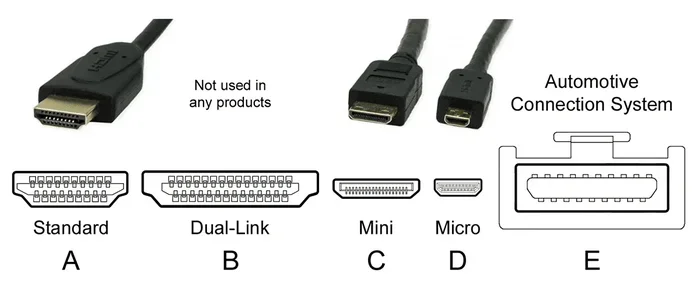
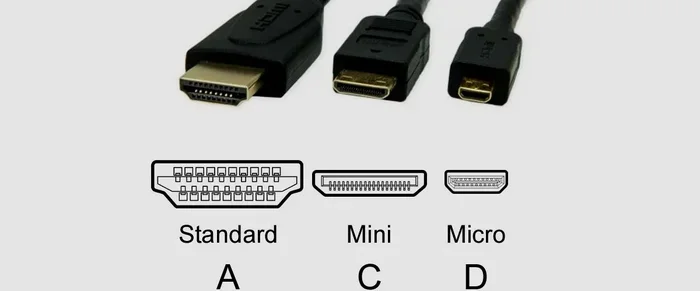
HDMI connectors come in different physical shapes and sizes. Each type serves a specific purpose and works with certain devices. Here is a quick breakdown of the main types you will encounter.
Standard HDMI (Type A)
This is the most common HDMI connector. You will find it on almost every TV, monitor, and home theater receiver. It has 19 pins and measures about half an inch wide. Standard HDMI handles everything from basic 1080p to advanced 4K and even 8K signals, depending on the version.
Mini HDMI (Type C)
Mini HDMI is smaller than the standard version. You will often find it on tablets, DSLR cameras, and some laptops. It has the same 19 pins but in a more compact design. You need a Mini HDMI to Standard HDMI cable or adapter to connect it to a TV.
Micro HDMI (Type D)
Micro HDMI is even smaller. It is common on smartphones and action cameras. Like Mini HDMI, it uses the same 19-pin configuration but in a tiny form factor. Adapters are almost always needed to connect Micro HDMI devices to larger screens.
Dual-Link HDMI
Dual-Link HDMI is less common but worth mentioning. It uses additional pins to support higher resolutions like 4K at 120Hz or 8K. You will mostly find this in professional monitors and high-end displays.
Quick Comparison of HDMI Connector Types
| Connector Type | Common Devices | Pin Count | Max Resolution Support |
|---|---|---|---|
| Standard HDMI (Type A) | TVs, monitors, consoles | 19 | Up to 8K (with HDMI 2.1) |
| Mini HDMI (Type C) | Tablets, cameras | 19 | Up to 4K |
| Micro HDMI (Type D) | Smartphones, action cams | 19 | Up to 1080p |
| Dual-Link HDMI | Professional monitors | 29 | Up to 8K at high refresh rates |
The physical connector type does not always determine the HDMI version. A Standard HDMI port could be HDMI 1.4 or HDMI 2.1. This is why checking the version matters just as much as checking the connector shape.
HDMI Versions: What Is the Difference?
HDMI versions are where the real differences lie. Each new version brings better bandwidth, more features, and improved support for modern displays. Here is a closer look at the main versions you will encounter.
HDMI 1.4
HDMI 1.4 was a major step forward when it launched. It introduced support for 4K resolution at 30Hz. It also added the HDMI Ethernet Channel, which lets devices share an internet connection through the HDMI cable. Many older TVs and monitors still use HDMI 1.4.
If you have an HDMI 1.4 input, you can watch 4K content, but the refresh rate will be limited. For movies, this is usually fine. For gaming, it may feel a bit sluggish. HDMI 1.4 also supports 3D content and Audio Return Channel (ARC), which sends audio from your TV back to a soundbar or receiver.
HDMI 2.0
HDMI 2.0 was a game changer for 4K content. It supports 4K resolution at 60Hz, which makes for much smoother motion. The bandwidth jumped to 18 gigabits per second. This version also introduced support for High Dynamic Range (HDR), which brings richer colors and better contrast.
Most mid-range TVs and monitors from the last several years use HDMI 2.0 inputs. If you want to enjoy 4K HDR content from a streaming device or gaming console, HDMI 2.0 is the minimum you should aim for.
HDMI 2.1
HDMI 2.1 is the latest and most powerful version available today. It supports bandwidth up to 48 gigabits per second. This means it can handle 4K at 120Hz, 8K at 60Hz, and even higher resolutions with ease.
HDMI 2.1 features include Variable Refresh Rate (VRR), Auto Low Latency Mode (ALLM), and Quick Frame Transport (QFT). These are especially important for gamers. If you own a PlayStation 5, Xbox Series X, or a high-end PC gaming setup, HDMI 2.1 inputs will make a noticeable difference.
HDMI Version Comparison Table
| Version | Bandwidth | Max Resolution | Key Features |
|---|---|---|---|
| HDMI 1.4 | 10.2 Gbps | 4K at 30Hz | 3D support, ARC, Ethernet Channel |
| HDMI 2.0 | 18 Gbps | 4K at 60Hz | HDR support, expanded color depth |
| HDMI 2.1 | 48 Gbps | 4K at 120Hz, 8K at 60Hz | VRR, ALLM, QFT, eARC |
As you can see, the version of your HDMI input directly impacts what you can do with it. Always check which version your device supports before buying cables or new equipment.
HDMI Inputs on TVs, Monitors, and Projectors
Different devices use HDMI inputs in different ways. Understanding these differences helps you get the most out of each device.
TV HDMI Inputs
Most modern TVs have three to five HDMI ports. Not all of them are the same. Many manufacturers label one or two ports as HDMI 2.1 or eARC ports. These are the ones you should use for your gaming console or streaming device. The remaining ports might be HDMI 2.0 or even HDMI 1.4.
Some smart TVs also feature HDMI ARC (Audio Return Channel) ports. These allow your TV to send audio back to a soundbar or home theater system using a single cable. Look for ports labeled ARC or eARC. eARC supports higher-quality audio formats like Dolby Atmos and DTS:X.
Monitor HDMI Inputs
Computer monitors often have one or two HDMI ports. These are frequently HDMI 2.0 or HDMI 2.1, depending on the monitor’s price point and target audience. Gaming monitors tend to feature HDMI 2.1 for high refresh rate support.
If you use your monitor for both work and play, check which HDMI port delivers the best performance. You might need to switch cables or ports depending on what you are doing.
Projector HDMI Inputs
Projectors commonly use Standard HDMI (Type A) inputs. Many home projectors support at least HDMI 2.0, but some budget models still use HDMI 1.4. If you are projecting 4K content, make sure your projector has an HDMI 2.0 or HDMI 2.1 input.
Professional projectors used in boardrooms and classrooms often have different HDMI input requirements. They prioritize reliable signal transmission over high refresh rates.
Common HDMI Problems and How to Fix Them
Even with the right HDMI input, you may run into issues from time to time. Here are some common problems and practical solutions.
No Signal or Black Screen
This is the most common HDMI issue. It usually happens when the cable is loose or the wrong input is selected. Try unplugging the HDMI cable and plugging it back in firmly. Then check your TV or monitor’s input source menu to make sure you are on the correct port.
If the problem persists, try a different HDMI cable. Some cables are damaged or worn out. A faulty cable can cause a complete loss of signal even if the HDMI input itself is working perfectly.
Poor Picture Quality
Fuzzy or blurry images often result from using an HDMI cable that does not support the resolution you are trying to display. If you are watching 4K content but using an older HDMI 1.4 cable, the picture quality will suffer.
Another cause is using the wrong HDMI input port. If your device outputs 4K but you plug it into an HDMI 1.4 input, the TV may downscale the resolution. Always match your output device to an input that supports the same or higher capabilities.
Audio Issues
Sometimes you get a great picture but no sound. This often happens when the HDMI input is not set to receive audio properly. Check your device’s audio output settings. Make sure the correct HDMI input is selected as the audio source.
Using HDMI ARC or eARC ports can also help resolve audio routing issues. These ports are specifically designed to handle audio signals between devices.
How to Choose the Right HDMI Input for Your Setup
Now that you understand the differences, here is how to make the best choice for your specific needs.
For Gaming
Gamers need low latency and high refresh rates. Look for HDMI 2.1 inputs that support VRR and 4K at 120Hz. Plug your console or PC into the HDMI 2.1 port on your TV or monitor. Use a certified Ultra High Speed HDMI cable to get the full benefit.
For Home Theater
Home theater setups benefit from HDMI eARC ports. These carry uncompressed audio formats for the best surround sound experience. Use the eARC HDMI input on your TV and connect it to your soundbar or AV receiver with an HDMI 2.1 cable.
For General Use and Streaming
If you are mainly watching streaming content and browsing, HDMI 2.0 inputs are more than enough. They support 4K at 60Hz and HDR. You do not need the advanced features of HDMI 2.1 for everyday viewing.
Quick Tips for Choosing HDMI Inputs
- Check your device labels: Look for HDMI 2.1 or eARC markings on the back of your TV.
- Match your cable to your input: Use an Ultra High Speed cable for HDMI 2.1 devices.
- Read your TV manual: It will tell you which ports support which features.
- Label your cables: Use colored tags or tape to remember which cable goes to which port.
- Test before you commit: Plug in your device and check the picture and sound quality before finalizing your setup.
Are All HDMI Cables the Same Too?
While we are on the topic, it is worth mentioning that not all HDMI cables are the same either. The cable you use matters just as much as the input port. An older HDMI cable may not support the bandwidth needed for 4K or HDR content.
HDMI cable categories include Standard Speed, High Speed, Premium High Speed, and Ultra High Speed. Each category supports different resolutions and features. Always match your cable to your HDMI input version for the best results.
Using the wrong cable can lead to frustrating issues like flickering, low resolution, or no signal at all. Investing in the right HDMI cable is one of the easiest ways to improve your setup.
Conclusion
The answer to whether all HDMI inputs are the same is a clear no. HDMI inputs differ by version, connector type, and capability. Each version brings new features and higher bandwidth. Choosing the right HDMI input for your device can dramatically improve your picture quality, refresh rate, and audio experience.
Take a few minutes to check your device ports and understand what each one supports. It makes a real difference whether you are gaming, watching movies, or setting up a home theater. With the right knowledge, you can get the most out of every HDMI connection in your home.
Now that you know the differences, you are better equipped to make smart choices. Share this guide with friends who still think all HDMI ports are the same. They will thank you for it.
Frequently Asked Questions
Can I use any HDMI cable with any HDMI input?
You can physically plug any HDMI cable into any HDMI port, but you will only get the best performance if the cable matches the input version. Using an older cable with a newer HDMI 2.1 input may limit your resolution or refresh rate.
Do all HDMI 2.1 ports support 4K at 120Hz?
Most HDMI 2.1 ports do support 4K at 120Hz, but always check your device specifications. Some manufacturers may limit certain ports to lower refresh rates even if they are labeled HDMI 2.1.
What is the difference between HDMI ARC and eARC?
HDMI ARC sends audio from your TV to a soundbar or receiver. HDMI eARC supports higher-quality audio formats like Dolby Atmos. eARC requires an HDMI 2.1 connection for full functionality.
How do I know which HDMI input is HDMI 2.1 on my TV?
Check your TV manual or look for labels on the back of the TV. HDMI 2.1 ports are often marked with “2.1” or “Ultra High Speed.” Some TVs also list the specifications in the settings menu under port information.
Can I split one HDMI input to multiple devices?
Yes, you can use an HDMI splitter to share one HDMI input across multiple displays. However, a splitter may reduce signal quality. Make sure your splitter supports the resolution and bandwidth you need.
Does the length of an HDMI cable affect performance?
Longer HDMI cables can sometimes cause signal loss, especially at higher resolutions. For most home setups, cables under 15 feet work great. If you need a longer run, consider an active HDMI cable or a signal booster.