Can Roomba Use 5ghz Wi Fi Everything You Need to Know
Can Roomba use 5GHz Wi-Fi? The answer depends on your Roomba model. Newer models like the Roomba i3, i7, and s9 series fully support dual-band Wi-Fi and can connect to 5GHz networks for faster, more stable connections. Older models typically only work on the 2.4GHz band. This guide covers everything you need to know about Roomba Wi-Fi setup, troubleshooting, and getting the best smart home robot vacuum performance.
You just got a shiny new Roomba, and you are ready to set it up. But then you see something that makes you pause. Your Wi-Fi router broadcasts two bands. You have 2.4GHz and 5GHz. You wonder, can Roomba use 5GHz Wi-Fi? This is a question a lot of robot vacuum owners ask. And the answer is not as simple as a yes or no.
Here is the deal. Roomba wireless connection depends heavily on which model you own. Some Roombas handle 5GHz networks like a champ. Others simply cannot connect to them at all. In this article, we will break it all down. You will learn which models support 5GHz, why it matters, and how to get your smart home robot vacuum running on the best possible network. We will also cover setup tips, common problems, and expert advice to make your life easier.
Key Takeaways
- 5GHz Support Varies by Model: Newer Roomba models support 5GHz Wi-Fi, while older ones are limited to 2.4GHz.
- Dual-Band Routers Help: Having a dual-band router lets you assign Roomba to the best frequency band.
- 5GHz Offers Faster Speeds: The 5GHz band provides less interference and faster data transfer for smoother mapping.
- Range Trade-Off Exists: 5GHz has shorter range than 2.4GHz, so placement matters.
- Setup Is Simple: Connecting Roomba to 5GHz Wi-Fi takes just a few minutes through the app.
- Troubleshooting Is Common: Many users face connection issues that are easy to fix with basic steps.
- Firmware Updates Matter: Keeping your Roomba updated ensures the best wireless performance.
📑 Table of Contents
- Understanding Wi-Fi Frequency Bands
- Which Roomba Models Support 5GHz Wi-Fi?
- How to Connect Roomba to 5GHz Wi-Fi
- Benefits of Using 5GHz Wi-Fi with Roomba
- 5GHz vs 2.4GHz for Roomba: Which Is Better?
- Troubleshooting Roomba 5GHz Wi-Fi Connection Issues
- Maximizing Your Roomba’s Wi-Fi Performance
- Key Takeaways
- FAQ
- Conclusion
Understanding Wi-Fi Frequency Bands
Before we dive into Roomba specifics, let us talk about Wi-Fi frequency bands. Almost every home router today broadcasts on two or three frequencies. The two main ones are 2.4GHz and 5GHz. Each has its own strengths and weaknesses.
What Is the 2.4GHz Band?
The 2.4GHz band has been around for a long time. It travels farther through walls and obstacles. This makes it great for covering large areas of your home. But it also means more devices share this band. Microwaves, baby monitors, and Bluetooth devices all use 2.4GHz. This can cause wireless interference and slow things down.
What Is the 5GHz Band?
The 5GHz band is newer and faster. It has more channels available, which means less crowding. Your robot vacuum Wi-Fi setup benefits from fewer interruptions on this band. Data transfers happen quicker, which helps with real-time mapping and app responsiveness. But 5GHz signals do not travel as far. They struggle more with thick walls and long distances.
Why Does the Band Matter for Roomba?
Your Roomba needs a steady, fast connection to do its job well. It sends mapping data back to the app. It receives commands in real time. If the connection drops, your smart vacuum cleaning routine suffers. A stable home network connection ensures your Roomba navigates smoothly and returns to its dock without issues.
Which Roomba Models Support 5GHz Wi-Fi?
Not all Roombas are created equal when it comes to network compatibility. iRobot has updated its lineup over the years, and newer models include better wireless capabilities. Here is what you need to know.
Roomba Models That Support 5GHz
The following Roomba models can connect to 5GHz networks:
- Roomba i3 Series – Supports dual-band Wi-Fi including 5GHz.
- Roomba i7 Series – Full 5GHz support with fast mapping and smart navigation.
- Roomba i7+ Series – Includes auto-empty dock and 5GHz connectivity.
- Roomba s9 Series – Top-tier model with 5GHz Wi-Fi for premium performance.
- Roomba s9+ Series – The flagship with all the bells and whistles.
- Roomba j7 Series – Latest models with advanced obstacle avoidance and 5GHz support.
Roomba Models That Only Support 2.4GHz
Older Roomba models typically cannot connect to 5GHz networks. These include:
- Roomba 600 Series – Budget-friendly but limited to 2.4GHz only.
- Roomba 700 Series – Still relies on the older 2.4GHz band.
- Roomba 800 Series – Great suction power but no 5GHz support.
- Roomba 900 Series – Slightly newer but still 2.4GHz only.
Quick Comparison Table
| Roomba Series | 5GHz Support | Dual-Band | Release Year Range |
|---|---|---|---|
| Roomba i3 | Yes | Yes | 2020+ |
| Roomba i7 | Yes | Yes | 2019+ |
| Roomba s9 | Yes | Yes | 2020+ |
| Roomba j7 | Yes | Yes | 2022+ |
| Roomba 600 | No | No | 2014-2017 |
| Roomba 800 | No | No | 2015-2018 |
| Roomba 900 | No | No | 2016-2019 |
If you are unsure which model you have, check the bottom of your Roomba or open the Roomba app. The model number is always listed there. Knowing this helps you decide whether you need to adjust your router settings or upgrade your device.
How to Connect Roomba to 5GHz Wi-Fi
So your Roomba supports 5GHz. Great! Now let us get it connected. The process is straightforward, but there are a few things to keep in mind.
Step-by-Step Setup Process
- Download the iRobot Home App. Make sure you have the latest version from the App Store or Google Play.
- Turn on your Roomba. Press the clean button and wait for it to power up fully.
- Go to Settings. Tap the settings icon in the app and select “Add a Robot.”
- Follow the Prompts. The app will guide you through the Roomba setup process step by step.
- Select Your 5GHz Network. When asked to choose a network, pick your 5GHz Wi-Fi name.
- Enter Your Password. Type in your Wi-Fi password carefully and tap connect.
- Wait for Confirmation. The app will confirm the connection. Your Roomba is now online.
Important Tips for a Smooth Connection
- Keep your Roomba close to the router during initial setup. This ensures a strong enough signal for the connection process.
- Make sure your 5GHz network is visible. Some routers hide the 5GHz band by default. Check your router settings.
- Use a strong password. Special characters can sometimes cause issues. Stick to simple passwords if you run into problems.
- Restart your router before starting the setup if you have connection trouble.
Common Setup Mistakes to Avoid
Many people run into trouble during setup. Here are the most common mistakes:
- Connecting to the wrong band. Some routers use the same name for both bands. Your Roomba might auto-connect to 2.4GHz instead.
- Being too far from the router. 5GHz has a shorter range. Your Roomba needs decent signal strength during setup.
- Using a guest network. Some guest networks block device discovery. Always use your main network for setup.
- Skipping firmware updates. An outdated Roomba may not connect properly. Always update after setup.
Benefits of Using 5GHz Wi-Fi with Roomba
Why should you bother connecting your Roomba to 5GHz? There are some real advantages that make a noticeable difference in daily use.
Faster Data Transfer
5GHz Wi-Fi offers much faster speeds than 2.4GHz. This means your robot vacuum connectivity is snappier. Map data uploads happen quickly. Commands from the app reach your Roomba almost instantly. When you start a cleaning session, there is less waiting around.
Less Network Interference
Your home probably has a lot of smart home devices competing for Wi-Fi space. Smart TVs, phones, tablets, and other IoT gadgets all crowd the 2.4GHz band. The 5GHz band has more channels and less congestion. This means your Roomba stays connected even when the rest of your household is streaming, gaming, and browsing.
Better Mapping and Navigation
Modern Roombas create detailed maps of your home. This requires consistent data transfer between the robot and your network. A fast, stable 5GHz connection ensures your Roomba mapping and navigation stays accurate. The robot knows exactly where it has cleaned and where it still needs to go.
Improved App Performance
When you open the iRobot Home app, you want it to load fast. You want to see your Roomba’s status in real time. 5GHz Wi-Fi makes this possible. The app feels responsive, and you get instant updates about cleaning progress, error alerts, and battery status.
Expert Insight
According to networking experts, placing your 5GHz-capable devices closer to the router yields the best results. If your Roomba’s docking station is in a distant room, you might notice the 5GHz signal weakens. In that case, consider using a Wi-Fi extender or mesh network system to boost coverage in that area.
5GHz vs 2.4GHz for Roomba: Which Is Better?
This is a common debate among robot vacuum users. Both bands have their place. Let us compare them directly.
Speed Comparison
5GHz wins hands down for speed. It can deliver faster data rates, which helps with large map files and real-time video feeds (on models that have cameras). 2.4GHz is slower but still sufficient for basic cleaning commands and status updates.
Range Comparison
2.4GHz has better range. It penetrates walls and furniture more effectively. If your Roomba cleans multiple floors or rooms far from your router, 2.4GHz might actually be the more reliable choice.
Stability Comparison
5GHz tends to be more stable because there is less interference. But only if the signal is strong enough. A weak 5GHz signal can drop more easily than a strong 2.4GHz signal. This is the big trade-off.
When to Use Each Band
- Use 5GHz when: Your Roomba is within range of the router, you want faster mapping, and you have a lot of network traffic at home.
- Use 2.4GHz when: Your Roomba is far from the router, your home has thick walls, or you have an older Roomba model that only supports 2.4GHz.
Quick Tips for Choosing the Right Band
- Test both bands and see which gives your Roomba a stronger signal.
- If your router supports band steering, turn it off. This feature can switch your Roomba between bands unpredictably.
- Consider setting up separate network names for each band. This gives you manual control over which band your Roomba uses.
Troubleshooting Roomba 5GHz Wi-Fi Connection Issues
Even with a compatible model, you might run into connection problems. Do not worry. Most issues are easy to fix. Here is what to do when your Roomba wireless connection acts up.
Roomba Won’t Connect to 5GHz Network
This is the most common complaint. If your Roomba refuses to connect to 5GHz, try these steps:
- Check your router settings. Make sure 5GHz is enabled and broadcasting.
- Restart your router. Unplug it for 30 seconds, then plug it back in.
- Move your Roomba closer to the router. Weak signal strength can prevent connection.
- Forget the network on your phone. Then reconnect. This sometimes clears up hidden glitches.
- Reset your Roomba. Hold the clean button for 10 seconds to power cycle it.
Roomba Keeps Disconnecting
If your Roomba connects but drops off frequently, the issue is usually signal strength. Try these fixes:
- Reposition your router. Place it in a central, elevated location.
- Reduce physical barriers. Walls, metal objects, and appliances can weaken 5GHz signals.
- Update your Roomba firmware. Go to the app and check for updates. New firmware often fixes wireless troubleshooting issues.
- Check for network congestion. Too many devices on one band can cause drops.
Roomba Connects but App Shows Offline
This is frustrating. Your Roomba is connected to Wi-Fi, but the app says it is offline. Here is what to try:
- Restart the iRobot Home app. Close it completely and reopen it.
- Check your internet connection. Make sure your home network has a working internet connection.
- Re-pair your Roomba. Remove it from the app and add it again as a new device.
- Check for server outages. iRobot sometimes has server issues. Check their status page online.
Common Mistakes That Cause Connection Problems
Here are the mistakes that trip up most users:
- Using a mesh network without proper configuration. Some mesh systems do not handle robot vacuums well. Check compatibility first.
- Having a hidden 5GHz SSID. Roomba cannot connect to a hidden network name.
- Using enterprise-grade Wi-Fi security. Some WPA3 or enterprise settings are not compatible with Roomba.
- Ignoring firmware updates. Outdated software causes more problems than people realize.
When to Contact iRobot Support
If you have tried everything and your robot vacuum Wi-Fi setup still fails, it is time to reach out to iRobot support. They can run diagnostics remotely and help you identify hardware or software issues. Most connection problems are resolved without needing support, but it is good to know the option exists.
Maximizing Your Roomba’s Wi-Fi Performance
Getting your Roomba connected is only half the battle. You also want to keep it running smoothly. Here are some tips to maximize your smart vacuum cleaning experience.
Optimize Your Router Placement
Your router placement affects everything. Place it in a central location in your home. Keep it elevated and away from walls. Avoid putting it in closets or behind furniture. The better your router’s coverage, the better your Roomba performs.
Update Your Roomba Regularly
iRobot releases firmware updates regularly. These updates improve robot vacuum connectivity, fix bugs, and add new features. Check for updates in the app at least once a month. Keeping your device current ensures the best performance.
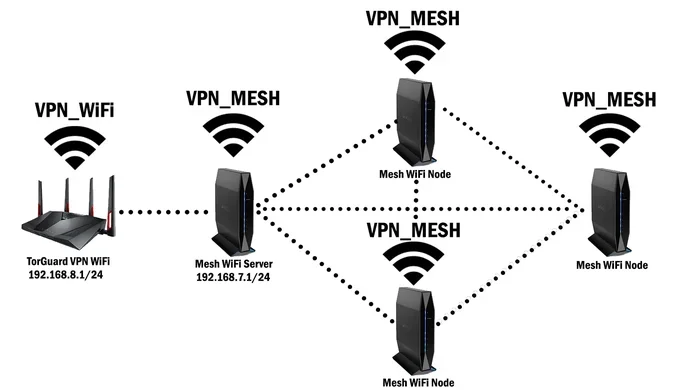
Use a Mesh Wi-Fi System for Large Homes
If you have a large home or multiple floors, a single router may not provide enough coverage. A mesh Wi-Fi system creates a seamless network throughout your home. This is especially helpful for Roomba owners who want consistent 5GHz coverage in every room.
Monitor Your Network Traffic
Too many devices on one network can slow things down. If you have a smart home with dozens of devices, consider creating a separate network for your smart home devices. This keeps your Roomba’s connection fast and uninterrupted.
Keep Your Wi-Fi Password Handy
You never know when you might need to reconnect your Roomba. After a power outage, a router reset, or a move to a new home, you will need your password. Keep it somewhere safe and easy to find.
Expert Insight
Smart home enthusiasts recommend using a dedicated 2.4GHz IoT network if your router supports it. This keeps your robot vacuum on a stable, less crowded network while your phones and computers use the faster 5GHz band. It is a great way to get the best of both worlds.
Key Takeaways
- 5GHz support depends on your Roomba model: Newer models like i3, i7, s9, and j7 support 5GHz, while older models are limited to 2.4GHz.
- 5GHz offers faster speeds and less interference: This leads to better mapping, faster app responses, and more reliable connections.
- Range is the main trade-off: 5GHz signals do not travel as far as 2.4GHz, so router placement matters.
- Setup is simple through the iRobot Home app: Just select your 5GHz network during the pairing process.
- Most connection issues are fixable: Restarting your router, updating firmware, and checking signal strength solve most problems.
- Dual-band routers give you flexibility: You can assign your Roomba to whichever band works best for your home layout.
- Keeping your Roomba updated ensures peak performance: Firmware updates improve connectivity and add new features.
FAQ
Can all Roomba models connect to 5GHz Wi-Fi?
No, only newer Roomba models support 5GHz Wi-Fi. Models like the i3, i7, s9, and j7 series have dual-band support. Older models such as the 600, 700, 800, and 900 series can only connect to 2.4GHz networks. Always check your specific model before assuming 5GHz support.
Is 5GHz Wi-Fi better for Roomba than 2.4GHz?
Yes, 5GHz is generally better for Roomba because it offers faster speeds and less interference. This means smoother mapping, quicker app responses, and a more reliable connection. However, 2.4GHz has better range, so it may be more reliable if your Roomba is far from the router.
Why won’t my Roomba connect to my 5GHz Wi-Fi network?
Several reasons can cause this. Your Roomba model might not support 5GHz. Your router might have a hidden SSID or use incompatible security settings. Signal strength could also be too weak. Try moving closer to the router, checking your router settings, and updating your Roomba firmware.
Can I use a Wi-Fi extender with my Roomba?
Yes, a Wi-Fi extender can help boost your 5GHz signal in areas where it is weak. This is especially useful if your Roomba’s docking station is in a room far from your router. Just make sure the extender supports 5GHz and is compatible with your home network setup.
Does Roomba need a strong Wi-Fi signal to work?
Roomba needs a decent Wi-Fi signal to connect to the app and upload cleaning maps. However, once a cleaning job starts, it can still operate offline using its onboard sensors and saved maps. A strong signal simply ensures the best app experience and real-time updates.
How do I check if my Roomba is connected to 5GHz or 2.4GHz?
You can check this in the iRobot Home app. Go to your Roomba’s settings and look at the network information. Some routers also show which devices are connected to which band in their admin panel. If you are unsure, check your router’s connected devices list.
Conclusion
So, can Roomba use 5GHz Wi-Fi? The answer is yes, for most modern models. Newer Roombas like the i3, i7, s9, and j7 series fully support dual-band Wi-Fi connection and can take advantage of the speed and stability that 5GHz offers. If you have an older model, you will need to stick with the 2.4GHz band, which still works well for basic cleaning tasks.
Setting up your robot vacuum Wi-Fi setup on 5GHz is straightforward. Just make sure your router is broadcasting the 5GHz band, place your Roomba close enough for a strong signal, and follow the app prompts. If you run into trouble, most issues are easy to fix with a router restart, firmware update, or simple repositioning.
The benefits are real. Faster mapping, less interference, and a more responsive app experience all come from using 5GHz. Combine that with a well-placed router or a mesh system, and your smart home robot vacuum will perform at its best. Take the time to get your Roomba wireless connection right, and you will enjoy a cleaner home with less hassle. Start today and see the difference a strong home network can make for your cleaning routine.