Can You Cast From Laptop To TV Without HDMI Cable Today
Yes, you can cast from laptop to TV without HDMI, and the process is easier than most people think. Wireless methods like Chromecast, AirPlay, and Miracast let you share your laptop screen on a bigger display using Wi-Fi or Bluetooth. This guide covers every method so you can start wireless casting today.
Have you ever wanted to watch something from your laptop on your TV but realized you do not have an HDMI cable? Maybe the cable is lost, or your laptop does not have an HDMI port at all. Whatever the reason, the good news is that you can cast from laptop to TV without HDMI and still enjoy your favorite shows, movies, and presentations on the big screen.
Wireless casting has changed the way we share content between devices. You no longer need to fumble with cables or adapters. A few simple steps and a solid Wi-Fi connection are all you need. This guide walks you through every method available today so you can pick the one that works best for your setup.
Whether you use a Windows laptop, a MacBook, or a Chromebook, there is a cable-free casting solution waiting for you. Let us dive into the details and explore how to get your laptop screen on your TV without a single wire.
Key Takeaways
- Multiple wireless options exist: You can cast from laptop to TV without HDMI using Chromecast, AirPlay, Miracast, Roku, or wireless HDMI adapters.
- No special hardware needed for most methods: If you have a smart TV and a stable Wi-Fi connection, you can start streaming right away.
- Setup is straightforward: Most wireless casting methods take less than five minutes to configure.
- Each method has pros and cons: Your choice depends on your devices, budget, and what you plan to watch.
- Troubleshooting is simple: Most common casting issues can be fixed by restarting your devices or checking your network settings.
- Cable-free casting is the future: Wireless screen sharing is becoming the standard way to enjoy content on a big screen.
📑 Table of Contents
- What Does It Mean to Cast From Laptop to TV Without HDMI?
- Why Go Wireless? The Benefits of Casting Without a Cable
- Top Methods to Cast Your Laptop to TV Without HDMI
- Step-by-Step Setup for Wireless Casting
- Comparing Wireless Casting Methods
- Troubleshooting Common Casting Issues
- Expert Tips for the Best Casting Experience
What Does It Mean to Cast From Laptop to TV Without HDMI?
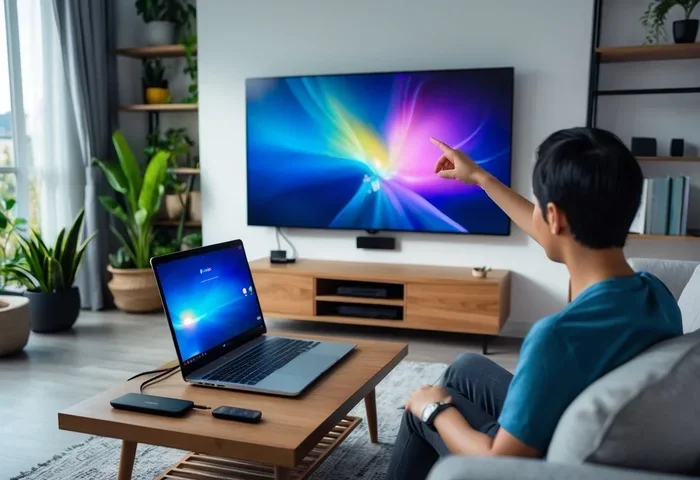
Cast from laptop to TV without HDMI means sending your laptop screen to your television using a wireless connection instead of a physical cable. This process is also known as screen mirroring or wireless display sharing. Your TV acts as a second monitor, showing everything that appears on your laptop screen.
Understanding Screen Mirroring Basics
Screen mirroring copies your laptop display and sends it to your TV in real time. You see the same image on both screens. This is different from streaming, where you send a specific video file from an app. With mirroring, your entire laptop screen appears on the TV.
The technology behind this relies on display protocols. These are sets of rules that let devices communicate wirelessly. The most common protocols include Miracast, AirPlay, and Google Cast. Each one works a little differently, but they all achieve the same goal: getting your laptop content on your TV.
How Wireless Casting Works
Wireless casting uses your home Wi-Fi network to send video and audio data from your laptop to your TV. Here is a simple breakdown of the process:
- Your laptop encodes the screen content into a digital signal.
- The signal travels over your Wi-Fi network to your TV or a streaming device.
- Your TV or device decodes the signal and displays it on the screen.
This whole process happens in milliseconds. You will barely notice any delay, especially when watching videos or browsing the web. The quality of your wireless connection plays a big role in how smooth the experience is.
Why Go Wireless? The Benefits of Casting Without a Cable
You might be wondering why you should bother with wireless casting when a simple HDMI cable works fine. There are several great reasons to go cable-free.
Freedom and Flexibility
With wireless casting, you are not tied to your TV. You can sit on the couch, lie in bed, or even move around the room while your laptop screen shows on the TV. This freedom makes it perfect for casual viewing and impromptu movie nights.
You also do not need to physically connect your laptop to the TV every time. Once the devices are paired, casting is just a few clicks away. This convenience is a game changer for daily use.
Fewer Cable Hassles
Let us be honest. Cables are annoying. They get tangled, they take up space, and they limit how far you can sit from the TV. A wireless connection eliminates all of these problems. No more rearranging furniture to reach the right port on your TV.
Also, many modern laptops do not even have HDMI ports anymore. If you have a thin and light laptop, you might need a USB-C to HDMI adapter. Going wireless saves you from buying extra adapters and dealing with compatibility issues.
For more tech tips and gadget ideas that simplify your life, check out our 10 Gadgets To Make Moms Life Easier guide for helpful recommendations.
Top Methods to Cast Your Laptop to TV Without HDMI
There are several ways to cast from laptop to TV without HDMI. Each method has its own strengths. Let us look at the most popular options available today.
Using Chromecast for Wireless Streaming
Chromecast is one of the most popular casting devices on the market. Made by Google, it plugs into your TV’s HDMI port and connects to your Wi-Fi network. Even though Chromecast itself uses an HDMI connection, it acts as a bridge between your laptop and your TV wirelessly.
Here is how to use Chromecast for screen mirroring:
- Plug your Chromecast into your TV and set it up using the Google Home app.
- Make sure your laptop and Chromecast are on the same Wi-Fi network.
- Open Google Chrome on your laptop.
- Click the three dots in the top right corner and select Cast.
- Choose your Chromecast device and pick whether to cast a tab, your desktop, or a specific file.
Chromecast works with Windows, Mac, and Chromebook laptops. It supports 1080p and even 4K streaming on newer models. The setup is simple, and the casting experience is smooth for most users.
AirPlay for Apple Users
If you use a MacBook, AirPlay is your built-in casting solution. Apple designed AirPlay to work seamlessly between MacBooks, iPhones, and Apple TVs. You can cast your MacBook screen to a smart TV that supports AirPlay or to an Apple TV device.
To use AirPlay:
- Make sure your MacBook and your TV or Apple TV are on the same Wi-Fi network.
- Click the AirPlay icon in your MacBook menu bar.
- Select your TV from the list of available devices.
- Your MacBook screen will now appear on your TV.
AirPlay supports high-quality video and audio. It also lets you use your TV as a mirrored display or as an extended desktop. This is great for presentations or multitasking.
Miracast for Windows Laptops
Miracast is a wireless display standard built into many Windows laptops and smart TVs. It does not require any extra hardware. If your TV supports Miracast, you can cast directly from your Windows laptop.
Here is how to set it up:
- Open your Windows Settings and go to System.
- Click on Projecting to this PC.
- Set your PC to available for casting.
- On your TV, open the Miracast or Screen Mirroring option.
- Select your laptop from the list of available devices on your TV.
Miracast works well for basic screen sharing and watching videos. However, it may not deliver the same smooth experience as Chromecast or AirPlay for high-resolution content. Latency can sometimes be an issue with Miracast, especially on crowded Wi-Fi networks.
Roku and Smart TV Built-In Features
Many modern smart TVs come with built-in casting capabilities. If you have a Roku device or a smart TV with screen mirroring, you can cast directly from your laptop. Some TVs support casting through their own apps, while others work with the Wireless Display feature in Windows.
For Roku users, you can use the Roku app on your laptop or enable screen mirroring through your TV settings. The process is similar to Miracast, but Roku often provides a more stable connection.
For related tips on device settings and connectivity, you may also find our article on Adding Prefixes To Numbers On Iphone helpful for managing your device configurations.
Using a Wireless HDMI Adapter
If you want a near-cable experience without a physical HDMI cord, a wireless HDMI adapter is a great option. These small devices plug into your laptop and connect to your TV through Wi-Fi or a dedicated wireless signal. They offer low latency and high-quality video.
Popular wireless HDMI adapters include brands like Wireless HD, Actiontec, and Microsoft Wireless Display Adapter. These devices are especially useful for presentations and gaming where every millisecond of delay matters.
The downside is that wireless HDMI adapters can be expensive compared to free software-based solutions. They also require you to keep a small dongle connected to your laptop at all times.
Step-by-Step Setup for Wireless Casting
Setting up wireless casting is easier than you might think. Follow these steps to get your laptop and TV connected.
Preparing Your Devices
Before you start casting, make sure everything is ready:
- Check your Wi-Fi: Both your laptop and TV need to be on the same network. A strong Wi-Fi signal makes a big difference.
- Update your software: Make sure your laptop operating system and TV firmware are up to date.
- Turn on screen mirroring: On your TV, find the Screen Mirroring or Wireless Display option in the settings menu.
- Disable VPNs: A VPN can sometimes block casting. Turn it off if you are having trouble connecting.
Connecting and Casting
Once your devices are ready, follow these steps:
- Open your casting app or feature on your laptop. This could be the Cast button in Chrome, the AirPlay icon on macOS, or the Project feature in Windows.
- Wait for your TV to appear in the list of available devices.
- Select your TV and choose your casting mode. You can usually pick between mirroring your full screen or casting a single window.
- Your laptop screen should now appear on your TV.
That is it! You are now streaming from laptop to TV without any cables. Adjust the volume, resolution, and display settings to get the best experience.
Comparing Wireless Casting Methods
Not all casting methods are the same. Here is a quick comparison to help you choose the right one for your needs.
| Method | Device Compatibility | Quality | Latency | Cost |
|---|---|---|---|---|
| Chromecast | Windows, Mac, Chromebook | Up to 4K | Low to Medium | $30-$70 |
| AirPlay | MacBook, iPhone, Apple TV | Up to 4K | Low | Free (with Apple TV) |
| Miracast | Windows Laptops, Smart TVs | Up to 1080p | Medium | Free |
| Roku Built-In | Windows, Mac, Chromebook | Up to 4K | Low | Free (with Roku device) |
| Wireless HDMI Adapter | Most Laptops | Up to 4K | Very Low | $50-$150 |
As you can see, each method has its own strengths. Chromecast and AirPlay offer the best overall experience for most users. Miracast is great if you do not want to buy any extra hardware. Wireless HDMI adapters are ideal for users who need the lowest latency possible.
Troubleshooting Common Casting Issues
Even with the best setup, you might run into problems from time to time. Here are the most common issues and how to fix them.
Connection Drops and Lag
If your cast keeps dropping or lagging, your Wi-Fi signal might be the culprit. Try moving your router closer to your TV and laptop. You can also try switching to the 5 GHz band on your router, which offers faster speeds and less interference.
Another common fix is to restart both your laptop and your TV. A simple reboot often resolves temporary connectivity issues. Make sure no other devices are hogging your bandwidth by downloading large files or streaming heavy content at the same time.
Audio and Video Sync Problems
Sometimes the audio and video get out of sync during casting. This usually happens when your network is congested or when you are casting at a high resolution your setup cannot handle smoothly.
To fix this, try lowering the casting resolution from 4K to 1080p. You can also close other apps on your laptop that might be using network resources. If the problem persists, restarting your router can help clear up network congestion.
Device Not Found on Network
If your TV or casting device does not show up in the list of available devices, check the following:
- Make sure both devices are on the same Wi-Fi network.
- Restart your TV and laptop.
- Check if your TV has the latest firmware update installed.
- Disable any firewall or antivirus software temporarily to see if it is blocking the connection.
- Make sure your TV’s screen mirroring feature is turned on and visible.
Most of the time, one of these simple steps will get your devices talking to each other again. Wireless display technology has come a long way, but occasional hiccups are normal.
Expert Tips for the Best Casting Experience
Want to get the most out of your wireless casting setup? Here are some pro tips that make a real difference.
- Use a dedicated Wi-Fi band: If your router supports dual-band, use the 5 GHz band for casting. It provides faster and more stable connections.
- Close unnecessary apps: Running too many apps on your laptop can slow down casting. Close anything you are not using.
- Keep your devices close: The closer your laptop is to your router, the better your casting quality will be.
- Update regularly: Keep your laptop, TV, and casting device firmware updated for the best performance.
- Use wired internet when possible: If your router supports it, connect your TV to the internet via Ethernet for a more stable connection.
These small adjustments can significantly improve your media streaming experience. You will notice smoother video, better audio, and fewer interruptions.
Casting from laptop to TV without HDMI is no longer a luxury. It is a practical and convenient way to enjoy your content on a bigger screen. Whether you use Chromecast, AirPlay, Miracast, or a wireless HDMI adapter, the technology is mature and reliable. You can set up a cable-free casting system in minutes and start enjoying your favorite shows, movies, and presentations right away.
The beauty of wireless casting is that it works with almost any setup. You do not need expensive equipment or technical expertise. Just a laptop, a TV, and a good Wi-Fi connection. Once you try it, you will wonder how you ever lived with cables.
Give it a try today. Pick the method that suits your devices best, follow the setup steps, and enjoy the freedom of wireless screen sharing. You will be glad you made the switch to a cable-free experience.
Frequently Asked Questions
Can I cast from my laptop to any TV without HDMI?
Most smart TVs made in the last few years support some form of wireless casting. If your TV has built-in Wi-Fi and supports Miracast, AirPlay, or has a casting app, you can cast without HDMI. For older TVs, a streaming device like Chromecast or Roku can add this capability.
Do I need an internet connection to cast wirelessly?
Yes, you need a Wi-Fi network for most casting methods. Both your laptop and TV must be connected to the same network. Some devices also support peer-to-peer casting, which creates a direct Wi-Fi connection without needing a router.
Is wireless casting the same as screen mirroring?
Yes, the terms are used interchangeably. Screen mirroring and wireless casting both refer to sending your laptop screen to your TV over a wireless connection. The only difference is that some casting methods let you send specific content rather than mirroring your entire screen.
Why is my cast lagging or delayed?
Lag usually happens because of a weak Wi-Fi signal or network congestion. Try moving closer to your router, switching to the 5 GHz band, or closing other apps that use bandwidth. Restarting your devices can also help reduce delays.
Can I cast in 4K without HDMI?
Yes, you can cast in 4K wirelessly if your devices support it. Chromecast Ultra, Apple TV 4K, and high-end smart TVs all support 4K wireless casting. Make sure your Wi-Fi network is strong enough to handle the higher data requirements of 4K streaming.
What is the best free method to cast from laptop to TV?
Miracast is the best free method because it is built into most Windows laptops and many smart TVs. You do not need to buy any extra hardware. AirPlay is also free if you have a MacBook and a compatible TV or Apple TV.
=== CONCLUSION ===
Cast from laptop to TV without HDMI is not only possible but also incredibly convenient. You have many wireless options at your fingertips, from built-in features like AirPlay and Miracast to dedicated devices like Chromecast and wireless HDMI adapters. Each method offers a different balance of quality, ease, and cost.
The key is to choose the method that fits your devices and your needs. If you have a MacBook, AirPlay is your best bet. Windows users will love Chromecast or Miracast. And if you want the lowest latency, a wireless HDMI adapter is worth the investment.
Start experimenting with wireless casting today. You will be surprised at how easy and enjoyable it is to share your laptop screen on a bigger display without any cables. Once you experience the freedom of cable-free casting, you will never go back to wires.