Can I Use Projector Wirelessly Everything You Need to Know
Yes, you can absolutely use a projector wirelessly. Modern technology makes it easy to stream content from your phone, laptop, or tablet to a projector without any messy cables. Whether you want a wireless projector setup for movie nights or business presentations, this guide covers everything you need to know about connecting your devices without wires and getting great results every time.
Have you ever wanted to watch a movie on a big screen but hated dealing with cables? Maybe you have a projector sitting in a closet, and you keep thinking there has to be an easier way to set it up. The good news is that can I use projector wirelessly is a question with a very clear answer: yes, you can.
Wireless projection has come a long way in recent years. What used to require expensive equipment and complicated setup is now something anyone can do. Whether you are at home for a movie night or giving a presentation at work, wireless projector setup saves you time and frustration. You do not need to run cables across the room or climb up on a chair to plug in an HDMI cord.
In this guide, we will walk through every method you can use to use a projector without cables. We will cover the technology behind wireless projection, the best adapters and devices, step-by-step setup instructions, and tips to avoid common problems. By the end, you will feel confident setting up your own wireless projection system at home or in the office.
Key Takeaways
- Wireless projection is totally possible: You can cast content from any device to your projector using WiFi, Bluetooth, or a wireless adapter.
- Multiple methods work well: Options include built-in WiFi projectors, wireless display adapters like Chromecast or Miracast, and Bluetooth connections.
- Setup is simple: Most wireless projector connections take just a few minutes and require minimal technical knowledge.
- Latency can be an issue: Wireless connections may have slight delays, so wired HDMI is still best for fast-action gaming or live events.
- The right adapter matters: Choosing a good wireless display adapter makes a huge difference in picture quality and reliability.
- Range and interference affect performance: Keep your projector and router close for the best wireless projector range and stable connection.
📑 Table of Contents
- Can I Use Projector Wirelessly? Understanding Wireless Projection
- How to Set Up a Wireless Projector Connection
- Best Wireless Projector Adapters and Devices
- Common Wireless Projector Problems and Solutions
- Tips for a Better Wireless Projection Experience
- Common Mistakes to Avoid When Going Wireless
- The Future of Wireless Projector Technology
- Frequently Asked Questions
- Conclusion
Can I Use Projector Wirelessly? Understanding Wireless Projection
The short answer is yes. But let us dig deeper into what wireless projection actually means and how it works. When you cast to projector wirelessly, you are sending audio and video signals through the air using WiFi or Bluetooth instead of a physical cable. The projector receives these signals and displays them on the screen just like it would with a wired connection.
How Wireless Projection Technology Works
Wireless projection uses the same basic idea as connecting your phone to a speaker via Bluetooth. Your device sends a signal, and the receiving device picks it up and displays it. With WiFi projectors, the projector connects directly to your home network. With adapters, the projector connects to a small device that then links to your phone or computer.
There are two main types of wireless projection technology you should know about:
- WiFi-based projection: This uses your home WiFi network to send content from your device to the projector. It works well for streaming movies, showing photos, and sharing presentations.
- Direct wireless connection: Some projectors and adapters create their own direct connection without needing a WiFi network. This can be faster and more secure for private use.
WiFi vs Bluetooth for Projector Connections
You might wonder whether to use WiFi or projector Bluetooth for wireless connections. Here is the difference:
- WiFi offers better video quality: WiFi can handle high-definition video and audio much better than Bluetooth. If you want to watch movies or show slideshows, WiFi is the way to go.
- Bluetooth is simpler for audio: Bluetooth works great for audio-only connections. If you just want sound from your projector to a Bluetooth speaker, this is an easy option.
- WiFi has a longer range: WiFi signals can reach across a room or even a whole house. Bluetooth range is usually shorter, around 30 feet.
How to Set Up a Wireless Projector Connection
Setting up a wireless projector setup is easier than most people think. The exact steps depend on which method you choose, but the general process is straightforward. Let us walk through each approach.
Method 1: Using a Built-In WiFi Projector
Many modern projectors come with WiFi built right in. These WiFi projectors let you connect directly to your home network without any extra accessories. Brands like Epson, BenQ, and Optoma now offer models with wireless capabilities.
Here is how to set one up:
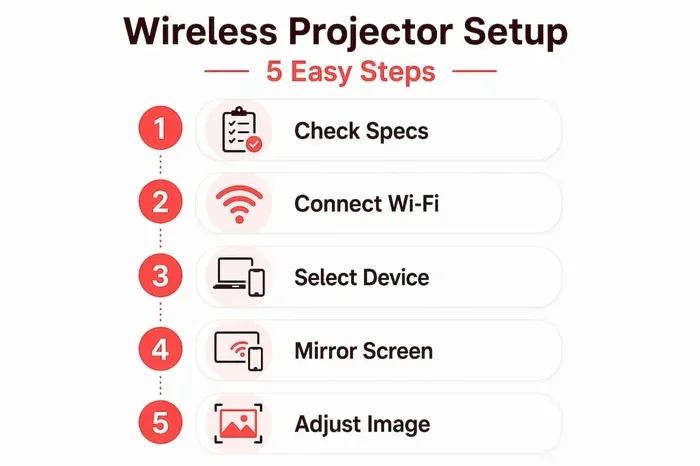
- Turn on your projector and go to the network settings menu.
- Select your home WiFi network from the list.
- Enter your WiFi password and wait for the connection.
- On your phone or laptop, look for the screen mirroring or cast option.
- Select your projector from the list of available devices.
- Your screen should now appear on the projector.
This method is the simplest because it requires no extra purchases. If you are buying a new projector and want to use a projector wirelessly, look for models that advertise built-in WiFi or wireless capabilities.
Method 2: Using a Wireless Display Adapter
If your projector does not have WiFi built in, do not worry. You can still go wireless with a wireless display adapter. These small devices plug into your projector’s HDMI port and create a wireless connection point. Think of them as a bridge between your device and your projector.
Popular options include:
- Google Chromecast: A great Chromecast projector solution that lets you cast content from your phone or computer. It is affordable and works with most projectors.
- Amazon Fire TV Stick: This device plugs into HDMI and turns any projector into a smart projector with access to Netflix, YouTube, and more.
- Miracast adapters: These work with Windows and Android devices for direct screen mirroring without needing an internet connection.
- Apple AirPlay receivers: If you are in the Apple ecosystem, an AirPlay projector adapter lets you stream from iPhones and Macs seamlessly.
Method 3: Using a Wireless HDMI Kit
A wireless HDMI kit is another option. It comes with a transmitter and receiver. You plug the transmitter into your device and the receiver into the projector. The signal travels wirelessly between them. These kits offer very low latency and high-quality video, making them great for gaming or presentations where timing matters.
Here is a quick comparison of the three methods:
- Built-in WiFi projectors: Easiest setup, no extra cost, but requires buying a new projector.
- Wireless display adapters: Affordable, works with existing projectors, but needs a WiFi network.
- Wireless HDMI kits: Best quality and lowest latency, but more expensive than other options.
Best Wireless Projector Adapters and Devices
Not all wireless adapters are created equal. When choosing a wireless projector adapter, you want to think about your specific needs. Are you streaming movies? Giving presentations? Gaming? Each use case benefits from different features.
Top Picks for Home Use
For watching movies and TV shows at home, these options work great:
- Google Chromecast with Google TV: Affordable and easy to use. You can cast from your phone or use the remote to browse streaming apps directly on your projector.
- Amazon Fire TV Stick 4K: Supports 4K resolution and works well with most projectors. It gives you access to all major streaming services.
- Roku Streaming Stick: Another solid option with a user-friendly interface and good app support for projector streaming.
Top Picks for Business Use
If you need to share your screen during meetings or presentations, consider these:
- Barco ClickShare: A professional-grade solution used in boardrooms worldwide. It offers plug-and-play simplicity and excellent reliability.
- Microsoft Wireless Display Adapter: Works well with Windows devices and supports screen mirroring for presentations.
- Epson EasyMP Connect: Designed specifically for Epson projectors and offers smooth wireless presentation capabilities.
What to Look for When Buying
Before you buy any wireless projector accessories, keep these factors in mind:
- Resolution support: Make sure the adapter supports the resolution of your projector, whether that is 1080p or 4K.
- Latency: If you are gaming or presenting live video, look for adapters with low latency to avoid delays.
- Compatibility: Check that the adapter works with your devices. Some work best with Android, others with iOS or Windows.
- Range: Consider how far your projector will be from the source device. Most adapters work well within 30 to 50 feet.
Common Wireless Projector Problems and Solutions
Going wireless is wonderful, but it is not always perfect. Here are some common issues you might run into and how to fix them.
Lag or Delay in the Signal
Projector latency is one of the most common complaints with wireless setups. You might notice a slight delay between what you do on your device and what appears on the projector screen. This happens because wireless signals take time to travel.
To reduce lag:
- Use a wireless HDMI kit instead of WiFi-based adapters for the lowest latency.
- Make sure your WiFi network is strong and not overloaded with too many devices.
- Close other apps on your device that might be using bandwidth.
- Restart your router if the delay becomes noticeable.
Poor Picture Quality
If your projected image looks blurry or pixelated, the issue is usually with your WiFi signal. A weak connection cannot send high-quality video data fast enough.
Try these fixes:
- Move your router closer to the projector.
- Switch to a 5GHz WiFi band instead of 2.4GHz for faster speeds.
- Reduce the distance between your device and the projector.
- Check that your adapter or projector firmware is up to date.
Connection Keeps Dropping
A wireless connection that keeps disconnecting is frustrating. This often happens when other devices interfere with the WiFi signal. Microwaves, baby monitors, and even neighboring WiFi networks can cause interference.
Quick fixes include:
- Change your WiFi channel in your router settings to avoid crowded channels.
- Place the projector closer to your WiFi router.
- Use a WiFi extender or mesh network to improve coverage in the projector area.
- Switch to a wired connection for the router if possible.
Audio and Video Are Out of Sync
Sometimes you will see the video but the audio lags behind. This is a common wireless projection issue. Most adapters have a settings menu where you can adjust audio delay to match the video. Check the user manual for your specific adapter to find the sync settings.
Tips for a Better Wireless Projection Experience
Getting the most out of your wireless projector setup is all about a few smart choices. Here are some tips that make a real difference.
Optimize Your WiFi Network
Your wireless projector connection is only as good as your WiFi network. If you are planning to use a projector wirelessly regularly, invest in a good router. A dual-band or tri-band router handles multiple devices better and provides a stronger signal to your projector.
Also consider placing your router in the same room or nearby. Walls, floors, and furniture can weaken WiFi signals. The closer your projector is to the router, the better your wireless projector range will be.
Keep Your Devices Updated
Software updates often include improvements for wireless connectivity. Make sure your projector, adapter, phone, and laptop all have the latest firmware and software installed. This simple step can fix many connection issues before they start.
Use a Dedicated Network
If you use wireless projection often, consider setting up a separate WiFi network just for your projector and streaming devices. This keeps your projection traffic separate from your regular internet use and reduces interference.
Test Before Important Events
Never set up your wireless projector for the first time right before a big presentation or movie night. Always test everything a day or two in advance. This gives you time to troubleshoot any issues and find the right settings.
Consider the Room Setup
Your room layout affects wireless performance too. Metal objects, thick walls, and electronic devices near the projector can weaken the signal. Keep your projector and adapter in open spaces with minimal obstructions for the best wireless projection technology performance.
Common Mistakes to Avoid When Going Wireless
Even with the best setup, some mistakes can ruin your wireless projection experience. Here are the ones to watch out for.
- Buying the wrong adapter: Not all adapters work with all projectors. Check compatibility before you buy. Some adapters only work with specific HDMI versions or operating systems.
- Ignoring network congestion: If 20 people are streaming Netflix on the same WiFi network, your projector connection will suffer. Plan your network usage accordingly.
- Skipping firmware updates: Old firmware can cause compatibility issues and poor performance. Always keep your devices updated.
- Placing the projector too far from the router: Distance kills WiFi signals. If your projector is in a different room from your router, consider a WiFi extender.
- Expecting wired-quality performance: Wireless connections are great, but they are not perfect. For the absolute best quality and zero latency, a wired HDMI connection still wins.
Avoiding these mistakes will save you headaches and help you get the most out of your wireless projector setup.
The Future of Wireless Projector Technology
Wireless projection is getting better every year. New standards like WiFi 6 and WiFi 7 offer faster speeds and lower latency, making wireless connections even more reliable. We are also seeing projectors with built-in smart features that eliminate the need for external adapters entirely.
In the near future, you might be able to cast to projector from any device without thinking about adapters or settings at all. The technology is moving toward seamless, plug-and-play wireless projection that just works. For now, the options available today are more than enough for most users.
Frequently Asked Questions
Do I need a special projector to use it wirelessly?
Not necessarily. Many modern projectors have WiFi built in, but you can also add wireless capability to any projector with an HDMI port by using a wireless display adapter or a wireless HDMI kit. This means even older projectors can be part of a wireless projector setup.
Is wireless projection good for gaming?
It depends on the method. Wireless HDMI kits offer very low latency and work well for gaming. WiFi-based adapters may have slight delays that are noticeable in fast-paced games. For casual gaming, wireless works great. For competitive gaming, a wired connection is still better.
How far can I be from the projector when using it wirelessly?
Your wireless projector range depends on your WiFi signal strength and the adapter you use. Most setups work well within 30 to 50 feet. If you go beyond that range, you may experience signal drops or lower quality. Using a WiFi extender can help extend the range.
Can I use projector wirelessly without internet?
Yes, you can. Some wireless adapters create a direct connection between your device and the projector without needing an internet connection. Miracast and certain wireless HDMI kits work this way. You just need your device and the projector to be within range of each other.
Does wireless projection affect picture quality?
Good wireless adapters maintain excellent picture quality, especially for streaming and presentations. However, very cheap or outdated adapters might compress the video signal, which can reduce quality. Stick with well-known brands and check that the adapter supports your projector’s resolution for the best results.
Can I connect multiple devices to a wireless projector?
Yes, most wireless adapters and built-in WiFi projectors support multiple devices. You can switch between devices easily by selecting them from the cast or screen mirroring menu. Some adapters even allow multiple users to share their screens in a meeting or classroom setting.
Conclusion
The answer to can I use projector wirelessly is a resounding yes. Whether you choose a built-in WiFi projector, a wireless display adapter, or a wireless HDMI kit, you have plenty of options to ditch the cables and enjoy a cleaner, more flexible setup. Wireless projection technology has matured to the point where it works reliably for movies, presentations, gaming, and everyday use.
Start by choosing the right method for your needs. If you already have a projector, a wireless adapter is the easiest and most affordable way to go wireless. If you are in the market for a new projector, look for models with built-in WiFi for the simplest experience. Follow the setup steps we covered, avoid the common mistakes, and optimize your WiFi network for the best results.
With the right wireless projector accessories and a little patience during setup, you will be enjoying big-screen content without a single cable in sight. The freedom of projector without cables is real, and once you make the switch, you will never want to go back to wires again.