Can I Use My Phone As A Wifi Receiver For Free Internet
Yes, you can use your phone as a wifi receiver to access free internet through methods like mobile hotspot, tethering, and wifi bridging. This guide shows you the simplest, safest ways to share your cellular data or extend an existing wifi signal using just your smartphone. You do not need expensive equipment or technical skills to get started.
Have you ever been in a place with no wifi and wished you could just pull internet out of thin air? Well, here is some good news. You can use your phone as a wifi receiver and get online without spending a dime. Can I use my phone as a wifi receiver? The short answer is yes. And it is way simpler than most people think.
Many of us carry powerful little computers in our pockets every day. Your phone has a built-in wifi chip, a data plan, and the ability to share connections. This means it can act as a wifi receiver, a mobile hotspot, or even a wifi bridge. Whether you are traveling, at a coffee shop, or stuck in a dead zone, your phone can save the day.
In this guide, I will walk you through every method you can use. You will learn about tethering, internet sharing, and how to turn your phone into a portable hotspot. I will also share tips on staying safe and avoiding common mistakes. By the end, you will know exactly how to get free internet using nothing but your phone.
The idea of using your device as a wireless receiver is not new. People have been doing it for years. But many still do not know the full range of options available. This article changes that. Let us dive in.
Key Takeaways
- Phone as wifi receiver works easily: Most modern phones can share their data connection with other devices using built-in features.
- Multiple methods available: You can use wifi hotspot, usb tethering, bluetooth tethering, or a wifi bridge app.
- It costs nothing extra in many cases: If you already have a data plan, sharing your connection is usually free.
- Watch out for data limits: Sharing your connection uses your cellular data quickly, so monitor your usage.
- Security matters: Always set a strong password when creating a hotspot to keep your data safe.
- Not all phones work the same: Some carriers or older devices may limit wifi receiver features.
📑 Table of Contents
- What Does It Mean to Use Your Phone as a Wifi Receiver
- Can I Use My Phone As A Wifi Receiver With Mobile Hotspot
- Usb Tethering and Bluetooth Tethering Options
- Using Wifi Repeater Apps to Extend Your Connection
- Comparison of Methods to Use Your Phone as a Wifi Receiver
- Tips for Getting the Most Out of Your Phone as a Wifi Receiver
- Common Mistakes People Make When Using Their Phone as a Wifi Receiver
- Expert Insights on Phone Wifi Sharing
- Key Takeaways
- Conclusion
What Does It Mean to Use Your Phone as a Wifi Receiver
Before we get into the how, let us talk about the what. A wifi receiver is any device that picks up a wireless signal and connects to the internet. Your phone already has this ability built in. But when we talk about using it as a receiver, we mean something more.
You are taking the internet connection your phone has and sharing it with other devices. Maybe your laptop needs wifi. Maybe your tablet does. Or maybe you just want to extend a weak signal in your home. Your phone can do all of this.
The process relies on a few different technologies. Tethering is the most common one. It means connecting your phone to another device and sharing its internet. This can happen through wifi, usb, or bluetooth. Each method has its own benefits. And each one works great for different situations.
How Wifi Receiver Technology Works on Phones
Your phone has two wireless radios inside. One picks up wifi signals. The other sends out cellular data. When you use your phone as a wifi receiver, you are using both of these radios at the same time. One radio grabs the signal. The other shares it with your other devices.
This is called internet connection sharing. It is a feature built into both Android and iPhone operating systems. You do not need to download anything special in most cases. The tools are already there, waiting for you to turn them on.
Can I Use My Phone As A Wifi Receiver With Mobile Hotspot
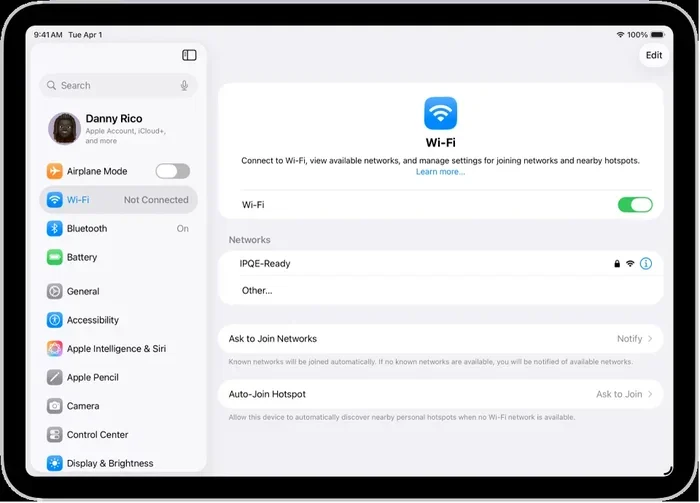
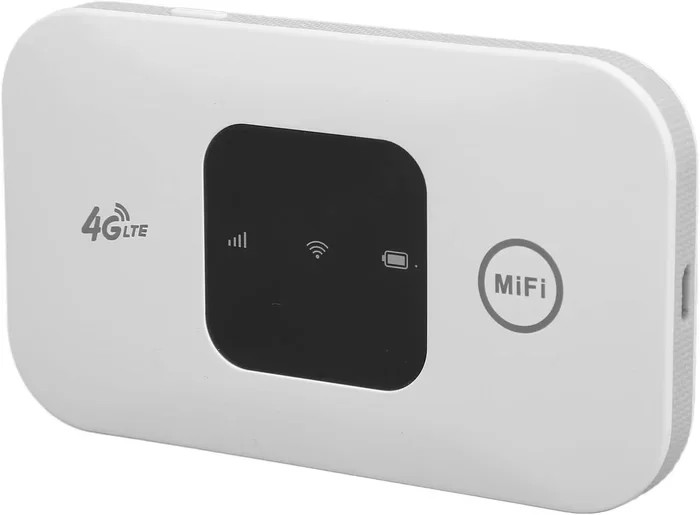
The easiest and most popular way to use your phone as a wifi receiver is through the mobile hotspot feature. This turns your phone into a mini router. Other devices can connect to it just like they would connect to a home router.
Here is how it works. Your phone uses its cellular data to connect to the internet. Then it creates a new wifi network. Other devices can join that network and browse the web. It is simple, fast, and works almost everywhere.
Setting Up a Mobile Hotspot on Android
Android phones make this process really easy. Here are the steps to set up your wifi hotspot:
- Open the Settings app on your phone.
- Tap on Network and Internet or Connections.
- Look for Hotspot and Tethering or Mobile Hotspot.
- Toggle the Mobile Hotspot switch to on.
- Set a network name and password.
- Tap Save and your hotspot is ready.
Once your hotspot is active, go to the other device you want to connect. Scan for wifi networks. Find your phone’s network name. Enter the password. And you are online. This is one of the fastest ways to get free internet on any device.
Setting Up a Personal Hotspot on iPhone
iPhone users can do the same thing with the Personal Hotspot feature. Here is what to do:
- Open Settings on your iPhone.
- Tap Personal Hotspot.
- Turn on Allow Others to Join.
- Set a strong password.
- On your other device, find the iphone network in wifi settings.
- Enter the password and connect.
That is all there is to it. Your iPhone now acts as a portable hotspot. Other devices can use its cellular data to get online. This method works great for laptops, tablets, and even gaming consoles in some cases.
Usb Tethering and Bluetooth Tethering Options
Wifi hotspot is not the only way to use your phone as a wifi receiver. You also have usb tethering and bluetooth tethering. Both methods share your phone’s internet connection with other devices. But they work differently and have different advantages.
What Is Usb Tethering
Usb tethering means connecting your phone to a computer using a cable. The phone shares its cellular data with the computer through that cable. This method is very stable and often faster than wifi hotspot.
Here is why usb tethering is great:
- It uses a direct cable connection, so the signal is strong.
- It does not drain your phone battery as fast as wifi hotspot.
- It is harder for others to intercept your connection.
- It works well in areas with weak wifi signals.
To use usb tethering, plug your phone into your computer with a usb cable. On your phone, go to Settings and find Tethering or Hotspot. Turn on Usb Tethering. Your computer should automatically detect the connection and go online.
What Is Bluetooth Tethering
Bluetooth tethering is slower than wifi or usb, but it has its uses. It connects your phone to another device using bluetooth instead of wifi. This is helpful when you do not have a cable or when you want to save battery.
Bluetooth tethering works best for light browsing and email. It is not ideal for streaming videos or downloading large files. But for quick tasks, it gets the job done. Here is how to set it up:
- Pair your phone with the other device using bluetooth.
- On your phone, go to Settings and find Bluetooth Tethering.
- Turn it on.
- On the other device, the internet connection should become available.
Keep in mind that bluetooth tethering uses very little data and battery. It is a good backup option when you need a quick connection.
Using Wifi Repeater Apps to Extend Your Connection
Did you know you can also use your phone as a wifi extender? There are apps that turn your phone into a wifi bridge. These apps let your phone connect to one wifi network and share it with another device. This is different from a hotspot, which uses cellular data.
Wifi repeater apps work by receiving a wifi signal and rebroadcasting it. Your phone essentially becomes a wireless receiver that amplifies the signal. This is useful when the wifi is weak but still available.
Best Apps for Wifi Bridging
Here are some popular apps that can help you share wifi connections:
- Wifi Hotspot Creator – Lets you share any wifi connection through your phone.
- NetShare – A simple app that turns your phone into a wifi adapter.
- PdaNet – Works well for usb and wifi tethering on both Android and iPhone.
- FoxFi – A reliable option for creating hotspots without rooting your phone.
These apps are easy to use. Most of them do not require any technical knowledge. Just download, install, and follow the on-screen instructions. They are perfect for people who want a quick wifi receiver solution without buying extra hardware.
Are Wifi Repeater Apps Safe
This is a fair question. Most reputable apps are safe to use. But you should always download apps from trusted sources like the Google Play Store or Apple App Store. Avoid apps from unknown developers. Some free apps may contain ads or collect your data.
Always read reviews before downloading. Check the app permissions too. A good wifi bridge app should not ask for unnecessary access to your contacts, camera, or files. If something seems off, look for a different app.
Comparison of Methods to Use Your Phone as a Wifi Receiver
There are several ways to share your phone’s internet. Each method has pros and cons. Here is a quick comparison to help you choose the best one for your needs.
| Method | Speed | Battery Use | Best For |
|---|---|---|---|
| Mobile Hotspot | Fast | High | Multiple devices, long use |
| Usb Tethering | Very Fast | Low | Laptops, stable connection |
| Bluetooth Tethering | Slow | Very Low | Quick tasks, light browsing |
| Wifi Repeater App | Medium | Medium | Extending weak wifi signals |
As you can see, each method serves a different purpose. If you need speed and stability, usb tethering is the way to go. If you need to connect multiple devices, mobile hotspot is best. For quick and easy sharing, bluetooth tethering works well.
Tips for Getting the Most Out of Your Phone as a Wifi Receiver
Using your phone as a wifi receiver is easy. But there are a few tips that can make the experience much better. These small changes can save you data, protect your privacy, and improve your connection speed.
Keep an Eye on Your Data Usage
When you share your phone’s internet, you are using your cellular data plan. Streaming a movie or downloading a large file can eat through your data quickly. Keep track of how much data you are using. Most phones have a built-in data tracker in the settings. You can also set a data limit to avoid surprise charges.
Always Use a Strong Password
When you create a hotspot, always set a strong password. This keeps strangers from using your connection. It also protects your data from potential snoopers. Use a mix of letters, numbers, and symbols. Avoid simple passwords like “1234” or “password.”
Place Your Phone Strategically
The position of your phone matters. If you are using it as a hotspot, keep it in a central location. Avoid placing it near metal objects or thick walls. These can weaken the signal. A clear line of sight between your phone and the connected device gives you the best speed.
Turn Off Hotspot When Not in Use
This is an easy habit to build. When you are done sharing your connection, turn off the hotspot. This saves battery and keeps your data safe. An open hotspot is a security risk, even at home. Turning it off when you are not using it is a smart move.
Use a Power Bank for Long Sessions
Running a hotspot drains your phone battery fast. If you plan to use your phone as a wifi receiver for a long time, bring a portable charger. A power bank keeps your phone powered up so it can keep sharing internet all day long.
Common Mistakes People Make When Using Their Phone as a Wifi Receiver
Even though this process is simple, people still make mistakes. Here are some common ones to avoid.
Ignoring Carrier Restrictions
Some carriers limit or charge extra for tethering. Before you start sharing your connection, check your plan. Some plans include hotspot data by default. Others may require you to add a tethering add-on. Ignoring this can lead to unexpected fees or throttled speeds.
Using Public Wifi Without Protection
If you are using a wifi repeater app to share a public wifi connection, be careful. Public networks are often unsecured. Hackers can intercept data on these networks. Always use a vpn when sharing a public connection. This adds a layer of encryption and keeps your data safe.
Forgetting to Update Your Phone
Outdated software can cause connection problems. Always keep your phone updated. Software updates often include fixes for connectivity issues and security patches. A well-maintained phone works better as a wireless receiver and stays safer too.
Overheating Your Phone
Running a hotspot for hours can cause your phone to overheat. This can slow down your connection and even damage your device. If your phone gets too hot, turn off the hotspot and let it cool down. Do not leave it running unattended for long periods.
Expert Insights on Phone Wifi Sharing
Many tech experts agree that using your phone as a wifi receiver is one of the most underrated tricks available. According to networking professionals, the portable hotspot feature on modern phones is surprisingly powerful. It can handle multiple devices at once and deliver speeds that rival home routers in some cases.
Experts also recommend using usb tethering whenever possible for the best performance. The wired connection is more stable and less prone to interference. For those who need a quick fix, bluetooth tethering is a solid backup option.
One thing experts stress is security. Always use a strong hotspot password and avoid sharing sensitive information on public networks. A vpn adds an extra layer of protection and is worth the small investment.
Key Takeaways
- Phone as wifi receiver works easily: Most modern phones can share their data connection with other devices using built-in features like mobile hotspot, usb tethering, and bluetooth tethering.
- Multiple methods available: You can use wifi hotspot, usb tethering, bluetooth tethering, or a wifi bridge app depending on your needs.
- It costs nothing extra in many cases: If you already have a data plan, sharing your connection is usually free and does not require any additional equipment.
- Watch out for data limits: Sharing your connection uses your cellular data quickly, so monitor your usage and set data alerts to avoid overages.
- Security matters: Always set a strong password when creating a hotspot and consider using a vpn when connecting on public networks.
- Not all phones work the same: Some carriers or older devices may limit wifi receiver features, so check your plan and device capabilities first.
Conclusion
The answer to can I use my phone as a wifi receiver is a clear and definite yes. You have multiple options available right now on your device. Whether you choose mobile hotspot, usb tethering, or a wifi repeater app, you can get online without paying for extra equipment or a separate internet plan.
Using your phone as a wifi receiver is one of the easiest ways to get free internet on the go. It is convenient, affordable, and works with almost any device. You just need to know which method fits your situation best.
Remember to keep your connection secure. Monitor your data usage. And take care of your phone while it is working hard for you. With the right approach, your smartphone becomes one of the most useful tools in your tech arsenal.
So the next time you find yourself without wifi, do not panic. Just turn on your hotspot, share your connection, and stay connected. The power to access the internet is already in your pocket. All you have to do is use it.
Frequently Asked Questions
Is it legal to use my phone as a wifi receiver?
Yes, it is completely legal to use your phone as a wifi receiver or mobile hotspot. You are simply sharing the data connection you already pay for. However, you should always follow your carrier’s terms of service and avoid using someone else’s wifi without permission.
Will using my phone as a wifi receiver drain my battery?
Yes, sharing your connection can drain your battery faster, especially with wifi hotspot. Usb tethering uses less battery than wifi. To save power, turn off the hotspot when you are not using it and carry a power bank for long sessions.
Can I connect more than one device to my phone hotspot?
Most phones allow you to connect between five and ten devices at once. However, connecting too many devices can slow down your internet speed. It is best to connect only the devices you need for the best performance.
Do I need special apps to use my phone as a wifi receiver?
No, you do not need special apps for basic tethering or hotspot features. Both Android and iPhone have built-in tools for sharing your connection. Apps like NetShare or FoxFi are only needed for advanced features or when your carrier blocks the built-in options.
Can I use my phone as a wifi receiver without a data plan?
No, you need an active cellular data plan to share internet through a hotspot. Without data, your phone cannot create a connection to share. Wifi repeater apps that bridge existing wifi networks do not require a data plan, but your phone still needs wifi access to receive a signal.
What is the difference between a wifi hotspot and a wifi repeater?
A wifi hotspot uses your phone’s cellular data to create a new wifi network. A wifi repeater or bridge receives an existing wifi signal and shares it with other devices. Hotspots use your data plan, while repeaters extend a wifi signal you already have access to.