Can All Phones Mirror To TV With These Simple Steps
Not every phone can mirror to a TV the same way, but most modern devices support some form of screen mirroring. Whether you have an iPhone, Android, or a Smart TV, the process is simpler than you think. This guide walks you through every method, from wireless casting to wired connections, so you can share your screen with confidence.
Have you ever wanted to show someone a photo on your phone but wished it were bigger? Or maybe you want to watch a video from your device on a larger screen. Can all phones mirror to TV? The short answer is yes, but the method depends on your phone model, TV type, and the tools you have available. In this guide, we break down every option so you can find the one that works for you.
Screen mirroring has become one of the most popular ways to share content from a small device to a big screen. Whether you are casting a movie, sharing a presentation, or just showing off vacation photos, knowing how to connect your phone to your TV is a valuable skill. Let us dive into the details.
Key Takeaways
- Most phones can mirror to a TV using built-in features like AirPlay or Google Cast.
- Wired and wireless options both work well depending on your setup and TV type.
- Smart TVs and streaming devices make casting easier without extra hardware.
- Older phones and TVs may need adapters or third-party apps to connect.
- Understanding your phone and TV specs helps you choose the best mirroring method.
📑 Table of Contents
- What Does It Mean to Mirror a Phone to a TV?
- Can All Phones Mirror to a TV?
- How to Mirror Your Phone to Different TV Types
- Best Methods for Phone-to-TV Mirroring
- Common Problems and How to Fix Them
- Tips for the Best Mirroring Experience
- Expert Insights on Phone-to-TV Mirroring
- Quick Tips for Everyday Mirroring
- Final Thoughts
What Does It Mean to Mirror a Phone to a TV?
Screen mirroring means copying your phone display onto a TV screen in real time. Everything you do on your phone appears on the TV. This includes videos, photos, apps, games, and even text messages. It is like putting your phone screen on a bigger canvas.
The process uses either a wireless connection or a physical cable. Wireless methods rely on protocols like Google Cast, AirPlay, or Miracast. Wired methods use HDMI adapters or USB-C cables. Both approaches deliver a seamless experience when set up correctly.
Why People Love Screen Mirroring
- Bigger screen viewing makes movies and videos more enjoyable.
- Easy sharing during family gatherings or group events.
- Presentation capabilities for work or school projects.
- Gaming on a larger display with minimal setup.
- No extra equipment needed if your TV supports wireless casting.
Many people also use gadgets that make this process even smoother. Devices like streaming sticks and smart hubs simplify the connection. If you are looking for helpful tools, check out 10 Gadgets To Make Moms Life Easier for ideas that can enhance your home entertainment setup.
Can All Phones Mirror to a TV?
Here is the honest answer. Most phones can mirror to a TV, but not all use the same method. Your phone brand, operating system, and age all play a role. Let us look at the main categories.
iPhone and iPad Devices
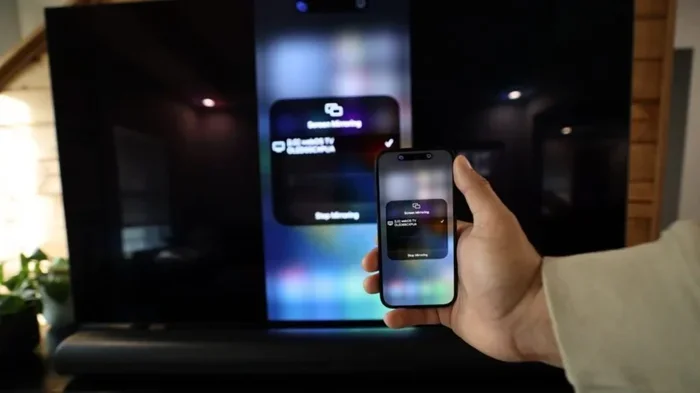
Apple devices use a built-in feature called AirPlay. This wireless protocol lets you mirror your iPhone or iPad to a compatible Smart TV or Apple TV. AirPlay is easy to use and requires no extra apps. Just make sure both devices are on the same Wi-Fi network.
Here is how it works:
- Open the Control Center on your iPhone.
- Tap the Screen Mirroring icon.
- Select your TV from the list.
- Enter the code if prompted.
That is it. Your phone screen now appears on the TV. AirPlay supports most iOS devices running iOS 12 or later.
Android Devices
Android phones use a feature called Google Cast or Screen Mirroring. Many Android devices also support Miracast, a wireless display standard. The exact method depends on your phone brand and Android version.
Here is the general process:
- Open your phone Settings.
- Look for Connected Devices or Display.
- Tap Cast or Screen Mirroring.
- Select your TV from the available devices.
Samsung phones have their own feature called Smart View. LG phones use Screen Share. These are just branded versions of the same core technology. They all achieve the same goal of sending your screen to a TV.
Older or Budget Phones
What if your phone is older or does not support wireless mirroring? You still have options. Wired connections work with almost any phone. You can use an HDMI adapter that plugs into your phone’s charging port. This sends a direct video signal to your TV.
Some older phones may need a third-party app to enable casting. Apps like AirScreen or Replica Screen Mirroring fill in the gaps. These apps work with most Smart TVs and streaming devices.
How to Mirror Your Phone to Different TV Types
Not all TVs are the same, and the mirroring method changes based on your TV type. Let us explore the most common setups.
Smart TVs
Most modern Smart TVs support built-in casting. Brands like Samsung, LG, Sony, and TCL include native support for AirPlay and Google Cast. This means you can mirror your phone without buying any extra equipment.
To use a Smart TV for mirroring:
- Make sure your TV and phone are on the same Wi-Fi network.
- Open the casting feature on your phone.
- Select your TV from the device list.
- Your screen should appear within seconds.
Smart TVs also support apps like Netflix, YouTube, and Hulu directly. But screen mirroring lets you share content from any app on your phone. This is a huge advantage.
Non-Smart TVs with Streaming Devices
If your TV is not a Smart TV, you can still mirror your phone. You just need a streaming device. Popular options include Chromecast, Roku, Amazon Fire TV Stick, and Apple TV.
These devices plug into your TV’s HDMI port and connect to your Wi-Fi network. They act as a bridge between your phone and your TV. Once set up, you can cast or mirror your phone screen easily.
For example, Chromecast works great with Android phones. You open the cast icon in any supported app and send content to the Chromecast. Apple TV works perfectly with iPhones using AirPlay. Fire TV Stick supports both Android and iOS with some limitations.
TVs with No Smart Features
Even if you have a basic TV with only HDMI inputs, you can still mirror your phone. You need an HDMI adapter that matches your phone’s port. For iPhones, this means a Lightning to HDMI adapter. For Android phones, a USB-C to HDMI adapter works well.
These adapters are affordable and widely available. They provide a reliable, lag-free connection. You do not need Wi-Fi for this method. Just plug in the adapter, connect the HDMI cable, and your phone screen appears on the TV.
Best Methods for Phone-to-TV Mirroring
There are several ways to get your phone screen on a TV. Each method has pros and cons. Let us compare them so you can choose the best one for your needs.
| Method | Pros | Cons |
|---|---|---|
| AirPlay (iPhone) | Built-in, no extra apps, high quality | Only works with Apple TV or AirPlay-compatible TVs |
| Google Cast / Chromecast | Works with most Android phones, affordable | Requires Wi-Fi, limited to supported apps |
| Miracast | Works with many Android and Windows devices | Can have lag, not supported on iPhones |
| HDMI Adapter | Works with any phone, no Wi-Fi needed | Requires a cable, limited mobility |
| Third-Party Apps | Works with older devices, affordable | May have ads, lower quality |
Each method has its place. For the best experience, match your method to your device and TV type. Wireless methods are convenient, but wired connections offer the most reliable performance.
Common Problems and How to Fix Them
Screen mirroring is usually smooth, but sometimes issues come up. Here are the most common problems and simple fixes.
Phone and TV Are Not Connecting
This is the most common issue. Start by checking your Wi-Fi connection. Both your phone and TV must be on the same network. If you are using a wired adapter, make sure the cable is securely plugged in.
Also, restart both devices. A simple reboot often fixes connection problems. Turn off Wi-Fi on your phone and turn it back on. Then try connecting again.
Lag or Delay During Mirroring
Wireless mirroring can sometimes lag. This happens when the Wi-Fi signal is weak or when too many devices are on the network. Move closer to your router to improve the signal.
For a smoother experience, try a wired HDMI connection. This eliminates lag completely. You get a real-time copy of your phone screen with no delay.
Audio Is Not Syncing with Video
Audio delay is frustrating but common. This usually happens with wireless connections. Try lowering the video resolution on your phone. This reduces the amount of data being sent and can help sync audio and video.
Another fix is to restart the casting session. Disconnect and reconnect your phone to the TV. This often resets the audio sync.
TV Does Not Show Up in the Device List
If your TV does not appear, check that screen mirroring or casting is enabled on the TV. Some TVs hide this feature until you turn it on in the settings menu. Look for settings like Screen Share, Cast, or Miracast on your TV.
Also make sure your phone’s software is up to date. Older software versions may not support the latest casting protocols. Updating your phone can solve this problem.
Tips for the Best Mirroring Experience
Want to get the most out of phone-to-TV mirroring? Follow these simple tips to improve your experience every time.
- Use a strong Wi-Fi connection for the best wireless performance.
- Keep your phone charged or plugged in during long mirroring sessions.
- Close unnecessary apps to free up memory and processing power.
- Use a high-speed HDMI cable if you go the wired route.
- Update your phone and TV software regularly for the best compatibility.
- Experiment with different apps to find the one that works best for your setup.
These small adjustments make a big difference. Your mirroring experience will be smoother and more enjoyable with these simple habits.
Expert Insights on Phone-to-TV Mirroring
Technology experts agree that screen mirroring is one of the most useful features on modern phones. According to tech reviewers, the key to a great experience is understanding your devices. Know what your phone supports and what your TV can handle. This knowledge helps you choose the right method every time.
Experts also recommend keeping your devices updated. Software updates often include improvements to casting and mirroring features. They fix bugs and add support for new TVs and protocols. Staying current ensures the best performance.
One expert tip is to invest in a good streaming device if your TV does not support casting natively. Devices like Chromecast or Roku are affordable and dramatically improve your mirroring capabilities. They open up a world of content sharing options that you might not have known existed.
Quick Tips for Everyday Mirroring
Here are some quick tips you can use right away to make phone-to-TV mirroring part of your daily routine:
- Set up your TV for casting before you need it. Enable the feature in your TV settings once and leave it on.
- Create a dedicated Wi-Fi network for streaming and mirroring. This keeps your connection fast and stable.
- Use a phone mount or stand so your phone stays upright while mirroring. This prevents accidents and keeps your view clear.
- Explore gadgets that enhance your setup. From HDMI switches to wireless display adapters, there are many tools to make mirroring easier.
Small preparations save a lot of frustration later. When you know your setup well, mirroring becomes second nature.
Final Thoughts
So, can all phones mirror to TV? The answer is a clear yes. Almost every modern phone has some way to share its screen with a television. Whether you use AirPlay, Google Cast, Miracast, or a simple HDMI adapter, the technology is accessible and easy to use.
The method you choose depends on your phone, your TV, and your preferences. Wireless options offer convenience, while wired connections provide reliability. Smart TVs make casting effortless, and streaming devices add versatility to any setup.
Remember that screen mirroring is a tool meant to enhance your entertainment and sharing experience. Use it to watch videos with family, share photos, or present ideas. The possibilities are endless once you know how to connect your devices.
Start experimenting with the methods in this guide today. You will be surprised how easy and rewarding phone-to-TV mirroring can be. Once you try it, you will wonder how you ever lived without it.
Frequently Asked Questions
Can I mirror my phone to any TV?
Most TVs can receive a mirrored signal, but the method varies. Smart TVs support wireless casting natively. Non-smart TVs need an HDMI adapter or a streaming device like Chromecast or Roku. Almost any TV can be mirrored with the right setup.
Is phone-to-TV mirroring free?
Yes, most built-in mirroring features are completely free. AirPlay, Google Cast, and Miracast cost nothing to use. The only potential cost is a streaming device or HDMI adapter if your TV does not support wireless casting.
Does mirroring use a lot of data?
Wireless mirroring uses your Wi-Fi network, not your mobile data. However, streaming high-quality video from your phone to the TV can use significant bandwidth. For the best experience, use a strong Wi-Fi connection and keep other devices off the network during mirroring.
Why is my phone screen laggy when mirrored to TV?
Lag usually happens due to a weak Wi-Fi signal or network congestion. Try moving closer to your router or switching to a wired HDMI connection. Closing background apps on your phone can also improve performance.
Can I mirror my phone to a TV without Wi-Fi?
Yes, you can use a wired HDMI adapter to mirror without Wi-Fi. This method works with almost any phone and TV. It provides a direct, lag-free connection without needing a wireless network.
What is the difference between casting and mirroring?
Casting sends specific content from an app to your TV, like a YouTube video. Mirroring copies your entire phone screen, including everything you do. Casting uses less bandwidth and often has better quality, while mirroring shows everything on your phone in real time.