How Do I Connect My Bluetooth Headphones To Sleep Tonight
Connecting Bluetooth headphones for sleep is simpler than you think. Whether you use wireless earbuds or a sleep headband, the process follows a few straightforward steps. You will learn how to pair your device, adjust settings for low latency, and choose the most comfortable options for overnight use. This guide covers everything from initial setup to troubleshooting common problems. By the end, you will have a clear path to better sleep with wireless audio.
There is nothing quite like settling into bed after a long day, putting on your favorite podcast or calming music, and drifting off to sleep. But if your Bluetooth headphones are not connected properly, that peaceful routine can turn into frustration. You might wonder why the connection keeps dropping or why the audio keeps cutting out mid-sentence.
The good news is that getting your wireless headphones ready for sleep does not have to be complicated. This guide walks you through every step, from the first pairing to choosing the right setup for comfortable overnight use. We will also cover tips on battery life, comfort, and common issues that can ruin a good night’s rest. Whether you are new to wireless audio or just looking to improve your setup, you will find practical advice here.
Many people already use Bluetooth headphones for gaming during the day and assume sleep mode is the same. While the basic pairing process is similar, there are a few extra considerations for overnight use. Let us walk through them together so you can get the best experience every night.
Key Takeaways
- Pairing Bluetooth headphones is quick: Most devices need only a few taps to connect and start streaming audio.
- Comfort matters most for sleep: Choose sleep-specific designs like headbands or slim earbuds to avoid discomfort overnight.
- Battery life is critical: Pick headphones that last at least 6-8 hours to make it through the night without dying.
- Low-latency settings improve the experience: Adjusting audio delay prevents audio-video sync issues and makes content more relaxing.
- Troubleshooting is simple: Most connection problems can be fixed by resetting Bluetooth, updating firmware, or moving closer to the source device.
- Use sleep timers and volume limits: These features protect your ears and save battery while you sleep.
📑 Table of Contents
- Why Connect Bluetooth Headphones for Sleep?
- How to Pair Bluetooth Headphones with Your Device
- Best Bluetooth Headphones for Sleep
- Optimizing Bluetooth Settings for Sleep
- Troubleshooting Common Bluetooth Connection Issues
- Expert Tips for the Best Sleep Audio Experience
- Frequently Asked Questions
- Conclusion
Why Connect Bluetooth Headphones for Sleep?
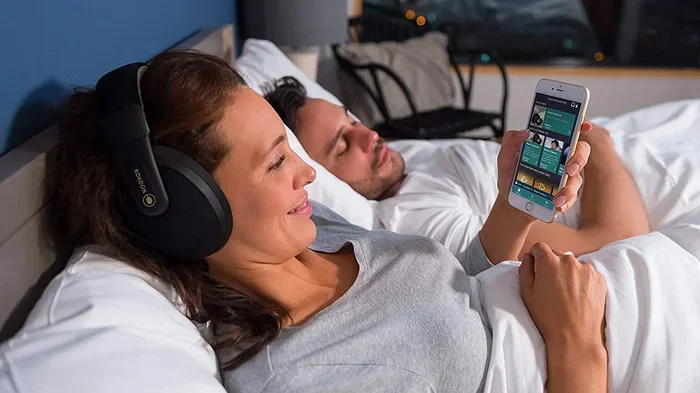
Using Bluetooth headphones while sleeping has become one of the most popular ways to improve bedtime routines. Instead of disturbing a partner with audio, you can listen privately through wireless earbuds or a sleep headband. The experience feels personal and immersive, which helps many people relax faster.
Here are some of the main reasons people choose to use wireless headphones at bedtime:
- No tangled wires: Traditional wired headphones can pull on your ears or get tangled in your hair during sleep. Wireless options eliminate this problem entirely.
- Private listening: You can enjoy music, audiobooks, or guided meditation without worrying about others hearing it.
- Better sleep quality: Calming sounds and white noise through Bluetooth connectivity can help mask background noise and promote deeper sleep.
- Comfortable designs: Many modern sleep earbuds are designed specifically for side sleepers with ultra-slim profiles.
Once you understand the benefits, the next step is learning how to connect everything properly. That is where this guide really shines.
How to Pair Bluetooth Headphones with Your Device
The pairing process is the foundation of your entire Bluetooth headphone sleep setup. Getting this step right means fewer interruptions during the night. Below, we break down the process for the most common devices.
Pairing with a Smartphone
Most people use their phone as the audio source for sleep content. Here is how to pair your wireless headphones with an iPhone or Android device:
- Turn on your Bluetooth headphones and put them in pairing mode. Most models require you to hold down the power button for 3-5 seconds until a light flashes.
- Open the Settings app on your phone and tap on Bluetooth.
- Make sure Bluetooth is toggled on. Your phone will start scanning for nearby devices.
- Look for your headphone model name in the list of available devices and tap on it.
- Wait for the connection confirmation. You should see a status message saying the device is connected.
Once paired, your headphones should automatically reconnect whenever Bluetooth is turned on and they are within range. This is a huge time-saver for your nightly routine.
Pairing with a Tablet or iPad
If you prefer watching sleep videos or listening to audio on a tablet, the process is nearly identical. Open Settings, go to Bluetooth, and select your headphones from the list. The iPad and most Android tablets handle this seamlessly. Just make sure your device is not in airplane mode, as that disables all wireless connections.
Pairing with a Laptop or PC
Connecting Bluetooth headphones to a computer works well too, especially if you use your laptop for bedtime content. On Windows, go to Settings > Devices > Bluetooth & other devices and click Add Bluetooth or other device. On a Mac, open System Preferences > Bluetooth and select your headphones. The process is simple but it helps to keep your laptop close to your bed for a stable connection.
Best Bluetooth Headphones for Sleep
Not all wireless headphones are created equal when it comes to overnight use. Some designs are bulky and uncomfortable for side sleepers, while others are practically invisible in bed. Choosing the right type makes a big difference in sleep quality.
Sleep Headbands
Sleep headbands are fabric bands with built-in speakers that sit comfortably over your ears. They are popular because they feel like a regular sleep mask but deliver audio through embedded speakers. These are ideal for people who find earbuds uncomfortable when sleeping on their side.
Ultra-Slim Wireless Earbuds
For those who prefer earbuds, slim-profile designs work best. Look for models with small drivers and soft silicone tips. These sleep earbuds are barely noticeable and stay in place even when you shift positions during the night.
Bone Conduction Headphones
Bone conduction headphones sit in front of your ears rather than inside or over them. They transmit sound through your cheekbones, leaving your ear canals open. This design can be very comfortable for people who dislike having anything inside their ears while sleeping.
Optimizing Bluetooth Settings for Sleep
Once your headphones are paired, a few simple adjustments can greatly improve your experience. These settings help reduce disruptions and make the audio more soothing throughout the night.
Adjusting Low Latency Settings
Latency is the delay between when audio is sent and when you hear it. High latency can cause audio to feel out of sync, which is distracting when you are trying to relax. Many Bluetooth headphones support low-latency codecs that reduce this delay. Check your headphone app or device settings to see if a low-latency or gaming mode option is available. Enabling this can make a noticeable difference in audio smoothness.
Some users find that Bluetooth headphones for gaming already have optimized latency settings that work well for sleep audio too. If you already own a pair, try enabling those modes before bed.
Setting a Sleep Timer
One of the best features to enable is the sleep timer. This automatically stops audio after a set period, saving battery and preventing content from playing all night. Most music apps and podcast players include a sleep timer option in their settings. Set it for 15, 30, or 60 minutes depending on how long you usually take to fall asleep.
Managing Battery Life Overnight
Battery life is a key consideration for overnight Bluetooth connectivity. Most quality wireless headphones offer 6 to 10 hours of playback on a single charge, which covers a full night of sleep. To maximize battery life:
- Charge your headphones fully before bedtime.
- Turn off any active noise cancellation if you do not need it.
- Keep the volume at a moderate level to conserve power.
- Enable any battery-saving modes available in your headphone app.
For users who convert older gear, you might wonder if you can make your wired headphones Bluetooth using a simple adapter. The answer is yes, and it is a cost-effective way to use your favorite wired pair for sleep without buying new gear.
Troubleshooting Common Bluetooth Connection Issues
Even with the best setup, you may run into occasional connection problems. These issues are usually easy to fix with a few simple steps.
Headphones Won’t Connect
If your Bluetooth headphones will not pair, start by turning Bluetooth off and back on again. Then make sure your headphones are in pairing mode. If that does not work, try forgetting the device from your phone’s Bluetooth settings and re-pairing from scratch. This resets the connection and often resolves the problem.
Audio Keeps Cutting Out
Interference from other wireless devices can cause audio dropouts. Move your phone or tablet closer to your bed and away from other electronics. Bluetooth range is typically around 30 feet, but walls and furniture can weaken the signal. Also, make sure your headphones are fully charged, as low battery can sometimes cause connection instability.
Connection Drops During the Night
If your headphones disconnect mid-sleep, check whether your device has an aggressive battery-saving mode that might be turning off Bluetooth. You can also try unpairing and repairing the devices. In some cases, updating the firmware of your headphones through the manufacturer’s app fixes this issue.
Using Your Phone as a Bluetooth Source
Many people use their phone as the primary audio source for sleep. If you want to explore other options, you can even turn your phone into a Bluetooth speaker to share audio with someone else in the room. This works well for couples who want to listen to the same content without each person wearing headphones.
Expert Tips for the Best Sleep Audio Experience
After helping many readers optimize their Bluetooth headphone sleep setups, a few expert tips consistently stand out. These small adjustments can transform your nightly routine.
- Use a sleep mask with built-in headphones: This combo blocks light and delivers audio in one comfortable device. It is perfect for people who want a minimal setup.
- Choose content designed for sleep: Guided meditations, white noise, and ambient soundscapes work better than stimulating music or podcasts with sudden volume changes.
- Set a volume limit: Most smartphones let you set a maximum volume for headphones. This protects your hearing and prevents jarring sounds from waking you up.
- Clean your headphones regularly: Earwax and oil buildup can affect sound quality and comfort. Wipe your earbuds gently after each use to keep them in top condition.
- Keep a charging routine: Plug your headphones in at the same time every morning so they are always ready for your next bedtime session.
If you also use a headset for calls or voice features during the day, you may be interested in learning how to use your Bluetooth headset as a mic. Understanding the full range of capabilities helps you get more value from your investment.
Frequently Asked Questions
Can I use any Bluetooth headphones for sleeping?
Most Bluetooth headphones can work for sleep, but comfort is the biggest factor. Slim earbuds, sleep headbands, and bone conduction models are the best choices because they are designed to be worn for extended periods without causing pressure or discomfort.
How long do Bluetooth headphones last on a single charge?
Most wireless headphones offer between 6 and 10 hours of playback per charge. This is usually enough to get through a full night of sleep. Check the manufacturer’s specifications before buying if battery life is a top priority for you.
Is Bluetooth safe to use while sleeping?
Yes, Bluetooth technology uses very low levels of non-ionizing radiation that are considered safe for regular use. There is no evidence that sleeping with Bluetooth headphones poses any health risks when used as directed by the manufacturer.
Why do my Bluetooth headphones disconnect at night?
Connection drops during sleep are often caused by low battery, interference from nearby devices, or aggressive power-saving settings on your phone. Try moving your device closer to the bed, turning off battery-saving modes, and ensuring your headphones are fully charged before bed.
Can I connect Bluetooth headphones to a smart TV for bedtime watching?
Yes, many smart TVs support Bluetooth audio output. You can pair your headphones directly with the TV so you can watch content without disturbing others. Check your TV’s Bluetooth settings under the audio or sound menu to get started.
What is the best way to charge Bluetooth headphones for overnight use?
The easiest method is to charge them every morning when you wake up. Most wireless earbuds and headbands come with a charging case or USB cable. A full charge typically takes 1-2 hours, so plugging them in right after your morning routine keeps them ready for the next night.
Conclusion
Connecting Bluetooth headphones for sleep is a simple process that can dramatically improve your bedtime experience. From the initial pairing to choosing the right comfort-focused design, every step brings you closer to restful, uninterrupted sleep. The tips in this guide cover pairing, settings optimization, troubleshooting, and expert advice that real users can apply right away.
Start with the basics: pair your device, adjust latency settings, set a sleep timer, and choose headphones that feel comfortable for hours of wear. Once your setup is dialed in, you will wonder how you ever fell asleep without wireless audio. The right Bluetooth headphones can turn your bedroom into a personal relaxation space that promotes better sleep every single night.
Take action tonight. Follow the steps in this guide, test a few settings, and find what works best for you. Sweet dreams and happy listening.