How Can I Solve My Bluetooth Problem Quickly and Easily
Dealing with a frustrating Bluetooth problem? You are not alone. This guide shows you simple, step-by-step ways to fix Bluetooth connectivity issues, pairing failures, and audio dropouts. Whether your headset, speaker, or car stereo won’t connect, these quick solutions work for most Bluetooth devices.
We have all been there. You are ready to enjoy your favorite music, take a call, or game with friends, and your Bluetooth device just refuses to connect. It is annoying, frustrating, and happens at the worst possible moment. The good news is that most Bluetooth problems are easy to fix. You do not need to be a tech expert. A few simple steps can get your devices talking to each other again in minutes.
In this guide, we walk you through every common Bluetooth issue and show you how to solve it. From basic restarts to driver updates, we cover it all. Whether you are dealing with a Bluetooth headset that won’t pair, a speaker that keeps cutting out, or a car stereo that refuses to connect, this article has the answers you need. Let us dive in and get your Bluetooth working again.
Key Takeaways
- Restart and re-pair: The simplest fix solves most Bluetooth problems in seconds.
- Check distance and obstacles: Bluetooth range and interference are the top hidden causes of connection issues.
- Update your drivers: Outdated Bluetooth drivers cause pairing failures and audio cutouts.
- Forget and reconnect: Removing old pairings often fixes stubborn connection problems.
- Check compatibility: Not all devices work well together, and older Bluetooth versions may limit performance.
📑 Table of Contents
- Why Bluetooth Problems Happen in the First Place
- Quick Fixes That Solve Most Bluetooth Problems
- How to Troubleshoot Bluetooth Pairing Failures
- When You Need to Update Bluetooth Drivers
- Dealing with Bluetooth Interference and Range Issues
- What to Do When Your Bluetooth Device Still Will Not Connect
- Common Bluetooth Mistakes to Avoid
- Expert Tips for Better Bluetooth Performance
- When to Consider Hardware Upgrades
- Final Thoughts on Solving Bluetooth Problems
Why Bluetooth Problems Happen in the First Place
Bluetooth technology is amazing, but it is not perfect. Understanding why things go wrong helps you fix them faster. Most Bluetooth issues fall into a few common categories. Let us break them down so you know what you are dealing with.
Connection and Pairing Failures
The most common Bluetooth problem is when two devices simply will not pair. This happens when the devices cannot find each other or when the pairing process gets stuck. Sometimes it is a simple issue like one device being out of range. Other times, it is a software glitch that needs a quick reset.
Another reason pairing fails is when a device has too many saved connections. Your phone or laptop might remember old devices and get confused. This is especially common if you use the same headset with multiple devices. The Bluetooth pairing process needs a clean slate to work properly.
Audio Cutting Out or Dropping
You are halfway through your favorite song, and suddenly the audio cuts out. This is one of the most annoying Bluetooth problems. It usually happens because of interference from other wireless devices. Wi-Fi routers, microwaves, and even USB 3.0 ports can disrupt your Bluetooth signal.
Distance also plays a big role. Bluetooth has a limited range, typically around 30 feet. Walls, furniture, and even your own body can weaken the signal. If your Bluetooth audio keeps dropping, check how far apart your devices are and what might be blocking the signal.
Bluetooth Not Showing Up on Your Device
Sometimes your device simply does not see the Bluetooth option at all. This can happen if Bluetooth is turned off at the system level or if a driver is missing. On Windows laptops, for example, the Bluetooth driver can become corrupted after a system update. On phones, Bluetooth might be disabled in settings without you realizing it.
This is different from a device not being found during pairing. When Bluetooth does not show up at all, it usually points to a deeper system issue. You might need to check your Bluetooth settings or update your device software to fix it.
Quick Fixes That Solve Most Bluetooth Problems
Before you try anything complicated, start with these simple fixes. They solve the majority of Bluetooth issues and take only a few minutes. Try them in order for the best results.
Turn Bluetooth Off and On Again
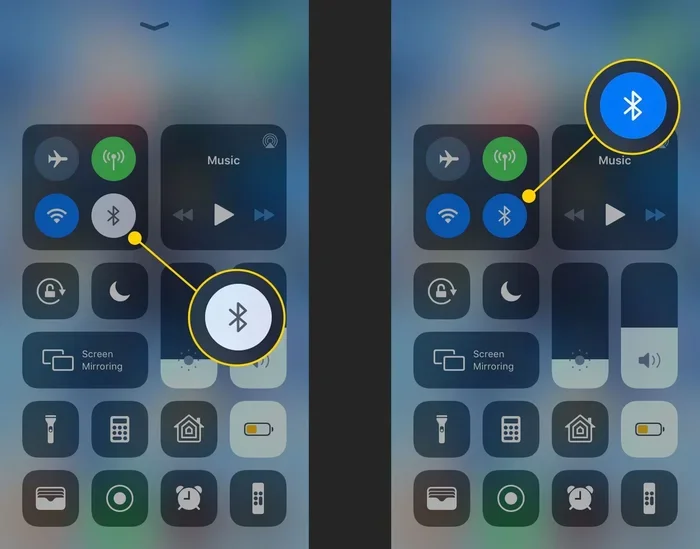
It sounds too simple, but this really works. Turning Bluetooth off and back on resets the connection and clears minor glitches. On your phone, swipe down from the top of the screen and tap the Bluetooth icon. On a computer, go to your settings and toggle Bluetooth off, wait ten seconds, and turn it back on.
This trick also works for Bluetooth speakers and headsets. If your device has a power button, turn it off, wait a few seconds, and turn it back on. You will be surprised how often this alone fixes the problem.
Move Closer to the Other Device
Bluetooth has a limited range. If you are too far away, the connection will be weak or non-existent. Move your devices closer together and see if that helps. For best results, keep them within 10 to 15 feet of each other when troubleshooting.
Also, check for obstacles between the devices. Walls, metal objects, and even large pieces of furniture can block the signal. Moving to the same room often solves the problem instantly.
Restart Both Devices
A full restart clears temporary bugs and refreshes all system processes. Restart your phone, laptop, or tablet, and also power cycle your Bluetooth device. This is especially helpful when your Bluetooth headset or speaker acts up after a long day of use.
For laptops, a full shutdown and restart is better than just putting it to sleep. This ensures all Bluetooth services reload properly when the device turns back on.
Remove Old Pairings and Start Fresh
Sometimes your device remembers a bad connection and keeps trying to repeat it. Go into your Bluetooth settings and remove or “forget” the device you are trying to connect to. Then start the pairing process from scratch.
This is especially useful if you are trying to connect a Bluetooth speaker to a new phone or if your headset keeps connecting to an old device instead of the one you want. Clearing old pairings gives your devices a clean slate to work with.
How to Troubleshoot Bluetooth Pairing Failures
If the quick fixes did not work, it is time to dig deeper. Pairing failures can be stubborn, but they are almost always fixable. Here are the steps that work best.
Check That Both Devices Are in Pairing Mode
This sounds obvious, but many people skip it. Your Bluetooth device needs to be in pairing mode for your phone or computer to find it. Most devices have a specific button or sequence to enter pairing mode. Check the manual or look for a flashing light that indicates the device is ready to pair.
For example, if you are trying to use your Bluetooth headset as a mic, both the headset and the receiving device need to be in the right mode. Put the headset in pairing mode, then search for new devices on your phone or computer.
Make Sure the Device Is Not Connected to Something Else
Bluetooth devices can only connect to one source at a time in most cases. If your speaker or headset is still connected to another phone, tablet, or laptop, it will not pair with your new device. Turn off Bluetooth on all other devices nearby and try again.
This is a very common issue in households with multiple phones or in offices with many devices. A quick check of all nearby Bluetooth settings can save you a lot of frustration.
Check Battery Levels on Both Devices
Low battery can cause all kinds of Bluetooth problems. A device with very low power may not show up in searches or may disconnect frequently. Make sure both devices have enough charge before you start troubleshooting.
Some devices will not even enter pairing mode when the battery is critically low. Charge your devices for at least 15 minutes and then try again. You might be surprised at how much this simple step helps.
When You Need to Update Bluetooth Drivers
If your Bluetooth keeps failing on a Windows computer, the driver might be the culprit. Drivers are the software that lets your operating system talk to your Bluetooth hardware. When they are outdated or corrupted, you will run into all kinds of problems.
How to Update Bluetooth Drivers on Windows
Open your Device Manager by right-clicking the Start button and selecting Device Manager. Find the Bluetooth section and expand it. Right-click on your Bluetooth adapter and select Update Driver. Choose to search automatically for updated driver software.
Windows will search online and install the latest driver if one is available. After the update, restart your computer and check if Bluetooth works better. This simple step fixes many connection and Bluetooth audio issues on laptops and desktops.
When to Remove and Reinstall the Driver
If updating does not work, try removing the driver entirely. In Device Manager, right-click the Bluetooth adapter and select Uninstall Device. Restart your computer, and Windows will automatically reinstall the driver during boot-up.
This fresh installation often fixes deeper software issues that a simple update cannot resolve. It is a great next step if your Bluetooth keeps disconnecting or if your device simply does not appear in the Bluetooth menu.
On Mac and Mobile Devices
Mac computers handle driver updates through system software updates. Go to System Settings and check for macOS updates. This will also update your Bluetooth drivers automatically.
On phones and tablets, driver updates come with system updates. Make sure your device is running the latest version of its operating system. If you are dealing with a problem like your Bluetooth headphones not connecting on a phone, a simple OS update often does the trick.
Dealing with Bluetooth Interference and Range Issues
Bluetooth operates on the 2.4 GHz frequency band, which is shared by many other devices. This means interference is common and can cause all sorts of problems. Understanding interference helps you find better solutions.
Common Sources of Bluetooth Interference
Wi-Fi routers are the biggest culprits. They operate on the same frequency and can crowd the Bluetooth signal. Other wireless devices like cordless phones, baby monitors, and even microwave ovens can cause interference too.
USB 3.0 ports and cables can also disrupt Bluetooth signals. The electromagnetic noise from USB 3.0 devices can overlap with Bluetooth frequencies. If you notice your Bluetooth connection drops when you plug in a USB device, try moving the Bluetooth device to a different port.
How to Reduce Interference
Move your Bluetooth device away from Wi-Fi routers and other wireless electronics. If possible, change your Wi-Fi channel to reduce overlap. Many modern routers let you switch to the 5 GHz band, which frees up the 2.4 GHz space for Bluetooth.
You can also try changing the position of your devices. Even moving a few feet can make a big difference. Walls and metal objects block Bluetooth signals, so keeping a clear line of sight between devices helps a lot.
Understanding Bluetooth Range and Version
Bluetooth range depends on the version your device supports. Bluetooth 5.0 and newer offer much better range and stability than older versions. If your device has an older Bluetooth version, you may experience shorter range and more frequent dropouts.
When you are trying to connect your phone to a projector with HDMI while also using Bluetooth for audio, the distance and interference can compound. Keep Bluetooth devices close and minimize the number of wireless devices competing for the same space.
What to Do When Your Bluetooth Device Still Will Not Connect
Sometimes none of the above fixes work. Before you give up, try these more advanced steps. They handle the tougher Bluetooth problems that basic troubleshooting cannot reach.
Reset Your Bluetooth Device to Factory Settings
Most Bluetooth devices have a factory reset option. This wipes all saved connections and settings and returns the device to its original state. The method varies by device, so check your manual or search online for specific instructions.
For many headsets, you hold down the power button and the volume button together for 10 seconds. For speakers, there is often a reset button on the bottom or back. A factory reset is a powerful fix for stubborn Bluetooth problems.
Check for Firmware Updates
Just like drivers, your Bluetooth device may have firmware that needs updating. Many modern headsets and speakers have companion apps that check for firmware updates. Download the app for your device and look for update options.
Firmware updates can fix bugs, improve range, and add new features. They often address known Bluetooth connectivity issues that were discovered after the device was manufactured.
Try a Different Device to Isolate the Problem
If your Bluetooth headset will not connect to your phone, try connecting it to a tablet or laptop. If it works on another device, the problem is with your phone, not the headset. This simple test saves a lot of guesswork.
Similarly, if your phone will not connect to any Bluetooth device, the problem is likely with the phone’s Bluetooth hardware or software. This helps you narrow down the issue and find the right fix.
Common Bluetooth Mistakes to Avoid
There are a few things people do that make Bluetooth problems worse. Avoid these mistakes to keep your Bluetooth devices running smoothly.
- Do not ignore software updates. They often include fixes for Bluetooth bugs and compatibility issues.
- Do not pair too many devices at once. This can overwhelm your Bluetooth adapter and cause connection problems.
- Do not keep Bluetooth on when you are not using it. Turning it off when not needed saves battery and reduces interference.
- Do not ignore low battery warnings. Low power is one of the top causes of Bluetooth dropouts and pairing failures.
- Do not place Bluetooth devices near metal objects. Metal blocks Bluetooth signals and weakens your connection.
Avoiding these simple mistakes can prevent many Bluetooth problems before they start. A little prevention goes a long way in keeping your devices connected and working smoothly.
Expert Tips for Better Bluetooth Performance
Want to get the most out of your Bluetooth devices? These expert tips help you maintain strong, reliable connections every day.
- Keep your devices updated. Regular software and firmware updates improve Bluetooth stability and performance.
- Use Bluetooth 5.0 or newer when possible. These versions offer better range, speed, and resistance to interference.
- Limit the number of active Bluetooth connections. Too many connected devices strain your Bluetooth adapter and cause dropouts.
- Place your Bluetooth adapter in a central location. If you use an external Bluetooth dongle, keep it near the top of your desk and away from other electronics.
- Clean your Bluetooth devices regularly. Dust and debris can block sensors and ports that affect Bluetooth performance.
Following these tips consistently keeps your Bluetooth experience smooth and frustration-free. You will spend less time troubleshooting and more time enjoying your connected devices.
When to Consider Hardware Upgrades
Sometimes the problem is not with your settings or software but with the hardware itself. Older devices may not support the latest Bluetooth standards, leading to poor performance. If you have tried everything and still face issues, it might be time for an upgrade.
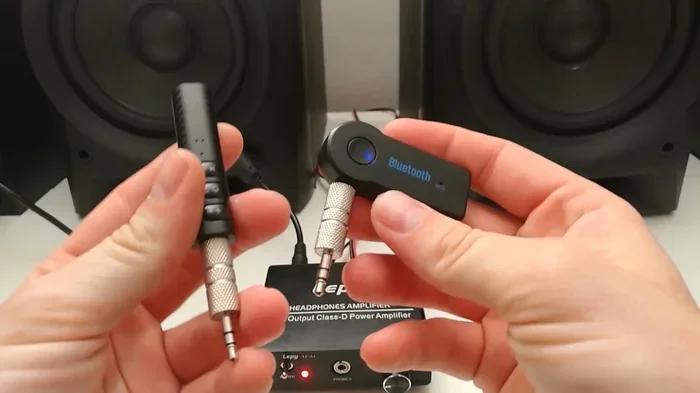
A Bluetooth adapter or dongle can breathe new life into an older laptop or desktop. These small devices plug into a USB port and provide modern Bluetooth capabilities. They are affordable and easy to set up. If you are wondering if you can turn regular speakers into Bluetooth, a simple Bluetooth adapter does the job without replacing the speakers.
Similarly, if your car stereo is outdated, you can look into upgrading it. Many modern car stereos support Bluetooth natively, giving you wireless audio and hands-free calling. If you are wondering can I upgrade my car stereo to Bluetooth, the answer is usually yes, and it is easier than you think.
Before buying new hardware, make sure you have tried all the software fixes first. Often a simple update or reset solves the problem without any extra cost.
Final Thoughts on Solving Bluetooth Problems
Bluetooth problems are frustrating, but they are almost always fixable. The key is to start simple and work your way up to more advanced solutions. Most issues resolve with a quick restart, a driver update, or a fresh pairing. You do not need expensive tools or technical expertise to get things working again.
Remember that Bluetooth connectivity depends on many factors, including distance, interference, battery life, and software. By understanding these factors, you can prevent many problems before they happen. Keep your devices updated, manage your connections wisely, and give your Bluetooth devices the space they need to perform well.
The next time your Bluetooth acts up, do not panic. Go through the steps in this guide one by one. You will have your devices connected and working in no time. Happy connecting.
Frequently Asked Questions
Why won’t my Bluetooth device pair with my phone?
Most pairing failures happen because the device is not in pairing mode or because it is still connected to another device. Make sure your Bluetooth device is in pairing mode, turn off Bluetooth on other nearby devices, and remove old pairings before trying again. Restarting both devices often fixes this issue quickly.
How far can Bluetooth devices be apart and still work?
Standard Bluetooth has a range of about 30 feet, but walls and obstacles can reduce this significantly. Bluetooth 5.0 and newer versions offer better range, sometimes up to 80 feet in open spaces. For the best connection, keep your devices within 10 to 15 feet of each other when troubleshooting.
Can interference from other devices cause Bluetooth problems?
Yes, absolutely. Wi-Fi routers, microwaves, cordless phones, and USB 3.0 devices all operate near the same frequency as Bluetooth and can cause interference. Moving your Bluetooth device away from these sources often solves connection drops and audio cutouts.
Do I need to update my Bluetooth drivers regularly?
It is a good practice to check for driver updates every few weeks, especially after a system update. Outdated drivers are a common cause of Bluetooth problems on Windows computers. You can update them through Device Manager or by checking for Windows updates.
What should I do if my Bluetooth keeps disconnecting randomly?
Random disconnections are usually caused by low battery, interference, or outdated drivers. Check the battery levels on both devices, move away from other wireless electronics, and update your Bluetooth drivers. If the problem persists, try resetting your Bluetooth device to factory settings.
Can I use a Bluetooth speaker without Bluetooth on my device?
Some Bluetooth speakers have auxiliary inputs or can be connected via a cable as a backup. If your device does not support Bluetooth, you can also use a Bluetooth adapter to add wireless capability. This is a simple and affordable solution that works with most speakers and audio devices.
=== CONCLUSION ===
Solving your Bluetooth problem does not have to be complicated. With the right steps, you can fix most issues in just a few minutes. Start with the basics like restarting your devices and checking the distance between them. Move on to forgetting old pairings and updating drivers if needed. For stubborn problems, factory resets and firmware updates often do the trick.
Remember to avoid common mistakes like ignoring low battery warnings or placing devices near metal objects. Keep your software updated and manage your connections wisely. These simple habits prevent many Bluetooth issues before they start.
Now that you know how to troubleshoot and fix Bluetooth problems, you can enjoy seamless wireless connections with confidence. Whether you are listening to music, taking calls, or gaming, your Bluetooth devices will work the way they should. Save this guide for the next time your Bluetooth gives you trouble, and you will be back up and running in no time.