How Can I Connect My Roku TV to WiFi Without Remote
You can connect your Roku TV to WiFi without a remote by using the Roku mobile app, accessing your router settings, or using a universal remote. This guide covers every practical method so you can get your smart TV online quickly and easily.
Losing your Roku remote can feel frustrating, especially when you need to get your TV connected to WiFi. You might think you need a replacement remote right away, but there are several simple ways to get your Roku TV online without one. Whether your remote died, got lost, or stopped working, you have options that are easy and affordable.
This guide walks you through every practical method to connect your Roku TV to WiFi without a remote. You will learn how to use your phone, your router, and even a USB keyboard to get your smart TV running. Each method is simple enough for anyone to follow, even if you are not very tech-savvy.
The good news is that you do not need expensive tools or professional help. Most of these solutions take just a few minutes. By the end of this article, you will know exactly what to do and which method works best for your situation. Let us get your Roku TV connected to the internet.
Key Takeaways
- The Roku Mobile App works as a full remote replacement: It lets you control your TV and connect to WiFi from your phone.
- Router-based setup is a reliable backup: You can configure WiFi through your router admin panel even without a remote.
- Universal remotes and USB keyboards work too: These alternatives let you navigate Roku menus and enter WiFi credentials.
- HDMI-CEC and screen mirroring offer creative workarounds: You can control your Roku TV from another device connected via HDMI.
- Troubleshooting WiFi issues is simple: Most connection problems have quick fixes you can try at home.
- Prevention tips help avoid future remote issues: Simple habits keep your Roku remote working and your TV connected.
📑 Table of Contents
- Understanding Why Your Roku Remote Might Stop Working
- Using the Roku Mobile App as a Remote Replacement
- Connecting Roku TV to WiFi Through Your Router
- Using a Universal Remote or USB Keyboard
- Alternative Methods to Control Your Roku TV
- Troubleshooting WiFi Connection Issues on Roku TV
- Preventing Future Remote and WiFi Issues
- Final Thoughts
Understanding Why Your Roku Remote Might Stop Working
Before jumping into solutions, it helps to understand why your Roku remote might not be working. There are a few common reasons, and knowing the cause can help you pick the best fix.
Dead or Weak Batteries
The most common reason is simply dead batteries. Roku remotes use AAA batteries that wear out over time. If your remote feels sluggish or unresponsive, swapping in fresh batteries often solves the problem right away.
Signal Interference
Roku remotes use infrared or Bluetooth signals. Other electronics, walls, or even sunlight can interfere with these signals. Moving closer to the TV or removing obstacles between the remote and TV can help.
Remote Not Paired
Sometimes the remote simply loses its pairing with the Roku device. This can happen after a power outage or a firmware update. Re-pairing the remote is a quick fix, but you still need a working remote to do it.
Physical Damage
Drops, spills, or general wear and tear can damage the remote. If the remote looks visibly broken or the buttons do not respond at all, you will need an alternative way to control your TV.
Using the Roku Mobile App as a Remote Replacement
The easiest and most popular way to connect your Roku TV to WiFi without a remote is by using the Roku mobile app. This free app turns your smartphone into a full-featured remote control. It works on both Android and iPhone devices.
Step-by-Step Setup Guide
First, make sure your phone is connected to the same WiFi network you want your Roku TV to join. Download the Roku app from the App Store or Google Play Store. Open the app and tap the remote icon at the bottom of the screen.
Next, tap the devices icon and select your Roku TV from the list. If your TV is already on and connected to a network, the app will find it quickly. You can now use your phone screen to navigate the Roku menu just like a regular remote.
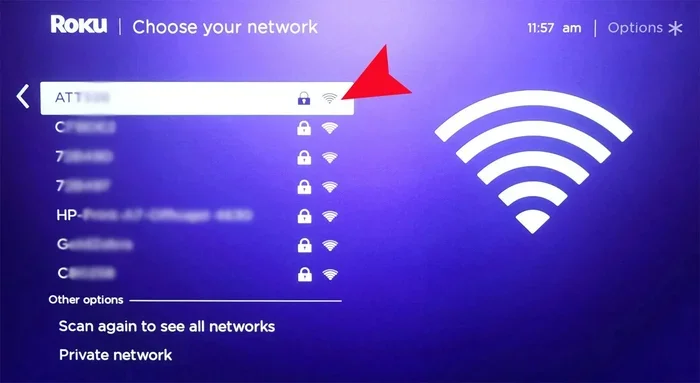
To connect to a new WiFi network, go to Settings on your Roku TV using the app. Select Network and then choose your WiFi network. Enter your WiFi password using the on-screen keyboard on your phone. The app makes typing passwords much easier than using the remote’s on-screen keyboard.
Features of the Roku Mobile App
The Roku app offers more than just remote control. You can cast media from your phone directly to your TV. You can also use your phone’s microphone to search for shows and movies with voice commands. The app even lets you manage multiple Roku devices from one place.
If you are also looking to mirror your phone to your smart TV without WiFi, the Roku app can help with screen mirroring in some cases. However, keep in mind that screen mirroring requires an active WiFi connection for the best experience.
Troubleshooting the Roku App Connection
If the app does not find your Roku TV, make sure both devices are on the same network. Restart your phone and your Roku TV. You can also try uninstalling and reinstalling the app. These simple steps fix most connection issues with the mobile app.
Connecting Roku TV to WiFi Through Your Router
Another effective method is to configure your Roku TV’s WiFi settings through your router. This approach works well when you have access to your router but no working Roku remote. Your router manages all WiFi connections on your network, so it can help your Roku TV join the network.
Accessing Your Router Settings
To use this method, you need to log into your router’s admin panel. Open a web browser on a computer or phone connected to your home network. Type your router’s IP address into the address bar. Common addresses are 192.168.1.1 or 192.168.0.1. Check the label on your router if you are unsure.
Enter your router’s username and password when prompted. These are often printed on a sticker on the router itself. Once logged in, you will see a list of connected devices and network settings.
Finding Your Roku TV on the Network
Look for your Roku TV in the list of connected devices. It might show up as “Roku” or with a model number. If your Roku TV is already connected to a different network, you may see it listed there.
Some routers have a feature that lets you assign a specific WiFi network to a device. You can use this to direct your Roku TV to the correct network. This is especially helpful if you have multiple WiFi bands or a guest network.
You might also want to check if your router is plugged directly into your TV or connected through a separate setup. Understanding your network layout helps you make the right changes in the router settings.
Using Router DHCP Settings
DHCP is a feature that automatically assigns IP addresses to devices on your network. Make sure DHCP is enabled on your router. This ensures your Roku TV can automatically connect to WiFi when it is powered on.
If DHCP is disabled, you may need to manually enter network details for your Roku TV. This is more advanced and requires knowing your network’s IP address, subnet mask, and DNS settings. Most home users will find DHCP easier and faster.
Using a Universal Remote or USB Keyboard
If the Roku app is not an option, a universal remote or a USB keyboard can help you control your Roku TV and connect to WiFi. These alternatives give you physical buttons to navigate menus and type in your WiFi password.
Setting Up a Universal Remote
Universal remotes work with most Roku TV models. You can find one at any electronics store for under $20. Look for a remote that lists Roku compatibility on the package. Some universal remotes come pre-programmed with Roku codes.
To set it up, follow the instructions that come with the remote. You will usually need to enter a code or run an automatic search. Once paired, the universal remote can navigate your Roku TV menu just like the original remote.
Use the universal remote to go to Settings, then Network, and select your WiFi network. Type in your password using the remote’s buttons. The on-screen keyboard on Roku TVs can be slow, so be patient and make sure you enter the password correctly.
Using a USB Keyboard
A USB keyboard is another great option for typing WiFi passwords quickly. Simply plug a USB keyboard into your Roku TV’s USB port. The Roku system recognizes most standard USB keyboards right away.
Navigate to Settings and Network using the keyboard arrows. Select your WiFi network and use the keyboard to type your password. This method is much faster than using the on-screen keyboard with a remote.
You can also use a USB keyboard to control other devices connected to your TV. This makes it a versatile tool for your home entertainment setup.
Alternative Methods to Control Your Roku TV
Beyond the mobile app and universal remotes, there are a few more creative ways to control your Roku TV and get it connected to WiFi. These methods use devices you may already have at home.
Using HDMI-CEC with Another Device
HDMI-CEC is a feature that lets devices connected via HDMI control each other. If you have a streaming stick, game console, or Blu-ray player connected to your Roku TV via HDMI, you might be able to use that device’s remote to navigate Roku menus.
For example, if you have a soundbar or set-top box connected via HDMI, you can use its remote to select the Roku input and navigate basic menus. This is not a full replacement for a Roku remote, but it works in a pinch.
You can also check if you can connect your phone to your TV with an HDMI cable for a wired control option. This gives you a direct connection that does not rely on WiFi at all.
Screen Mirroring from a Phone or Tablet
Screen mirroring lets you display your phone or tablet screen on your Roku TV. While this is mainly for viewing content, it can also help you control your TV in some cases.
Open your phone’s screen mirroring feature and select your Roku TV. You can now use your phone to interact with the TV interface. This works best for browsing and basic navigation.
Keep in mind that mirroring your phone to your smart TV without WiFi is possible in some setups, but a stable WiFi connection gives you the best mirroring experience.
Troubleshooting WiFi Connection Issues on Roku TV
Even after connecting your Roku TV to WiFi, you might run into connection problems. These are common and usually easy to fix. Here are the most frequent issues and their solutions.
Roku TV Keeps Disconnecting from WiFi
If your Roku TV keeps dropping its WiFi connection, the first thing to check is your router. Restart your router by unplugging it for 30 seconds and plugging it back in. This refreshes the network and often fixes temporary connection issues.
Also check if other devices on your network are working fine. If your Xbox or other smart devices are also losing connection, the problem is likely with your router or internet service, not the Roku TV.
Some users find that their Xbox automatically connects to WiFi without issues while the Roku TV struggles. This can happen due to different WiFi band preferences or antenna designs in each device.
WiFi Password Not Working on Roku
Double-check your WiFi password when entering it on your Roku TV. Passwords are case-sensitive, so make sure caps lock is off. If you recently changed your WiFi password, you will need to update it on your Roku TV as well.
If you are unsure of your password, check the sticker on your router. You can also log into your router settings to find the current password listed under wireless security.
Roku TV Cannot Find WiFi Network
If your Roku TV does not see your WiFi network, try moving the Roku device closer to your router. Walls, furniture, and other electronics can block WiFi signals.
You can also try changing the WiFi channel on your router. Sometimes too many devices on the same channel cause interference. Switching to a less crowded channel can help your Roku TV detect the network.
Preventing Future Remote and WiFi Issues
Once you get your Roku TV connected to WiFi, it is smart to take steps that prevent these problems from happening again. A few simple habits can save you a lot of trouble down the road.
Keep a Spare Remote
Consider keeping a spare universal remote or a second Roku remote at home. You can buy replacement Roku remotes online for a reasonable price. Having a backup means you are never stuck without a way to control your TV.
Use a USB Keyboard for Setup
Keep a small USB keyboard near your TV for setup and troubleshooting. This makes typing WiFi passwords and navigating menus much faster and easier than using the remote’s on-screen keyboard.
Update Your Roku Software Regularly
Roku releases software updates that fix bugs and improve WiFi performance. Go to Settings and select System Updates to check for the latest version. Keeping your Roku software current helps prevent connection issues.
Place Your Router Strategically
Position your router in a central location in your home. Avoid placing it behind walls, inside cabinets, or near electronics that cause interference. A well-placed router gives your Roku TV a strong and stable WiFi signal.
Final Thoughts
Connecting your Roku TV to WiFi without a remote is entirely possible and easier than you might think. The Roku mobile app is the fastest and most convenient method, giving you full control right from your phone. Router settings, universal remotes, and USB keyboards all offer reliable alternatives when the app is not an option.
Each method has its strengths, so pick the one that fits your situation best. If you have your phone handy, the Roku app is the way to go. If you prefer physical controls, a universal remote or USB keyboard works great. And if you are comfortable with network settings, configuring your router can solve the problem directly.
Remember that most WiFi connection issues have simple fixes. Restart your router, check your password, and keep your Roku software updated. These small habits keep your smart TV running smoothly.
Now that you know all the methods, you can get your Roku TV connected to WiFi in just a few minutes. You do not need a replacement remote or a technician. Just follow the steps in this guide and enjoy your favorite shows and movies again.
Frequently Asked Questions
Can I connect my Roku TV to WiFi without any remote at all?
Yes, you can. The Roku mobile app works as a full remote replacement and lets you navigate your TV settings to connect to WiFi. You can also use a universal remote or USB keyboard to control your Roku TV and enter your WiFi credentials.
Does the Roku mobile app work with both Android and iPhone?
Yes, the Roku app is available for both Android and iPhone devices. You can download it for free from the Google Play Store or the Apple App Store. The app works the same way on both platforms and lets you control your Roku TV and connect to WiFi.
What should I do if the Roku app cannot find my TV?
Make sure both your phone and Roku TV are connected to the same WiFi network. Restart both devices and try again. You can also check that your Roku TV is turned on and not in sleep mode. These steps fix most app connection issues.
Can I use my phone as a remote if I do not have WiFi?
The Roku mobile app needs WiFi to communicate with your Roku TV. If you do not have WiFi, you can use screen mirroring or connect your phone to your TV via HDMI cable as an alternative way to view content on your TV.
How do I find my WiFi password to enter it on my Roku TV?
Your WiFi password is usually printed on a sticker on your router. You can also log into your router’s admin panel to find the password listed under wireless security settings. If you recently changed the password, check any devices that are already connected to the network.
Is a universal remote compatible with all Roku TV models?
Most universal remotes work with Roku TV models, but compatibility can vary. Look for a universal remote that specifically lists Roku support on the packaging. Some universal remotes come with pre-programmed Roku codes, making setup quick and easy.