Do All Samsung TVs Have Bluetooth Wireless Streaming
Not all Samsung TVs come with built-in Bluetooth. While most modern Samsung smart TVs support wireless audio streaming, older and budget models may lack this feature entirely. This guide covers which Samsung TV lines include Bluetooth, how to check your TV, and what to do if yours doesn’t.
Do you want to stream music or watch movies with wireless headphones on your Samsung TV? The answer depends on your specific model. Do all Samsung TVs have Bluetooth? The short answer is no, but most modern ones do. Let’s break it all down so you know exactly what your TV can and cannot do.
Bluetooth on a Samsung TV opens up a world of convenience. You can connect wireless headphones for late-night watching, pair a Bluetooth speaker for louder sound, or even stream audio to a soundbar without cables. But not every Samsung television ships with this feature built in. Understanding which models support it and how to use it can save you a lot of frustration.
In this article, we will walk through every Samsung TV line that includes Bluetooth. We will also cover how to check your TV for Bluetooth, how to connect devices, and what to do if your TV doesn’t support wireless audio. Whether you own a budget Samsung TV or a premium QLED model, this guide has you covered.
Key Takeaways
- Most Samsung smart TVs from 2017 onward include Bluetooth, but older and entry-level models may not.
- Premium lines like QLED and Neo QLED always feature Bluetooth connectivity for wireless audio.
- You can add Bluetooth to any Samsung TV using a simple Bluetooth transmitter adapter.
- Samsung TVs support multiple Bluetooth devices, including headphones, speakers, and soundbars.
- Bluetooth settings are easy to find in the TV’s Settings menu under Sound or General.
- Wireless audio latency can be an issue, but Samsung’s low-latency mode helps reduce it.
📑 Table of Contents
- What Does Bluetooth Mean on a Samsung TV?
- Which Samsung TV Models Have Bluetooth?
- How to Check if Your Samsung TV Has Bluetooth
- Bluetooth Features You Can Use on Samsung TVs
- Common Bluetooth Problems on Samsung TVs and How to Fix Them
- How to Add Bluetooth to a Samsung TV Without It
- Expert Tips for the Best Bluetooth Experience on Samsung TVs
- Final Thoughts
What Does Bluetooth Mean on a Samsung TV?
Bluetooth is a short-range wireless technology that lets devices talk to each other without cables. On a Samsung TV, Bluetooth allows the television to send audio to wireless headphones, speakers, soundbars, and other compatible devices. You do not need to buy extra cables or adapters just to listen wirelessly.
Most Samsung TVs use Bluetooth version 4.2 or 5.0. The newer versions offer better range and lower latency. Low latency means less delay between what you see on screen and what you hear. This matters a lot when watching fast action or playing games. Older Bluetooth versions may cause a slight audio lag, which can be annoying.
How Bluetooth Audio Streaming Works on Samsung TVs
When you pair a Bluetooth device with your Samsung TV, the TV sends audio signals through the air. Your headphones or speaker receives those signals and plays the sound. The process is simple and takes just a few seconds.
Here is how it works step by step:
- Go to Settings on your Samsung TV.
- Select Sound or General, depending on your model.
- Choose Bluetooth Settings.
- Turn Bluetooth on and search for available devices.
- Select your device and confirm the pairing.
Once paired, your Samsung TV remembers the device. You can reconnect with just a tap next time. Some Samsung TVs also support multipoint Bluetooth, which lets you connect two devices at the same time.
Which Samsung TV Models Have Bluetooth?
Not every Samsung TV comes with Bluetooth. The feature is available on most models from 2017 and newer, but it depends on the TV line and price point. Here is a breakdown of Samsung TV series and their Bluetooth support.
Samsung QLED and Neo QLED TVs
Samsung QLED and Neo QLED TVs are premium models, and they always include Bluetooth. These TVs are designed for the best home entertainment experience. Whether you own a Q60A, Q70A, Q80A, or Q90A series, Bluetooth is built in. These models also support advanced audio features like Dolby Atmos and wireless surround sound.
If you want the full wireless audio experience, a QLED or Neo QLED Samsung TV is the way to go. You can connect multiple Bluetooth devices and switch between them easily. The audio quality is also excellent, even when streaming through a Bluetooth connection.
Samsung Crystal UHD and TU Series TVs
The Crystal UHD and TU series are mid-range Samsung TVs. Most models in these lines support Bluetooth, but you should always check the specific model number. Some lower-end TU series TVs from 2018 and earlier may not include Bluetooth.
Here is a quick look at what to expect:
- TU7000 Series (2020+): Bluetooth included.
- TU8000 Series: Bluetooth included.
- TU9000 Series: Bluetooth included.
- Older TU models (2018 and earlier): May not have Bluetooth.
Samsung Entry-Level and Older Models
Budget Samsung TVs and older models are the most likely to lack Bluetooth. If you bought a Samsung TV before 2017, there is a good chance it does not support wireless audio. Some of the most basic models in the RU and M series also skip Bluetooth to keep costs low.
If you are shopping for a new Samsung TV and Bluetooth matters to you, always check the specifications before buying. Retailers list Bluetooth support in the product details. You can also look for the Bluetooth logo on the box or in the product description online.
How to Check if Your Samsung TV Has Bluetooth
Not sure if your Samsung TV supports Bluetooth? You do not need to guess. There are a few simple ways to check.
Method 1: Check the Settings Menu
Go to your Samsung TV home screen. Navigate to Settings, then look for Sound or General. If you see a Bluetooth option, your TV supports it. If you do not see any Bluetooth menu, your TV likely does not have it built in.
Method 2: Check the User Manual or Model Number
Your Samsung TV user manual lists all the features. Look for Bluetooth in the connectivity section. You can also search your model number online on Samsung’s website. The product page will clearly state whether Bluetooth is supported.
Method 3: Look for the Bluetooth Icon
Some Samsung TVs show a Bluetooth icon in the status bar at the top of the screen. If you see this icon, your TV is Bluetooth-enabled. You can also check the quick settings panel by pressing the Home button on your remote.
Bluetooth Features You Can Use on Samsung TVs
If your Samsung TV has Bluetooth, you can do more than just connect headphones. The feature opens up several useful possibilities for your home entertainment setup.
Connecting Wireless Headphones
Watching movies late at night without disturbing anyone is one of the best uses of Bluetooth on a Samsung TV. You can pair your wireless headphones directly with the TV and enjoy private listening. This works great for Bluetooth headphones of all kinds, including over-ear and in-ear models.
Some Samsung TVs also support a feature called Bluetooth Audio Sharing. This lets you connect two pairs of Bluetooth headphones at the same time. You and a partner can watch a movie together without sharing a single pair of headphones.
Using a Bluetooth Speaker for Bigger Sound
Do you want louder sound without buying a full soundbar? You can pair a Bluetooth speaker with your Samsung TV. This is a great option for casual watching or outdoor movie nights. Just keep in mind that most Bluetooth speakers are not designed for TV use, so audio sync may vary.
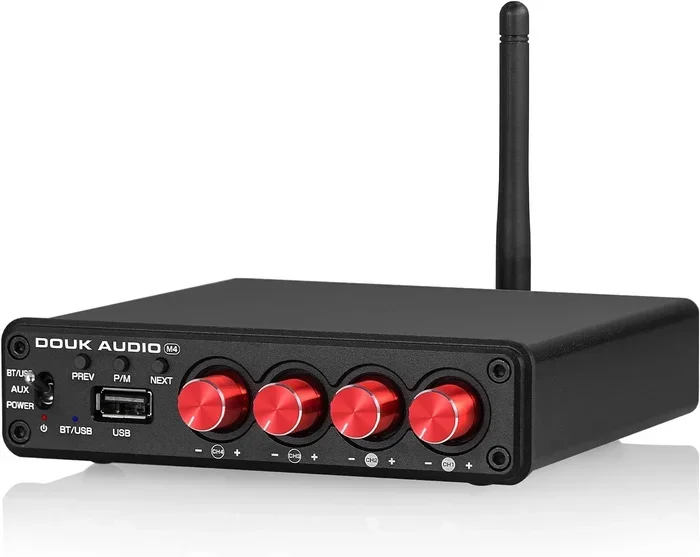
If you have a Bluetooth speaker but your TV does not support Bluetooth natively, you can still make it work. A Bluetooth transmitter plugs into your TV’s audio output and sends wireless audio to your speaker. This is an affordable and easy fix for older TVs.
Screen Mirroring and Bluetooth
While screen mirroring on Samsung TVs uses Wi-Fi rather than Bluetooth, the two technologies work together. You can use Bluetooth for audio and Wi-Fi for video at the same time. This gives you a seamless wireless experience. Some Samsung TVs also let you cast content from your phone using both connections.
Common Bluetooth Problems on Samsung TVs and How to Fix Them
Bluetooth on Samsung TVs works well most of the time, but issues can pop up. Here are the most common problems and how to solve them.
Audio Lag or Delay
Audio lag happens when the sound does not match the picture. This is one of the most common Bluetooth issues with TVs. Samsung TVs have a feature called Bluetooth Sync that helps reduce this delay. You can find it in the Bluetooth settings menu. Adjust the sync offset until the audio matches the video.
Device Not Showing Up in the Pairing List
If your Bluetooth device does not appear, try these steps:
- Make sure the device is in pairing mode.
- Turn Bluetooth off and on again on your TV.
- Restart your Samsung TV and the Bluetooth device.
- Move the device closer to the TV.
- Remove old paired devices from the list.
Connection Keeps Dropping
Interference from other wireless devices can cause dropouts. Wi-Fi routers, microwaves, and other Bluetooth devices can all cause problems. Try moving your TV and Bluetooth device closer together. Also, make sure your TV’s firmware is up to date, as updates often fix Bluetooth bugs.
How to Add Bluetooth to a Samsung TV Without It
If your Samsung TV does not have Bluetooth built in, you are not stuck. You can add Bluetooth functionality with a simple accessory. A Bluetooth transmitter is the easiest and most affordable solution.
Here is how it works:
- Buy a Bluetooth transmitter that supports audio output.
- Plug it into your Samsung TV’s audio port (3.5mm jack or RCA).
- Pair your Bluetooth headphones or speaker with the transmitter.
- Enjoy wireless audio from your TV.
A good Bluetooth transmitter costs between $15 and $40. Some models also support aptX and low-latency codecs, which improve audio quality. This is the same solution many people use when they want to turn regular speakers into Bluetooth devices. It works with any TV, not just Samsung.
Another option is to use a streaming device like a Roku or Fire TV Stick. Many of these devices support Bluetooth audio output. You can connect wireless headphones to the streaming device instead of the TV directly. This gives you more flexibility and often better performance.
Expert Tips for the Best Bluetooth Experience on Samsung TVs
Want to get the most out of Bluetooth on your Samsung TV? Follow these practical tips for a better experience.
- Keep your TV firmware updated. Samsung releases updates that improve Bluetooth performance and fix bugs. Check for updates in Settings, then Support, then Software Update.
- Use low-latency Bluetooth codecs. If your Samsung TV supports aptX Low Latency, enable it in the Bluetooth settings. This reduces audio delay significantly.
- Keep Bluetooth devices close. Bluetooth works best within 30 feet of the TV. Walls and furniture can weaken the signal.
- Disconnect unused devices. Too many paired devices can slow down your TV’s Bluetooth performance. Remove devices you no longer use.
- Use the Samsung SmartThings app. This app lets you manage Bluetooth connections and control your TV from your phone. It is a great companion for Samsung TV owners.
These simple steps can make a big difference. Most Bluetooth issues on Samsung TVs come from outdated software or too many connected devices. A quick restart and firmware update often solve the problem.
Final Thoughts
Do all Samsung TVs have Bluetooth? No, but most modern ones do. If you own a Samsung TV from 2017 or newer, especially a QLED, Neo QLED, or mid-range Crystal UHD model, Bluetooth is very likely included. Older and budget models may not have it, but you can always add it with a Bluetooth transmitter.
Bluetooth on a Samsung TV makes your viewing experience more flexible and enjoyable. You can connect wireless headphones, speakers, and soundbars without any cables. The setup is simple, and once paired, your devices connect automatically every time. If you run into issues, the troubleshooting tips above should help you get back on track quickly.
Take a moment to check your Samsung TV for Bluetooth today. If it has it, explore the settings and try connecting a wireless device. If it does not, grab a Bluetooth transmitter and unlock wireless audio in minutes. Either way, you will enjoy a more flexible and clutter-free viewing experience.
Frequently Asked Questions
Do Samsung TVs from 2015 have Bluetooth?
Most Samsung TVs from 2015 do not have Bluetooth. The feature became standard on Samsung smart TVs starting around 2017. If you own a 2015 model, check the specifications on Samsung’s website or look for the Bluetooth option in your TV’s settings menu.
Can I connect Bluetooth headphones to any Samsung TV?
You can connect Bluetooth headphones to any Samsung TV that has Bluetooth built in. If your TV does not support Bluetooth, you can use a Bluetooth transmitter plugged into the TV’s audio output. This works with all Samsung TV models regardless of age.
How many Bluetooth devices can I connect to a Samsung TV?
Most Samsung TVs can store multiple paired Bluetooth devices. You can usually connect one audio device at a time for playback. Some Samsung models support connecting two Bluetooth headphones simultaneously through the Audio Sharing feature.
Does Bluetooth affect Samsung TV picture quality?
No, Bluetooth only affects audio. It does not change or reduce your picture quality in any way. The Bluetooth signal operates on a separate frequency from your TV’s display and video processing.
Can I use a Bluetooth soundbar with a Samsung TV that does not have Bluetooth?
Not directly. If your Samsung TV lacks Bluetooth, you will need a Bluetooth transmitter to connect a Bluetooth soundbar. Plug the transmitter into your TV’s audio output, pair it with the soundbar, and you will have wireless audio.
Is Bluetooth on Samsung TV the same as screen mirroring?
No, they are different. Bluetooth handles audio only. Screen mirroring on Samsung TVs uses Wi-Fi to share your phone’s screen and video to the TV. You can use both at the same time for a complete wireless experience.