How Do I View Chrome History on Any Device or Phone
Want to know how do I view Chrome history on any device or phone? This complete guide walks you through every method for desktop, Android, and iPhone. You will learn quick shortcuts, search tips, and how to recover deleted browsing data in just a few minutes.
Have you ever needed to find a website you visited days ago but could not remember the name? Maybe you were shopping online and wanted to go back to a product page. Or perhaps a friend sent you a link, and you swore you already saved it in your Chrome browsing history. Whatever the reason, knowing how to find your Chrome history quickly saves time and frustration.
Here is the good news. Viewing your Chrome history is simple on every device. Whether you use a laptop, a desktop, an Android phone, or an iPhone, the steps are easy to follow. In this guide, I will show you exactly how to do it. You will also learn how to search, filter, recover deleted entries, and keep your Google Chrome history private.
Let us get started. By the end of this article, you will know how do I view Chrome history on any device like a pro.
Key Takeaways
- View Chrome history on desktop using keyboard shortcuts, the menu bar, or the history page directly.
- Check Chrome history on Android through the browser menu or your Google account dashboard.
- Access Chrome history on iPhone using the browser menu or by syncing with your Google account.
- Search and filter your browsing data by date, site, or keyword to find what you need fast.
- Recover deleted Chrome history using Google account activity logs or third-party tools.
- Manage privacy settings to control what Chrome saves and who can see your browsing activity.
📑 Table of Contents
- How Do I View Chrome History on a Computer
- How Do I View Chrome History on Android
- How Do I View Chrome History on iPhone or iPad
- How to Search and Filter Your Chrome History
- How to Recover or Restore Deleted Chrome History
- Privacy Tips for Managing Your Chrome Browsing Data
- Common Mistakes People Make with Chrome History
- Expert Insights on Chrome History Management
- Key Takeaways
- Conclusion
How Do I View Chrome History on a Computer
Viewing your Chrome history on a computer is the most straightforward method. You can use keyboard shortcuts, click through menus, or open a dedicated history page. Each approach takes just a few seconds.
Method 1: Use the Keyboard Shortcut
The fastest way to check your Chrome browser history on a computer is with a keyboard shortcut. This works on Windows, Linux, and Chromebook systems.
- Press Ctrl + H on Windows or Linux.
- Press Cmd + Y on a Mac.
Instantly, a new tab opens showing your full browsing history. You will see a list of all the websites you have visited organized by date. This method works on every version of Google Chrome and is the quickest trick to remember.
Method 2: Click the Chrome Menu
If you prefer using your mouse, the Chrome menu gives you another easy path.
- Open Google Chrome on your computer.
- Click the three-dot menu icon in the top-right corner.
- Hover over History in the dropdown menu.
- Click History again from the side menu.
You will now see the complete Chrome web history panel on the left side of your screen. From here, you can click on any entry to revisit that page. You can also scroll down to see older visits.
Method 3: Use the Direct History URL
You can also type a direct address into your Chrome address bar to pull up your history page.
- Type chrome://history in the address bar and press Enter.
This takes you straight to your Chrome history manager. It is a handy trick to bookmark this URL if you visit your history often.
Viewing History on Different Operating Systems
The process is nearly identical across Windows, Mac, Linux, and Chrome OS. The only difference is the keyboard shortcut. Mac users use Cmd + Y instead of Ctrl + H. The menu path and the dedicated URL method work the same everywhere. So no matter what computer you use, you can always find your Chrome history page in seconds.
How Do I View Chrome History on Android
Most people browse the web on their phones more than on computers. If you use an Android device, checking your Chrome history on Android is just as easy. You have two main ways to do it.
Method 1: Through the Chrome Browser Menu
Follow these simple steps to view your history directly in the Chrome app.
- Open the Chrome app on your Android phone.
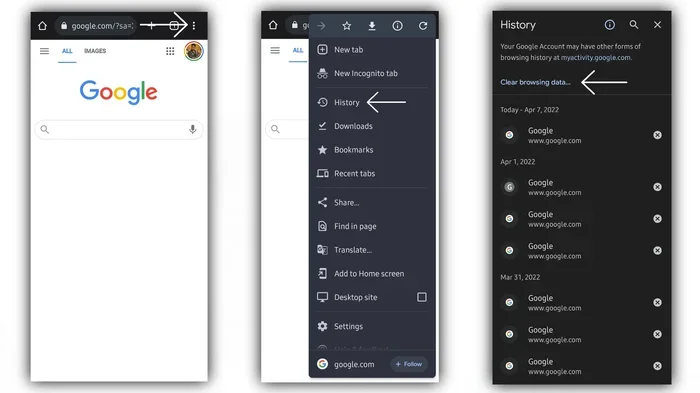
- Tap the three-dot menu icon in the top-right corner.
- Tap History from the dropdown list.
You will see a list of all the sites you have visited. You can tap any entry to reopen it. You can also scroll down to find older visits. The list is organized with the most recent at the top.
Method 2: Through Google Account Activity
If you are signed into your Google account on Chrome, your browsing activity syncs across devices. This means you can also view your history through your Google account dashboard.
- Go to myactivity.google.com on your phone or computer.
- Sign in with your Google account.
- Scroll through your activity to find browsing entries.
This method shows more detailed records, including searches and interactions. It is especially useful if you cleared your local history but still want to find a site you visited.
How to Access Chrome History on Samsung or Other Android Devices
The steps are the same on every Android phone, whether it is a Samsung Galaxy, Google Pixel, or any other brand. As long as you have the Chrome app installed, you can tap through the menu to find your history. If you use a different browser like Samsung Internet, the process will be slightly different, but Chrome remains the most popular choice for Android users.
How Do I View Chrome History on iPhone or iPad
iPhone and iPad users can also view their Chrome history on iPhone or iPad with just a few taps. The process is very similar to Android, but with one small difference.
Method 1: Using the Chrome App Menu
Here is how to check your history on an iOS device.
- Open the Chrome app on your iPhone or iPad.
- Tap the three-dot menu icon at the bottom-right corner.
- Tap History from the menu options.
Your complete browsing history will appear on screen. Tap any link to revisit that page. You can also swipe left on any entry to delete it individually.
Method 2: Syncing Through Google Account
Just like on Android, if you sign into your Google account in Chrome on your iPhone, your history syncs across all devices. This means you can check what you browsed on your computer right from your phone. This feature is incredibly helpful when you switch between devices throughout the day.
Viewing History on iPad Specifically
The iPad uses the same steps as the iPhone. The only difference is screen size. On a larger iPad screen, the history list is easier to read. You can also use the search bar at the top of the history page to quickly find a specific site. This is especially useful when you have a long browsing history.
How to Search and Filter Your Chrome History
When you have weeks or months of browsing data, scrolling through everything can be overwhelming. Chrome history search and filtering tools help you find exactly what you need without wasting time.
Using the Search Bar in History
Every version of Chrome has a search bar built into the history page.
- Open your Chrome history using any method above.
- Look for the search bar at the top of the history page.
- Type the name of the website or a keyword you remember.
- Press Enter or tap the search icon.
The list will instantly filter to show only entries matching your search term. This is perfect when you need to find a specific article, product page, or social media profile you visited.
Filtering by Date
You can also narrow down your results by date range.
- On the history page, look for the Delete browsing data option.
- Click on it to open the date range picker.
- Select a specific time period like “Last hour,” “Last 24 hours,” “Last 7 days,” or “All time.”
This helps when you know roughly when you visited a site but cannot find it in your full history. Filtering by date is one of the most useful Chrome history manager features.
Sorting and Organizing Your History
Chrome automatically organizes your history by date and time, with the most recent entries at the top. You cannot manually reorder entries, but the search and filter tools do the work for you. If you visit a site frequently, it will appear multiple times in your history, making it easier to spot.
How to Recover or Restore Deleted Chrome History
Accidentally deleted your Chrome history and need to find something? Do not panic. There are several ways to recover deleted browsing data.
Check Google Account Activity
If you were signed into your Google account while browsing, your activity is stored on Google’s servers even if you cleared it locally.
- Visit myactivity.google.com on any browser.
- Sign in with the same Google account you used in Chrome.
- Scroll through your activity log to find deleted entries.
This is the most reliable way to recover Chrome history recovery data. Google keeps a record of your searches, website visits, and other activity when activity tracking is enabled.
Use Chrome Sync
If you have Chrome sync turned on, your history is saved to your Google account. Even if you cleared history on one device, it may still be available on another device that was synced before the deletion.
- Open Chrome on a different device.
- Check the history page.
- Look for entries that were visited before you deleted them.
Third-Party Recovery Tools
Several third-party tools claim to recover deleted browser data. However, you should use these with caution. Only download reputable software from trusted sources. Some tools may compromise your privacy or install unwanted software on your device.
Quick Tip: To avoid losing important history in the future, consider enabling Chrome sync and keeping your Google account activity tracking turned on. This creates a permanent backup of your browsing data in the cloud.
Privacy Tips for Managing Your Chrome Browsing Data
Your Chrome browsing data contains sensitive information. It is important to manage it wisely to protect your privacy.
Auto-Delete Your Browsing History
You can set Chrome to automatically delete your history after a certain period.
- Go to Settings in Chrome.
- Click on Privacy and security.
- Select Auto-delete activity.
- Choose a time frame like 3 months, 18 months, or 36 months.
This keeps your history manageable and reduces privacy risks. You do not have to manually clear your data every time.
Use Incognito Mode for Private Browsing
When you do not want Chrome to save your history, use incognito mode Chrome. In this mode, Chrome does not record your browsing activity, cookies, or site data. It is a great option when you are using a shared computer or searching for sensitive topics.
To open incognito mode:
- Press Ctrl + Shift + N on Windows or Cmd + Shift + N on Mac.
- A new dark-themed window will open.
- Browse normally. When you close the window, no record is saved.
Clear Browsing Data Regularly
Getting into the habit of clearing your Chrome history delete routine keeps your browser running smoothly and protects your privacy.
- Press Ctrl + Shift + Delete on Windows or Cmd + Shift + Delete on Mac.
- Choose the time range and data types you want to clear.
- Click Clear data.
You can choose to clear cookies, cached images, passwords, and browsing history all at once. This is a quick and effective way to maintain your digital privacy.
Manage What Google Tracks
Google collects data about your browsing habits to personalize your experience. You can control this through your Google account settings.
- Visit myactivity.google.com.
- Review your activity entries.
- Delete items you do not want Google to keep.
- Turn off activity tracking if you prefer complete privacy.
Taking control of your Chrome activity log gives you peace of mind. You decide what Google knows about your browsing habits.
Common Mistakes People Make with Chrome History
Even though viewing Chrome history is simple, people often make mistakes that cause frustration. Here are a few to avoid.
- Not signing into Chrome: If you are not signed in, your history does not sync across devices. This means you cannot find a site you visited on your phone when you are on your computer.
- Confusing incognito history with regular history: Remember that incognito mode does not save history. If you need to revisit a site, bookmark it or note the URL.
- Clearing all history too often: Deleting everything regularly means you lose access to sites you might want to return to later. Consider selective deletion instead.
- Ignoring the search bar: Many people scroll endlessly through their history instead of simply using the search bar to find what they need.
Expert Insights on Chrome History Management
Managing your Chrome history settings is about more than just finding old websites. It is about maintaining control over your digital footprint. Web browsers like Chrome are designed to make your life easier, but they also collect data that could be sensitive.
Experts recommend reviewing your Chrome browsing data at least once a month. This helps you stay aware of what information is stored and whether any of it should be removed. It also keeps your browser running efficiently, since large history files can slow down performance over time.
If you share a computer or device with others, consider using separate user profiles in Chrome. Each profile has its own history, bookmarks, and settings. This keeps your browsing data private and organized.
Key Takeaways
- View Chrome history on desktop using Ctrl + H (Windows) or Cmd + Y (Mac) for instant access.
- Check Chrome history on Android by tapping the three-dot menu and selecting History in the Chrome app.
- Access Chrome history on iPhone through the bottom menu in the Chrome app or by syncing with your Google account.
- Search and filter your browsing data using the built-in search bar and date filters on the history page.
- Recover deleted Chrome history through your Google account activity log at myactivity.google.com.
- Manage privacy settings regularly to control what Chrome saves and who can see your browsing activity.
- Use incognito mode when you do not want Chrome to record your browsing activity.
Conclusion
Knowing how do I view Chrome history is a basic but essential digital skill. Whether you are on a computer, Android phone, or iPhone, the steps are simple and fast. You can use keyboard shortcuts, browser menus, or direct URLs to pull up your Chrome browsing history in seconds. Searching and filtering make it even easier to find specific sites when you have a long history.
Recovery options like Google Activity logs and Chrome sync give you peace of mind if you ever accidentally delete important entries. And with the privacy tips shared in this guide, you can manage your Chrome web history safely and confidently.
Take a few minutes today to explore your Chrome history page on each of your devices. Bookmark the history URL, try the search feature, and check your sync settings. Once you know where everything is, you will never waste time looking for a site again. Your Chrome history is a powerful tool. Use it wisely, and it will always be there when you need it.
Frequently Asked Questions
Can I view Chrome history on a device where I am not signed in?
Yes, you can view local history on any device where you have used Chrome. However, if you are not signed into your Google account, the history will not sync across devices. This means you can only see history on the specific device where you browsed.
How far back does Chrome history go?
Chrome keeps your history indefinitely unless you manually clear it or set up auto-delete. However, Chrome may limit how far back you can scroll in the history view. Using Google Activity logs at myactivity.google.com often shows records going back much further.
Can someone else see my Chrome history?
If you share a device or profile, other users can see your history. Additionally, if your Google account activity is turned on, Google stores your browsing data on its servers. To keep your history private, use separate profiles, incognito mode, or turn off activity tracking.
What happens when I clear my Chrome history?
Clearing your history removes entries from your local device. However, if you have Chrome sync enabled and your Google account activity tracking is on, those records may still exist on Google’s servers. You can manage or delete them through myactivity.google.com.
Is there a way to set Chrome to automatically delete my history?
Yes, you can set Chrome to auto-delete your activity. Go to Settings, then Privacy and security, then Auto-delete activity. Choose a time frame like 3, 18, or 36 months. Chrome will then automatically remove older entries based on your chosen setting.
Can I recover Chrome history after I cleared it?
Yes, you may be able to recover deleted history if you were signed into your Google account. Visit myactivity.google.com to check your activity log. If Chrome sync was enabled, your history may still be available on other synced devices that were active before you cleared the data.