How Do I Test My Wi Fi On My Android Phone Step By Step
Testing your Wi-Fi on an Android phone is quick and easy with the right tools. This guide walks you through built-in diagnostics, free apps, and simple fixes to improve your connection. You will learn how to measure speed, signal strength, and latency like a pro.
Ever noticed your Android phone buffering during a video call or lagging in a game? It is frustrating when you pay for fast internet but still experience slow loads. The first step to fixing this is to test your Wi-Fi on your Android phone. A quick check can reveal whether the problem comes from your device, your router, or your internet service provider.
Many people do not realize that Android phones have hidden diagnostic tools built right into the system. You can also download free apps that turn your phone into a powerful network analyzer. In this guide, I will show you exactly how to test Wi-Fi on Android phone step by step. You will learn simple methods that anyone can follow, no technical skills needed.
By the end of this article, you will know how to measure your connection speed, check signal strength, and run a ping test. You will also discover practical tips to improve your wireless network testing results. Let us dive in and get your Wi-Fi working at its best.
Key Takeaways
- Built-in Android tools let you check Wi-Fi signal strength and connection details in seconds.
- Free apps like Speedtest by Ookla and Wi-Fi Analyzer give you deep insights into your network.
- Understanding ping, latency, and RSSI helps you pinpoint the real cause of slow internet.
- Simple fixes like switching Wi-Fi bands or restarting your router can boost performance fast.
- Testing your Wi-Fi regularly prevents surprise drops and keeps your Android phone running smoothly.
- Signal interference from nearby devices is a common culprit that a Wi-Fi analyzer can reveal.
- You do not need expensive equipment to run a reliable network speed test on your Android device.
📑 Table of Contents
Why Testing Your Wi-Fi on Android Matters
Spotting Hidden Connection Problems
Slow internet is not always your fault. Sometimes your Wi-Fi signal strength drops because of walls, distance, or interference from other electronics. Testing helps you see the real picture. You might think your router is broken when actually your phone is stuck on a crowded channel.
Regular Android network diagnostics can catch small issues before they become big headaches. For example, you might notice that your connection speed is fine in the morning but slows down in the evening. This pattern tells you that your neighbors might be using the same Wi-Fi channel. Spotting this early lets you switch to a less crowded channel and enjoy smoother browsing.
When Slow Wi-Fi Hurts Your Day
A weak Wi-Fi signal affects more than just movie streaming. It can ruin video calls, delay game downloads, and make cloud backups take forever. If you work from home, a bad connection can cost you productivity. Testing your Wi-Fi gives you proof to show your internet provider if you ever need to file a complaint.
It also helps you decide if you need a Wi-Fi range extender or a new router. Without testing, you might spend money on equipment you do not need. A simple bandwidth test on your Android phone can save you time and money.
Built-in Android Tools to Test Wi-Fi
Using the Settings Menu for Quick Checks
Your Android phone already has tools to check basic Wi-Fi health. Open the Settings app and tap on Network & Internet or Connections (the name varies by brand). Then select Wi-Fi and tap the network you are connected to. You will see details like signal strength, frequency band, and IP address.
Look for the Wi-Fi signal strength indicator. It shows bars, just like the icon at the top of your screen. More bars mean a stronger signal. If you see only one or two bars, your phone is far from the router or something is blocking the signal. This quick check takes less than ten seconds and gives you a good starting point for Wi-Fi troubleshooting.
The Hidden Network Diagnostic Tool
Android also has a hidden menu for deeper diagnostics. To access it, go to Settings > About Phone and tap Build Number seven times. This unlocks the Developer Options. Go back to Settings > System > Developer Options. Scroll down to find Wi-Fi debugging or Network diagnostics options.
These tools let you run a ping test directly from your phone. A ping test measures how fast your phone talks to the router and to the internet. Low ping means a responsive connection. High ping causes lag in games and video calls. You do not need any extra app to run this test. It is a powerful built-in way to check your mobile hotspot test and overall network health.
Checking Signal Strength with the Status Icon
The status bar at the top of your Android screen shows Wi-Fi icons. A full set of bars means excellent signal. Half bars mean moderate signal. One bar means weak signal. If you see a small “X” or no Wi-Fi icon, your phone is not connected.
You can also check the exact signal strength in the Wi-Fi details screen. Look for a number measured in dBm (decibel-milliwatts). Numbers closer to zero mean stronger signals. For example, -30 dBm is excellent, while -70 dBm is weak. Knowing this helps you decide if you need to move closer to your router or use a Wi-Fi repeater.
Top Third-Party Apps for Wi-Fi Testing
Speedtest by Ookla – The Gold Standard
Speedtest by Ookla is one of the most popular internet speed test Android apps. It is free and gives you clear results for download speed, upload speed, and ping. Open the app, tap the big button, and wait a few seconds. The app connects to the nearest server and measures your real-world performance.
Speedtest is great because it saves your test history. You can compare results from different times of day. If your speed drops every evening, you can see the pattern. This app also shows you the server location and latency, which helps you understand if the problem is with your local network or your internet provider. It is the best starting point for anyone who wants to check Wi-Fi signal strength and speed.
Wi-Fi Analyzer for Signal and Channel Insights
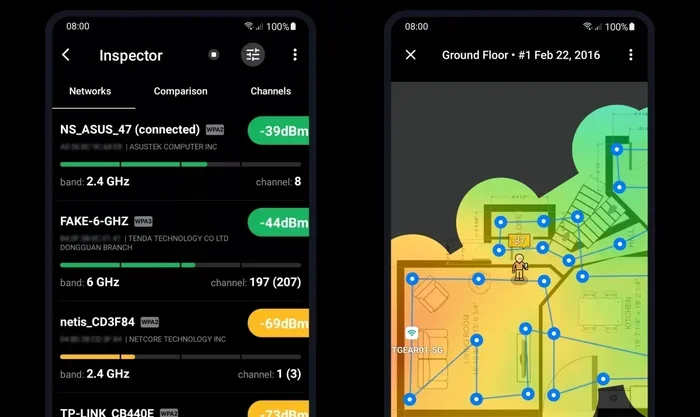
A Wi-Fi analyzer app shows you all the networks around you and which channels they use. This is incredibly useful for Wi-Fi channel optimization. When many routers use the same channel, they interfere with each other and slow everyone down. The analyzer app displays a graph of signal strength across different channels.
With this app, you can switch your router to a less crowded channel. Most Android phones come with a basic analyzer, but apps like Wi-Fi Analyzer by Farproc give you a colorful visual map. You can see which Wi-Fi frequency band (2.4GHz or 5GHz) is less crowded. This tool turns you into a wireless network testing expert without any technical background.
Fing – Network Scanner and Speed Test Combo
Fing is a powerful app that does more than just speed tests. It scans your entire network and lists all connected devices. You can see which devices are using your bandwidth and check if an unknown device is stealing your Wi-Fi. It also runs a network speed check and measures latency.
Fing includes a Wi-Fi coverage map feature. You walk around your home with your phone, and the app records signal strength in each room. This helps you find dead zones where the Wi-Fi signal is too weak. It is a perfect tool for Wi-Fi coverage improvement. The free version is more than enough for most users.
Step-by-Step Guide to Testing Your Wi-Fi
Step 1: Run a Built-in Speed Check
Start with the simplest method. Connect your Android phone to your Wi-Fi network. Open the Settings app and go to the Wi-Fi details screen. Some Android phones show a network speed test button right there. Tap it and wait for the result.
If your phone does not have a built-in speed test, do not worry. You can skip to Step 2. The built-in check gives you a quick idea of your signal strength and whether the connection is stable. It does not measure download speed in megabits per second, but it is a good first step.
Step 2: Use a Third-Party App for Detailed Results
Download Speedtest by Ookla from the Google Play Store. Open the app and make sure you are connected to Wi-Fi. Tap the Go button. The app will connect to a nearby server and test your download speed, upload speed, and ping. Results appear in seconds.
For the most accurate test, run it at different times. Morning speeds are often faster because fewer people are online. Evening speeds may drop due to network congestion. Write down your results or use the app’s history feature. This gives you a clear picture of your Wi-Fi performance over time.
Step 3: Test Ping and Latency
Ping measures how quickly your phone sends a small packet of data to a server and gets a reply. Low ping is crucial for gaming and video calls. In Speedtest, the ping result is shown right at the top. A ping under 20 milliseconds is excellent. Between 20 and 50 milliseconds is good. Over 100 milliseconds means you will experience lag.
You can also use the built-in ping command in Developer Options (explained earlier). Open a terminal app or use a simple ping tool. Type ping 8.8.8.8 to test your connection to Google’s DNS server. The result shows the average round-trip time. This is a great way to check if your router performance is the bottleneck.
Step 4: Check Signal Strength Over Time
Signal strength can change as you move around your home. Use the Wi-Fi analyzer app to record signal levels in different rooms. Stand in your living room, kitchen, bedroom, and bathroom. Note the dBm value and the number of bars.
If you see a big drop in signal in certain rooms, you have a coverage problem. You can fix this by moving your router to a central location or adding a Wi-Fi extender. Testing signal strength over time also helps you identify interference from microwaves, baby monitors, or Bluetooth devices. This step is key to a thorough wireless network testing routine.
Understanding Your Wi-Fi Test Results
What Download and Upload Speeds Mean
Download speed tells you how fast your phone receives data from the internet. It affects how quickly videos load, web pages open, and files download. Upload speed is the opposite. It affects how fast you send photos, videos, or messages to others.
A good Wi-Fi speed test result for most households is at least 25 Mbps download and 5 Mbps upload. If you have multiple people streaming or working from home, you want higher numbers. If your test shows much lower speeds than your internet plan promises, the problem is likely with your Wi-Fi connection, not your internet provider.
Ping and Latency Explained
Latency is the time it takes for data to travel from your phone to a server and back. It is measured in milliseconds (ms). Low latency feels instant. High latency causes delays and buffering. In gaming, high latency makes you feel sluggish. In video calls, it causes awkward pauses.
A ping test Android result under 30 ms is excellent for most activities. Between 30 and 60 ms is acceptable. Over 100 ms is poor and needs fixing. You can improve latency by using the 5GHz band instead of 2.4GHz, moving closer to the router, or reducing interference from other devices.
Interpreting Signal Strength (RSSI)
RSSI stands for Received Signal Strength Indicator. It is the number you see in the Wi-Fi details screen. The closer the number is to zero, the stronger the signal. A signal of -50 dBm is excellent. -60 dBm is good. -70 dBm is fair. Anything below -80 dBm is weak and will cause slow speeds or disconnections.
Use this information to decide if you need to reposition your router or add a mesh Wi-Fi system. A strong signal does not always mean fast speeds, but a weak signal almost always means poor performance. Monitoring RSSI over a few days helps you understand your home’s Wi-Fi coverage patterns.
Common Wi-Fi Problems and How to Fix Them
Slow Speeds? Try These Fixes
If your network speed check shows slow results, start with the basics. Restart your router and your Android phone. This clears temporary glitches and refreshes the connection. Next, move closer to the router. Walls and furniture block Wi-Fi signals. If you are in another room, try standing near the router and run the test again.
Check if other devices are using heavy bandwidth. A phone downloading updates or a smart TV streaming 4K video can slow down your connection. Pause those activities and test again. If speeds are still slow, switch to the 5GHz band. It is faster and less crowded than the 2.4GHz band, though it has a shorter range.
Dropping Connections? Check Your Channel
Frequent disconnections often happen because your router is using a busy Wi-Fi channel. Use a Wi-Fi analyzer app to see which channels are least used in your area. Then log into your router settings (usually by typing 192.168.1.1 in a browser) and change the channel manually.
Also check for signal interference. Microwaves, cordless phones, and baby monitors can disrupt 2.4GHz signals. Moving your router away from these devices can make a big difference. If your router supports both bands, connect your Android phone to 5GHz for a more stable link in close range.
Weak Signal? Reposition Your Router
The placement of your router affects your entire home’s Wi-Fi coverage. Keep it in a central, open area. Avoid hiding it in a closet or behind a TV. Elevate it on a shelf so the antennas point upward. This helps spread the signal evenly.
If you still have dead zones, consider a Wi-Fi mesh system. Mesh systems use multiple nodes to cover every corner of your home. They are easy to set up and work well with Android phones. Before buying one, run a Wi-Fi coverage map with an app like Fing to confirm where the weak spots are.
Pro Tips for Better Wi-Fi Performance
Switch Between 2.4GHz and 5GHz Bands
Most modern routers broadcast two bands. The 2.4GHz band travels farther but is slower and more crowded. The 5GHz band is faster but has a shorter range. For bandwidth test accuracy, use the 5GHz band when you are close to the router. Use 2.4GHz when you are in another room or far away.
You can force your Android phone to use a specific band in the Wi-Fi settings. Look for the frequency band option in the advanced Wi-Fi settings. This simple switch can dramatically improve your connection speed and reduce latency.
Update Your Router Firmware
Router manufacturers release updates that fix bugs and improve performance. Check your router’s admin panel for a firmware update option. Keeping your router updated ensures you get the latest Wi-Fi troubleshooting improvements and security patches.
Restart Your Router Regularly
Routers, like phones, benefit from a fresh start. Restarting your router once a week clears memory and refreshes connections. You can set up a schedule or simply unplug it for 30 seconds. This small habit can prevent many common Wi-Fi problems and keep your internet speed test results consistent.
Conclusion
Now you know exactly how to test Wi-Fi on Android phone using built-in tools, free apps, and simple steps. You can run a Wi-Fi speed test, check signal strength, measure ping, and spot interference. These skills help you take control of your home network and enjoy faster, more reliable internet.
Remember, testing your Wi-Fi regularly is the best way to catch problems early. A few minutes of wireless network testing can save you hours of frustration. Try the steps in this guide today and see the difference. Your Android phone is a powerful tool for network diagnostics. Use it wisely and your Wi-Fi will thank you.
Frequently Asked Questions
How do I test my Wi-Fi speed on Android?
Download Speedtest by Ookla from the Play Store. Connect to your Wi-Fi, open the app, and tap the big Go button. It will show your download speed, upload speed, and ping in seconds.
What is a good Wi-Fi signal strength on Android?
Look for the dBm number in your Wi-Fi details. A signal between -30 dBm and -50 dBm is excellent. Between -50 dBm and -60 dBm is good. Anything below -70 dBm is weak and may cause slow speeds.
Can I test my mobile hotspot on Android?
Yes. Connect another device to your hotspot and run a speed test on that device. You can also use the built-in network diagnostic tool on your Android phone to check the hotspot’s performance directly.
Why is my Wi-Fi slow even after a speed test?
Slow speeds often come from interference, a crowded channel, or a router that needs a restart. Try switching to the 5GHz band, moving closer to the router, or updating your router firmware.
Do I need a special app to test Wi-Fi on Android?
No. Android has built-in tools for checking signal strength and running a ping test. However, apps like Speedtest and Wi-Fi Analyzer give you much more detailed and useful results for free.
How often should I test my Wi-Fi?
Test your Wi-Fi once a month or whenever you notice slow speeds. Regular testing helps you spot problems early and keep your network running smoothly.