Can I Use A Router With Cox Panoramic Wifi Setup Guide
Can I Use A Router With Cox Panoramic Wifi? Yes, you absolutely can. By enabling bridge mode on the Cox gateway, you can connect your own router and gain full control over your home network. This guide walks you through the setup, compatible devices, and common pitfalls to avoid.
So, can I use a router with Cox Panoramic Wifi? The short answer is yes. Many people want to swap out the Cox gateway for a router they trust. Whether you own a high‑end gaming router or a simple Wi‑Fi 6 unit, you can pair it with Cox Panoramic Wifi. The process is straightforward once you understand bridge mode.
Cox Panoramic Wifi is a popular internet service. It bundles a modem and a router into one device. The gateway handles your internet connection and broadcasts Wi‑Fi. But the built‑in router may not suit everyone. Some users need stronger coverage, better security, or advanced settings. Adding your own router solves these problems.
This guide will show you exactly how to set it up. You will learn what bridge mode does, which routers work best, and how to avoid common mistakes. By the end, you will feel confident upgrading your network. Let us dive in.
Key Takeaways
- You can use your own router with Cox Panoramic Wifi. The gateway supports bridge mode, which turns off its router functions.
- Bridge mode is the key. It lets your separate router handle all Wi‑Fi and network tasks.
- You only need an Ethernet cable. Connect the Cox gateway to your router’s WAN port, and you are set.
- Not all routers work perfectly. Check for DOCSIS compatibility and avoid dual‑NAT issues.
- Your Wi‑Fi speed and range can improve. A quality router often outperforms the built‑in gateway antennas.
- Cox support can help if you get stuck. They can walk you through bridge mode setup over the phone.
- You gain more features. Custom DNS, parental controls, and advanced QoS become available.
📑 Table of Contents
What Is Cox Panoramic Wifi And Why Use A Separate Router?
Cox Panoramic Wifi is a mesh Wi‑Fi system offered by Cox Communications. It includes a gateway device that acts as both a modem and a router. The gateway connects to the Cox network and shares your internet with all your devices. The device also creates a Wi‑Fi network for your home.
Many users love the convenience of the Cox gateway. It is a single box that replaces multiple devices. However, the gateway has limitations. Its router capabilities are often basic. The Wi‑Fi range may not reach every corner of a large home. Advanced features like custom DNS or detailed traffic controls are usually missing.
How The Cox Panoramic Wifi Gateway Works
The Cox gateway uses DOCSIS technology to connect to the cable network. It receives internet signals and translates them for your home devices. The gateway also includes a router that assigns local IP addresses. This is called network address translation, or NAT. It also includes a basic firewall and Wi‑Fi radio.
When you use the gateway alone, it handles everything. Your devices connect to its Wi‑Fi or Ethernet ports. The gateway manages all the traffic. This works well for small homes. But in larger homes or apartments with thick walls, the signal may struggle.
Why People Look For A Separate Router
There are many reasons to add a separate router. Some users want faster Wi‑Fi speeds and better range. Others need advanced features like parental controls or quality of service (QoS). Gamers often need low latency and specific port forwarding rules. A separate router gives you more control over your network.
Using your own router also lets you choose the best Wi‑Fi standard. Newer routers support Wi‑Fi 6 and Wi‑Fi 6E. These standards offer faster speeds and handle more devices. The Cox gateway may not have the latest hardware. A separate router can future‑proof your setup.
Can You Use A Router With Cox Panoramic Wifi?
Can I use a router with Cox Panoramic Wifi? Yes, you can. Cox allows you to use your own router. You just need to put the Cox gateway into bridge mode. Bridge mode turns off the gateway’s router functions. It then passes the internet signal directly to your router.
When bridge mode is active, the Cox gateway becomes a simple modem. It does not create a Wi‑Fi network or assign IP addresses. Your router takes over those jobs. This setup is called a router‑modem combo. It gives you the best of both worlds: Cox’s reliable internet and your preferred router.
Understanding Bridge Mode
Bridge mode is a setting on the Cox gateway. It changes how the device handles internet traffic. In normal mode, the gateway acts as a router. It creates a local network and manages all devices. In bridge mode, it simply forwards the signal.
Think of it like a bridge over a river. The Cox gateway is one side. Your router is the other side. The gateway just passes the data across. Your router then decides where the data goes inside your home. This prevents double NAT, which can cause slow speeds and connection issues.
When You Should Use Bridge Mode
You should use bridge mode whenever you connect a separate router. If you want to use your own Wi‑Fi system, bridge mode is required. It also helps if you have a mesh Wi‑Fi system. The Cox gateway can interfere with mesh nodes if it is not in bridge mode.
Bridge mode is also useful for gaming setups. It reduces the number of devices that process your data. This can lower latency. If you run a home server or need port forwarding, bridge mode gives you a clean connection.
Step‑By‑Step Setup Guide
Setting up your own router with Cox Panoramic Wifi is easy. Follow these steps to get a smooth connection. You will need about 15 minutes and a few tools.
What You’ll Need Before Starting
- Your Cox Panoramic Wifi gateway (the device Cox provided).
- A separate router that you want to use.
- An Ethernet cable (usually Cat5e or Cat6).
- A computer or phone to access the gateway settings.
- Your Cox admin credentials (check the sticker on the gateway).
Setting Up Your Router In Bridge Mode
First, you need to enable bridge mode on the Cox gateway. You can do this through the gateway’s admin panel. Open a web browser on a device connected to the Cox network.
Type 192.168.0.1 or 10.0.0.1 into the address bar. Log in with the admin username and password. These are often printed on a sticker on the gateway. Once logged in, look for a section called Bridge Mode or Gateway Mode.
Toggle bridge mode to On or Enabled. The gateway may restart. This process can take a few minutes. Do not unplug any cables during the restart. Once the lights stabilize, bridge mode is active.
Connecting The Gateway To Your Router
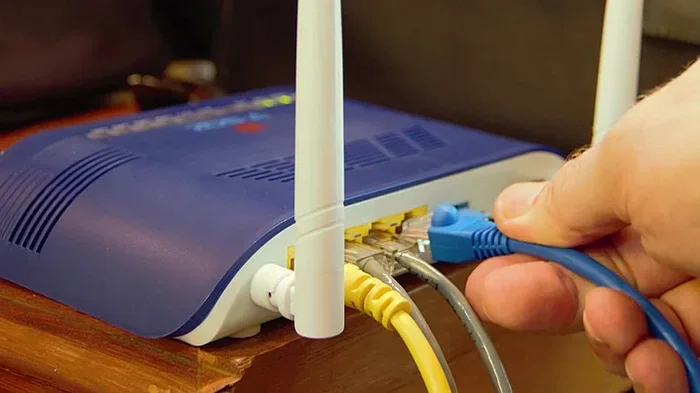
Now that bridge mode is on, you can connect your router. Take the Ethernet cable and plug one end into the Cox gateway’s Ethernet port. The port is usually labeled Ethernet or LAN. Plug the other end into your router’s WAN or Internet port.
Power on your router. Wait for it to fully boot up. Your router will now receive the internet signal from the Cox gateway. It will create its own Wi‑Fi network. You can connect your devices to the new router’s network.
Quick Tip: Use a high‑quality Ethernet cable. A Cat6 cable ensures the best speeds. Avoid cables longer than 100 feet to prevent signal loss.
Quick Tips For A Smooth Connection
- Check the gateway lights. After enabling bridge mode, the online light should stay solid.
- Restart your devices. Turn off your router and the gateway, wait 30 seconds, then power them back on.
- Use the WAN port. Always connect the Ethernet cable to your router’s WAN port, not a LAN port.
- Update your router’s firmware. New firmware often fixes bugs and improves performance.
Router Compatibility: Which Routers Work Best?
Not every router works perfectly with Cox Panoramic Wifi. You need a router that supports DOCSIS or acts as a standard router behind a modem. Most modern routers are compatible. However, some older or ISP‑specific routers may cause issues.
Best Routers For Cox Internet
Here are some popular routers that work great with Cox Panoramic Wifi. These routers offer strong performance and good range.
- Netgear Nighthawk AX12 – A Wi‑Fi 6 router with fast speeds and great range.
- ASUS RT‑AX86U – Excellent for gaming and streaming. It has low latency.
- TP‑Link Archer AX90 – A budget‑friendly Wi‑Fi 6 option with solid coverage.
- Linksys Velop MX10 – A mesh system that covers large homes easily.
- Google Nest Wi‑Fi Pro – Simple to set up and manage with a phone app.
Routers To Avoid
Some routers may not work well with Cox. Avoid routers that are locked to another ISP. Also, avoid very old routers that only support Wi‑Fi 4 or 5. These may bottleneck your internet speed. If you are unsure, check Cox’s list of compatible devices.
Comparison Table: Cox Gateway vs. Own Router
| Feature | Cox Panoramic Wifi Gateway | Own Router + Cox Modem |
|---|---|---|
| Wi‑Fi Range | Good for small to medium homes | Better with high‑end routers; covers large homes |
| Speed | Adequate for most plans | Can reach full gigabit speeds with Wi‑Fi 6 |
| Advanced Features | Limited parental controls and QoS | Full control, custom DNS, port forwarding |
| Device Handling | Struggles with 30+ devices | Handles dozens of devices easily |
| Setup Complexity | Plug and play | Requires bridge mode setup |
| Cost | Included in Cox bill or rental fee | One‑time purchase of your own router |
Using your own router gives you more flexibility. You can upgrade your router without changing your Cox plan. The Cox gateway still handles the cable connection, and your router handles the Wi‑Fi.
Common Mistakes And How To Fix Them
Many people run into problems when setting up a router with Cox Panoramic Wifi. Most issues are easy to fix. Here are the most common mistakes and how to avoid them.
Forgetting To Turn Off The Gateway’s Wi‑Fi
After enabling bridge mode, the Cox gateway’s Wi‑Fi may stay on. This creates two Wi‑Fi networks with the same name. Your devices might connect to the weaker signal. To fix this, log into the gateway admin panel and disable the Wi‑Fi radio. This ensures all devices use your new router’s network.
Using The Wrong Ethernet Port
The Cox gateway has multiple Ethernet ports. You must plug your router into the correct port. The port labeled Ethernet or LAN is the one that works in bridge mode. If you plug into a phone or TV port, the connection will not work. Check the labels on the back of the gateway.
Not Updating Firmware
Old firmware on your router can cause slow speeds or disconnects. Always check for firmware updates after setup. Most routers have an update button in the admin panel. Keeping firmware current also patches security holes.
Ignoring The WAN IP Address
Your router needs a public IP address from the Cox gateway. If your router shows a private IP like 192.168.x.x, something is wrong. This usually means bridge mode is not active. Double‑check the gateway settings and restart both devices.
Common Mistake: Connecting the Cox gateway to your router’s LAN port instead of the WAN port. This creates a double NAT and breaks internet access for some devices.
Expert Tips For A Faster, More Reliable Network
Once your router is connected, you can fine‑tune your network. A few simple changes can make a big difference. These expert tips will help you get the most from your setup.
Placement And Channel Settings
Place your router in a central location. Avoid putting it in a closet or behind furniture. Walls and metal objects block Wi‑Fi signals. The higher the router, the better the coverage. Try to place it on a shelf at eye level.
Your router’s Wi‑Fi channel can also affect performance. In crowded apartment buildings, many networks use the same channel. Log into your router’s settings and switch to a less congested channel. Use the 5 GHz band for faster speeds and the 2.4 GHz band for longer range.
Using The Cox Panoramic Wifi App
Cox offers a mobile app to manage your network. You can use the app even when your own router is in place. The app helps you view connected devices and run speed tests. It also lets you restart the gateway remotely. This is handy when troubleshooting.
When To Call Cox Support
If your internet stops working after the change, call Cox support. They can remotely check your gateway settings. They can also re‑enable bridge mode if needed. Have your account number and the gateway’s MAC address ready. Cox support is usually very helpful with router setups.
Conclusion
Can I use a router with Cox Panoramic Wifi? Yes, and the process is simpler than you might think. By enabling bridge mode, you can connect any compatible router and enjoy better speeds, wider coverage, and more features. The Cox gateway becomes a simple modem, and your router takes charge of your home network.
Follow the steps in this guide to set everything up. Avoid the common mistakes we covered, and your network will run smoothly. Whether you are a gamer, a streamer, or a busy household, a separate router can transform your internet experience. Take control of your Wi‑Fi today and see the difference for yourself.
Frequently Asked Questions
Do I need to contact Cox before using my own router?
No, you do not need to contact Cox. Cox allows you to use your own router. You just need to put the Cox gateway into bridge mode. The setup is done through the gateway’s admin panel.
Will using my own router void my Cox warranty?
No, using your own router does not void your Cox warranty. Cox only warrants the gateway device. Your separate router is covered by its own manufacturer’s warranty. Just make sure to connect it correctly.
Can I use a mesh Wi‑Fi system with Cox Panoramic Wifi?
Yes, you can. Mesh systems work great with Cox Panoramic Wifi. You still need to enable bridge mode on the Cox gateway. Then connect the mesh router’s primary node to the gateway’s Ethernet port.
What happens if I forget to enable bridge mode?
If you do not enable bridge mode, you will have two routers active. This causes double NAT, which can block some online games and apps. Your devices may get IP address conflicts. Enabling bridge mode solves this problem.
How do I know if bridge mode is working?
Check the Cox gateway’s admin panel. The bridge mode setting should show as enabled. Also, your router should receive a public IP address. You can check this by visiting a site like whatismyip.com while connected to your router.
Can I switch back to using only the Cox gateway?
Yes, you can. Simply log into the Cox gateway admin panel and disable bridge mode. The gateway will return to its normal router mode. You can then disconnect your separate router and use the Cox Wi‑Fi again.