How Do I Scan My WiFi Password To Another Phone Easily
Scanning your WiFi password to another phone is simple and saves you from typing long passwords manually. You can use QR codes, built-in phone features, or third-party apps to transfer your wireless network details in seconds. This guide covers every method so you can share WiFi password between any two devices without hassle.
Have you ever stood in a friend’s house trying to type in a long WiFi password on your phone? It is frustrating. You mistype a letter. You get the caps lock wrong. And just when you think you are done, the password fails again.
The good news is that you can scan your WiFi password to another phone in just a few seconds. No more typing. No more errors. Whether you use an Android or an iPhone, there is a simple way to share your wireless network details with someone else.
In this guide, we will walk you through every method step by step. You will learn how to generate a QR code, use built-in phone features, and even try third-party apps. By the end, you will be a pro at WiFi password sharing. Let us get started.
Key Takeaways
- QR Code Method: The fastest way to scan and share your WiFi password between phones using a simple QR code.
- Built-In Sharing Options: Both Android and iPhone offer native features to share WiFi passwords without extra apps.
- Third-Party Apps: Several reliable apps make WiFi password scanning and sharing easy for all users.
- Security Matters: Always share your WiFi password safely and avoid public sharing to keep your network secure.
- Troubleshooting Tips: Common issues like QR code not working have simple fixes you can try at home.
📑 Table of Contents
- Why Scanning Your WiFi Password Is a Game Changer
- How to Scan Your WiFi Password on Android
- How to Scan Your WiFi Password on iPhone
- Third-Party Apps That Make WiFi Password Sharing Easy
- How QR Code WiFi Sharing Actually Works
- Common Problems and How to Fix Them
- Expert Insights on WiFi Password Security
- Key Takeaways
- Conclusion
Why Scanning Your WiFi Password Is a Game Changer
Sharing WiFi passwords used to mean sitting next to the router and reading off a long string of letters and numbers. It was slow, error-prone, and annoying for everyone involved. Scanning changes all of that.
When you scan a WiFi password, you are really sharing a small piece of data called a QR code. This code holds your network name and password. The other phone reads it and connects automatically. It is fast, clean, and works almost every time.
Here is why this method is so popular:
- Speed: You can share your password in under 10 seconds.
- Accuracy: No typos. No failed connection attempts.
- Convenience: No need to be near the router.
- Easy for everyone: Even non-tech-savvy users can do it.
If you have smart home gadgets like smart speakers or connected devices, you know how often you need to share WiFi details. Scanning makes this process painless every single time.
How to Scan Your WiFi Password on Android
Android phones make it really easy to share your WiFi password. Most modern Android devices have built-in sharing features. You do not need to download anything extra.
Method 1: Use the Built-In QR Code Share Feature
This is the most common way to scan WiFi password to another phone on Android. Here is how it works:
- Open your phone’s Settings app.
- Tap on Network and Internet or Connections (the name varies by brand).
- Tap on WiFi to see your saved networks.
- Find the network you want to share and tap on it.
- Look for a Share button. It usually looks like a small QR code icon.
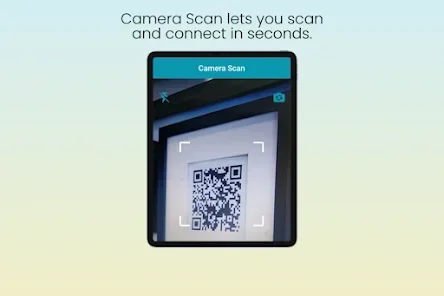
- Your phone will generate a QR code. Hold it up to the other phone’s camera.
- The other phone will read the code and prompt to connect.
That is it! The other phone connects to your WiFi without anyone typing a single character. This method works on most Android phones running Android 10 or later.
Method 2: Use a WiFi QR Code Generator App
If your phone does not have a built-in share option, you can use a free app. Many apps on the Google Play Store let you create a QR code for your WiFi network.
Here are some popular options:
- WiFi QR Code Generator – Simple and free.
- QR Code Reader and Generator – Doubles as a scanner and creator.
- ShareMe – Offers multiple sharing options including WiFi.
These apps ask for your network name and password. They then create a QR code that you can show to someone else. The other person scans the code with their phone camera and gets connected instantly.
When choosing an app, look for one with good reviews and no unnecessary permissions. You want something that respects your network security while making sharing easy.
How to Scan Your WiFi Password on iPhone
iPhone users also have great options for sharing WiFi passwords. Apple has built this feature right into iOS, making it seamless between Apple devices.
Method 1: Use the Native iPhone WiFi Share Feature
If both phones are iPhones, Apple makes sharing incredibly easy. Here is the process:
- Make sure both phones have Bluetooth and WiFi turned on.
- The person who needs the password should try to connect to the WiFi network on their iPhone.
- Your iPhone will receive a prompt asking if you want to share the password.
- Tap Share Password and confirm.
- The other iPhone connects automatically.
No QR code needed. No apps required. Apple handles everything behind the scenes. This works between any two iPhones or even between an iPhone and a Mac.
Method 2: Create a WiFi QR Code on iPhone
iPhone does not have a native QR code generator for WiFi. But you can still create one using a free app from the App Store. Here is what to do:
- Download a WiFi QR code generator app from the App Store.
- Enter your WiFi network name and password in the app.
- The app generates a QR code on your screen.
- Have the other person scan the code with their phone camera.
- Their phone will read the details and offer to connect.
This method works great when you need to share your WiFi password with someone who uses an Android phone or any other device that can scan QR codes.
Third-Party Apps That Make WiFi Password Sharing Easy
Sometimes the built-in tools are not enough. Maybe you need to share with multiple devices, or your phone does not support native sharing. In those cases, third-party apps come in very handy.
Best Apps for Scanning and Sharing WiFi Passwords
Here are some reliable apps that help you scan and share WiFi passwords with ease:
| App Name | Platform | Key Feature |
|---|---|---|
| WiFi QR Code Generator | Android & iOS | Simple QR code creation |
| QRbot | Android & iOS | Creates and reads QR codes |
| ShareMe | Android | Multi-file and WiFi sharing |
| WiFi Key Share | Android | Shares WiFi without root access |
| Instashare | iOS & Android | Fast cross-platform sharing |
Each of these apps has its strengths. For quick sharing, a simple QR code generator works best. For more features, look for apps that handle multiple file types and network sharing.
Always download apps from official stores. Check the reviews and permissions carefully. You are sharing sensitive network information, so you want to trust the app you use.
How QR Code WiFi Sharing Actually Works
Understanding how QR code sharing works helps you trust the process. It also helps you troubleshoot if something goes wrong.
When you create a WiFi QR code, the code contains three pieces of information:
- Network Name (SSID): The name of your WiFi network.
- Password: The password for your network.
- Security Type: Whether your network uses WPA, WEP, or no encryption.
When someone scans the code, their phone reads all three pieces and uses them to connect to your network. The phone does not display your password in plain text (on most devices). It uses the data directly to establish the connection.
This process is secure because the QR code is temporary. Once the other phone connects, the code itself does not store anything. Your password stays safe on your device.
Quick Tips for Safe WiFi Sharing
- Only share your QR code with people you trust.
- Regenerate your QR code if you change your password.
- Do not post your WiFi QR code on social media.
- Change your password regularly for better network security.
- Use a strong, unique password that is hard to guess.
Common Problems and How to Fix Them
Even though scanning WiFi passwords is easy, sometimes things do not work as expected. Here are the most common issues and how to solve them.
QR Code Not Scanning
If the other phone cannot read your QR code, try these fixes:
- Make sure the QR code is fully visible on your screen.
- Increase your screen brightness for better scanning.
- Hold the other phone steady and keep it about 6 to 8 inches away.
- Clean the camera lens on the scanning phone.
- Try a different QR code scanner app if the built-in camera does not work.
Connection Fails After Scanning
If the phone scans the code but fails to connect, check these things:
- Make sure the WiFi network is turned on and working.
- Verify that the password has not changed since you created the QR code.
- Restart both phones and try again.
- Check if your router has a device limit reached.
iPhone Cannot Share with Android
Apple’s native sharing only works between Apple devices. To share with an Android phone, you need to use a QR code generator app. This is the most reliable workaround and takes only a minute to set up.
Expert Insights on WiFi Password Security
Sharing your WiFi password is convenient, but it comes with responsibility. Every device connected to your network can access your shared resources. Here are some expert tips to keep your network safe.
First, consider setting up a guest network on your router. Most modern routers support this feature. A guest network gives visitors internet access without exposing your main network and personal devices. This is one of the best ways to maintain wireless network security while still being helpful.
Second, change your WiFi password periodically. If you have shared it with many people, there is a higher chance it could be passed along to others. A regular password change keeps your network under your control.
Third, use WPA3 encryption if your router supports it. It is the latest and most secure WiFi encryption standard. If your router only supports WPA2, that is still good. Just avoid WEP, which is outdated and easy to crack.
For more tips on making your connected home smoother, check out these helpful tech guides. They cover everything from smart devices to network setup.
Key Takeaways
- QR code sharing is the fastest method: Generate a code and let the other phone scan it in seconds.
- Android and iPhone have native sharing: Use built-in features whenever possible for the easiest experience.
- Third-party apps fill the gaps: They work across platforms and offer extra features when needed.
- Security is essential: Always share passwords carefully and use guest networks when possible.
- Troubleshooting is simple: Most issues have quick fixes like brightness adjustment or restarting devices.
- Keep your password updated: Regular changes protect your network from unauthorized access.
Conclusion
Learning how to scan your WiFi password to another phone is one of the most useful tech skills you can have. It saves time, prevents errors, and makes life easier for everyone involved. Whether you use Android or iPhone, the methods in this guide will help you share your wireless network details in seconds.
The QR code method is the most universal approach. It works across devices and platforms without needing any special setup. Built-in sharing features on Android and iPhone make the process even smoother for users within the same ecosystem.
Remember to always prioritize your WiFi network security. Share your passwords only with trusted people. Use guest networks when you can. And change your password regularly to keep your connection safe.
Now that you know all the methods, try sharing your WiFi password with someone today. You will wonder how you ever managed without this simple trick. Happy connecting!
Frequently Asked Questions
Can I scan a WiFi password QR code on any phone?
Yes, most modern smartphones can scan WiFi QR codes. Both Android and iPhone cameras can read QR codes natively. You just need to open your camera app, point it at the code, and tap the notification that appears. If your camera does not support QR scanning, you can download a free QR scanner app from your app store.
Is it safe to share my WiFi password using a QR code?
It is safe as long as you share the code with someone you trust. The QR code contains your network name and password, so anyone who scans it can connect to your network. Avoid sharing your code publicly or on social media to keep your wireless network secure.
Do I need an internet connection to scan a WiFi QR code?
No, you do not need an active internet connection to scan a WiFi QR code. The camera app reads the code locally on your device. However, the phone you are connecting to must have WiFi turned on to complete the connection process.
Can I share my WiFi password with someone using a different phone brand?
Absolutely. Using a QR code generator app works across all phone brands and operating systems. You create the code on your phone, and the other person scans it with their phone regardless of whether they use Android, iPhone, or any other device.
What should I do if the QR code does not work?
First, check that the QR code is clear and fully visible on your screen. Increase your screen brightness and make sure the scanning phone is about 6 to 8 inches away. If it still does not work, try a different QR scanner app or regenerate the code with updated network details.
How do I create a guest WiFi network for visitors?
Log into your router’s admin panel through a web browser. Look for the guest network setting and enable it. Set a separate password for the guest network. This gives visitors internet access while keeping your main network and personal devices protected.