How Do I Scan A Qr Code With My Phone For Beginners
Scanning a QR code with your phone is simpler than you think — all you need is a smartphone with a working camera. Most modern phones can scan QR codes automatically using the built-in camera app, while older models may require a free QR code scanner app from your app store. In this guide, we’ll walk you through the step-by-step process so you can quickly and safely access any QR code link, menu, or payment page right from your device.
Have you ever been standing in line at a coffee shop, looking at a little square box on the table, and wondered exactly how to use it? You are not alone. Many people own smartphones but feel confused when they see a QR code staring back at them. It can feel like a secret code that only tech experts understand. But the truth is, scanning one is incredibly easy and takes just a few seconds.
If you have ever asked yourself, “How Do I Scan A Qr Code With My Phone,” you have come to the right place. This guide will walk you through the entire process step by step. We will look at both iPhones and Android phones so everyone can follow along. By the end of this read, you will feel confident enough to scan any code you see. Let us get you started with the simplest smartphone guide you will ever read.
Understanding how to use your phone camera for this purpose opens up a whole new world of convenience. From pulling up a digital menu at restaurants to joining a Wi-Fi network without typing a long password, the possibilities are endless. You just need to know where to point your device and how to trigger the scan. Let us dive into the details and make this process crystal clear for you. It is much easier than you think.
Key Takeaways
- Open your camera app to scan a QR code quickly and easily.
- Point your camera at the QR code and hold it steady for a few seconds.
- Tap the notification or link that appears on your screen after scanning.
- No extra app is needed — most modern phones scan QR codes natively.
- Ensure good lighting when you scan a QR code for the best results.
- Avoid suspicious QR codes to protect your phone and personal data from threats.
📑 Table of Contents
Understanding What A QR Code Actually Is
The Basics Of Quick Response Codes
Before you learn how to use one, it helps to know what you are looking at. A QR code stands for Quick Response code. It is a type of barcode scanner that stores information. When you scan QR codes, your phone reads that information and takes action. Think of it like a tiny bridge between the physical world and the internet.
These square grids of black and white dots might look random, but they are highly organized. Each dot holds a piece of data. Your phone decodes this pattern instantly. This technology was invented in Japan back in 1994 for tracking car parts. Today, we use them for so much more than just factories. They are now a normal part of our daily mobile device experience.
Here are some common things you can do with your smartphone camera after scanning:
- Visit a website instantly
- Connect to a Wi-Fi network
- Add a new contact to your phone
- Make a contactless payment
- Download an app directly
Why QR Codes Are Everywhere Now
You see QR codes on restaurant tables, store windows, and even parking tickets. Why? Because they offer a contactless way to share information. During the pandemic, businesses needed a way to share menus without handling paper. The QR code was the perfect solution. Now, they are a normal part of our daily lives.
Learning how to read them is a basic modern skill. It saves time and keeps your hands clean. When you know how to scan a QR code with my phone, you never have to type out a long web address again. You just point and go. This simple act saves so much effort in our busy lives.
How To Scan A QR Code Using Your iPhone
Using The Native Camera App
If you have an iPhone, you likely do not need to download anything extra. Apple built a QR code reader right into your camera app. This makes the process of scanning a QR code with my phone very smooth. Here is exactly what you need to do.
First, open your Camera app from the home screen. Make sure you are using the standard photo mode, not the portrait or video mode. Point your camera at the QR code. You do not need to take a picture. Just hold your phone steady and aim it at the square box.
After a second or two, your iPhone will recognize the code. You will see a yellow banner or a notification pop up at the top of your screen. Tap on that notification to open the link. This is the magic of the point and scan method. It works almost every time and is the easiest iPhone scan method available.
When The Default Scanner Does Not Work
Sometimes, the native camera might not recognize the code. This can happen if the lighting is too dark or if the code is damaged. If your iPhone does not show a notification, do not panic. You can still learn how to scan a QR code with my phone using the Control Center.
Swipe down from the top right corner of your screen to open Control Center. Look for the QR code scanner icon. It looks like a little square with dots inside. Tap it, and your camera will open in scanning mode. Point it at the code, and your phone will do the rest. This is a great backup tool to keep in mind for your smartphone guide.
Another option is to use the Wallet app. If you have passes or tickets saved in Apple Wallet, you can open the app and tap the plus sign. This adds a scanner right to your wallet screen. It is a very handy feature for scanning a QR code with my phone when you are on the go.
How To Scan A QR Code On Android Devices
Built-In Scanning Features
Android phones are very different from iPhones, but scanning is still simple. Most modern Android devices have a built-in way to scan QR codes without installing extra apps. The exact steps depend on your phone brand, but the process is similar across the board.
On many phones, you can open your camera app just like on an iPhone. Point it at the QR code and wait for a pop-up. Some Android phones use Google Lens instead of the standard camera. To use this, open your camera app and look for a Google Lens icon. It usually looks like a small camera or a circle at the bottom or side of your screen.
When you tap Google Lens, point your viewfinder at the QR code. The app will analyze the image and show you a link. Tapping that link will take you to the webpage. This is a very reliable way to scan QR codes on your mobile device. It is fast and does not require an internet connection to work. Samsung phones also have their own built-in scanner in the camera interface. Look for the “Modes” or “More” option and select the scan feature.
Downloading A Third-Party QR Code Reader
If your Android phone does not scan codes natively, you will need a dedicated app. Do not worry, this is very common on older models. Learning how to scan a QR code with my phone using an app is just as easy.
Open the Google Play Store on your phone. Search for a “QR code reader” or “barcode scanner.” There are many free options available. Look for one with good reviews and a simple interface. Once you download the app, open it and point your camera at the code. The app will read the information and display it on your screen.
Always choose a reputable app to keep your smartphone safe. Avoid apps with lots of ads or strange permissions. A good QR code app will be lightweight and fast. It will not drain your battery or slow down your phone. Reading reviews helps you find the best tool for your Android scan needs.
Step By Step Guide To Point And Scan
Preparing Your Phone
Before you try to scan anything, a little preparation goes a long way. Making sure your phone is ready will save you frustration. Think of this as a quick pre-flight check before you scan.
First, clean your phone camera lens. It sounds silly, but a smudgy lens can block the QR code reader from seeing the dots properly. Use a soft cloth and wipe it gently. Next, make sure you have a good light source. QR codes need light to be read correctly. If you are outside, stand in the shade. If you are inside, turn on a bright light.
Finally, make sure your mobile device has a stable internet connection. While the camera reads the code offline, your phone needs the web to open the link. If you are in a dead zone, you might see the code but not be able to visit the page. A strong signal makes the whole process seamless. These small prep steps make a huge difference when you are trying to scan QR code online resources.
The Actual Scanning Process
Now that your phone is ready, let us walk through the actual process. This is the core of how to scan a QR code with my phone successfully.
- Unlock your phone so the camera is ready to go.
- Open your camera app or your dedicated QR code scanner app.
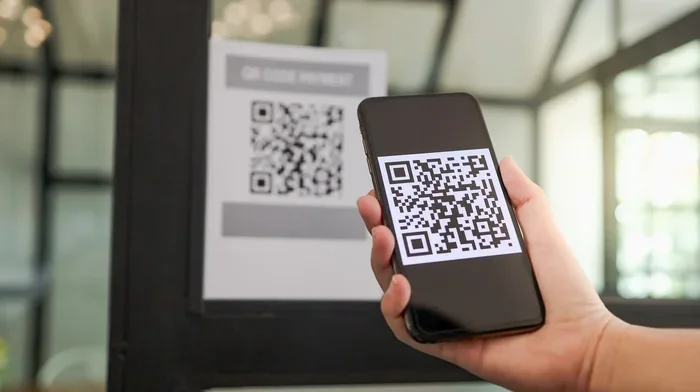
- Hold your phone steady and point the camera at the code.
- Make sure the entire square fits inside the viewfinder on your screen.
- Wait for your phone to beep or show a notification.
- Tap the notification to open the link or action.
Do not wave your phone around too much. Keep it still and let the software do the work. If the code is far away, step closer. If it is too close, step back. Finding the right distance takes a little practice, but you will get the hang of it fast. The point and scan method is designed to be effortless.
What Happens After You Scan
Common Actions After Scanning
Once your smartphone camera reads the code, something happens right away. The action depends on what type of code it is. Most of the time, it will open a web link. This is the most common use for a QR code. You might land on a website, a video, or a special online offer.
Sometimes, scanning a code does something different. For example, a Wi-Fi QR code will ask you if you want to join a network. You just tap connect, and your phone joins without you typing a single letter. A contact code might add a new person to your address book instantly. A payment code can open your digital wallet ready to pay. The contactless payment feature is one of the most popular uses today.
Here is a quick look at the different types of codes and what they do:
| Code Type | What It Does | Example Use |
|---|---|---|
| Web Link | Opens a specific webpage | Restaurant digital menu |
| Wi-Fi Network | Connects you to a wireless network | Guest Wi-Fi at a hotel |
| Contact Info | Adds a new contact to your phone | Sharing business card details |
| Payment | Opens a payment app or link | Paying at a retail checkout |
| App Download | Takes you to an app store | Downloading a new game |
Safety Tips For Scanning Unknown Codes
While scanning is convenient, you must be careful. Not all QR codes are safe. Malicious people can create fake codes to steal your information. This is why QR code safety is so important. Always use a safety scan mindset when you are out in public.
Never scan a code that looks tampered with. For example, if a sticker is placed over a real code on a poster, do not scan it. Also, be wary of codes in strange places, like random stickers on bathroom walls. If you scan a code, check the URL before you tap to open it. If the web address looks weird or misspelled, do not visit the site. Protecting your mobile device is just as important as using it.
Troubleshooting Common Scanning Problems
Why Your Phone Might Not Recognize The Code
Even when you know how to scan a QR code with my phone, things can go wrong sometimes. It is frustrating when nothing happens, but there is usually a simple fix. Understanding why your phone fails to read a code can save you a lot of time.
The most common reason is poor lighting. QR codes need contrast to be read properly. If the black dots are too faded or the background is too bright, your camera will struggle. Another reason is distance. If you are too far away or too close, the QR code reader cannot focus on the pattern. Motion is also a big factor. If you are shaking or moving, the phone cannot lock onto the code.
Sometimes the code itself is the problem. If it is damaged, scratched, or printed on a shiny surface that reflects light, it will fail. Old codes with low resolution also give your smartphone a hard time. In these cases, you might need to ask for a new copy of the code. Patience is key when troubleshooting your barcode scanner.
Quick Fixes For Failed Scans
If your phone is not reading the code, try these quick fixes. First, clean your camera lens again. A quick wipe can make a huge difference. Second, move your phone closer or further away. Find the sweet spot where the code fits clearly in the frame. Third, try tapping the screen to focus. Most camera apps have a focus feature that helps the native camera lock on.
If you are still stuck, switch to a different app. If your default camera is failing, open your downloaded QR code app or Google Lens. Sometimes a different software engine can read codes that your default camera misses. Finally, restart your phone. A simple reboot can clear up minor software glitches that prevent your mobile device from scanning properly. This is a great trick to remember for any tech issue.
Learning how to scan a QR code with my phone is a skill that everyone should have. It takes just a few seconds and opens up a world of convenience. Whether you are using an iPhone or an Android device, the process is simple and straightforward. You just need your camera, a steady hand, and a little bit of light.
Remember to always practice QR code safety and be careful with unknown codes. Keep your lens clean and your phone updated for the best results. With this guide, you are now ready to scan any code you come across. Go ahead and give it a try the next time you see that little square box. You will be glad you did.
Frequently Asked Questions
How Do I Scan A QR Code With My Phone?
Most modern smartphones can scan QR codes natively. On iPhone, simply open the Camera app and point it at the code. On Android, open the Camera app or use the Google Lens icon for the same result.
Do I Need to Download an App to Scan a QR Code?
You usually do not need a separate app anymore. Both iOS and Android devices have built-in scanning features in their default Camera apps. However, older phones may still require a free QR scanner app from your app store.
Can I Scan a QR Code with My iPhone?
Yes, iPhones with iOS 11 or later can scan QR codes directly through the Camera app. Just open the app, point your camera at the code, and tap the notification that appears at the top of your screen.
Why Won’t My Phone Scan a QR Code?
This can happen if your Camera app does not have permission to access your phone’s scanner. Check your settings to make sure the Camera app is enabled. Also, make sure the QR code is not damaged, too far away, or blocked by glare.
Is Scanning a QR Code Safe?
Scanning a QR code is generally safe, but malicious codes can redirect you to harmful websites. Always check the URL that appears on your screen before tapping or entering any personal information.
Can I Scan a QR Code from a Photo on My Phone?
Yes, you can scan a QR code from a saved photo using Google Lens on Android or the Photos app on iPhone. Open the photo, tap the Google Lens or scan icon, and your phone will read the code for you.