Can I Share My Wi Fi On Android Your Complete Guide
Can I Share My Wi Fi On Android? Yes, you can share your Wi-Fi connection using a mobile hotspot, USB tethering, or Bluetooth. This guide covers every method step by step, with practical tips to improve speed, save battery, and keep your shared network secure.
Can I Share My Wi Fi On Android? The short answer is yes, and it is much easier than you might think. Your Android phone can turn into a portable hotspot and share its internet connection with laptops, tablets, and other phones. Whether you are traveling, working remotely, or stuck somewhere without Wi-Fi, your device can act as a bridge to get you online.
In this complete guide, we will walk you through every method available for Wi-Fi sharing on Android. You will learn how to set up a mobile hotspot, use USB tethering, connect via Bluetooth tethering, and much more. We will also share practical tips to improve performance, avoid common mistakes, and keep your shared network safe. By the time you finish reading, you will have everything you need to share Wi-Fi on Android with confidence.
Have you ever been in a hotel room with your laptop open but no Wi-Fi password in sight? Or maybe you are at a friend’s house and your phone has Wi-Fi but your tablet does not. These moments are frustrating, but they do not have to be. Your Android device has a built-in feature that lets you share Wi-Fi on Android and give other devices access to the internet. This process is called tethering, and Android has supported it for years. You can share your connection using a Wi-Fi hotspot, a USB cable, or even Bluetooth. Each method has its own advantages, and this guide will help you choose the right one. Let us dive into how Can I Share My Wi Fi On Android works and why it is such a handy feature to know.
Key Takeaways
- Multiple sharing methods: You can share Wi-Fi on Android using a Wi-Fi hotspot, USB cable, or Bluetooth connection.
- Easy setup: Turning on a mobile hotspot takes less than a minute through your Android hotspot settings.
- USB tethering is fastest: For stable and fast sharing, USB tethering is the best option for a single connected device.
- Watch your data usage: Sharing your internet connection can use data quickly, so monitor your usage regularly.
- Security matters: Always use a strong Wi-Fi password and WPA2 security to protect your shared network from unauthorized access.
- Battery drain is real: Hotspot sharing drains your Android device battery faster, so keep a charger handy.
- Works on most Android phones: Nearly all Android devices support network sharing, regardless of brand or model.
📑 Table of Contents
- What Is Wi-Fi Sharing on Android?
- Can I Share My Wi Fi On Android? Here Is How It Works
- How to Share Wi-Fi on Android Using Hotspot
- Different Methods to Share Your Wi-Fi Connection
- Tips for Better Wi-Fi Sharing Performance
- Common Mistakes When Sharing Wi-Fi on Android
- Security Tips for Your Wi-Fi Hotspot
- Conclusion
What Is Wi-Fi Sharing on Android?
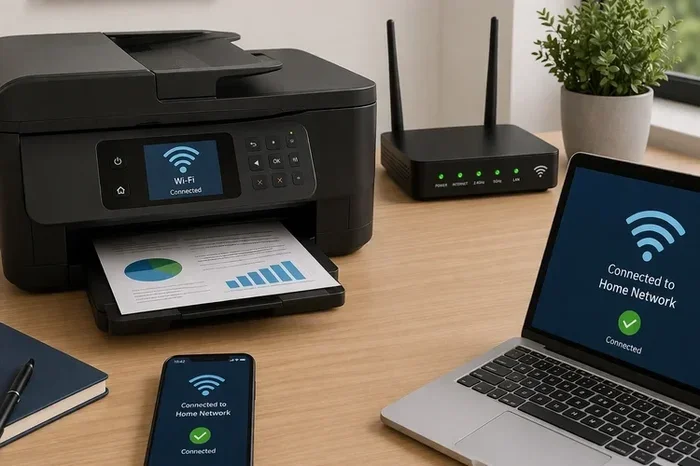
Wi-Fi sharing on Android means using your phone to broadcast an internet connection to other devices. Instead of each device needing its own Wi-Fi connection, your Android device becomes the source. Think of it like a mini router right in your pocket.
How Tethering Works
Tethering is the technical term for sharing your phone’s internet with other devices. When you connect to a Wi-Fi network, your Android phone can share that same connection through different methods. Your phone essentially becomes a portable hotspot that other devices can detect and connect to. The internet connection from the original Wi-Fi network passes through your phone to the connected devices.
Android handles this process in the background. You do not need any extra apps or complicated setup. The network sharing feature is built right into the operating system. All you need is a working Wi-Fi connection on your phone and a few taps in your settings.
Types of Network Sharing
There are three main ways to share your internet connection from an Android device:
- Wi-Fi Hotspot (Tethering): Your phone creates a new Wi-Fi network that other devices can join. This is the most common method and works with multiple connected devices at once.
- USB Tethering: You connect your phone to a computer using a cable. The computer shares your phone’s internet connection through the USB link. This method is fast and stable.
- Bluetooth Tethering: Your phone shares the connection through a Bluetooth link. It is slower but uses very little battery. It works well for emergency situations.
Can I Share My Wi Fi On Android? Here Is How It Works
The short answer is yes. Can I Share My Wi Fi On Android? Absolutely. Every Android phone comes with built-in tools for network sharing. You do not need to download any third-party apps to get started. The hotspot settings are already there, waiting for you to turn them on.
When you share Wi-Fi on Android, your phone takes the internet connection it already has and rebroadcasts it. Other devices see your phone as a regular Wi-Fi network. They connect to it just like they would connect to a home router. The only difference is that the source of the internet is your mobile data or the Wi-Fi network your phone is already connected to.
This feature is incredibly useful. You can connect your laptop to a Wi-Fi hotspot at a coffee shop, share your connection with a friend, or use your phone as a backup portable Wi-Fi when your home internet goes down. The possibilities are endless, and the setup is simple.
How to Share Wi-Fi on Android Using Hotspot
Setting up a mobile hotspot on your Android device is quick and straightforward. Follow these steps to get started with Wi-Fi sharing right away.
Setting Up a Mobile Hotspot
Here is how you turn on your hotspot settings in just a few taps:
- Open the Settings app on your Android device.
- Look for Network & Internet or Connections (the name varies by brand).
- Tap on Hotspot & Tethering or Mobile Hotspot.
- Toggle the Wi-Fi Hotspot switch to turn it on.
- Your phone will start broadcasting a new Wi-Fi network nearby.
Once the hotspot is on, other devices can see your phone’s network name (also called SSID) in their Wi-Fi settings list. They just need to tap on it and enter the Wi-Fi password to connect.
Configuring Your Hotspot Name and Password
It is a good idea to customize your hotspot name and set a strong Wi-Fi password. Here is how:
- Go to Settings > Network & Internet > Hotspot & Tethering.
- Tap on Wi-Fi Hotspot or Edit Hotspot.
- Change the network name (SSID) to something you recognize.
- Set a strong Wi-Fi password with at least 8 characters.
- Choose WPA2 as the security type for the best protection.
- Save your settings and turn the hotspot back on.
Taking a few extra minutes to set a good password and network name goes a long way in keeping your shared connection safe. Avoid using simple passwords like “12345678” or your name. A strong Wi-Fi password keeps unauthorized users from accessing your internet connection.
Quick Tips for Hotspot Setup
- Always change the default hotspot name to something unique.
- Use a mix of letters, numbers, and symbols for your Wi-Fi password.
- Turn off your hotspot when you are not using it to save battery.
- Check your data usage regularly when sharing your connection.
- Keep your Android device plugged in while using a hotspot for long periods.
Different Methods to Share Your Wi-Fi Connection
Not all Wi-Fi sharing methods are the same. Each one has its own strengths and weaknesses. Let us look at the three main ways you can share Wi-Fi on Android and compare them side by side.
Method 1: Wi-Fi Hotspot (Tethering)
The Wi-Fi hotspot method is the most popular way to share your internet connection. It creates a new wireless network that other devices can detect and join. You can connect multiple connected devices at the same time, usually up to 10 or more depending on your phone.
This method is great for sharing with laptops, tablets, and other phones all at once. The setup is simple, and most people use this method every day. The downside is that it uses more battery and can slow down if too many devices are connected.
Method 2: USB Tethering
USB tethering uses a cable to connect your Android device to a computer. This method gives you the fastest and most stable connection. It is perfect when you need reliable internet access for work or streaming.
Here is how to use USB tethering:
- Connect your Android device to your computer using a USB cable.
- Go to Settings > Network & Internet > Hotspot & Tethering.
- Toggle USB Tethering to turn it on.
- Your computer will automatically detect the internet connection.
USB tethering does not drain your battery because your phone is charging while connected. It also provides the fastest speeds of all three methods. However, you can only share with one device at a time, and you need a USB cable.
Method 3: Bluetooth Tethering
Bluetooth tethering shares your internet connection through a Bluetooth link. It is slower than the other methods but uses very little battery. This method works well for basic tasks like checking email or browsing the web.
To use Bluetooth tethering:
- Turn on Bluetooth on both your Android device and the other device.
- Pair the two devices by searching for each other.
- Go to Settings > Network & Internet > Hotspot & Tethering.
- Toggle Bluetooth Tethering to turn it on.
Bluetooth tethering is best for emergency situations when you need a quick connection and do not have a cable or want to create a Wi-Fi hotspot. The speeds are slower, but it gets the job done for light browsing.
Comparison Table: Wi-Fi Sharing Methods
| Method | Speed | Battery Usage | Ease of Setup | Best For |
|---|---|---|---|---|
| Wi-Fi Hotspot | Medium | High | Very Easy | Multiple devices at once |
| USB Tethering | Fast | Low (charges phone) | Moderate | Single device, stable connection |
| Bluetooth Tethering | Slow | Very Low | Easy | Emergency use, light browsing |
Expert Insights
According to networking experts, USB tethering is the most reliable method for Wi-Fi sharing when you need consistent speeds. If you are sharing with multiple devices, the Wi-Fi hotspot method is the most convenient. For long periods of sharing, experts recommend keeping your Android device on a charger to prevent battery drain. Also, always check your carrier’s data usage policies, as some plans may limit tethering speeds or amounts.
Tips for Better Wi-Fi Sharing Performance
Sharing your internet connection does not always work perfectly the first time. Here are some practical tips to improve your Wi-Fi sharing experience on Android.
Keep Your Phone Charged
Hotspot sharing drains your battery faster than normal use. If you plan to share your connection for an extended period, plug your phone into a charger. This keeps your Android device running smoothly and prevents it from shutting down the hotspot due to low power.
Place Your Phone in a Good Location
The signal strength of your portable hotspot depends on where you place your phone. Keep it in an open area, away from walls and metal objects. Elevating your phone slightly can also help improve the Wi-Fi signal for connected devices.
Limit the Number of Connected Devices
While most Android phones support up to 10 connected devices, connecting too many at once can slow down your internet connection. For the best performance, limit the number of devices using your portable Wi-Fi hotspot to 3 or 4 at a time.
Monitor Your Data Usage
When you share your internet connection, all the data used by connected devices comes out of your mobile data plan. Keep an eye on your data usage to avoid unexpected overage charges. You can check your usage in Settings > Network & Internet > Data Usage.
Use the Latest Android Version
Google regularly updates Android with improvements to network sharing and hotspot settings. Keeping your Android device updated ensures you get the best performance and security for your Wi-Fi hotspot. Check for updates in Settings > System > Software Update.
Quick Performance Tips
- Restart your phone before setting up a hotspot for the best performance.
- Use the 5GHz band if your phone supports it for faster speeds.
- Turn off Wi-Fi on your phone when using it as a hotspot to avoid interference.
- Change your hotspot band from 2.4GHz to 5GHz for less congestion.
- Close unused apps on your phone to free up resources for network sharing.
Common Mistakes When Sharing Wi-Fi on Android
Even though sharing Wi-Fi on Android is simple, people still make mistakes that cause problems. Here are the most common errors and how to avoid them.
Forgetting to Turn Off the Hotspot
One of the biggest mistakes is leaving your mobile hotspot on after you are done using it. This drains your battery and uses your data in the background. Always turn off your hotspot settings when you no longer need to share your internet connection.
Using a Weak Password
Setting a simple or no Wi-Fi password leaves your shared network open to strangers. They can use your internet connection, slow down your speeds, and even access your personal data. Always use a strong Wi-Fi password with at least 10 characters.
Ignoring Data Limits
Sharing your connection can eat through your data plan quickly. Many people forget to monitor their data usage until they get a surprise bill. Keep track of how much data your connected devices are using and set limits if needed.
Overheating Your Phone
Running a Wi-Fi hotspot for hours can cause your phone to overheat. This is especially true in warm environments or when charging while tethering. If your phone feels hot, turn off the hotspot and let it cool down before using it again.
Not Updating Hotspot Settings
Using default hotspot settings without customization can lead to security risks and poor performance. Take a few minutes to change your network name, set a strong password, and choose the right security type. This small step makes a big difference.
Common Mistakes to Avoid
- Leaving your hotspot on all the time wastes battery and data.
- Using “password123” as your Wi-Fi password is a security risk.
- Ignoring data usage can lead to unexpected charges from your carrier.
- Placing your phone under a pillow or in a closed space causes overheating.
- Not updating your Android device software means missing important security patches.
Security Tips for Your Wi-Fi Hotspot
When you share your internet connection, you are opening a door to your Android device. It is important to keep that door secure. Here are some essential security tips for your Wi-Fi hotspot.
Always Use WPA2 Security
WPA2 is the most secure Wi-Fi security type available for hotspot settings. When you set up your mobile hotspot, make sure to choose WPA2 as the security option. This encrypts the data flowing between your phone and connected devices, keeping your internet connection safe from eavesdroppers.
Change the Default Hotspot Name
Many Android phones use a default hotspot name that includes the brand and model of your phone. This makes it easy for strangers to identify your device. Change the SSID to something generic that does not reveal personal information about you or your phone.
Disable Auto-Connect for Unknown Devices
Some Android phones allow unknown devices to auto-connect to your portable hotspot. Turn this feature off in your hotspot settings. Only allow devices you trust to connect to your shared network sharing connection.
Use a Guest Network When Possible
If your Android phone supports it, set up a guest network for your Wi-Fi hotspot. This keeps your connected devices separate from your personal data. Even if a stranger connects to your portable Wi-Fi, they will not have access to your files or apps.
Turn Off Hotspot When Not in Use
The simplest security tip is also the most effective. Turn off your mobile hotspot when you are not actively sharing your internet connection. This closes the door to anyone who might try to connect without your permission and also saves your battery.
Expert Security Advice
Cybersecurity experts recommend changing your Wi-Fi password every few weeks if you use your hotspot settings frequently. Also, avoid sharing your Wi-Fi password in public places where others can overhear you. If you notice unfamiliar connected devices on your portable hotspot, change your password immediately and restart your phone. These simple steps protect your Android device and your personal data from unauthorized access.
Conclusion
Can I Share My Wi Fi On Android? Yes, you can, and now you know exactly how. Whether you use a Wi-Fi hotspot, USB tethering, or Bluetooth tethering, sharing your internet connection is simple and convenient. Each method has its own strengths, and you can choose the one that fits your needs best.
Remember to set a strong Wi-Fi password, monitor your data usage, and keep your Android device secure. With the tips and tricks in this guide, you are ready to share your connection anytime, anywhere. Sharing Wi-Fi on Android is not just a feature, it is a skill that makes your digital life easier and more flexible. Start using it today and never worry about being offline again.
Frequently Asked Questions
Can I Share My Wi-Fi Connection With Another Android Phone?
Yes, you can share your Wi-Fi connection with another Android phone using a mobile hotspot. Simply turn on your hotspot settings, and the other phone will see your network in its Wi-Fi list. They just need to enter your Wi-Fi password to connect. This works the same way as connecting any other device to your shared network.
Does Sharing Wi-Fi Drain My Phone Battery Fast?
Yes, using your phone as a Wi-Fi hotspot drains your battery faster than normal use. Hotspot sharing requires your phone to power a wireless radio continuously, which uses a lot of energy. To reduce battery drain, keep your phone plugged in while sharing, lower the screen brightness, and turn off the hotspot when you are done. USB tethering is the best option if battery life is a concern because it charges your phone while in use.
Can I Share Wi-Fi Without Using Mobile Data?
Yes, you can share an existing Wi-Fi connection without using your mobile data. When your Android phone is connected to a Wi-Fi network, you can turn on the mobile hotspot and share that same Wi-Fi connection with other devices. The data passes through your phone from the original network to the connected devices. This is useful when you want to share a hotel or café Wi-Fi with your laptop or friend’s phone.
How Many Devices Can Connect to My Android Hotspot?
Most Android phones allow up to 10 connected devices on a mobile hotspot. However, the actual number may vary depending on your phone model and carrier. Keep in mind that connecting too many devices at once can slow down your internet connection. For the best performance, limit your shared network to 3 or 4 devices at a time. You can also check how many devices are currently connected in your hotspot settings.
Is It Safe to Share My Wi-Fi Password With Others?
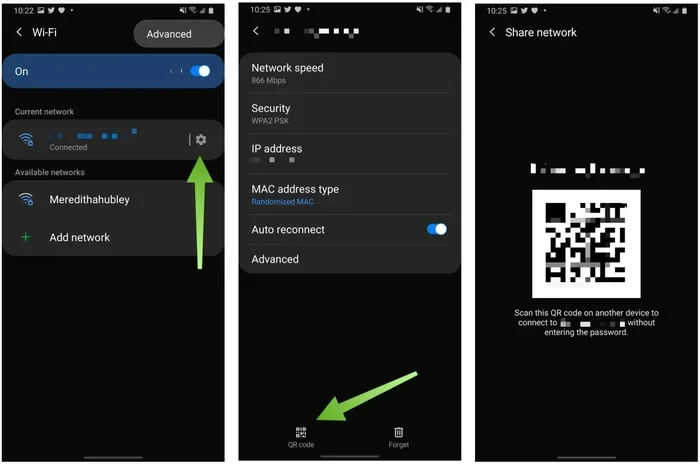
Sharing your Wi-Fi password is generally safe if you take a few precautions. Always use WPA2 security and a strong Wi-Fi password that is at least 10 characters long. Avoid sharing your password in public places where others can overhear you. You can also change your password after guests leave to keep your shared network secure. If you are concerned about privacy, consider using a guest network or turning off your hotspot when you are done.
Why Is My Android Hotspot Not Working?
There are several reasons your mobile hotspot might not work. First, make sure your Android device is connected to a Wi-Fi network or has mobile data enabled. Restart your phone and try turning the hotspot on again. Check if your carrier has tethering enabled on your plan, as some require a specific add-on. You can also try resetting your hotspot settings by going to Settings > Network & Internet > Hotspot & Tethering > Reset. If the issue persists, updating your Android software often fixes network sharing problems.