Can Your Phone Really Be A Projector For Work Today
Yes, your phone can genuinely work as a projector for everyday tasks. With the right apps, adapters, and techniques, you can cast your screen to a wall or monitor in minutes. This guide covers everything you need to know about turning your mobile device into a portable presentation tool.
Have you ever sat in a meeting and thought, “I wish I could just project what’s on my phone right now”? It sounds like something from a sci-fi movie. But here is the truth — your phone really can work as a projector today. You do not need expensive equipment or a computer science degree to make it happen.
The idea of mobile projection has grown fast in recent years. People want to share content quickly without hauling around bulky gear. Whether you are pitching an idea to a client or showing vacation photos to friends, knowing how to project from your phone gives you a real advantage. Let us break down exactly how this works and whether it makes sense for your work life.
In this article, we will walk through every method, every app, and every limitation you should know about. By the end, you will have a clear answer on whether can your phone really be a projector for your daily tasks. We will keep it simple, practical, and straight to the point.
Key Takeaways
- Phone projection is real and practical: You can use your phone as a projector for meetings, presentations, and casual viewing with the right setup.
- Multiple methods exist: From wireless screen mirroring to HDMI adapters and dedicated projector apps, there are several ways to project from your phone.
- Limitations are real: Phone projectors lack the brightness and resolution of dedicated units, so they work best in dim environments.
- Apps make it easy: Free and paid apps like Screen Mirroring, Chromecast, and Epson iProjection simplify the process significantly.
- Hardware matters: A stable Wi-Fi connection, a compatible display, and a good mounting setup make all the difference.
- It boosts mobile productivity: Using your phone as a projector saves money and keeps you light on your feet during travel.
📑 Table of Contents
- How Phone Projection Actually Works
- Best Apps to Turn Your Phone Into a Projector
- Hardware You Need for Phone Projection
- Can Your Phone Really Be A Projector For Work?
- Limitations and Challenges of Phone Projection
- Expert Tips for Better Phone Projection
- Common Mistakes People Make with Phone Projection
- Is Phone Projection the Future of Work?
- Final Thoughts
How Phone Projection Actually Works
Understanding the basics helps you get better results. Mobile projection relies on sending your phone’s screen output to a larger display surface. This can happen through wireless connections or wired adapters. Both approaches have strengths and weaknesses.
Wireless Projection Methods
Wireless projection sends your screen through the air using Wi-Fi or Bluetooth. The most common methods include Wi-Fi Direct, Miracast, and Apple AirPlay. These technologies let you mirror your phone screen to a smart TV, monitor, or dedicated wireless display.
Most modern phones support at least one wireless projection standard. Android devices often use Miracast or Google Cast. iPhones rely on AirPlay. The process is usually simple — you connect to the same network, select the target device, and your screen appears on the bigger display.
Wired Projection Methods
Wired methods use physical cables to connect your phone to a projector or monitor. Common options include USB-C to HDMI adapters, Lightning to HDMI cables, and MHL cables. These connections tend to be more stable than wireless options.
Wired projection works well when you need a reliable connection with no lag. It is especially useful in conference rooms where Wi-Fi signals might be weak. The downside is that you need the right cable and adapter for your specific phone model.
Best Apps to Turn Your Phone Into a Projector
Not all projection apps are created equal. Some focus on wireless streaming, while others offer extra features like annotation tools and file sharing. Choosing the right projector app can make or break your experience.
Screen Mirroring Apps
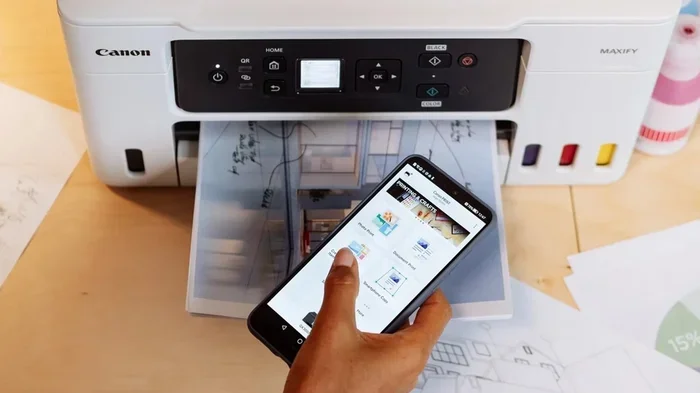
Screen mirroring apps duplicate your phone screen onto another display. Popular free options include Screen Mirroring by Castto, LetsView, and ApowerMirror. These apps work over Wi-Fi and support both Android and iOS devices in most cases.
For work settings, look for apps that support high-resolution output and low latency. A laggy display can make presentations awkward. Testing your chosen app before an important meeting is always a smart move.
Dedicated Projection Apps
Some apps go beyond basic mirroring. Apps like Epson iProjection, ScreenShare Pro, and Airtame offer features designed for business use. You can share specific files, control the display remotely, and even collaborate in real time.
These apps often require a compatible projector or smart display on the receiving end. They work best in offices that already have some wireless projection infrastructure in place.
Hardware You Need for Phone Projection
You do not need much hardware to get started. But having the right gear improves your results dramatically. Let us look at what you actually need.
Adapters and Cables
The most common adapter is a simple USB-C to HDMI cable. If you have an older iPhone, you will need a Lightning to HDMI adapter. These cables cost between $10 and $30 and work with most modern TVs and monitors.
For a more permanent setup, consider getting a high-quality cable from a trusted brand. Cheap cables sometimes cause signal drops or low-resolution output. A reliable HDMI adapter ensures a clean, steady connection every time.
Receiving Devices
You need something to receive the signal from your phone. A smart TV with built-in casting support works great. So does a dedicated wireless display or a portable monitor with HDMI input.
Some people use a portable projector as the receiving device. Compact LED projectors are affordable now and connect easily via HDMI. This setup turns any blank wall into a big screen without needing a computer.
Mounting and Setup Tips
Where you place your phone matters. A phone mount or tripod keeps your device steady and at the right angle. Without a mount, you risk your phone sliding or the projection looking crooked.
Quick tip: always test your setup in the actual room before your presentation. Lighting, wall color, and screen distance all affect how your projected image looks. A quick five-minute test saves a lot of embarrassment later.
Can Your Phone Really Be A Projector For Work?
This is the big question, and the honest answer is: it depends on what you need. For quick reviews, casual sharing, and small team meetings, your phone works surprisingly well. For large conference rooms or high-stakes client presentations, a dedicated projector still has the edge.
When Phone Projection Works Great
Phone projection shines in situations where portability matters. If you travel often and need to present on the go, your phone eliminates the need for extra equipment. You also save money since you do not need to buy or rent a separate projector.
Small team huddles, brainstorming sessions, and informal reviews are perfect use cases. The image quality is good enough for these settings, and the setup time is minimal. You pull out your phone, connect, and share within seconds.
When You Should Stick With a Real Projector
Large rooms with lots of ambient light are tough for phone-based projection. Even with a good LED projector, the brightness from a phone screen cannot match a dedicated unit. If your audience sits more than 15 feet away, a phone projection may look dim or blurry.
High-stakes presentations also benefit from a dedicated setup. You want zero lag, maximum brightness, and a large clear image. In these situations, a proper projector gives you confidence and a more professional impression.
Limitations and Challenges of Phone Projection
It is important to understand the downsides before you rely on your phone for projection. Every technology has limits, and knowing them helps you plan better.
Brightness and Visibility
Phone screens are designed for close-up viewing, not projecting onto a wall. Even the brightest phones struggle in well-lit rooms. The projected image often looks washed out compared to a dedicated mini projector or a standard office projector.
To improve brightness, dim the room lights if possible. Use a white or light-colored wall for projection. These simple steps can make a noticeable difference in image quality.
Battery Drain
Projecting your phone screen uses a lot of power. Your battery will drain much faster than normal, especially during long presentations. A drained phone in the middle of a meeting is the last thing you want.
Pro tip: keep your phone plugged in during projection. Use a portable battery pack if you cannot access a wall outlet. Some phones also have a low-power projection mode that reduces battery usage without sacrificing too much quality.
Connection Stability
Wireless projection can suffer from lag, drops, and interference. Other devices on the same network, walls, and distance all affect connection quality. Wired connections are more stable but less convenient.
If you rely on wireless projection, make sure your Wi-Fi network is strong in the presentation area. A mesh network or a dedicated hotspot can help maintain a steady connection.
Expert Tips for Better Phone Projection
Getting the most out of your phone as a projector takes a little know-how. These expert tips help you avoid common pitfalls and improve your setup significantly.
Optimize Your Phone Settings
Turn off auto-brightness before projecting. Your phone may dim the screen automatically, making the projection harder to see. Also, disable notifications during your presentation to avoid interruptions.
Use dark mode if your app supports it. Dark backgrounds reduce eye strain for your audience and can improve perceived contrast on the projected image.
Use the Right Resolution
Most phones output at 1080p or higher, which is more than enough for most projection needs. Make sure your receiving display supports the same resolution to avoid scaling issues.
If you notice blurry text, check the aspect ratio settings on both your phone and the display. Mismatched ratios cause black bars or stretched images that look unprofessional.
Prepare a Backup Plan
Technology can fail at the worst possible moment. Always have a backup plan ready. Save your presentation file on a USB drive or cloud storage that you can access from another device.
A quick mobile productivity habit is to email yourself a PDF copy of your slides. This way, you can pull them up on any device if your primary setup fails.
Common Mistakes People Make with Phone Projection
Avoiding these mistakes saves time and frustration. Many people run into the same issues because they skip basic preparation steps.
Mistake 1: Skipping the test run. Never set up your projection for the first time during an actual meeting. Always test beforehand in the same room with the same equipment.
Mistake 2: Ignoring audio settings. Phone projection sometimes routes audio through the wrong speaker. Check your audio output settings before you start presenting to avoid dead silence.
Mistake 3: Using a cracked or scratched screen. A damaged phone screen affects projection quality. The scratches and cracks show up on the big screen and look distracting.
Mistake 4: Overloading your phone. Close unnecessary apps before projecting. Running too many background processes can cause lag and overheating during your presentation.
Mistake 5: Forgetting about cable length. If you use a wired setup, make sure your cable is long enough to reach the display. A too-short cable forces you to place your phone awkwardly.
Is Phone Projection the Future of Work?
The trend toward mobile productivity and wireless projection is only growing stronger. Companies are investing in tools that let employees share content from any device, anywhere. The days of needing a laptop and a separate projector for every presentation are fading.
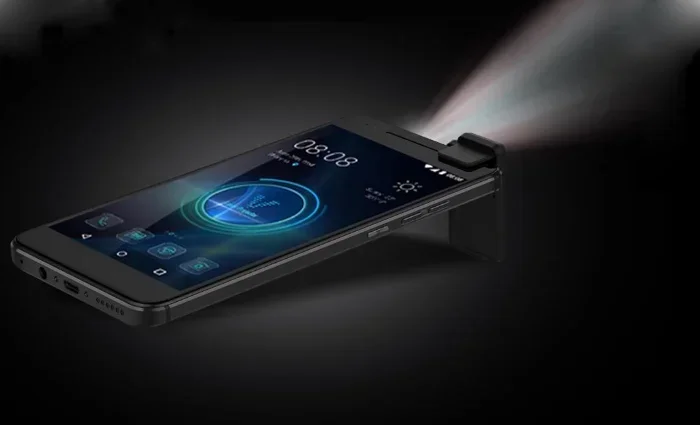
New technologies like beamforming and improved display mirroring protocols are making phone projection faster and more reliable. Some newer phones even have built-in projection capabilities through laser projectors embedded in the device itself.
While phone projection may not replace dedicated projectors entirely, it is becoming a powerful complement. For many professionals, the ability to present directly from their phone is a game-changer. It saves time, reduces clutter, and keeps you ready to share at a moment’s notice.
Final Thoughts
So, can your phone really be a projector for work today? The answer is a clear yes. With the right apps, adapters, and a little preparation, your phone becomes a capable presentation tool that fits in your pocket. It is not perfect for every situation, but for most everyday work needs, it delivers more than enough.
The key is understanding your setup, knowing the limitations, and planning ahead. Test your equipment before important meetings, keep your cables organized, and always have a backup plan. As projection technology continues to improve, phone-based projection will only get better.
Start experimenting with your phone’s projection capabilities today. You might be surprised at how useful and convenient it really is. A little practice goes a long way, and soon you will wonder how you ever managed without it.
Frequently Asked Questions
Can I use any phone as a projector?
Most modern smartphones can project their screens to a display or wall. Both Android and iPhone support wireless mirroring and wired adapters. The key is having the right app or adapter for your specific phone model.
Do I need a special app to project from my phone?
Not always. Many smart TVs and displays support built-in casting protocols like AirPlay and Chromecast. However, dedicated apps like LetsView or ApowerMirror give you more control and work with a wider range of devices.
Is phone projection good enough for professional presentations?
For small to medium meetings, yes. Phone projection works well when the room is not too large and lighting is controlled. For big conference rooms or bright environments, a dedicated projector still performs better.
How much does phone projection hardware cost?
Basic adapters cost between $10 and $30. Wireless casting dongles like Chromecast run around $30 to $50. Portable projectors that connect to phones start at around $50 and go up from there.
Does projecting from my phone drain the battery quickly?
Yes, screen projection uses significantly more battery than normal phone use. Keep your phone plugged in during presentations and consider using a portable battery pack for longer sessions.
Can I project without Wi-Fi?
Yes. Wired connections using HDMI adapters work without any Wi-Fi. Some wireless methods like Wi-Fi Direct also work without a router, though setup varies by device.