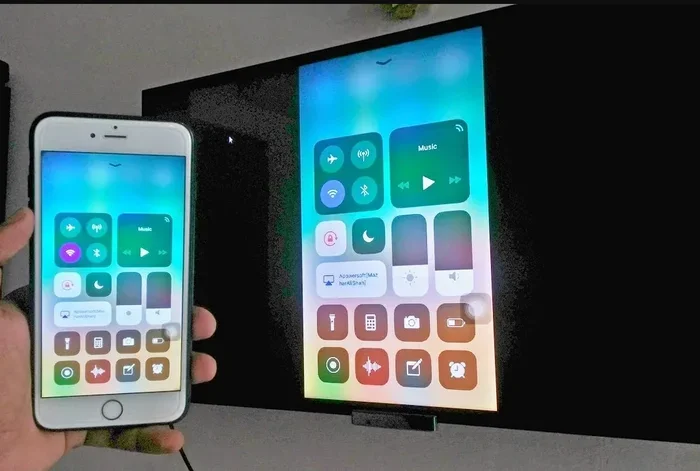
Can You Mirror Iphone Screens Here Is Everything You Need
Yes, you can mirror iPhone screens to TVs, Macs, PCs, and even projectors using built-in tools like AirPlay or third-party apps. Whether you want wireless screen mirroring or a reliable cable connection, there are multiple ways to cast your iPhone display to a bigger screen. This guide covers every method, app, and tip you need to get started.
Have you ever wanted to show something on your iPhone to a bigger crowd? Maybe you want to share photos on the living room TV, give a presentation at work, or just watch videos on a larger display. Whatever the reason, mirroring your iPhone screen is easier than you think.
The good news is that Apple and many other companies have made screen mirroring iPhone simple and accessible. You do not need to be a tech expert to get it working. In this guide, we will walk you through every method, every app, and every tip you need to know. Let us dive in.
Key Takeaways
- AirPlay is the easiest way to mirror your iPhone screen wirelessly to compatible TVs and devices.
- You can mirror iPhone to Mac or PC using built-in features or free mirroring software.
- Wired mirroring with an HDMI adapter offers a stable, lag-free connection for presentations.
- Third-party apps like Replica and LonelyScreen add extra features for screen casting.
- Common issues like lag or black screens can usually be fixed with simple troubleshooting steps.
- iPhone screen mirroring works on Samsung TVs and other non-Apple smart TVs with the right setup.
- Keeping your software updated ensures the smoothest mirroring experience.
📑 Table of Contents
- What Is iPhone Screen Mirroring and How Does It Work
- How to Mirror iPhone Screen to TV Wirelessly
- How to Mirror iPhone Screen to Mac or PC
- Best Apps for Screen Mirroring iPhone
- Wired vs Wireless Screen Mirroring: Which Is Better
- Common Problems and How to Fix Them
- Tips for the Best Mirroring Experience
- Can You Mirror iPhone Screens to Projectors
- Is Screen Mirroring the Same as Screen Casting
- Security Considerations When Mirroring
- Conclusion
What Is iPhone Screen Mirroring and How Does It Work
Screen mirroring means displaying everything on your iPhone screen onto another device in real time. When you mirror your screen, every tap, swipe, and notification appears on the second display. It is like looking at a reflection of your phone on a bigger surface.
The technology behind this is straightforward. Your iPhone sends a video and audio signal to a receiving device. This can happen through Wi-Fi using wireless screen mirroring protocols or through a physical cable. The receiving device then displays the signal as if it were your phone screen.
How AirPlay Makes Mirroring Easy
Apple built a feature called AirPlay into iOS devices. AirPlay lets you cast your iPhone display to Apple TV, supported smart TVs, and Mac computers. It works over Wi-Fi, so you do not need any extra cables. Just make sure both devices are on the same network, and you are good to go.
AirPlay supports both video and audio. You can mirror your entire screen or mirror specific content like a video playing in Safari. This flexibility is one reason AirPlay screen mirroring is so popular among iPhone users.
How to Mirror iPhone Screen to TV Wirelessly
Wireless mirroring to a TV is the most common use case. Most modern smart TVs support AirPlay or have built-in screen mirroring features. Here is how to do it step by step.
Method 1: Using AirPlay with Apple TV
If you own an Apple TV, mirroring is built right in. Open your iPhone and follow these steps:
- Make sure your iPhone and Apple TV are on the same Wi-Fi network.
- Open the Control Center by swiping down from the top-right corner of your screen.
- Tap the Screen Mirroring icon, which looks like two rectangles stacked.
- Select your Apple TV from the list.
- Enter the code if prompted, and your iPhone screen will appear on the TV.
That is it. You are now casting your iPhone screen to your TV. To stop, open Control Center again and tap Stop Mirroring.
Method 2: Mirroring to a Samsung Smart TV or Other Brands
You do not need an Apple TV to mirror your iPhone. Many Samsung TVs, LG TVs, and other smart TVs support AirPlay 2. Check your TV settings for an AirPlay option. If your TV supports it, you can mirror directly without any extra hardware.
For TVs that do not support AirPlay natively, you can use a device like Roku or a Chromecast with a compatible app. Some TVs also have a built-in screen mirroring feature that works with iPhones through a protocol called Miracast.
Quick Tips for Wireless TV Mirroring
- Keep your iPhone and TV close to the router for a strong Wi-Fi signal.
- Avoid mirroring in areas with heavy network congestion.
- Use a 5 GHz Wi-Fi band for better performance.
- Restart both devices if you experience lag or delays.
How to Mirror iPhone Screen to Mac or PC
Sometimes you need to mirror your iPhone screen to a computer. Maybe you want to record your screen, give a presentation, or just see your phone on a larger display. There are several ways to do this on both Mac and PC.
Mirroring iPhone to Mac
If you have a Mac, the process is simple thanks to AirPlay support. Make sure your Mac and iPhone are on the same Wi-Fi network. Open Control Center on your iPhone, tap Screen Mirroring, and select your Mac from the list. Your iPhone display will appear in a window on your Mac desktop.
You can also use QuickTime Player for a wired connection. Connect your iPhone to your Mac with a Lightning or USB-C cable, open QuickTime, choose File > New Movie Recording, and select your iPhone as the camera source. This method gives you a very stable iPhone screen reflection with no lag.
Mirroring iPhone to Windows PC
Windows PCs do not natively support AirPlay, but there are great options available. You can use free software like LonelyScreen or AirServer to receive an AirPlay signal from your iPhone. Install the software on your PC, make sure both devices are on the same network, and select the PC as a mirroring target from your iPhone.
Another popular option is iMazing, which lets you view and control your iPhone screen on a Windows computer. It works well for troubleshooting and presentations.
Using iPhone Screen Mirroring Apps for PC
Several apps make iPhone to PC screen mirroring easy. Some popular choices include:
- LonelyScreen – Free AirPlay receiver for Windows
- AirServer – Supports AirPlay and Miracast
- ApowerMirror – Offers both wireless and USB mirroring
- Reflector – Professional-grade screen mirroring software
Each of these tools has its strengths. AirServer and Reflector are great for business use because they support multiple connections. LonelyScreen is a solid free option for casual users. ApowerMirror gives you the most flexibility with both wireless and wired options.
Best Apps for Screen Mirroring iPhone
While Apple provides built-in tools, third-party apps can unlock more features. If you need to mirror your iPhone screen to a device that does not support AirPlay, these apps come in handy.
Top Free and Paid Mirroring Apps
| App Name | Platform | Price | Best For |
|---|---|---|---|
| Replica | iOS | Free with ads | Simple wireless mirroring to any device |
| LonelyScreen | Windows/Mac | Free trial | AirPlay receiver on PC |
| ApowerMirror | Windows/Mac/Android | Free/Paid | Full control and recording |
| Reflector | Windows/Mac | Paid | Classroom and business presentations |
| LetsView | Windows/Mac/Android | Free | Easy setup and no account needed |
Replica is one of the most straightforward apps for iPhone users. It lets you cast your iPhone display to any device on the same network with just a few taps. LetsView is another excellent free option that works across platforms and does not require you to create an account.
Which App Should You Choose?
If you want something quick and free, start with LetsView or Replica. If you need professional features like recording and annotation, go with ApowerMirror or Reflector. For receiving AirPlay signals on your computer, LonelyScreen is a reliable choice.
Wired vs Wireless Screen Mirroring: Which Is Better
Both wired and wireless mirroring have their place. The best choice depends on what you need. Let us compare them side by side.
Wired Mirroring with HDMI Adapter
Wired mirroring uses a physical cable to connect your iPhone to a display. You need either a Lightning to HDMI adapter or a USB-C to HDMI adapter depending on your iPhone model. Plug one end into your iPhone and the other into the TV or monitor, and your screen appears immediately.
The biggest advantage of wired mirroring is stability. You get zero lag, perfect audio sync, and no dependence on Wi-Fi. This makes it ideal for presentations, gaming, and situations where reliability matters most.
Wireless Mirroring with AirPlay or Apps
Wireless screen mirroring is more convenient because you do not need any cables. You can mirror from across the room, which is great for casual use and group viewing. The trade-off is that wireless mirroring can experience lag, especially on crowded networks.
For most everyday uses like sharing photos or watching videos, wireless mirroring works great. For critical presentations or low-latency needs, a wired connection is the safer bet.
Quick Comparison Table
| Feature | Wired Mirroring | Wireless Mirroring |
|---|---|---|
| Setup | Plug in cable | Connect via Wi-Fi |
| Lag | None | Slight delay possible |
| Mobility | Limited by cable length | Free movement |
| Reliability | Very high | Depends on network |
| Best For | Presentations, gaming | Casual sharing, streaming |
Common Problems and How to Fix Them
Screen mirroring is not always perfect. Here are some common issues and simple fixes to get things working smoothly.
Mirroring Keeps Disconnecting
If your iPhone screen reflection keeps dropping, the first thing to check is your Wi-Fi connection. Both devices need a strong and stable signal. Try moving closer to your router or switching to a less crowded Wi-Fi channel. Restarting your router can also help.
No Sound During Mirroring
Sometimes the video plays but there is no audio. Check that your TV or display volume is not muted. Also, make sure the audio output is set correctly on your iPhone. Open Control Center and tap the audio icon to select the correct output device.
Lag or Delay in the Mirror
Lag is the most common complaint with wireless mirroring. To reduce lag, close background apps on your iPhone, disconnect other devices from the network, and use a 5 GHz Wi-Fi band if available. If lag persists, try a wired connection instead.
Black Screen When Mirroring
A black screen usually means the connection was not established properly. Make sure screen mirroring is enabled on both devices. Restart both your iPhone and the receiving device. If you are using a cable, try a different adapter or cable.
Tips for the Best Mirroring Experience
Want your iPhone display cast to look its best? Follow these simple tips to get the smoothest experience every time.
Keep your software updated. Apple regularly improves AirPlay and iOS screen mirroring performance. Always install the latest updates on both your iPhone and the receiving device.
Use a dedicated Wi-Fi network. If possible, create a separate network for screen mirroring. This reduces interference from other devices and gives you a more stable connection.
Turn off notifications during mirroring. Incoming calls and notifications can interrupt your mirrored content. Use Do Not Disturb mode while presenting or streaming.
Close unused apps. The fewer apps running in the background, the more processing power your iPhone can dedicate to mirroring. This results in smoother video and less lag.
Use the right cable for wired setups. Not all HDMI adapters are created equal. Buy adapters from reputable brands to avoid compatibility issues and connection drops.
Restart devices before important sessions. A quick restart clears temporary glitches and refreshes network connections. This simple step can solve many mirroring problems before they start.
Can You Mirror iPhone Screens to Projectors
Yes, you can mirror your iPhone screen to a projector. The method depends on the type of projector you have. If your projector has HDMI input, use a Lightning to HDMI adapter or USB-C to HDMI adapter to connect directly. For wireless projectors that support AirPlay, you can mirror without any cables at all.
Some projectors work with Miracast or Chromecast dongles plugged into the HDMI port. These small devices turn any projector into a smart display that can receive wireless signals from your iPhone.
Is Screen Mirroring the Same as Screen Casting
These terms are often used interchangeably, but there is a subtle difference. Screen mirroring shows an exact copy of your iPhone screen in real time. Screen casting can refer to sending specific content, like a video from an app, to another device without mirroring the entire screen. AirPlay supports both mirroring and casting, depending on what you choose to do.
Security Considerations When Mirroring
When you mirror your iPhone screen, everything becomes visible on the external display. This includes notifications, messages, and personal apps. Be mindful of what is on your screen when presenting to others, especially in public spaces. You can hide notifications temporarily by enabling Do Not Disturb mode before starting a mirror session.
Conclusion
Can you mirror iPhone screens? Absolutely. Whether you want to share your display on a TV, Mac, PC, or projector, there is a method that works for you. Wireless mirroring through AirPlay offers convenience and simplicity, while wired connections provide reliability and zero lag. Third-party apps fill in the gaps for devices that do not natively support AirPlay.
The key is choosing the right method for your situation. For casual use and quick sharing, wireless mirroring is the way to go. For professional presentations and gaming, a wired setup gives you the stability you need. With the tips and tools in this guide, you will be mirroring your iPhone screen like a pro in no time. Try it out and see how easy it really is.
Frequently Asked Questions
Can I mirror my iPhone screen to a Samsung TV?
Yes, you can. Many Samsung Smart TVs support AirPlay 2. Simply open Control Center on your iPhone, tap Screen Mirroring, and select your Samsung TV from the list. Both devices need to be on the same Wi-Fi network for this to work.
Do I need an Apple TV to mirror my iPhone screen?
No, you do not. While Apple TV works perfectly with AirPlay, you can also mirror to smart TVs that support AirPlay 2, use an HDMI adapter for wired connections, or use third-party apps for wireless mirroring to almost any display.
Why is my iPhone screen mirroring lagging?
Lag usually happens because of a weak Wi-Fi signal or network congestion. Try moving closer to your router, switching to a 5 GHz band, or closing background apps. If lag persists, a wired HDMI connection will eliminate it completely.
Can I mirror my iPhone screen to a Windows PC for free?
Yes. Apps like LonelyScreen and LetsView let you receive AirPlay signals on a Windows PC for free. You just need to install the software, connect both devices to the same Wi-Fi network, and select your PC as the mirroring target.
Is screen mirroring the same as screen recording?
No, they are different. Screen mirroring sends your display to another device in real time. Screen recording saves a video file of your screen on your iPhone. You can do both at the same time if you want, but they serve different purposes.
Does mirroring my iPhone screen drain the battery?
Yes, mirroring uses extra processing power and can drain your battery faster. To conserve battery, keep your mirroring sessions as short as needed, lower your screen brightness, and close unused apps while mirroring.