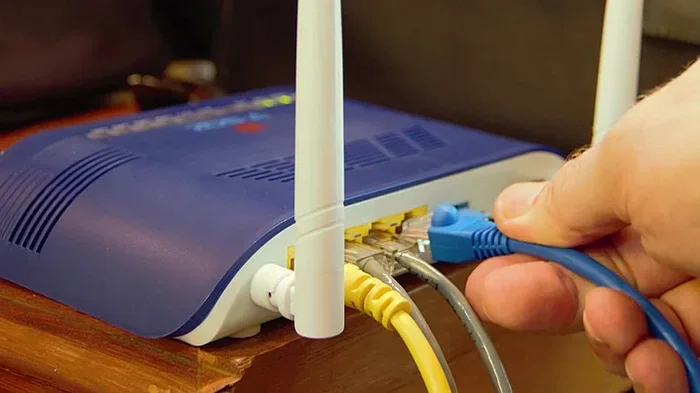
Can I Extend Wifi With Ethernet Cable And Boost Signal
Yes, you can extend wifi with an ethernet cable and boost your signal significantly. Running a cable from your router to a second access point or repeater creates a strong, stable connection in areas where wireless signals fade. This guide covers everything you need to know about extending your network with ethernet, including setup steps, benefits, and common mistakes to avoid.
Have you ever walked into a room and found your wifi signal completely dropped? You are not alone. Many homes and offices struggle with weak wireless coverage in certain areas. The good news is that you can fix this problem without spending a fortune on fancy equipment.
One of the most reliable ways to solve coverage issues is to extend wifi with an ethernet cable. This method uses a physical cable to connect your main router to a second device that broadcasts the signal further. The result is a stronger, faster, and more dependable connection in every corner of your space.
In this article, we will walk you through everything you need to know. We will cover how it works, what equipment you need, step-by-step setup instructions, and tips to get the best results. Whether you are dealing with a dead zone in the basement or a slow connection in the backyard, this guide has you covered.
Key Takeaways
- Ethernet extension works reliably: A wired backhaul connection delivers faster and more stable internet than wireless-only setups.
- You need the right equipment: An ethernet cable, a second router or access point, and basic tools are all you need.
- Signal boost is noticeable: Dead zones and weak coverage areas see major improvement when you extend via ethernet.
- Setup is straightforward: Most people can complete the process in under an hour without professional help.
- Avoid common pitfalls: Using cheap cables, poor router placement, or incorrect settings can limit your results.
- Consider alternatives too: Powerline adapters and mesh systems offer other ways to extend coverage if running cable is not practical.
📑 Table of Contents
- What Does It Mean to Extend Wifi With an Ethernet Cable?
- What You Need to Extend Your Wifi Network
- Step-by-Step Guide to Extending Wifi With Ethernet
- Benefits of Extending Wifi With an Ethernet Cable
- Common Mistakes to Avoid
- When to Consider Alternatives
- Expert Tips for Maximum Signal Boost
- Final Thoughts
What Does It Mean to Extend Wifi With an Ethernet Cable?
When we talk about extending wifi with an ethernet cable, we mean using a physical wire to carry your internet signal from one point to another. Instead of relying only on wireless waves to reach every room, you use a cable to bridge the gap.
Think of it like this. Your router sends out a wifi signal, kind of like a voice shouting across a room. The further someone is from you, the harder it is to hear. Now imagine handing that person a walkie-talkie connected by a long wire. That is essentially what an ethernet extension does for your network signal.
How the Connection Works
Here is the basic idea. You run an ethernet cable from your main router to a second device. That second device can be another router set up in access point mode, a wifi extender, or even a dedicated access point. The cable carries the internet signal to the second device, which then broadcasts a fresh wireless network in the area.
This approach is called wired backhaul. It is different from a standard wifi extender, which connects to your main router wirelessly and then rebroadcasts the signal. Wired backhaul is almost always faster and more stable because the cable handles the heavy lifting.
Why Wired Backhaul Beats Wireless Repeaters
Most people do not realize that wireless repeaters cut your speed in half. A repeater receives your wifi signal and then retransmits it. This double-processing creates lag and reduces throughput. With an ethernet cable, the signal travels directly to the second device without any loss from wireless interference.
Here are some key differences:
- Speed: Ethernet backhaul maintains full speed. Wireless repeaters lose up to 50%.
- Stability: A cable connection does not suffer from walls, microwaves, or other interference.
- Latency: Wired connections have lower ping, which matters for gaming and video calls.
- Reliability: Cables do not drop out when you walk through a room.
What You Need to Extend Your Wifi Network
Before you start, you need a few things. The good news is that none of this equipment is expensive, and most people already own some of it. Here is your shopping list.
1. An Ethernet Cable
This is the most important piece. You want a Cat5e or Cat6 ethernet cable. Cat5e supports speeds up to 1 gigabit per second, and Cat6 handles even more. For most home setups, Cat5e is more than enough. Buy a length that reaches from your router to the far end of your home. You can always use a cable clip to manage excess length.
2. A Second Router or Access Point
You need a second device to rebroadcast the signal. You have a few options here:
- Old router: If you have a spare router lying around, you can repurpose it as an access point.
- New access point: Devices like the TP-Link EAP series are built specifically for this purpose.
- Mesh system node: Some mesh wifi systems allow wired backhaul through an ethernet port.
3. Basic Tools
You do not need much. A cable staple or clip to run the cable along a baseboard works fine. If you need to go through a wall, you might want a simple drill and a wall plate. But for most setups, you can run the cable along a baseboard or under a door without any drilling at all.
Step-by-Step Guide to Extending Wifi With Ethernet
Setting up your extended network is easier than you might think. Follow these steps, and you will have a stronger signal in no time.
Step 1: Plan Your Cable Route
First, decide where you want the second device to sit. Pick the spot that covers the area with the weakest wifi signal. Then plan the route from your main router to that spot. Keep the cable run as short as possible for the best performance.
Step 2: Connect the Cable to Your Main Router
Plug one end of the ethernet cable into any LAN port on your main router. Do not use the WAN port. The LAN ports are usually numbered and sit at the back of the router.
Step 3: Set Up the Second Device
Plug the other end of the cable into the second router or access point. If you are using a second router, you need to configure it properly. Log into its settings and set it to access point mode. This turns it into a signal broadcaster rather than a second router.
Make sure the second device uses a different channel from your main router to avoid interference. Or better yet, set both devices to the same SSID and password so your devices switch seamlessly between them.
Step 4: Test Your Connection
Once everything is connected, test the network in the extended area. Use a speed test tool to check your internet speed and signal strength. Walk around and see if the coverage has improved. You should notice a big difference compared to the wireless-only setup.
Benefits of Extending Wifi With an Ethernet Cable
There are many reasons to choose this method over other options. Here are the biggest benefits.
Faster Speeds
Because the cable carries the full-speed signal, you get the best possible network performance. No speed drops from wireless interference or distance. If you pay for 200 Mbps from your internet provider, you can expect close to 200 Mbps at the extended point too.
Stable and Reliable
Wireless signals bounce around, get blocked by walls, and suffer from interference from other devices. An ethernet cable gives you a clean, direct path for your data. Your connection stays strong even when your neighbor starts a microwave or when someone downloads a large file.
Better for Streaming and Gaming
If you stream movies or play online games in the extended area, wired backhaul makes a huge difference. Lower latency and consistent bandwidth mean fewer buffering moments and smoother gameplay. This is one of the best ways to boost signal for entertainment.
Simple and Affordable
You do not need to hire a technician. The setup takes less than an hour, and the total cost is usually under fifty dollars. A quality ethernet cable costs around ten to fifteen dollars, and a used router can often be found for free or very cheap.
Common Mistakes to Avoid
Even though this setup is simple, people make mistakes that limit their results. Here are the most common ones to watch out for.
Using the Wrong Cable
Not all cables are created equal. An old Cat3 cable will not support modern speeds. Always use at least a Cat5e cable, and go with Cat6 if you want future-proofing. A cheap, damaged cable can ruin your entire setup.
Forgetting to Set the Second Device to Access Point Mode
If you plug a second router into your network without changing its settings, you can create a double NAT situation. This causes all sorts of problems, from devices not connecting to slow speeds. Always set the second router to access point mode before connecting the cable.
Placing the Second Device in a Bad Spot
The second device should sit in the area that needs coverage. Do not hide it in a closet or behind a heavy piece of furniture. Placement matters just as much as the cable itself. Elevate the device and keep it away from metal objects and thick walls.
Using Too Long a Cable Run
Ethernet cables work best up to 100 meters (about 328 feet). Beyond that, signal degradation can occur. If you need to cover a longer distance, consider a powerline adapter or a fiber patch cable instead.
When to Consider Alternatives
Extending wifi with an ethernet cable is fantastic, but it is not the only option. Sometimes, running a cable is simply not practical. Here are a few alternatives worth considering.
Powerline Adapters
Powerline adapters use your home’s existing electrical wiring to carry the network signal. You plug one adapter near your router and another in the room that needs coverage. It is not as fast as a direct ethernet connection, but it is much easier to set up. This is a great option for renters or people who cannot run cables through walls.
Mesh Wifi Systems
A mesh system uses multiple nodes placed around your home to create a seamless wireless network. Some mesh systems support wired backhaul, which means you can connect nodes with ethernet cables for the best performance. Mesh systems are more expensive but offer a clean, no-cable solution for many homes.
MoCA Adapters
If your home already has coaxial cable wiring (the kind used for cable TV), MoCA adapters can turn that wiring into a high-speed network connection. This is a hidden gem for homes with existing coax lines and no easy path for ethernet cables.
Expert Tips for Maximum Signal Boost
Want to get the most out of your setup? Here are some expert-level tips that make a real difference.
- Use a cable tester: After running your cable, test it to make sure all pairs are connected properly.
- Label your cables: If you have multiple cables, label them at both ends to avoid confusion later.
- Update your router firmware: Always run the latest firmware on both devices for the best performance and security.
- Choose the right wifi band: Set the second device to broadcast on both 2.4 GHz and 5 GHz bands. The 2.4 GHz band reaches further, while 5 GHz offers faster speeds.
- Secure your network: Use WPA3 encryption if your devices support it. A strong password keeps unauthorized users off your network.
These small steps add up to a much better experience. Taking the extra few minutes to optimize your setup pays off in the long run.
Final Thoughts
The answer to the question “can I extend wifi with an ethernet cable” is a clear and resounding yes. It is one of the most effective, affordable, and reliable ways to boost your wifi signal and eliminate dead zones in your home or office. Whether you use a spare router, a dedicated access point, or a mesh node, the wired backhaul approach delivers results that wireless repeaters simply cannot match.
With the right equipment, a simple cable run, and a little patience, you can transform your home network from frustrating to fantastic. Your streaming, gaming, and browsing will all improve dramatically. Give it a try, and you will wonder why you did not set it up sooner.
Start with the steps outlined in this guide. Test your coverage, tweak your placement, and enjoy the difference that a simple ethernet cable can make. Your network coverage and signal strength will thank you.
Frequently Asked Questions
Can I use any ethernet cable to extend my wifi?
You should use at least a Cat5e cable for best results. Cat5e supports speeds up to 1 gigabit per second, which is more than enough for most home networks. Avoid using very old cables like Cat3, as they will limit your speed and connection quality.
Do I need to buy a new router to extend my wifi with ethernet?
Not necessarily. You can repurpose an old router you already have by setting it to access point mode. If you do not have a spare router, you can buy a cheap one or a dedicated access point for under thirty dollars.
Will extending wifi with ethernet slow down my internet speed?
No, it will not slow things down. In fact, it usually improves speed in the extended area because the cable provides a direct, stable connection. Wireless repeaters, on the other hand, can cut your speed in half.
How long can my ethernet cable be for this setup?
Ethernet cables work reliably up to 100 meters (about 328 feet). For most home setups, a cable between 10 and 50 feet is more than enough. If you need to go longer, consider using a switch or a different approach like powerline adapters.
Is it hard to set up a second router as an access point?
Not at all. The process takes about 15 to 20 minutes. You simply plug in the cable, log into the router settings, and switch it to access point mode. Most routers have a clear option for this in their admin panel.
Can I combine an ethernet extension with a mesh wifi system?
Yes, absolutely. Many modern mesh systems support wired backhaul through an ethernet port on each node. Connecting your mesh nodes with ethernet cables gives you the best of both worlds: seamless coverage and maximum speed.