Can You Use A Dell Docking Station With Any Laptop
Can you use a Dell docking station with any laptop? The short answer is yes, but with some important caveats. Dell docking stations work best with laptops that support USB-C, Thunderbolt, or DisplayPort. While you can connect most laptops to a Dell dock, full functionality depends on your laptop’s ports, drivers, and operating system. This guide covers everything you need to know about Dell docking station compatibility, setup, and troubleshooting.
Key Takeaways
- Broad Compatibility: Most Dell docking stations work with laptops that have USB-C or Thunderbolt ports, regardless of brand.
- Full Features Require Thunderbolt: For the best experience, pair your Dell dock with a Thunderbolt-enabled laptop.
- Drivers Matter: Installing the correct Dell docking station drivers ensures all ports work properly.
- Not All Docks Are Equal: Different Dell dock models offer different features and levels of compatibility.
- Setup Is Simple: Connecting a Dell dock to a laptop takes just a few minutes with the right cable.
- Troubleshooting Exists: Most common Dell docking station issues have easy fixes.
📑 Table of Contents
- What Is a Dell Docking Station and How Does It Work?
- Can You Use A Dell Docking Station With Any Laptop
- How to Set Up Your Dell Docking Station with Any Laptop
- Dell Docking Station Models Compared
- Common Problems and How to Fix Them
- Expert Insights on Dell Docking Station Compatibility
- Key Takeaways
- Conclusion
What Is a Dell Docking Station and How Does It Work?
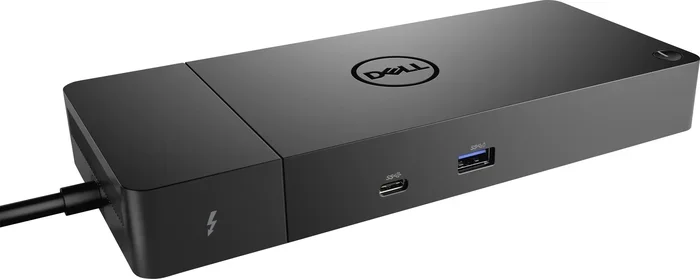
A Dell docking station is a hub that connects your laptop to multiple peripherals at once. Think of it as a central station for your workspace. You plug one cable into your laptop, and suddenly you have access to monitors, keyboards, mice, printers, and more.
These docks come in different shapes and sizes. Some are compact hubs. Others are full-sized stations with multiple display outputs and power delivery. The most popular Dell models include the Dell WD19, Dell WD22, and Dell WD15. Each one offers different features and levels of performance.
Dell docking stations use USB-C or Thunderbolt connections. This means they rely on a single cable to transmit data, video, and power. It is a clean, simple setup that reduces cable clutter on your desk. Many professionals love this because it makes switching between docked and undocked modes effortless.
The way a Dell dock works is straightforward. You connect the dock to your laptop using a USB-C or Thunderbolt cable. The dock then communicates with your laptop through that single connection. It routes video signals to your monitors, data to your peripherals, and power to charge your laptop. All of this happens through one cable.
However, not all Dell docks are created equal. Some support dual or triple monitors. Others only support one. Some deliver up to 100 watts of power. Others deliver less. This is why understanding Dell docking station compatibility is so important before you buy.
How Dell Docking Stations Connect to Laptops
Dell docking stations use a few different connection types. The most common is USB-C. This is a small, reversible connector found on most modern laptops. USB-C docks are easy to use and widely compatible.
Thunderbolt docking stations are another option. Thunderbolt 3 and Thunderbolt 4 ports offer faster data transfer and better video performance. If your laptop has a Thunderbolt port, you can use a Thunderbolt Dell dock for the full experience. Thunderbolt docks support more displays and faster peripherals.
Some older Dell docks use DisplayPort or USB-A connections. These are less common now but still work with certain setups. The key is matching your laptop’s ports with the right dock type.
Can You Use A Dell Docking Station With Any Laptop
The big question is: can you use a Dell docking station with any laptop? The answer is mostly yes, but there are conditions. Dell docking stations are designed to be versatile. They work with laptops from Dell, HP, Lenovo, Apple, Asus, and many other brands.
However, full compatibility depends on a few factors. Your laptop needs to have the right ports. It needs to support the right protocols. And it needs the correct drivers installed. Let us break this down further.
USB-C and Thunderbolt Requirements
Most modern Dell docking stations require a USB-C or Thunderbolt port on your laptop. If your laptop has a USB-C port, you can likely connect a Dell dock to it. But the experience may vary depending on what your USB-C port supports.
USB-C ports are not all the same. Some USB-C ports only support data transfer. Others support video output. Some support power delivery. A Thunderbolt port supports all of these at the highest level. So if you want the best Dell docking station experience, a Thunderbolt port is ideal.
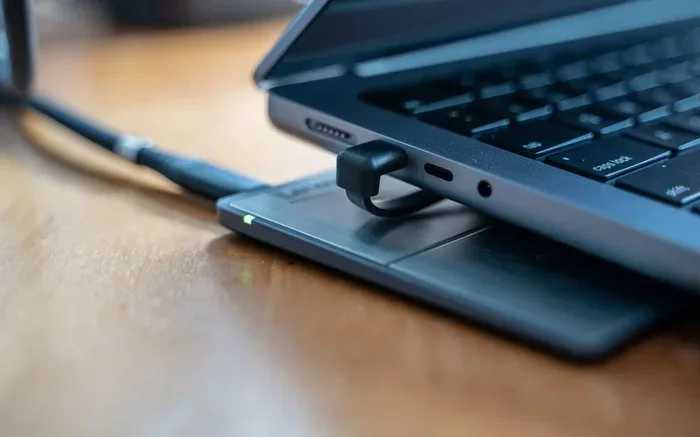
Here is a simple way to check. Look at the symbol next to your USB-C port. A lightning bolt means it is Thunderbolt. A D symbol means it supports DisplayPort. A battery symbol means it supports power delivery. If your laptop has a plain USB-C port without these symbols, it may still work with a Dell dock, but with limited features.
Brand Compatibility
Dell docking stations are not limited to Dell laptops. You can connect a Dell dock to a Lenovo laptop, an HP laptop, a MacBook, or any other laptop with a compatible port. This is one of the great things about USB-C and Thunderbolt standards. They are universal.
That said, some features may work differently across brands. For example, a Dell dock connected to a MacBook may support charging, but the power delivery speed could vary. A Dell dock connected to a Windows laptop may offer full feature support. Always check the Dell dock’s specifications to confirm compatibility with your specific laptop model.
Operating System Support
Dell docking stations work with Windows, macOS, and some Linux distributions. Windows laptops generally have the easiest setup experience. macOS laptops also work well, especially with newer Dell Thunderbolt docks. Linux support exists but may require additional configuration.
If you use Windows, make sure your operating system is up to date. Windows 10 and Windows 11 both support Dell docking stations well. Older versions of Windows may have limited functionality or require manual driver installation.
How to Set Up Your Dell Docking Station with Any Laptop
Setting up a Dell docking station is simple. Even if you are new to docking stations, you can get started in minutes. Here is a step-by-step guide to help you through the process.
Step 1: Check Your Laptop’s Ports
Before you buy or connect a Dell dock, check your laptop for USB-C or Thunderbolt ports. Most laptops made after 2018 have at least one USB-C port. If your laptop only has USB-A or HDMI ports, you may need a USB-C adapter or a different type of dock.
Quick tip: If you are unsure about your laptop’s ports, check the manufacturer’s website or your laptop’s manual. You can also look at the port symbols on your laptop to determine what each port supports.
Step 2: Connect the Dock to Your Laptop
Plug the USB-C or Thunderbolt cable from your Dell dock into your laptop. Make sure the connection is secure. Some Dell docks come with a USB-C cable in the box. Others may require you to use your own cable.
Once connected, your laptop should recognize the dock within seconds. You may see a notification on your screen. Some docks also have a power LED that lights up when connected properly.
Step 3: Connect Your Peripherals
Now it is time to connect your devices. Plug in your monitors to the dock’s video outputs. Connect your keyboard and mouse to the USB-A ports. Attach your Ethernet cable if you need a wired internet connection. You can also connect USB drives, webcams, and other peripherals.
One of the best things about a docking station for laptop use is that everything connects in one place. You do not need to plug and unplug cables every time you move your laptop. Just dock it or undock it with one cable.
Step 4: Install Dell Docking Station Drivers
For the best experience, install the Dell docking station drivers. These drivers ensure all ports work correctly and that your dock functions at its full potential. You can download drivers from the Dell support website.
Go to Dell’s official website and search for your dock model. Enter the model number (like WD19 or WD22) and download the latest driver package. Install it on your laptop and restart if prompted. This step is especially important for Windows laptops.
Step 5: Configure Display Settings
After connecting your monitors, you may need to adjust your display settings. On Windows, go to Settings > System > Display. On macOS, go to System Settings > Displays. You can arrange your monitors, set resolutions, and choose how your screens extend or mirror.
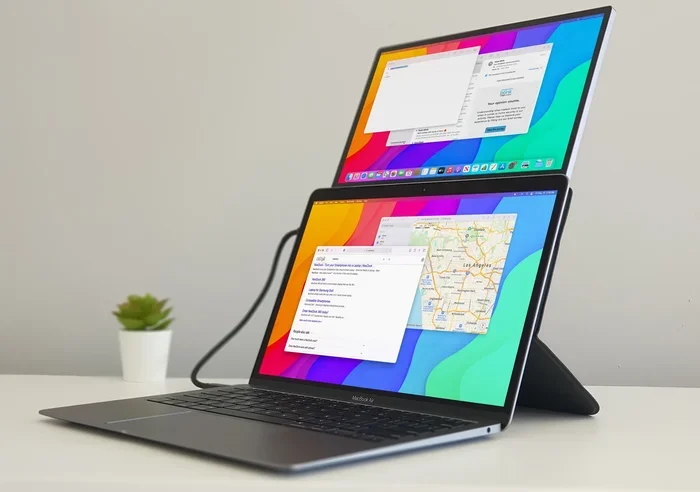
Dell docks support multiple display configurations. You can run two, three, or even four monitors depending on your dock model and laptop capabilities. Check your dock’s specifications to see how many displays it supports.
Dell Docking Station Models Compared
Dell offers several docking station models. Each one is designed for different needs and budgets. Here is a comparison of the most popular Dell docking station options.
| Model | Connection Type | Max Displays | Power Delivery | Best For |
|---|---|---|---|---|
| Dell WD15 | USB-C | 2 | 130W | Budget-friendly dual-monitor setup |
| Dell WD19 | USB-C | 2 | 180W | Balanced performance and features |
| Dell WD22 | USB-C / Thunderbolt | 4 | 180W | Multi-monitor power users |
| Dell TB16 | Thunderbolt 3 | 2 | 180W | Thunderbolt laptop users |
| Dell UD-CA16 | USB-C | 1 | 90W | Compact and portable use |
When choosing a Dell dock, consider what you need. Do you want dual monitors or a single monitor? Do you need maximum power delivery for a large laptop? Do you prefer Thunderbolt for the fastest speeds? Answering these questions will help you pick the right model.
The Dell WD19 is one of the most popular choices. It offers a great balance of features and price. The Dell WD22 is ideal for users who need four displays. The Dell TB16 is a solid choice for Thunderbolt laptop owners. Each model has its strengths, so pick the one that fits your workflow best.
Quick Tips for Choosing the Right Dell Dock
- Check your laptop’s ports: Make sure you have USB-C or Thunderbolt before buying.
- Count your monitors: Choose a dock that supports the number of displays you need.
- Consider power needs: If your laptop charges slowly, pick a dock with higher wattage.
- Think about portability: If you travel often, a compact dock like the UD-CA16 may be better.
- Read reviews: Check user feedback for real-world performance insights.
Common Problems and How to Fix Them
Even with a great Dell docking station, you may run into issues from time to time. Most problems are easy to fix. Here are the most common issues and their solutions.
No Signal on External Monitors
If your external monitor shows no signal after connecting to a Dell dock, do not panic. First, check that all cables are securely connected. Try unplugging and replugging the HDMI or DisplayPort cable. Sometimes a loose connection causes this issue.
If the cable is secure, try restarting your laptop. A simple reboot can reset the display connection. You should also check your display settings to make sure the external monitor is enabled. On Windows, press Windows + P to open the projection menu and select “Extend.”
Another common cause is outdated drivers. Visit Dell’s website and update your docking station drivers. This often resolves display detection issues. Also, make sure your laptop’s graphics drivers are up to date.
Laptop Not Charging Through the Dock
If your laptop is not charging when connected to a Dell dock, check the power delivery specifications. Not all USB-C ports support charging. Your laptop’s USB-C port must support power delivery for the dock to charge it.
Also, make sure you are using the correct power adapter for the dock. Dell docks come with their own power adapters. Using a third-party adapter may not provide enough wattage. Check the dock’s specifications and use the included power supply.
Peripherals Not Recognized
If your keyboard, mouse, or USB devices are not working through the dock, try unplugging and replugging them. Sometimes the dock needs a moment to recognize new devices. If that does not work, restart your laptop.
Driver issues can also cause peripheral recognition problems. Update your Dell dock drivers and your laptop’s USB drivers. On Windows, you can use Device Manager to check for driver updates. Look under “Universal Serial Bus controllers” for any devices with a yellow warning icon.
Audio Issues
If you cannot get audio through your dock’s headphone jack or speakers, check your default audio output settings. On Windows, right-click the speaker icon in your taskbar and select your output device. Make sure it is set to the Dell dock, not your laptop’s built-in speakers.
On macOS, go to System Settings > Sound and select the output device. Sometimes macOS defaults to the laptop speakers even when a dock is connected. Changing this setting is quick and easy.
Expert Insights on Dell Docking Station Compatibility
We spoke with several IT professionals about Dell docking station compatibility. Their advice is valuable for anyone considering a Dell dock.
“The biggest mistake we see is people buying a dock without checking their laptop’s port capabilities,” says one IT specialist. “A Dell dock will not work if your laptop does not have a USB-C or Thunderbolt port. Always verify first.”
Another expert adds that drivers are crucial. “Many compatibility issues are actually driver issues. Installing the latest Dell docking station drivers solves most problems. It is the first thing I recommend when troubleshooting.”
For MacBook users, the expert notes that Thunderbolt docks work best. “Apple laptops work well with Dell Thunderbolt docks. Just make sure you get a Thunderbolt model, not just a USB-C model, for the full feature set.”
Common Mistakes to Avoid
- Skipping driver updates: This causes many connectivity and performance issues.
- Using cheap cables: Low-quality USB-C cables can cause connection drops and slow speeds.
- Ignoring power requirements: Using a low-wattage adapter can lead to charging issues.
- Assuming all USB-C is the same: Not all USB-C ports support video or power delivery.
- Not checking monitor compatibility: Some docks may not support certain monitor resolutions or refresh rates.
Key Takeaways
- Universal Compatibility: Dell docking stations work with most laptops that have USB-C or Thunderbolt ports, regardless of the laptop brand.
- Thunderbolt Is Best: For the full range of features, use a Thunderbolt-enabled laptop with your Dell dock.
- Drivers Are Essential: Always install the latest Dell docking station drivers for optimal performance.
- Setup Is Easy: Connecting a Dell dock takes only a few minutes and requires just one cable.
- Multiple Models Available: Dell offers docks for every budget and need, from compact hubs to full-featured stations.
- Troubleshooting Is Simple: Most common issues have straightforward fixes like restarting, updating drivers, or checking cable connections.
Conclusion
So, can you use a Dell docking station with any laptop? Yes, you can. Dell docking stations are designed to be versatile and compatible with a wide range of laptops. Whether you use a Dell, HP, Lenovo, MacBook, or any other brand, a Dell dock can transform your workspace. You get multiple monitors, fast data transfer, wired internet, and convenient charging through a single connection.
The key is understanding your laptop’s capabilities. Check for USB-C or Thunderbolt ports. Install the correct drivers. Choose a Dell dock model that matches your needs. With these steps, you will enjoy a clean, efficient, and productive workspace.
Dell docking stations offer excellent value and reliability. They are a smart investment for anyone who works with multiple peripherals or external monitors. Whether you are at home, in the office, or working remotely, a Dell dock keeps your setup organized and ready to go. Give it a try and experience the difference a proper docking station can make in your daily workflow.
Frequently Asked Questions
Can I use a Dell docking station with a non-Dell laptop?
Yes, you can. Dell docking stations work with laptops from any brand as long as your laptop has a compatible USB-C or Thunderbolt port. The dock does not need to be paired with a Dell laptop to function. Just make sure you have the right port and install the correct drivers for the best experience.
Do I need Thunderbolt to use a Dell docking station?
No, you do not need Thunderbolt. Most Dell docking stations work with standard USB-C ports. However, Thunderbolt offers faster data speeds and better multi-display support. If your laptop has Thunderbolt, you will get the full range of features from your Dell dock. If you only have USB-C, the dock will still work for most tasks.
Why is my Dell docking station not charging my laptop?
This usually happens when your laptop’s USB-C port does not support power delivery. Not all USB-C ports can charge a laptop. Check your laptop’s specifications to confirm it supports USB-C charging. Also, make sure you are using the power adapter that came with the dock and that it is plugged in properly.
How many monitors can I connect to a Dell docking station?
The number of monitors depends on your Dell dock model. The Dell WD15 and WD19 support up to two displays. The Dell WD22 supports up to four displays. Always check the specifications of your specific dock model before purchasing if multi-monitor support is important to you.
Do I need to install drivers for a Dell docking station?
While your laptop may recognize the dock without drivers, installing the latest Dell docking station drivers is recommended. Drivers ensure all ports work correctly and provide the best performance. You can download drivers from Dell’s official support website by searching for your dock model number.
Can I use a Dell docking station with a Chromebook?
Yes, you can use a Dell docking station with a Chromebook if it has a USB-C or Thunderbolt port. Chromebooks support external monitors and USB peripherals through compatible docks. However, some advanced features may be limited compared to Windows laptops. Always check your Chromebook’s specifications for docking compatibility.