Can You Install Windows And Linux On The Same Laptop
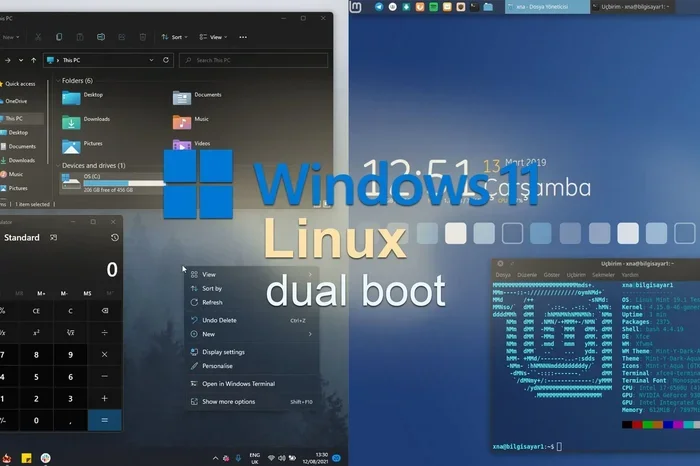
Yes, you absolutely can install Windows and Linux on the same laptop. This process, known as dual booting, lets you choose which operating system to use every time you start your computer. In this guide, we will walk you through every step so you can run both OS side by side without any headaches.
Key Takeaways
- Dual booting is real: You can install Windows and Linux on the same laptop and switch between them at startup.
- Planning matters: Back up your data, check system requirements, and partition your hard drive before you begin.
- GRUB is your friend: The GRUB boot loader lets you pick which OS to boot into each time you start your laptop.
- Alternatives exist: Virtual machines and Windows Subsystem for Linux offer lighter options if dual booting feels too complex.
- Common issues are fixable: Boot order problems and secure boot conflicts have straightforward solutions.
- Disk space is key: Each operating system needs its own dedicated partition with enough room to run smoothly.
📑 Table of Contents
- Can You Install Windows And Linux On The Same Laptop?
- What Does It Mean to Install Both Operating Systems?
- How to Install Windows and Linux on the Same Laptop
- Things to Consider Before Installing Both OS
- Alternative Ways to Run Both Operating Systems
- Setting Up a Dual Boot System Step by Step
- Troubleshooting Common Dual Boot Issues
- Expert Insights on Dual Booting
- Conclusion: Is Dual Booting Right for You?
Can You Install Windows And Linux On The Same Laptop?
If you have ever wondered whether you can run two different operating systems on a single laptop, the answer is a clear yes. Installing Windows and Linux on the same laptop is a well-known practice called dual booting. It gives you the freedom to use the best of both worlds every single day.
Many users love Windows for its wide app support and gaming capabilities. At the same time, they appreciate Linux for its open-source nature, strong security, and developer-friendly tools. With a dual boot setup, you get to enjoy both without buying a second computer.
Let us break down everything you need to know. From planning and installation to troubleshooting, we have you covered.
What Does It Mean to Install Both Operating Systems?
A dual boot setup means your laptop has two separate operating systems installed on different partitions of the same hard drive. When you turn on your laptop, a boot loader appears. This menu lets you pick which OS you want to use.
How the Boot Process Works
When your laptop starts up, it reads the BIOS or UEFI settings first. These settings tell the computer where to look for an operating system. In a dual boot setup, a program called GRUB (GRand Unified Bootloader) takes over.
GRUB shows a simple menu on your screen. You choose Windows or Linux. The selected operating system then loads normally. The whole process takes just a few extra seconds compared to a single OS setup.
Why People Choose Dual Booting
- Best of both worlds: Use Windows for games and familiar apps. Use Linux for coding and server tasks.
- No extra hardware: Everything runs on one laptop. You do not need a second machine.
- Full performance: Unlike virtual machines, a dual boot gives each OS full access to your hardware.
- Learning opportunity: You get to explore Linux safely while keeping Windows as your backup.
How to Install Windows and Linux on the Same Laptop
Setting up a dual boot system takes some preparation. But once you follow the right steps, it is very manageable. Let us go through the full process together.
Step 1: Back Up Your Data
This is the most important step before anything else. Installing a new operating system involves partitioning your hard drive. Mistakes during this step can cause data loss.
Make sure you back up all important files. Use an external hard drive or a cloud storage service. Do not skip this step, no matter how confident you feel.
Step 2: Check Your System Requirements
Both Windows and Linux have specific system requirements. Make sure your laptop can handle both.
- Processor: Most modern CPUs work fine for both OS options.
- RAM: At least 8 GB is recommended. 16 GB or more is even better.
- Disk space: Each OS needs its own partition. Plan for at least 50 GB for Windows and 20 GB for Linux.
- Firmware mode: Check if your laptop uses UEFI or legacy BIOS. This affects how you set up partitions and secure boot.
Step 3: Create Installation Media
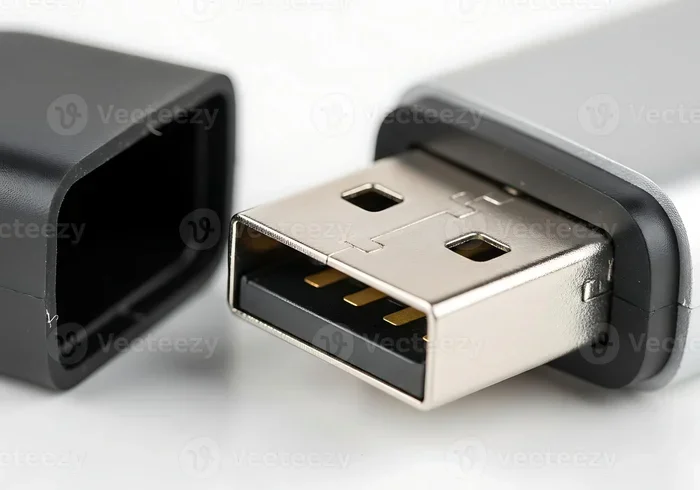
You will need a USB flash drive with at least 8 GB of space. You will use it to create a bootable installer for each operating system.
- Download the Windows ISO file from Microsoft’s official website.
- Download your preferred Linux distribution ISO file. Popular choices include Ubuntu, Fedora, and Linux Mint.
- Use a tool like Rufus or Balena Etcher to write each ISO to a USB drive.
- Keep both USB drives ready before you start installing.
Step 4: Install Windows First
It is always best to install Windows before Linux. Windows tends to overwrite boot information. Installing it first keeps things cleaner.
Boot from your Windows USB drive. Follow the on-screen prompts. When you reach the partition screen, create a partition for Windows and leave the rest of the disk space empty. You will use that space for Linux later.
Step 5: Install Linux Second
After Windows is installed, boot from your Linux USB drive. Choose the “Install alongside Windows” option if your Linux distribution offers it. This automatically creates the right partitions and sets up GRUB.
If that option is not available, you can manually partition the remaining disk space. Create a root partition, a swap partition, and a home partition. Then point the installer to the root partition to begin installation.
Step 6: Test Your Dual Boot Setup
Once both installations are complete, restart your laptop. GRUB should appear with options for Windows and Linux. Test both options to make sure everything works properly.
Things to Consider Before Installing Both OS
Before you dive into a dual boot setup, there are a few important things to keep in mind. These considerations will save you time and frustration later.
Disk Space and Partitioning
Each operating system needs its own dedicated space on your hard drive. You cannot share the same partition between Windows and Linux. Plan your disk space carefully before you begin.
As a general rule, allocate more space to the OS you use most often. If you game on Windows daily, give it the larger partition. If Linux is your main workspace, give it more room for projects and development tools.
Secure Boot Compatibility
Modern laptops use UEFI firmware with secure boot enabled. Some Linux distributions may have trouble booting with secure boot turned on. You might need to disable it in your BIOS settings during the Linux installation process.
Many popular Linux distros now support secure boot out of the box. Ubuntu and Fedora, for example, ship with signed bootloaders. Check your specific distribution before making any BIOS changes.
Time Zone and Clock Conflicts
This is a small but annoying issue. Windows uses local time for your hardware clock. Linux uses UTC by default. When you switch between the two, you may notice your clock is off by a few hours.
You can fix this by telling Linux to use local time instead. Open your Linux terminal and run a simple command to sync the clock settings. This one small tweak prevents recurring headaches.
Driver Support
Some laptop hardware works better with Windows drivers than Linux drivers. Graphics cards, Wi-Fi adapters, and fingerprint readers can sometimes need extra attention on Linux.
Before committing to a Linux distribution, check its hardware compatibility. Many distros list supported devices on their official websites. You can also try running Linux from a live USB first to test everything.
Alternative Ways to Run Both Operating Systems
A dual boot setup is not the only option. If partitioning your drive sounds risky or complex, consider these alternatives.
Using a Virtual Machine
A virtual machine (VM) runs one operating system inside another. You can run Linux inside Windows or vice versa. Tools like VirtualBox and VMware make this very easy.
The biggest advantage is safety. Whatever happens inside the VM does not affect your main OS. You can experiment freely without worrying about data loss.
The trade-off is performance. VMs share your laptop’s resources. Heavy tasks like gaming or video editing may not run well inside a VM. But for light coding, browsing, and testing, VMs work great.
Windows Subsystem for Linux (WSL)
If you are a Windows user who needs Linux tools, Windows Subsystem for Linux is a fantastic option. WSL lets you run a Linux environment directly on Windows. It is not a full Linux installation, but it supports many command-line tools and development workflows.
You can enable WSL with a single command in Windows PowerShell. Then you can install a Linux distribution from the Microsoft Store. It is lightweight, fast, and perfect for developers.
Cloud-Based Linux
You can also run Linux through cloud platforms. Services like GitHub Codespaces or AWS Cloud9 let you access a Linux environment through your browser. This option works well for coding on the go. But it requires a stable internet connection.
Setting Up a Dual Boot System Step by Step
Let us put it all together with a clear, actionable checklist for your dual boot system setup.
Preparation Checklist
- Back up all important files to an external drive or cloud.
- Verify your laptop supports UEFI or legacy BIOS mode.
- Ensure you have at least 8 GB of free disk space for Linux.
- Download both Windows and Linux ISO files.
- Prepare two bootable USB drives.
- Disable secure boot temporarily if your Linux distro needs it.
- Connect your laptop to a power source during installation.
Quick Tips for a Smooth Installation
- Always install Windows before Linux to avoid boot issues.
- Use the “Install alongside” option when available. It handles partitioning for you.
- Take your time at each step. Rushing leads to mistakes.
- Keep your laptop plugged in. Do not let the battery die mid-installation.
- Record your BIOS settings before making changes. This helps if you need to revert.
- Test both operating systems immediately after setup. Do not wait days to check.
Common Mistakes to Avoid
- Skipping the backup: Partition errors can erase data. Always back up first.
- Wrong partition selection: Installing Linux on the wrong partition can overwrite Windows. Double-check every click.
- Ignoring firmware mode: Mixing UEFI and legacy mode installations causes boot failures. Match the modes for both OS installations.
- Forgetting to update GRUB: After installing Windows updates, GRUB may disappear. Use a Linux live USB to restore it if needed.
- Allocating too little space: Running low on disk space is frustrating. Give each OS plenty of room from the start.
Troubleshooting Common Dual Boot Issues
Even with careful planning, you might run into problems. Here are the most common dual boot issues and how to fix them.
GRUB Does Not Appear After Windows Update
This happens often. Windows updates can overwrite the boot loader. To fix it, boot from a Linux live USB and run the boot-repair tool. This reinstalls GRUB and brings back your boot menu.
Laptop Boots Directly Into Windows
Your boot order might have changed. Enter your BIOS settings and make sure the hard drive (not a USB stick) is set as the first boot device. Also check that secure boot settings are correct for your Linux distribution.
Linux Runs Slowly
Check your disk space first. Low space slows everything down. Also make sure you installed the right drivers for your graphics card and Wi-Fi adapter. Running Linux with outdated drivers hurts performance significantly.
Cannot Access Windows Files from Linux
Linux can read Windows partitions, but it needs the right tools. Install the ntfs-3g package on your Linux system. This gives you full read and write access to NTFS partitions.
System Clock Shows Wrong Time
This is the UTC versus local time issue we mentioned earlier. Fix it by running this command in your Linux terminal: timedatectl set-local-rtc 1 –adjust-system-clock. This syncs your clock settings across both operating systems.
Expert Insights on Dual Booting
Experienced Linux users and IT professionals recommend a few best practices when setting up a dual boot laptop.
- Start with a trial run: Boot Linux from a live USB before installing. This lets you test hardware compatibility and get a feel for the interface.
- Choose a popular distro: Ubuntu, Linux Mint, and Fedora have large communities. Getting help is much easier with well-known distributions.
- Keep updates manageable: Update one OS at a time. Updating both simultaneously increases the risk of boot loader conflicts.
- Document your setup: Write down your partition layout and BIOS settings. This documentation saves hours of troubleshooting later.
- Consider your long-term needs: If you plan to use Linux heavily, consider making it your primary OS. Use Windows in a VM for occasional needs instead.
Conclusion: Is Dual Booting Right for You?
Installing Windows and Linux on the same laptop is absolutely possible and very rewarding. A dual boot setup gives you the flexibility to use the best features of both operating systems on a single machine. Whether you are a developer, a gamer, or just curious about open-source software, dual booting delivers real value.
The key to success is preparation. Back up your data, understand your disk space needs, and follow the installation steps carefully. If dual booting feels like too much, virtual machines and WSL offer lighter alternatives that still give you access to both worlds.
Now you have the knowledge to make it happen. Take your time, follow this guide, and enjoy running Windows and Linux side by side on your laptop.
Frequently Asked Questions
Can I install Windows and Linux on the same laptop without losing data?
Yes, you can if you back up your data first. The installation process involves partitioning your hard drive, which can be risky if something goes wrong. Always save your important files to an external drive or cloud storage before you begin.
Which operating system should I install first?
Always install Windows first. Windows tends to overwrite the boot loader, which can cause issues with Linux. Installing Linux second allows it to set up GRUB correctly so you can choose between both operating systems at startup.
Do I need to disable secure boot to install Linux?
Not always. Many modern Linux distributions like Ubuntu and Fedora support secure boot. However, some less common distros may require you to disable it. Check your specific Linux distribution’s documentation before changing any BIOS settings.
How much disk space do I need for a dual boot setup?
You should allocate at least 50 GB for Windows and 20 GB for Linux. If you plan to install many programs or games, give more space to the OS you use most. Having enough disk space prevents performance issues and gives you room to grow.
Can I run Linux from a USB drive without installing it?
Yes, you can run Linux from a USB drive using a live USB. This lets you test Linux without making any changes to your laptop. It is a great way to check hardware compatibility before committing to a full installation.
What is the difference between dual booting and using a virtual machine?
A dual boot gives each operating system full access to your hardware, which means better performance. A virtual machine runs one OS inside another, which is safer and easier to set up but slower. Dual booting is better for gaming and heavy tasks, while VMs are ideal for testing and light work.
=== META TITLE ===
Can You Install Windows And Linux On The Same Laptop? Full Guide
=== SEO TITLE ===
Can You Install Windows And Linux On The Same Laptop? Here’s How