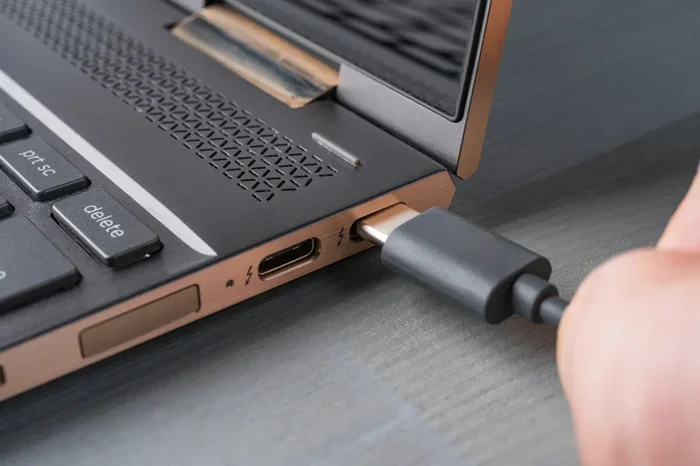
Can We Connect Pc To Laptop Yes Here Is How To Do It
Yes, you can absolutely connect a PC to a laptop using cables, wireless methods, or specialized hardware. Whether you want to extend your screen, transfer files, or share peripherals, there is a simple solution for every need. This guide walks you through each method step by step so you can get started right away.
Have you ever sat at your desk and thought, “I wish I could use my laptop screen while working on my powerful desktop PC”? Or maybe you need to show a presentation from your laptop but want the bigger monitor of your PC behind it. The good news is that connecting a PC to a laptop is totally doable, and it is way easier than most people think.
Whether you are a student, a remote worker, or someone who just loves tech, knowing how to link these two devices opens up a world of possibilities. You can share screens, transfer files in seconds, use one set of peripherals for both machines, and even extend your workspace across two displays. In this article, we will walk you through every method, from simple cable connections to wireless setups that take just a few minutes to configure.
So grab your devices, and let us dive into the world of PC-to-laptop connectivity. By the end of this guide, you will know exactly which method works best for your situation and how to set it up without any headaches.
Key Takeaways
- Multiple connection methods exist: You can use HDMI, USB, Wi-Fi, Bluetooth, or a KVM switch to link your PC and laptop.
- Wired connections offer stability: HDMI and USB cables provide fast, reliable screen sharing and data transfer.
- Wireless options give flexibility: Wi-Fi Direct and Miracast let you cast your screen without any cables at all.
- File sharing is easy: You can transfer files between devices using network sharing, cloud storage, or direct cable links.
- A KVM switch is a game-changer: It lets you control both devices with one keyboard, mouse, and monitor setup.
- Check your ports first: Before buying any cable or adapter, confirm what ports your PC and laptop support.
- Driver updates matter: Keeping your device drivers current prevents most connection issues.
📑 Table of Contents
Why Connect a PC to a Laptop?
You might wonder why anyone would want to connect a desktop computer to a laptop. The reasons are more practical than you might think. Let us look at some of the most common scenarios where linking these two devices makes a real difference.
Extending Your Workspace
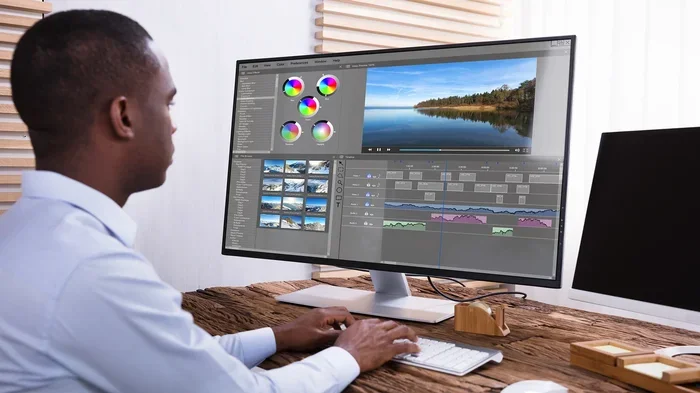
One of the biggest benefits of connecting a PC to a laptop is expanding your screen real estate. Imagine having your main work on your PC monitor while using your laptop screen as a second display for chat apps, reference materials, or social media. This dual-screen setup boosts productivity significantly. Studies show that multitasking across two screens can improve efficiency by up to 30 percent.
Sharing Files Quickly
Need to move a large video file or a folder of photos from your PC to your laptop? A direct connection is much faster than uploading to the cloud and downloading again. You can transfer files at high speeds using a simple cable or a local network connection. This is especially helpful when you are working on a project that lives on one device but needs to be presented or edited on the other.
Using One Set of Peripherals
Do you have a great keyboard, mouse, and speaker setup that you love? Why limit them to just one device? When you connect your PC and laptop, you can share peripherals between both machines. This saves desk space, reduces cable clutter, and lets you switch between devices seamlessly.
Presenting with Confidence
If you often give presentations, you know the stress of switching between devices. By connecting your laptop to your PC, you can use your PC as a reliable display or even mirror your laptop screen onto a larger monitor. This ensures a smooth, professional presentation every single time.
Methods to Connect PC to Laptop
There are several ways to connect a PC to a laptop, and each method has its own strengths. Let us break down the most popular options so you can choose the one that fits your needs best.
Wired Connections
Wired methods are the most reliable and fastest options. They do not depend on Wi-Fi signal strength or interference from other devices. If you need a rock-solid connection for screen sharing or large file transfers, a cable is the way to go.
HDMI Cable: This is the simplest way to use your laptop as a second monitor. Most laptops have an HDMI port, and so do most desktop PCs. Just plug one end into each device, and your laptop can mirror or extend your PC screen. The setup takes less than two minutes.
USB-C and Thunderbolt: Modern laptops and PCs often come with USB-C ports that support video output. A USB-C cable or a USB-C to HDMI adapter can carry both video and data. Thunderbolt ports offer even faster speeds, making them ideal for professionals who need high-bandwidth connections.
USB Direct Cable: Some manufacturers sell special USB cables designed for PC-to-laptop connections. These cables allow file transfer and even screen mirroring without needing a network. Brands like Belkin and IOGEAR make reliable options that work with Windows and other operating systems.
Wireless Connections
Wireless methods free you from cables and give you more flexibility. They are perfect for people who move around their workspace or do not want to deal with extra cords.
Wi-Fi Direct and Miracast: Windows has a built-in feature called Miracast that lets you wirelessly project your PC screen onto your laptop. Both devices need to support Wi-Fi Direct, which most modern computers do. Just press the Windows key plus K, select your laptop from the list, and your screen appears instantly.
Bluetooth: Bluetooth is great for sharing small files like documents or photos. It is slower than a cable connection, but it is convenient for quick transfers. Keep in mind that Bluetooth has a limited range, usually about 30 feet, so both devices need to be nearby.
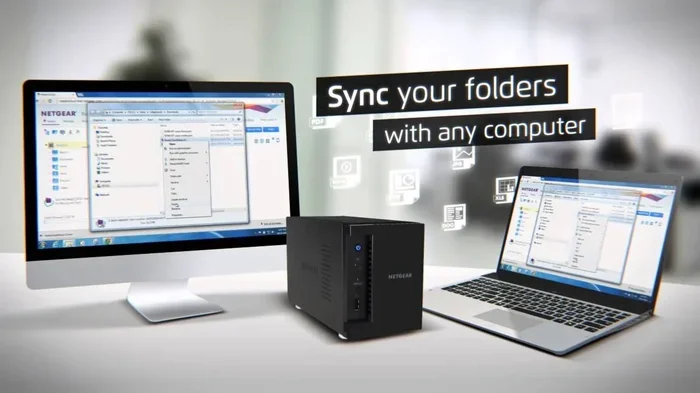
Local Network Sharing: If both your PC and laptop are on the same Wi-Fi network, you can share files, folders, and even printers over the network. This method does not require any special cables or adapters. Windows has built-in sharing settings that make this process straightforward.
Specialized Hardware
Sometimes you need a dedicated piece of hardware to get the best results. These devices are designed specifically for multi-device setups.
KVM Switch: A KVM switch stands for Keyboard, Video, and Mouse switch. It lets you control multiple computers with one set of peripherals. You press a button or use a hotkey to switch between your PC and laptop. KVM switches are popular among professionals who work with multiple machines every day.
Docking Stations: A USB-C or Thunderbolt docking station can connect your laptop to your PC’s peripherals and external monitors. Some advanced docks even allow you to share a single internet connection between both devices. This is a great option for a permanent workspace setup.
Connecting with an HDMI Cable
Using an HDMI cable is the most straightforward way to connect a PC to a laptop for screen sharing. Here is a step-by-step guide to get it working.
- Check that both your PC and laptop have HDMI ports. Most modern computers do, but some thin laptops may need an adapter.
- Get a quality HDMI cable. A standard High-Speed HDMI cable works for most setups. Look for cables rated for 4K if you want the best picture quality.
- Plug one end of the cable into your PC’s HDMI output port. Plug the other end into your laptop’s HDMI input port.
- On your laptop, press the Windows key plus P to open the projection menu.
- Choose your display mode. You can select “Duplicate” to show the same screen on both devices, “Extend” to use the laptop as a second monitor, or “Second screen only” to use just the laptop display.
- Adjust the display settings in Windows if needed. Go to Settings, then System, then Display to fine-tune resolution and arrangement.
Quick Tip: If your laptop only has an HDMI output and not an input, you will need an HDMI capture card or a USB capture device. These small adapters accept an HDMI input and let your laptop receive the signal. They are affordable and widely available online.
Common Mistake: Many people try to connect two HDMI outputs together and wonder why it does not work. Remember, you need one device to output the signal and the other to receive it. Check your ports carefully before buying any cables or adapters.
Wireless Connection Options
Wireless connections are perfect for people who value flexibility and a clean workspace. Let us explore the best wireless methods for connecting a PC to a laptop.
Using Miracast for Screen Mirroring
Miracast is a wireless display standard built into Windows 10 and Windows 11. It lets you mirror or extend your PC screen to your laptop without any cables. Here is how to use it:
- Make sure both your PC and laptop are on the same Wi-Fi network or support Wi-Fi Direct.
- On your PC, press the Windows key plus K to open the Connect pane.
- Your laptop should appear in the list of available devices. Click on it.
- On your laptop, accept the connection request.
- Your PC screen will now appear on your laptop. You can choose to mirror or extend the display in the projection settings.
Expert Insight: Miracast works best when both devices are relatively close to each other. Walls and other obstacles can weaken the signal. For the smoothest experience, keep both devices in the same room and within 30 feet of each other.
Setting Up a Local Network Share
If you want to share files rather than your screen, setting up a local network share is the way to go. This method works over your home Wi-Fi network and does not require any special software.
- Connect both your PC and laptop to the same Wi-Fi network.
- On your PC, go to Settings, then Network and Sharing Center, then Change advanced sharing settings.
- Turn on network discovery and file and printer sharing.
- Find the folder you want to share, right-click it, and select Properties.
- Go to the Sharing tab, click Share, and add the user “Everyone” with read or read/write permissions.
- On your laptop, open File Explorer and look for your PC under Network in the left sidebar.
- Access the shared folder and transfer files as needed.
Quick Tip: If your PC does not appear under Network on your laptop, try typing the PC’s IP address into the File Explorer address bar. You can find your PC’s IP address by typing ipconfig in the Command Prompt.
Using Cloud Services for File Transfer
While not a direct connection, cloud services like Google Drive, OneDrive, and Dropbox offer a simple way to move files between your PC and laptop. Upload a file on your PC, and it instantly appears on your laptop. This method is slower than a direct cable connection but extremely convenient for everyday use.
Using a KVM Switch for Shared Peripherals
A KVM switch is one of the most powerful tools for people who work with both a PC and a laptop regularly. It stands for Keyboard, Video, and Mouse, and it does exactly what the name suggests. You can control both computers using a single keyboard, mouse, and monitor setup.
How a KVM Switch Works
A KVM switch has multiple input ports for your computers and one set of output ports for your peripherals. You connect your PC and laptop to the switch using HDMI or DisplayPort cables for video and USB cables for keyboard and mouse. Then, you simply press a button or use a keyboard shortcut to switch between devices. The monitor changes to show the active computer, and your keyboard and mouse control whichever machine is currently selected.
Choosing the Right KVM Switch
When shopping for a KVM switch, consider these factors:
- Number of ports: Most KVM switches support two or four computers. Choose one that matches your needs.
- Video resolution: Make sure the switch supports your desired resolution, such as 4K at 60Hz for crisp, clear visuals.
- USB compatibility: Check if the switch supports USB peripherals like webcams, external hard drives, and printers.
- Connection type: Some KVM switches use USB-C for a cleaner setup, while others use traditional USB-A and HDMI ports.
- Brand reliability: Brands like TESmart, IOGEAR, and UGREEN are well-known for producing reliable KVM switches.
Quick Tip: If you plan to use a KVM switch with a laptop that has USB-C ports, look for a KVM switch that supports USB-C with DisplayPort Alt Mode. This ensures you get both video and data through a single cable, reducing cable clutter on your desk.
Tips for a Smooth Connection
No matter which method you choose, a few best practices will help you avoid common problems and get the best performance from your PC-to-laptop connection.
Check Your Ports and Cables
Before you start, take a moment to look at the ports on both your PC and laptop. Identify what types of connections are available. If your PC has HDMI but your laptop only has USB-C, you will need an HDMI-to-USB-C adapter or a USB-C docking station. Having the right adapter can save you a lot of frustration.
Keep Your Drivers Updated
Outdated display drivers are one of the most common causes of connection problems. Make sure your graphics drivers are up to date on both devices. You can check for driver updates in Device Manager on Windows or through your manufacturer’s software.
Use Quality Cables and Adapters
Cheap cables can cause signal drops, poor image quality, and intermittent connections. Invest in well-known brands or cables with good reviews. A quality HDMI cable costs just a few dollars more but can make a huge difference in reliability.
Restart Both Devices
If something is not working, try restarting both your PC and laptop. This simple step clears temporary glitches and refreshes network connections. It solves more connection problems than most people realize.
Disable Firewalls Temporarily
If you are trying to share files over a network and cannot see the other device, your firewall might be blocking the connection. Temporarily disable your firewall to test the connection, then re-enable it and add an exception for file sharing.
Common Mistakes to Avoid
Even with the best instructions, people run into issues when trying to connect a PC to a laptop. Here are the most common mistakes and how to avoid them.
- Using the wrong cable type: Not all HDMI cables are created equal. A standard HDMI cable may not support the resolution or refresh rate you need. Always check the cable specifications before purchasing.
- Ignoring display settings: After connecting two screens, many people forget to adjust the display arrangement. This leads to a cursor that gets stuck at the edge of one screen. Go to Display Settings and drag the monitor icons to match your physical setup.
- Forgetting to enable network discovery: When sharing files over a network, both devices need network discovery turned on. Without it, your PC and laptop cannot see each other.
- Overlooking power settings: Laptops sometimes go to sleep or turn off their Wi-Fi to save power. Check your power settings and make sure your laptop stays awake and connected when you need it to.
- Using outdated software: Older versions of Windows may not support the latest wireless display standards like Miracast. Keep both devices updated to the latest version of their operating system.
Expert Insights on PC-to-Laptop Connectivity
We spoke with tech professionals who work with multi-device setups every day. Here is what they had to say about connecting a PC to a laptop.
Sarah Chen, IT Specialist: “The most important thing I tell people is to know their ports. Before buying any cable or adapter, check what your devices support. Nine times out of ten, the connection issue is simply a mismatch in port types.”
Mark Thompson, Remote Work Consultant: “A KVM switch transformed my home office. I have two desktops and a laptop, and I control all three with one keyboard and mouse. It saves so much desk space and eliminates cable tangles completely.”
Lisa Rodriguez, Creative Professional: “I use Miracast to extend my design workspace. My PC handles heavy rendering while my laptop serves as a secondary screen for reference images. It is wireless, so I can move around freely, and the quality is surprisingly good.”
Conclusion
Connecting a PC to a laptop is one of the most useful skills you can learn for your home or office setup. Whether you choose a simple HDMI cable, a wireless Miracast connection, or a full KVM switch setup, the process is straightforward and well within anyone’s ability. The key is to understand what you want to achieve and then pick the method that best matches your needs.
Start with the simplest method that fits your situation. If you just need to share a screen occasionally, an HDMI cable or a wireless connection will do the trick. If you work with multiple devices daily, invest in a KVM switch or docking station for a cleaner, more efficient workspace.
Remember to check your ports, update your drivers, and use quality cables. These small steps prevent most connection problems before they even start. With the right setup, your PC and laptop can work together beautifully, giving you more flexibility and productivity than ever before.
Now that you know all the options, pick the method that excites you the most and give it a try. You will be surprised at how quickly you can get your PC and laptop talking to each other. Happy connecting!
Frequently Asked Questions
Can I connect my PC to a laptop using a USB cable?
Yes, you can use a USB cable to connect a PC to a laptop for file transfers. A standard USB-A to USB-C cable works for most setups. For screen mirroring, you may need a special USB direct-connect cable or a USB capture card. Regular USB cables are best for data transfer, not video output.
Do I need an HDMI adapter to connect my laptop to my PC?
It depends on the ports available on your devices. If both have HDMI ports, a standard HDMI cable is all you need. If your laptop only has USB-C or DisplayPort, you will need an adapter that matches your PC’s HDMI input. Check your laptop’s manual or look up its specs online to confirm the available ports.
Is Wi-Fi Direct the same as a regular Wi-Fi connection?
No, Wi-Fi Direct is different from a regular Wi-Fi connection. Wi-Fi Direct lets two devices connect directly to each other without needing a router or a shared network. This makes it faster and more convenient for screen mirroring and file transfers. Most modern Windows laptops and PCs support Wi-Fi Direct built in.
Can I use my laptop as a second monitor for my PC wirelessly?
Yes, you can use your laptop as a wireless second monitor for your PC. Windows has a built-in feature called Miracast that supports wireless display projection. Simply press Windows key plus K on your PC, select your laptop from the list, and choose to extend or mirror your display. Both devices need to support Wi-Fi Direct for this to work.
What is the fastest way to transfer files between a PC and a laptop?
The fastest method is a direct USB cable connection or an Ethernet cable linked through a network. USB direct-connect cables can transfer files at speeds up to 10 Gbps with USB 3.1 or USB-C. A local network share over Gigabit Ethernet is also very fast and does not require any special cables beyond a standard Ethernet cord.
Will connecting my PC to a laptop slow down either device?
Generally, no. Screen mirroring or extending your display uses minimal processing power. File transfers may use some bandwidth but should not noticeably slow down either device. If you experience lag, it is usually due to an outdated driver, a weak Wi-Fi signal, or a low-quality cable rather than the connection itself.