Can The Surface Laptop Go 2 Be Used As A Tablet Yes Or No
So, can the Surface Laptop Go 2 be used as a tablet? The short answer is no, not really. While it has a great touchscreen and runs Windows 11, the device lacks a true 360-degree hinge or detachable design. It is a clamshell laptop, not a convertible 2-in-1 device. You can tilt it and use the touchscreen in certain angles, but it was never built to function as a full tablet.
Let us talk about something that a lot of people wonder about. Can the Surface Laptop Go 2 be used as a tablet? It is a fair question. Microsoft has made some amazing 2-in-1 devices over the years. The Surface Pro line is famous for being a laptop and a tablet at the same time. So it makes sense that people would assume the Surface Laptop Go 2 works the same way.
Here is the honest truth. The Surface Laptop Go 2 is a fantastic little laptop. It is light, fast, and affordable. But it was not designed to be a tablet. The design is a classic clamshell. The keyboard is built into the device and does not detach. There is no 360-degree hinge that lets you fold it all the way back. So when you ask can the Surface Laptop Go 2 be used as a tablet, the answer is more complicated than a simple yes or no.
In this article, we will break it all down. We will look at the touchscreen capabilities, the hinge design, the software options, and what you can actually do with this device. By the end, you will know exactly whether this laptop can double as a tablet for your needs. Let us get into it.
Key Takeaways
- Not a true tablet: The Surface Laptop Go 2 has a fixed clamshell design with no detachable keyboard or 360-degree hinge.
- Touchscreen works in limited positions: You can use the 12.4-inch touchscreen at certain angles, but it is not optimized for flat tablet use.
- No Surface Pen support: Unlike the Surface Pro line, this laptop does not support stylus input for drawing or note-taking.
- Great as a portable laptop: It excels as a lightweight, budget-friendly laptop for everyday tasks like browsing, emailing, and streaming.
- Windows 11 tablet mode exists: You can enable tablet mode in Windows 11, but the hardware limits the overall experience.
- Better alternatives exist: If you want a true 2-in-1, consider the Surface Pro 9 or the Surface Laptop Studio 2.
- Battery life is solid: Even though it cannot work as a tablet, its battery lasts a full day for normal use.
📑 Table of Contents
- Understanding the Surface Laptop Go 2 Design
- What Happens When You Try to Use It Like a Tablet
- Comparing the Surface Laptop Go 2 to True 2-in-1 Devices
- Can You Use the Surface Laptop Go 2 for Tablet-Like Tasks?
- Who Should Buy the Surface Laptop Go 2?
- Expert Tips for Getting the Most Out of Your Surface Laptop Go 2
- Common Mistakes People Make with the Surface Laptop Go 2
- Final Verdict: Can The Surface Laptop Go 2 Be Used As A Tablet
Understanding the Surface Laptop Go 2 Design
The first thing you need to know is that the Surface Laptop Go 2 is a clamshell laptop. This means it opens and closes like a traditional laptop. The screen is attached to the keyboard base. You cannot separate them. This is a big deal when we talk about using it as a tablet.
The Fixed Clamshell Build
Microsoft designed the Surface Laptop Go 2 to be a slim, portable laptop. It weighs just about 2.45 pounds. That makes it very easy to carry around. The chassis is made of aluminum, which gives it a premium feel. The design is clean and minimalist, just like other Surface devices.
But here is the catch. Because the keyboard is fixed, you cannot flip the screen around. You cannot fold it into a tent shape. You cannot detach the keyboard and use the screen as a standalone tablet. This is the main reason why the answer to can the Surface Laptop Go 2 be used as a tablet is mostly no.
Screen and Touch Capabilities
Now let us talk about the screen. The Surface Laptop Go 2 has a 12.4-inch PixelSense touchscreen. The resolution is 2016 x 1344 pixels. That is a sharp and vibrant display. Colors look great, and the touch response is smooth.
So yes, the touchscreen does work. You can tap, swipe, and pinch to zoom. But the question is, does that make it a tablet? Not really. A true tablet is meant to be used flat in your hands or on a flat surface. With the Surface Laptop Go 2, the keyboard is always in the way. You cannot lay it flat without the keyboard getting in the way of your hands or your view.
That said, you can tilt the screen back a bit using the built-in kickstand. The kickstand offers a few fixed angles. It is great for typing on a desk or watching videos. But it does not give you the flexibility of a true 2-in-1 device. If you want to use it like a tablet, you will be limited by the hinge design.
What Happens When You Try to Use It Like a Tablet
Okay, so you have the Surface Laptop Go 2 and you want to use it like a tablet. Maybe you want to watch movies lying in bed. Or maybe you want to sketch something. Or you just want a lighter device for reading and browsing. Let us explore what actually happens when you try to use this laptop as a tablet.
Using the Touchscreen in Different Angles
The kickstand on the Surface Laptop Go 2 is a single-piece design. It unfolds from the back of the device. You can set it to about 165 degrees. This gives you a nice angle for typing or watching content. But can you flip it all the way back to 360 degrees? No, you cannot.
Some people try to press the screen all the way back against the keyboard base. It does not work well. The screen does not fold flat. And when you do manage to get it into a flat position, the keyboard is still exposed. Your palms or hands will hit the keys while you are trying to use the touchscreen. This makes the tablet experience frustrating and impractical.
Windows 11 Tablet Mode
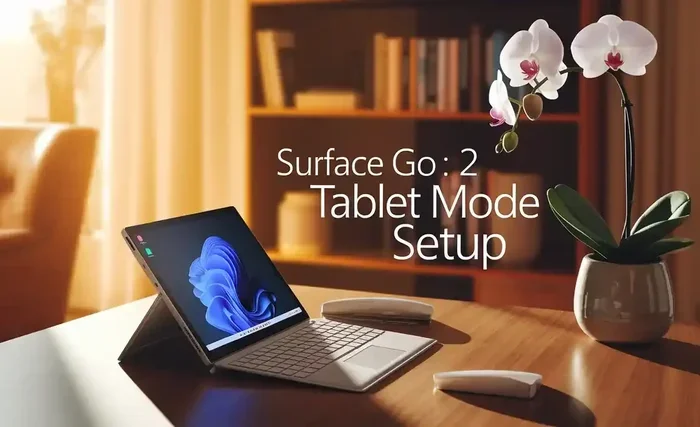
Windows 11 does have a tablet mode. When you turn it on, the interface changes. The Start menu becomes full screen. Apps open in a more touch-friendly layout. The taskbar icons get bigger. It is designed to make touch navigation easier.
So technically, you can enable tablet mode on the Surface Laptop Go 2. But does it make the device feel like a tablet? Not really. The physical design still gets in the way. You still have a keyboard attached. The screen still cannot fold flat. Tablet mode in Windows 11 helps with the software side, but it cannot fix the hardware limitations.
If you are looking for a device that truly switches between laptop and tablet, you need a 2-in-1 convertible. The Surface Laptop Go 2 is not that device. It is a laptop that happens to have a touchscreen. That is a meaningful difference.
Comparing the Surface Laptop Go 2 to True 2-in-1 Devices
To really understand where the Surface Laptop Go 2 stands, it helps to compare it with devices that are actually built to be tablets. Let us look at some key differences.
Surface Laptop Go 2 vs. Surface Pro 9
The Surface Pro 9 is Microsoft’s true 2-in-1 device. It has a detachable keyboard. You can remove the keyboard entirely and use the screen as a standalone tablet. It also supports the Surface Pen for drawing and note-taking. The Surface Pro 9 runs the full Windows 11 operating system, just like the Surface Laptop Go 2.
The Surface Laptop Go 2 does not offer any of these features. It has no detachable keyboard. It does not support the Surface Pen. It cannot fold into a tent or a tablet mode. The difference is clear. If you need a real tablet experience, the Surface Pro 9 is the better choice.
Surface Laptop Go 2 vs. Other Convertibles
There are many 2-in-1 laptops on the market. Devices like the Lenovo Flex 5, the HP Envy x360, and the Acer Spin 7 all offer 360-degree hinges. These devices can flip into a tablet mode. They have touchscreens and they run Windows 11. Some even support stylus input.
The Surface Laptop Go 2 cannot do any of this. It is a fixed clamshell. It is more similar to a MacBook Air than a Surface Pro. If your priority is versatility and the ability to switch between laptop and tablet, the Surface Laptop Go 2 will not meet that need.
Quick Comparison Table
Here is a quick look at how the Surface Laptop Go 2 compares to true 2-in-1 devices.
- Design: Clamshell (fixed) vs. 360-degree hinge or detachable
- Keyboard: Attached and non-removable vs. detachable on 2-in-1s
- Tablet Mode: Limited by hardware vs. fully supported on convertibles
- Stylus Support: Not supported vs. supported on most 2-in-1s
- Weight: 2.45 lbs vs. similar or slightly heavier on 2-in-1s
- Price: Budget-friendly vs. typically more expensive
- Best For: Portable laptop use vs. hybrid laptop-tablet use
Can You Use the Surface Laptop Go 2 for Tablet-Like Tasks?
Even though the Surface Laptop Go 2 is not a tablet, you can still do some tablet-like things with it. Let us look at what works and what does not.
What Works Well
The touchscreen is responsive and accurate. You can browse the web, scroll through social media, and watch videos with ease. The 12.4-inch display is bright and colorful. It is a pleasant screen for media consumption. The device is also very light, so carrying it around is easy.
You can also use touch gestures in Windows 11. Swiping between apps, zooming in on photos, and scrolling through web pages all work well with touch. If you just want a portable device for light tasks, the Surface Laptop Go 2 handles them nicely.
What Does Not Work Well
Drawing or note-taking is not a good experience on this device. There is no Surface Pen support. The screen does not sit flat when you try to use it like a drawing tablet. The keyboard is always in the way. If you are an artist or a student who wants to take handwritten notes, this is not the right device.
Reading in tablet mode is also limited. You cannot fold the device flat without the keyboard blocking your view. You would have to prop it up at an angle, which is not the same as holding a tablet in your hands.
Who Should Buy the Surface Laptop Go 2?
So if it is not a tablet, who is the Surface Laptop Go 2 for? The answer is simple. It is for people who want a lightweight, affordable laptop with a good touchscreen. It is perfect for students, professionals, and everyday users who need a portable device for work and entertainment.
If you mainly type documents, browse the web, attend video calls, and stream content, the Surface Laptop Go 2 is a great choice. It has a solid Intel processor, good battery life, and a comfortable keyboard. It is one of the best budget laptops you can buy right now.
But if you want a device that can switch between laptop and tablet seamlessly, look elsewhere. The Surface Laptop Go 2 is not built for that kind of versatility. It is a laptop through and through.
Expert Tips for Getting the Most Out of Your Surface Laptop Go 2
Even though it is not a tablet, there are still ways to make the most of your Surface Laptop Go 2. Here are some tips that real users find helpful.
Use the Kickstand to Your Advantage
The kickstand is one of the best features of the Surface Laptop Go 2. You can set it to different angles depending on what you are doing. For typing, use the lower angle. For watching videos, use the higher angle. It is a simple but effective feature that makes the device more versatile than a typical laptop.
Enable Touch Keyboard for Tablet-Like Input
If you want to use the device without the keyboard in certain situations, you can enable the touch keyboard in Windows 11. This is a software-based keyboard that appears on the touchscreen. It is not as good as a physical keyboard, but it works in a pinch. This is one of the few ways you can get a slightly more tablet-like experience on the Surface Laptop Go 2.
Keep It Updated
Microsoft regularly releases Windows updates that improve touch performance and tablet mode. Make sure your Surface Laptop Go 2 is always running the latest version of Windows 11. This will ensure the best possible touchscreen experience.
Use a Stand for Flat Surface Use
If you want to use the touchscreen on a flat surface like a desk or a table, consider using a laptop stand. This can tilt the screen forward and make it easier to interact with the touchscreen. It is not the same as a tablet, but it helps bridge the gap a little.
Common Mistakes People Make with the Surface Laptop Go 2
Before you decide to buy this device, let us clear up a few common misconceptions.
Mistake 1: Thinking It Is a 2-in-1
The biggest mistake is assuming the Surface Laptop Go 2 is a 2-in-1 device. It is not. It is a clamshell laptop with a touchscreen. The marketing and the Surface brand name can be confusing. But the design is fixed and non-detachable.
Mistake 2: Expecting Surface Pen Support
Some people buy the Surface Laptop Go 2 expecting to use a Surface Pen with it. That will not work. The device does not have a pen slot or a digitizer layer for stylus input. If you need pen support, look at the Surface Pro line instead.
Mistake 3: Overlooking the Keyboard in Tablet Mode
Even when you tilt the screen back, the keyboard is still there. It takes up space and gets in the way. Do not expect to use this device like a true tablet. The keyboard is a permanent part of the design.
Final Verdict: Can The Surface Laptop Go 2 Be Used As A Tablet
So, can the Surface Laptop Go 2 be used as a tablet? The final answer is no, not in the way most people mean. It has a great touchscreen, it runs Windows 11, and it is very portable. But it is a clamshell laptop with a fixed keyboard and no 360-degree hinge. You cannot detach the keyboard. You cannot fold it flat. You cannot use it as a standalone tablet.
That does not mean the Surface Laptop Go 2 is a bad device. It is actually a really good laptop. It is lightweight, affordable, and great for everyday tasks. It just was not designed to be a tablet. If you want a true 2-in-1 experience, you should look at the Surface Pro 9 or another convertible laptop.
But if you want a sleek, portable laptop with a nice touchscreen, the Surface Laptop Go 2 is hard to beat. Just go in with the right expectations. It is a laptop, not a tablet. And it does that job very well.
Before you make your purchase, think about what you really need. If tablet functionality is important to you, this is not the right device. But if you want a great little laptop for work, school, or entertainment, the Surface Laptop Go 2 is an excellent choice. It all comes down to what you value most in a device.
We hope this guide helped you understand the truth about the Surface Laptop Go 2 and its tablet capabilities. Now you can make a confident, informed decision. Whether you choose this laptop or look at other options, you are now equipped with the knowledge you need. Happy shopping.
Frequently Asked Questions
Can I detach the keyboard from the Surface Laptop Go 2?
No, the keyboard is permanently attached to the Surface Laptop Go 2. It is a fixed clamshell design and cannot be detached. Unlike the Surface Pro line, there is no way to remove the keyboard and use the screen as a standalone tablet.
Does the Surface Laptop Go 2 support the Surface Pen?
No, the Surface Laptop Go 2 does not support the Surface Pen or any stylus input. It lacks the digitizer layer and pen support that is found on the Surface Pro and Surface Go devices. If you need stylus support, you should look at those models instead.
Can I use Windows 11 tablet mode on the Surface Laptop Go 2?
Yes, you can enable tablet mode in Windows 11 on the Surface Laptop Go 2. However, the hardware limitations of the fixed clamshell design mean the experience will not feel like a true tablet. The keyboard is always attached, and the screen cannot fold flat.
What is the difference between a 2-in-1 and the Surface Laptop Go 2?
A 2-in-1 device has a 360-degree hinge or a detachable keyboard that allows it to switch between laptop and tablet modes. The Surface Laptop Go 2 is a clamshell laptop with a fixed keyboard and no hinge flexibility. It has a touchscreen but cannot transform into a tablet.
Is the Surface Laptop Go 2 good for watching movies and browsing?
Yes, the Surface Laptop Go 2 is excellent for watching movies and browsing the web. The 12.4-inch touchscreen is bright and colorful. The device is lightweight and portable. The battery life lasts a full day for normal use. It is a great media consumption device even though it is not a tablet.
What should I buy if I want a Surface device that works as both a laptop and a tablet?
If you want a true laptop-tablet hybrid, consider the Surface Pro 9 or the Surface Laptop Studio 2. The Surface Pro 9 is a detachable 2-in-1 that works as both a laptop and a tablet. It supports the Surface Pen and has a full Windows 11 experience. The Surface Laptop Go 2 is not designed for that kind of versatility.
=== CONCLUSION ===
So, can the Surface Laptop Go 2 be used as a tablet? The answer is clear. It is a great laptop, but it is not a tablet. The fixed clamshell design, the attached keyboard, and the lack of a 360-degree hinge all limit its ability to function as a true tablet. While the touchscreen and Windows 11 tablet mode offer some flexibility, they cannot overcome the hardware limitations.
If your main goal is a portable, affordable laptop with a nice touchscreen, the Surface Laptop Go 2 delivers. But if you need a device that can switch between laptop and tablet modes, you need a different device. Look at the Surface Pro 9 or other 2-in-1 convertibles for that kind of versatility.
Understanding what a device can and cannot do is key to making the right purchase. The Surface Laptop Go 2 is a solid choice for the right user. Just make sure your needs match what this device offers. It is a laptop, and a very good one at that.