Can Monitors Connect Wirelessly And Why It Matters
Yes, monitors can connect wirelessly, and it is a game-changer for your desk. Wireless monitors use Wi-Fi or dedicated adapters to send video without cables. This guide covers how wireless connections work, the benefits, setup steps, and whether a wireless monitor is right for you.
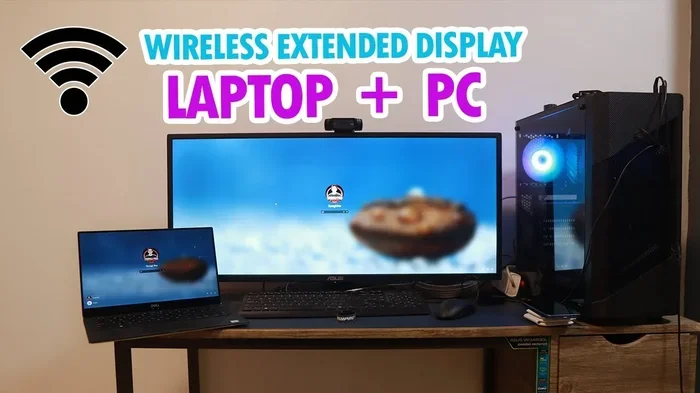
Can monitors connect wirelessly? The short answer is yes. You can send video and audio from your laptop, desktop, or even your phone to a screen without a single cable. Wireless monitors use Wi-Fi, Bluetooth, or dedicated adapters to create a cable-free setup. This technology has improved a lot in recent years. You can now enjoy smooth 4K streaming and low latency. Whether you are working from home or giving a presentation, a wireless connection can simplify your life.
Many people ask, “Can monitors connect wirelessly and why does it matter?” The reason is simple: clutter. A desk full of cables is distracting. Wireless screen mirroring lets you move your monitor anywhere. You can also connect multiple devices without swapping cables. In this guide, we will explore how wireless monitors work, the benefits, the different types, and how to set one up. By the end, you will know if a wireless monitor is right for you.
Key Takeaways
- Yes, monitors can connect wirelessly using Wi-Fi, Bluetooth, or dedicated adapters.
- Wireless setups eliminate cable clutter and give you freedom to move your monitor anywhere.
- Technologies like Miracast, AirPlay, and wireless HDMI make screen mirroring simple.
- You can stream 4K content with minimal lag on modern systems.
- Setup usually takes less than 10 minutes and requires no special tools.
- Wireless monitors are great for presentations, gaming, and everyday work.
📑 Table of Contents
Can Monitors Connect Wirelessly? The Short Answer
Yes, can monitors connect wirelessly is a question with a clear yes. A wireless monitor receives video and audio signals through the air instead of a physical cable. You can use built-in Wi-Fi on newer displays or add a small adapter to your existing monitor. The result is the same: a clean, clutter-free desk.
What Is a Wireless Monitor?
A wireless monitor is any display that can receive content without a direct cable from the source device. Some monitors come with Wi-Fi built right in. Others need a wireless adapter plugged into the USB port or HDMI extension. You can even use your smartphone or tablet as a source with wireless display protocols.
Here are the main ways a monitor can go wireless:
- Built-in Wi-Fi monitors connect directly to your home network.
- Wireless adapters add wireless capability to any HDMI monitor.
- Bluetooth monitors pair with phones and tablets for short-range streaming.
- Wireless HDMI kits use a transmitter and receiver to send uncompressed video.
How Wireless Monitor Technology Works
Understanding how wireless connectivity works helps you pick the right solution. The technology has evolved fast. Today, you can get near-cable performance with the right gear.
The Role of Wi-Fi and Bluetooth
Most wireless monitors use your home Wi-Fi network. The monitor and your PC or phone join the same network. They then share the screen using a protocol like Miracast or AirPlay. Bluetooth is another option, but it is best for short distances and lower resolutions. Bluetooth works well for quick presentations from a laptop.
Dedicated Wireless Protocols
Some systems use special wireless protocols designed for video. These include:
- Miracast – A standard for Android, Windows, and some smart TVs.
- AirPlay – Apple’s wireless streaming protocol for iPhones and Macs.
- Chromecast – Google’s protocol, great for casting from Chrome browsers.
- Wireless HDMI – Uses a transmitter and receiver for high-bandwidth video.
Expert Insight: Display engineers say modern wireless protocols can deliver near-zero latency for everyday tasks. For gaming or fast video, a dedicated wireless HDMI kit is still the best choice.
Comparison of Wireless Technologies
| Technology | Max Resolution | Latency | Range | Best For |
|---|---|---|---|---|
| Wi-Fi Direct (Miracast) | 4K | Low to Medium | 30 ft | General work, presentations |
| AirPlay | 4K | Low | 30 ft | Apple ecosystem users |
| Wireless HDMI (WHDI) | 1080p/4K | Very Low | 100 ft | Gaming, high-speed video |
| Bluetooth | 1080p | Medium | 30 ft | Short-range mobile sharing |
| Chromecast | 4K | Low | 30 ft | Web casting, media streaming |
Why Go Wireless? The Real Benefits
Switching to a cable-free setup brings real advantages. You will notice the difference the moment you stop hunting for the right cable.
A Clutter-Free Workspace
A clutter-free desk helps you focus. Without cables, you can place your monitor anywhere. You can even mount it on a wall or a wireless monitor stand. This is especially helpful in small offices or shared workspaces.
Flexibility and Portability
Wireless screen mirroring means you can move your monitor around the room. You are not tied to a desk. You can take your display to the kitchen, the living room, or a conference room. This is a big win for wireless presentation and remote work.
Quick Setup for Meetings
Imagine walking into a meeting room and sharing your screen in seconds. No cables to plug in, no adapters to hunt for. A wireless connection lets you present from your laptop or phone with just a few taps. This saves time and looks professional.
Easy Cable Management
Cable management is a headache for many desk setups. Wireless monitors remove that problem entirely. You only need one power cable. Everything else travels through the air. This also reduces wear and tear on ports and cables.
Quick Tips for a Smooth Wireless Setup
- Keep your devices on the same Wi-Fi network for best results.
- Place the wireless adapter or receiver close to the monitor.
- Use a 5 GHz Wi-Fi band to reduce interference.
- Restart your router if you notice connection drops.
- Update your wireless display drivers regularly.
Types of Wireless Monitor Solutions
Not all wireless monitors are the same. You have several options depending on your needs and budget.
Monitors with Built-In Wi-Fi
Some modern monitors come with Wi-Fi built right in. You can connect them to your network right out of the box. These monitors often support wireless display standards like Miracast or AirPlay. They are ideal for a clean, all-in-one setup.
Wireless HDMI Transmitters and Receivers
A wireless HDMI kit includes a small transmitter and receiver. You plug the transmitter into your PC’s HDMI port. The receiver plugs into the monitor. The video travels through the air. This is one of the best ways to get high-quality, low-latency wireless video. Brands like Actiontec and Avient offer popular models.
Wireless Docking Stations
A wireless docking station does more than just video. It can charge your laptop, connect USB devices, and stream the display wirelessly. These docks use Wi-Fi or a proprietary wireless protocol. They are perfect for a permanent home office setup.
Bluetooth Monitors
Bluetooth monitors are less common but useful for mobile devices. They work well for casual viewing and presentations. The range is shorter, and the resolution may be lower than Wi-Fi options.
Comparison Table: Wireless Monitor Solutions
| Solution | Setup Difficulty | Latency | Cost | Best For |
|---|---|---|---|---|
| Built-in Wi-Fi Monitor | Very Easy | Low | Higher | Home office, clean setup |
| Wireless HDMI Kit | Easy | Very Low | Medium | Gaming, high-quality video |
| Wireless Docking Station | Medium | Low | Higher | Laptop workstation, all-in-one |
| Bluetooth Adapter | Very Easy | Medium | Low | Mobile sharing, casual use |
| Wireless Adapter (USB) | Easy | Low to Medium | Low | Adding wireless to any monitor |
Setting Up Your Wireless Monitor
Setting up a wireless monitor is easier than you think. Most systems take less than 10 minutes. Follow these steps for a smooth start.
Step 1: Check Compatibility
First, check if your monitor supports wireless connections. Look for a Wi-Fi symbol on the box or in the specs. If your monitor does not have built-in Wi-Fi, you can buy a compatible wireless adapter. Make sure the adapter supports your monitor’s HDMI version.
Step 2: Connect the Adapter
Plug the wireless adapter into your monitor’s HDMI port and a USB port for power. If your monitor has no USB port, use a USB power adapter. Place the adapter near the monitor for a strong signal.
Step 3: Pair Your Devices
On your PC or phone, go to the wireless display settings. On Windows, press Win + K to open the projection menu. On Mac, click the AirPlay icon in the menu bar. Select your monitor from the list. Follow any on-screen prompts to pair the devices.
Step 4: Adjust Settings for Best Performance
Once connected, you may need to tweak a few settings. Set the display resolution to match your monitor’s native resolution. Choose the 5 GHz Wi-Fi band if available. Reduce background apps that might use bandwidth. These small steps can make a big difference in wireless latency.
Common Mistakes to Avoid
- Ignoring network interference. Keep the monitor and router in the same room if possible.
- Using an outdated adapter. Old wireless adapters may not support 4K or high refresh rates.
- Placing the receiver too far away. Stay within the recommended range for best signal.
- Forgetting to update drivers. Outdated display drivers can cause connection issues.
Is a Wireless Monitor Worth It? Final Thoughts
So, can monitors connect wirelessly? Yes, they can, and the technology is now very reliable. A wireless connection gives you a clean desk, more flexibility, and faster setup times. Whether you are a student, a professional, or a gamer, there is a wireless solution that fits your needs.
If you value a tidy workspace and easy device switching, a wireless monitor is a smart investment. Start with a simple wireless adapter if you are not ready to buy a new monitor. You will quickly see the benefits of a cable-free setup. Embrace the freedom of wireless screen mirroring and enjoy a more flexible, modern computing experience.
Frequently Asked Questions
Can any monitor be made wireless?
Yes, most monitors can be made wireless with a compatible adapter. You just need an HDMI port and a USB port for power. Wireless adapters are affordable and easy to install. They work with both old and new monitors.
Is wireless monitor quality as good as wired?
Modern wireless solutions offer excellent quality. Wireless HDMI kits can deliver 4K video with very low latency. Wi-Fi direct solutions may have slight compression, but the difference is barely noticeable for everyday tasks. For gaming or video editing, a wired connection still has a slight edge.
Does a wireless monitor need internet?
Not always. Some wireless monitors use Wi-Fi Direct or a dedicated wireless protocol that does not require an internet connection. They create a direct link between your device and the monitor. However, built-in Wi-Fi monitors usually need a network for initial setup.
Can I use a wireless monitor for gaming?
Yes, but you need the right setup. Wireless HDMI kits offer the lowest latency and are great for gaming. Wi-Fi direct may add a small delay. For competitive gaming, a wired connection is still recommended. Casual and single-player games work fine wirelessly.
How far can a wireless monitor be from the source device?
It depends on the technology. Wi-Fi direct and AirPlay work well up to 30 feet. Wireless HDMI kits can reach up to 100 feet. Bluetooth has a shorter range of about 30 feet. Walls and obstacles can reduce the effective distance.
Are wireless monitors expensive?
Wireless monitors with built-in Wi-Fi cost more than standard models. However, wireless adapters are very affordable. You can add wireless capability to any monitor for under $50. The price of wireless technology continues to drop, making it more accessible every year.