Can I Use Lysol Wipes On My Laptop Here Is What You Need
Using Lysol wipes on your laptop is risky and not recommended by most manufacturers. The chemicals in Lysol wipes can strip away protective coatings, damage screens, and cause moisture-related issues. Safe cleaning alternatives like microfiber cloths and electronics-safe sprays are much better options. This guide covers everything you need to know about laptop cleaning safety and how to keep your device germ-free without harm.
You use your laptop every single day. You type on it. You eat near it. You rest your face against it during long work sessions. Over time, your laptop collects germs, oils, dust, and grime. It starts to look dull and feel sticky. So it is natural to want to give it a good wipe-down.
But here is the big question. Can I use Lysol wipes on my laptop? It seems like an easy fix. You grab a wipe, give the screen a quick pass, and boom. Clean, right? Not so fast. The answer is more complicated than you might think. Using Lysol wipes on your laptop can cause real damage if you are not careful.
This guide breaks down everything you need to know. We will look at what Lysol wipes are made of. We will explore the risks they pose to your device. And most importantly, we will share safe, effective ways to clean your laptop without harming it. Whether you use a MacBook, a Windows laptop, or a Chromebook, this article has you covered.
Key Takeaways
- Lysol wipes can damage your laptop: The chemicals and excess moisture may harm screens, keyboards, and internal components.
- Most laptop manufacturers warn against using disinfectant wipes: Apple, Dell, and HP all advise against harsh cleaning products on their devices.
- Safe alternatives exist: Microfiber cloths, electronics-safe cleaners, and isopropyl alcohol solutions work great for laptop cleaning.
- Moisture is the biggest enemy of electronics: Even small amounts of liquid can cause short circuits or corrosion over time.
- Regular cleaning extends your laptop’s lifespan: A proper cleaning routine helps remove germs, dust, and grime safely.
- Always check your warranty terms: Using the wrong cleaning products may void your laptop’s warranty coverage.
📑 Table of Contents
- Why You Need to Clean Your Laptop Regularly
- What Are Lysol Wipes Made Of?
- Can I Use Lysol Wipes On My Laptop?
- Safe Alternatives for Cleaning Your Laptop
- Step-by-Step Guide to Cleaning Your Laptop Safely
- Common Mistakes to Avoid When Cleaning Electronics
- Expert Insights on Laptop Cleaning
- How Often Should You Clean Your Laptop?
- Conclusion
Why You Need to Clean Your Laptop Regularly
Most people do not think about laptop cleaning until something visible shows up. A smudge on the screen. Crumbs stuck between the keys. A sticky spot on the trackpad. But cleaning your laptop regularly is about more than just looks. It is about health and device longevity.
The Germ Factor on Your Laptop
Studies show that the average laptop keyboard harbors more bacteria than a public toilet seat. Think about that for a second. You touch your laptop after shaking hands, eating food, coughing, or touching public surfaces. All of those germs end up on your keyboard, trackpad, and screen.
Regular germ removal from your laptop helps reduce the spread of colds, flu, and other illnesses. This is especially important if you share your laptop with family members or use it in shared office spaces. Device sanitizing should be part of your routine, just like washing your hands.
How Dirt and Grime Affect Your Laptop
Beyond germs, dirt and oils can build up on your laptop over time. Here is what happens when you skip cleaning:
- Screen clarity drops: Oils from your fingers create a hazy film that makes it harder to see your display.
- Keyboard keys stick: crumbs and dust accumulate under keys, causing them to feel unresponsive or sticky.
- Ventilation gets blocked: dust clogs the vents, which can cause your laptop to overheat.
- Trackpad becomes less responsive: grime on the trackpad surface interferes with touch sensitivity.
- Longevity decreases: long-term buildup of grime can corrode internal components and shorten your device’s lifespan.
The good news is that cleaning your laptop regularly can prevent all of these issues. But the method you use matters a lot. And this brings us back to the big question.
What Are Lysol Wipes Made Of?
Before we answer whether can I use Lysol wipes on my laptop, it helps to understand what these wipes actually contain. Lysol wipes are designed for hard surfaces like countertops, doorknobs, and bathroom fixtures. They are not designed for delicate electronics.
Key Ingredients in Lysol Wipes
Lysol wipes typically contain several active and inactive ingredients that work together to kill germs. Here is a closer look at what is inside them:
- Alkyl dimethyl benzyl ammonium chloride: This is the primary disinfecting agent. It kills bacteria and viruses on contact.
- Isopropyl alcohol: Many Lysol wipes contain a significant amount of alcohol, which helps with disinfection but can also be harsh on certain surfaces.
- Surfactants: These chemicals help the wipe spread moisture and cleaning solution across surfaces evenly.
- Fragrances and dyes: These are added for scent and visual appeal but serve no cleaning purpose and can leave residues.
- Water: The base ingredient that carries all other components onto the surface.
Now, some of these ingredients are fine for countertops. But your laptop screen and body are made of much more sensitive materials. The combination of chemicals and moisture in Lysol wipes creates a risk that most people do not realize.
Can I Use Lysol Wipes On My Laptop?
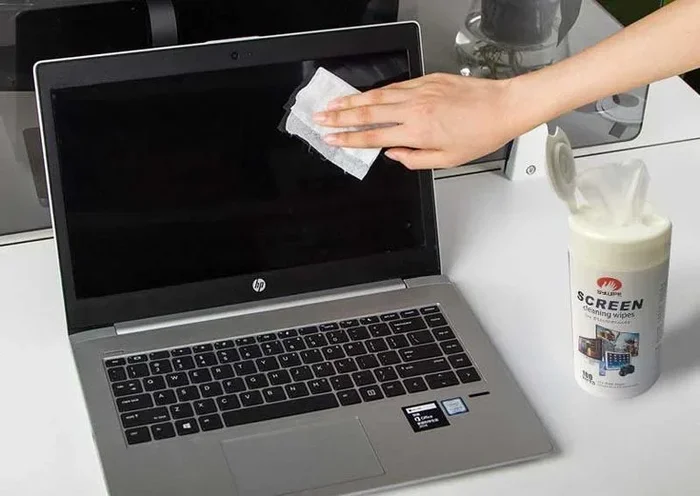
Here is the direct answer. It is not recommended to use Lysol wipes on your laptop. Most laptop manufacturers explicitly warn against using any harsh chemical cleaners or excessive moisture on their devices. Let us look at why this is the case in detail.
The Damage Lysol Wipes Can Cause
Lysol wipes may seem gentle enough. They feel damp, not soaking wet. But even that small amount of moisture and those chemicals can cause problems over time. Here are the specific risks:
1. Screen Coating Damage. Most modern laptop screens have a special anti-glare or oleophobic coating. This coating repels fingerprints and reduces glare. Lysol chemicals can strip this coating away. Once it is gone, it cannot be restored. Your screen will look washed out and attract even more smudges than before.
2. Moisture Seepage. Even if you are careful, Lysol wipes leave behind moisture. That moisture can seep into the edges of your laptop, around the keyboard, or through speaker grilles. Once inside, it can cause corrosion on circuit boards or short-circuit sensitive components. This type of damage is often not covered under warranty.
3. Keyboard Key Damage. The keys on your laptop are made of plastic that can react to harsh chemicals. Lysol wipes can cause keys to discolor, warp, or become brittle over time. In some cases, the lettering on the keys can fade or peel away completely.
4. Warranty Voiding. This is a big one. If you use Lysol wipes on your laptop and it gets damaged, your manufacturer may deny your warranty claim. Apple, Dell, HP, and Lenovo all have guidelines about approved cleaning methods. Using unauthorized products like Lysol wipes can void your coverage.
What the Manufacturers Say
Let us look at what major laptop brands actually recommend for cleaning:
- Apple: Apple recommends using a soft, lint-free cloth slightly dampened with water. They explicitly advise against using cleaning sprays, wipes, or products containing bleach or hydrogen peroxide.
- Dell: Dell suggests using only a soft cloth with water or a mild soap solution. They warn against using harsh chemicals or abrasive materials.
- HP: HP recommends using a microfiber cloth and avoiding any cleaning products that contain solvents or alcohol in high concentrations.
- Lenovo: Lenovo advises using a dry or slightly damp microfiber cloth and staying away from household cleaning products.
Notice a pattern? None of these manufacturers endorse Lysol wipes or similar disinfectant products for laptop cleaning. They all point toward gentle, minimal-moisture methods.
Safe Alternatives for Cleaning Your Laptop
The good news is that you do not need Lysol wipes to keep your laptop clean and germ-free. There are plenty of safe alternatives that work just as well without the risk of damage.
Microfiber Cloths
A high-quality microfiber cloth is the single best tool for cleaning your laptop screen and body. Microfiber is soft and non-abrasive. It picks up oils, dust, and smudges without scratching. You can use a dry microfiber cloth for light cleaning or a slightly damp one for more stubborn grime.
Here is a quick tip. Use a separate microfiber cloth for your screen and another for the keyboard and body. This prevents cross-contamination and keeps each area clean effectively.
Distilled Water
For light cleaning, distilled water on a microfiber cloth works wonders. Distilled water is free of minerals and impurities found in tap water. This means it will not leave streaks or residue on your screen. Simply dampen the cloth with distilled water, wring it out well, and gently wipe your laptop surfaces.
Electronics-Safe Cleaning Sprays
If you want something stronger than water, look for electronics-safe cleaners. These products are specifically formulated for use on laptops, tablets, and phones. They are alcohol-free or use very low concentrations of isopropyl alcohol that are safe for electronics. Popular brands include Whoosh, Screen Mom, and Endust for Electronics.
When choosing a cleaner, always check the label. Look for products that are ammonia-free, alcohol-free or low-alcohol, and safe for coated surfaces. These will clean effectively without damaging your laptop.
Isopropyl Alcohol (Used Correctly)
If you need to disinfect your laptop, a small amount of isopropyl alcohol (70% or less) can be used safely. But here is the key. You apply it to the cloth, not directly to the laptop. Never spray liquid directly onto your device. Dampen a microfiber cloth with a small amount of isopropyl alcohol, wring it out so it is barely damp, and gently wipe the surfaces. Let it air dry completely before closing the laptop or turning it on.
Compressed Air for Keyboards
For cleaning between keyboard keys, compressed air is your best friend. A short burst of compressed air can blow out crumbs, dust, and debris from hard-to-reach places. Hold the can upright and use short bursts. Do not tilt the can or hold it too close to the surface. This prevents moisture from being sprayed onto your keyboard.
Step-by-Step Guide to Cleaning Your Laptop Safely
Now that you know what to avoid and what to use, here is a simple step-by-step guide for proper laptop cleaning. Follow this routine every week or two to keep your device looking and feeling like new.
Step 1: Power Down and Unplug
Before you do anything, shut down your laptop completely. Unplug the power cable and disconnect any peripherals like mice, USB drives, or external monitors. This ensures your safety and prevents any accidental inputs while cleaning.
Step 2: Remove Loose Debris
Take your compressed air can and blow out any loose crumbs or dust from the keyboard and vents. Hold the can about six inches away from the surface. Use short, controlled bursts. Tilt the laptop slightly so debris falls out rather than deeper into the device.
Step 3: Clean the Screen
Take a dry microfiber cloth and gently wipe the screen in circular motions. Start from the center and work your way outward. If there are stubborn smudges, lightly dampen a corner of the cloth with distilled water. Avoid pressing too hard on the screen. Let it air dry completely.
Step 4: Wipe Down the Keyboard and Body
Dampen a microfiber cloth with distilled water or an electronics-safe cleaner. Wipe down the keyboard, trackpad, and laptop body. Pay extra attention to areas where your hands rest frequently. For the keyboard keys, use short, gentle strokes to clean between them.
Step 5: Disinfect Safely
If you want to disinfect your laptop, use a cloth lightly dampened with a 70% or less isopropyl alcohol solution. Wipe the keyboard, trackpad, and exterior surfaces. Avoid the screen when using alcohol-based solutions, as they can damage the coating. Let everything air dry for at least five minutes before powering on.
Step 6: Let Everything Dry Completely
This is the most important step. Never close your laptop or turn it on while it is still damp. Moisture trapped inside can cause serious damage. Give your laptop at least ten minutes to air dry completely before use.
Common Mistakes to Avoid When Cleaning Electronics
Even with the best intentions, people make mistakes when cleaning their laptops. Here are the most common errors and how to avoid them.
Using Too Much Liquid
The number one mistake is using too much moisture. Your laptop is not waterproof. Excess liquid can seep into the seams and cause internal damage. Always use a damp cloth, never a wet one. Wring out your cloth thoroughly before wiping any surface.
Using Paper Towels or Rough Cloth
Paper towels may seem convenient, but they are too abrasive for laptop screens. They can create tiny scratches that build up over time. Similarly, rough fabrics like old t-shirts or dish towels can damage your screen coating. Always stick with microfiber cloths.
Spraying Cleaner Directly on the Laptop
Never spray any cleaning product directly onto your laptop. The liquid can drip into openings and cause damage. Always apply cleaner to the cloth first, then wipe the laptop surface.
Using Household Cleaners
Products like window cleaners, all-purpose sprays, and bleach wipes are designed for household surfaces, not electronics. They contain chemicals that can damage your laptop’s finish, screen coating, and internal components. Keep these products far away from your device.
Skipping Regular Cleaning
Many people only clean their laptop when it looks really dirty. By then, buildup has already occurred. A quick weekly cleaning session takes just a few minutes and prevents long-term damage and germ accumulation.
Expert Insights on Laptop Cleaning
We spoke with a certified laptop repair technician about the most common cleaning mistakes they see. Here is what they had to say:
“I see laptops come in damaged from cleaning all the time. People use household wipes, spray cleaners, and even household glass cleaner on their screens. The damage is almost always irreversible. The screen coating is stripped, and the customer is left with a permanently hazy display.”
The technician recommends sticking to distilled water and microfiber cloths for daily cleaning. For deeper disinfection, they suggest using electronics-safe products and always applying the solution to the cloth first.
Another expert, a laptop repair specialist, added: “The key to laptop cleaning is gentleness. Less is always more when it comes to liquids and chemicals on electronics. If a product is not specifically labeled as safe for electronics, do not use it on your laptop.”
How Often Should You Clean Your Laptop?
The frequency of cleaning depends on how and where you use your laptop. Here is a general guideline:
- Daily: Use a dry microfiber cloth to quickly wipe down the screen and keyboard. This takes just 30 seconds and prevents buildup.
- Weekly: Do a more thorough cleaning with a slightly damp microfiber cloth. Clean between the keys and wipe down the body.
- Monthly: Perform a deep clean. Use compressed air, electronics-safe cleaner, and isopropyl alcohol for full disinfection.
- After illness: If you or someone in your household has been sick, give your laptop a thorough disinfecting clean to remove germs.
Following this routine keeps your laptop hygienic, looking great, and running smoothly for years to come.
Conclusion
So, can I use Lysol wipes on my laptop? The answer is a clear no. While Lysol wipes are great for disinfecting hard surfaces in your home, they are not safe for your laptop. The chemicals and moisture they contain can damage your screen, keyboard, and internal components. They can also void your warranty and lead to costly repairs.
The good news is that keeping your laptop clean does not require harsh chemicals. A simple microfiber cloth, distilled water, and electronics-safe products are all you need. Follow the safe cleaning steps outlined in this article, and your laptop will stay germ-free and in great condition for years to come.
Make laptop cleaning a regular habit. Your device and your health will thank you. Start today with the safe alternatives we shared, and you will never need to worry about damaging your laptop again.
Frequently Asked Questions
Can I use Lysol wipes on my laptop keyboard?
No, it is not safe to use Lysol wipes on your laptop keyboard. The chemicals and moisture can damage the key surfaces, cause discoloration, and potentially seep under the keys into the internal components. Use a damp microfiber cloth or electronics-safe cleaner instead for safe keyboard wipe down.
What happens if I accidentally used a Lysol wipe on my laptop?
If you accidentally used a Lysol wipe on your laptop, do not panic. Wipe the area immediately with a dry microfiber cloth to remove excess moisture and chemical residue. Let the laptop air dry completely before turning it on. If you notice any damage or malfunction, contact your manufacturer or a certified repair technician right away.
Are electronics wipes the same as Lysol wipes?
No, electronics wipes are specifically formulated for use on devices like laptops, phones, and tablets. They are designed to be safe for sensitive surfaces and typically contain lower concentrations of cleaning agents. Lysol wipes are designed for household surfaces and contain stronger chemicals that can harm electronics. Always look for wipes labeled as safe for electronics.
Can I use alcohol wipes to clean my laptop?
Yes, but only if they contain 70% or less isopropyl alcohol. Apply the alcohol to a microfiber cloth first, never directly on the laptop. Avoid using alcohol-based wipes on the screen, as they can damage anti-glare and oleophobic coatings. Use alcohol wipes only on the keyboard and exterior body of the laptop.
How do I disinfect my laptop without using wipes?
You can disinfect your laptop safely using a microfiber cloth lightly dampened with a 70% isopropyl alcohol solution or an electronics-safe disinfecting spray. Wipe the exterior surfaces, keyboard, and trackpad gently. Avoid the screen when using alcohol-based solutions. Always let the laptop air dry completely before using it again.
Will Lysol wipes void my laptop warranty?
Using Lysol wipes on your laptop can potentially void your warranty if it causes damage. Most laptop manufacturers specify approved cleaning methods in their warranty terms. Using unauthorized products like Lysol wipes that result in damage may lead to a denied warranty claim. Always follow the manufacturer’s recommended cleaning guidelines to protect your warranty coverage.