How Do I Change Caller Id On Airtel In Simple Steps
Changing your Caller ID on Airtel is straightforward and can be done through USSD codes, the Airtel Thanks app, or by contacting customer support. Whether you want to hide your number, display a business name, or fix incorrect caller information, this guide walks you through every method step by step. You will learn the fastest ways to update your caller ID settings on both Android and iPhone devices.
Have you ever made a call and wondered why your name or number shows up differently on the other end? Maybe you want more privacy, or perhaps you need your business name to appear instead of your personal number. Whatever the reason, changing your Caller ID on Airtel is easier than you might think. In this guide, we will walk you through every method available so you can take control of how your identity appears during calls. Let us get started.
Before diving into the steps, it helps to understand what Caller ID actually is. Caller ID is a feature that displays your phone number or name to the person you are calling. Mobile carriers like Airtel transmit this information along with the call. Sometimes, the default settings do not match what you want. You might see an old number, a generic label, or no name at all. The good news is that Airtel provides several ways to fix this. You can use USSD codes, mobile apps, or reach out to customer support. Each method has its own advantages, and we will cover them all in detail below.
Key Takeaways
- USSD Code Method: Use simple network codes to toggle your caller ID visibility on Airtel.
- Airtel App Route: The Airtel Thanks app offers a user-friendly way to manage caller ID preferences.
- Customer Support: Contacting Airtel directly can resolve persistent caller ID issues quickly.
- Device Settings: Your phone’s native call settings also play a role in how your number appears to others.
- Business Caller ID: Airtel offers options to display a business name instead of your personal number.
- No Extra Cost: Changing caller ID settings on Airtel is free of charge in most cases.
📑 Table of Contents
- What Is Caller ID and Why Does It Matter?
- Method 1: Change Caller ID Using USSD Codes
- Method 2: Use the Airtel Thanks App
- Method 3: Contact Airtel Customer Support
- Device-Level Caller ID Settings
- Business Caller ID: Display Your Company Name
- Common Caller ID Problems and How to Fix Them
- Tips to Keep Your Caller ID Secure
- Final Thoughts
What Is Caller ID and Why Does It Matter?
Caller ID, short for Caller Identification, is a telecommunications service that transmits the caller’s number to the recipient’s phone. When someone calls you, the screen shows the incoming number or a registered name. This feature has been around for decades and remains one of the most useful tools for managing incoming and outgoing calls.
There are several reasons why you might want to change your Caller ID on Airtel:
- Privacy: You may not want your personal number to show when making business calls.
- Professionalism: A business name on your Caller ID builds trust with customers.
- Correcting Errors: Sometimes the wrong number or name displays due to network glitches.
- Multiple Numbers: If you use more than one SIM, you might want each to show a different identity.
- Anonymity: You might want to make anonymous calls in certain situations.
Airtel supports Caller ID customization for both prepaid and postpaid connections. The process varies slightly depending on your phone model and operating system, but the core methods remain the same. Below, we break down each approach so you can pick the one that works best for you.
Method 1: Change Caller ID Using USSD Codes
USSD codes are the quickest way to change your Caller ID on Airtel. These short codes work directly through your mobile network and do not require internet access. You can use them on any phone, regardless of the operating system.
Step-by-Step Guide for USSD Caller ID Change
Follow these simple steps to update your Caller ID using USSD:
- Open your phone’s dialer app.
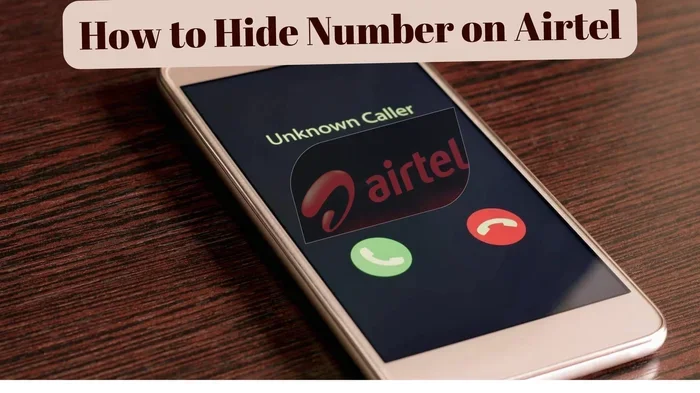
- Type the USSD code 31# to hide your Caller ID for a single call.
- Dial the number you want to call.
- The recipient will see “Private Number” or “Unknown” instead of your details.
To permanently change your Caller ID settings, try this code:
- Dial 311# in your dialer.
- Press the call button.
- You will receive a confirmation message from Airtel.
- Your Caller ID settings have now been updated.
Here is a quick comparison of the different USSD options:
- 31# — Hides Caller ID for one call only.
- 311# — Permanently hides Caller ID on all outgoing calls.
- 310# — Resets Caller ID to default (shows your number normally).
Keep in mind that USSD codes may vary slightly depending on your region and Airtel plan. If a code does not work, try the next one or contact Airtel customer support for the correct code for your area. You can also chat with Airtel support through their official app for quick assistance. It is always a good idea to confirm the latest codes, as carriers sometimes update them.
Quick Tip: Always save your current Caller ID settings before making changes. This way, you can easily revert if something does not work as expected.
Method 2: Use the Airtel Thanks App
The Airtel Thanks app is a powerful tool that lets you manage many aspects of your Airtel connection. Changing your Caller ID is one of the features available through the app. This method is ideal if you prefer a visual interface over dialing codes.
How to Change Caller ID Through the Airtel App
Here is how you can use the Airtel Thanks app to update your Caller ID:
- Download the Airtel Thanks app from the Google Play Store or Apple App Store.
- Log in using your Airtel mobile number and OTP verification.
- Navigate to the Services or My Account section.
- Look for Caller ID Settings or Call Settings.
- Choose whether you want to show your number, hide it, or display a custom name.
- Save your changes and restart your phone.
The app method is especially useful for people who manage multiple Airtel connections. You can switch between profiles and adjust Caller ID settings for each line separately. The interface is clean and intuitive, making it easy even for those who are not very tech-savvy. If you run into any issues, the app also provides direct access to Airtel customer care through its built-in chat feature.
One thing to note is that the app requires a stable internet connection. If you do not have Wi-Fi or mobile data, you can use the USSD method instead. You can also get Wi-Fi without a password at many public locations if you need to download the app or update your settings on the go.
Method 3: Contact Airtel Customer Support
If the USSD codes and app methods do not work for you, reaching out to Airtel customer support is the next best option. Sometimes Caller ID issues are linked to your specific plan, network configuration, or SIM card settings. A support agent can diagnose the problem and apply the correct settings on their end.
How to Reach Airtel Support for Caller ID Changes
There are several ways to contact Airtel support:
- Phone: Call 121 from your Airtel number. This is the toll-free customer care number.
- App Chat: Use the built-in chat feature in the Airtel Thanks app for real-time assistance.
- My Airtel Portal: Visit the Airtel website and log in to your account to submit a support request.
- Retail Store: Visit your nearest Airtel store with your SIM and ID proof.
When you contact support, be sure to mention that you want to change your Caller ID. Provide your mobile number and explain the issue clearly. If your number is showing incorrectly on other people’s phones, the support team can help refresh your network profile. This process usually takes a few hours to propagate across the network.
It is worth noting that some Caller ID changes require verification. Airtel may ask for identity proof to ensure your account is secure. This is a standard safety measure and helps prevent unauthorized changes to your account settings. Keeping your account details updated will speed up this process significantly.
Device-Level Caller ID Settings
Sometimes the issue is not with Airtel but with your phone itself. Both Android and iPhone devices have native settings that control how your Caller ID appears. Adjusting these settings can complement the changes you make on the Airtel network side.
Changing Caller ID on Android
On most Android phones, you can manage Caller ID through the phone app settings:
- Open the Phone app on your Android device.
- Tap the three-dot menu in the top right corner.
- Select Settings or Call Settings.
- Look for Caller ID or Additional Settings.
- Choose from options like “Show number,” “Hide number,” or “Network default.”
Android devices also allow you to set Caller ID on a per-call basis. When you make a call, you can tap the Caller ID icon and choose whether to show or hide your number for that specific call. This feature is handy for people who need flexibility in different situations.
Changing Caller ID on iPhone
iPhone users can adjust Caller ID settings through the Settings app:
- Open the Settings app on your iPhone.
- Scroll down and tap Phone.
- Select Show My Caller ID.
- Toggle the switch to show or hide your number.
If the toggle is greyed out, it may mean your carrier settings need updating. In such cases, go to Settings > General > About and check for carrier updates. Restarting your phone after making these changes can also help apply the new settings correctly.
Some advanced Android phones also allow you to set custom Caller ID names for specific contacts. This means you can choose how your number appears to certain people without changing your global settings. This feature is particularly useful for business users who interact with different client groups regularly.
Business Caller ID: Display Your Company Name
If you run a business, having your company name show up as your Caller ID can make a huge difference. Customers are more likely to answer calls from a recognized business name than from a random phone number. Airtel offers business Caller ID options for registered business accounts.
How to Set Up Business Caller ID on Airtel
Setting up a business Caller ID involves a few extra steps compared to personal use:
- You need a registered business entity with valid documentation.
- Contact Airtel business support or visit a corporate store.
- Request a toll-free or branded Caller ID for your business line.
- Airtel will verify your business credentials and apply the changes.
- The process typically takes 24 to 48 hours to complete.
Business Caller ID is available on both postpaid and certain prepaid plans. The cost varies depending on the plan and the type of Caller ID you choose. Some plans include business Caller ID at no extra charge, while others may require a small monthly fee. It is a worthwhile investment for any business that relies heavily on phone communication with clients and partners.
You can also use your mobile data to share information with clients while on calls. If you want to know more about sharing your connection, you can learn how to share your mobile data with another phone to keep your team connected during business calls.
Common Caller ID Problems and How to Fix Them
Even after following all the steps, you might run into issues with your Caller ID. Here are some common problems and their solutions:
Caller ID Shows the Wrong Number
This usually happens when you have multiple SIM cards in your phone. Go to your phone’s call settings and make sure the correct SIM is set as the default for outgoing calls. You can also try removing and reinserting your SIM card to refresh the network registration.
Caller ID Shows No Name
If your name does not appear on the recipient’s screen, it means your Caller ID name is not registered with the network. You can contact Airtel support to register your preferred display name. Keep in mind that Caller ID name display depends on the recipient’s phone and carrier as well.
Caller ID Not Working After Switching SIMs
When you switch to a new SIM or move to a new phone, your Caller ID settings may reset. Reapply your preferred settings using the methods described above. Restarting your device after the switch can also help re-establish the correct configuration.
Caller ID Works on Some Calls but Not Others
This can happen when you use call forwarding or third-party calling apps. Check your call forwarding settings and make sure they are not overriding your Caller ID preferences. Also, some apps like WhatsApp or Skype have their own Caller ID settings that may conflict with your network settings.
Tips to Keep Your Caller ID Secure
Once you have your Caller ID set up the way you want it, it is important to keep it secure. Here are some best practices:
- Do not share your Caller ID settings with untrusted individuals.
- Regularly review your call settings to ensure nothing has changed unexpectedly.
- Use a strong PIN on your phone to prevent unauthorized access to your call settings.
- Update your device software regularly to patch any security vulnerabilities.
- Be cautious with third-party apps that request access to your call logs and Caller ID settings.
These simple habits can go a long way in protecting your privacy and ensuring your Caller ID remains under your control. If you ever suspect unauthorized changes, contact Airtel support immediately to secure your account.
Final Thoughts
Changing your Caller ID on Airtel does not have to be complicated. Whether you prefer the speed of USSD codes, the convenience of the Airtel Thanks app, or the personal touch of speaking with a support agent, there is a method that works for everyone. Each approach gives you control over how your identity appears to the people you call.
Remember to check both your network-level settings and your device-level settings for the best results. If you encounter any persistent issues, do not hesitate to reach out to Airtel customer support. They are equipped to handle even the most specific Caller ID concerns and can apply changes on the network side if needed.
Take a few minutes today to review and update your Caller ID settings. It is a small change that can make a big difference in how you are perceived on every call you make. With the steps outlined in this guide, you are now fully equipped to manage your Caller ID with confidence.
Frequently Asked Questions
Can I change Caller ID on Airtel for free?
Yes, changing your Caller ID on Airtel is free in most cases. USSD codes and the Airtel Thanks app do not charge any fees. However, business Caller ID setups may involve a small monthly fee depending on your plan. Always check with Airtel support for the latest pricing details.
How long does it take for Caller ID changes to take effect?
USSD code changes are usually instant. App-based changes may take a few minutes and require a phone restart. Network-level changes through customer support can take 24 to 48 hours to fully propagate across the Airtel network.
Why does my Caller ID show a different name on some phones?
Caller ID name display depends on the recipient’s carrier and phone. Even if you register your name with Airtel, not all carriers support Caller ID name display. This is a network-level limitation and not something you can control from your side.
Can I hide my Caller ID on Airtel permanently?
Yes, you can hide your Caller ID permanently by using the USSD code 311#. This will make your number appear as “Private” or “Unknown” on all outgoing calls. You can reverse this anytime by dialing 310# or changing the setting in your phone’s call settings.
Is it possible to set a different Caller ID for each contact?
Some Android phones allow you to set custom Caller ID names for individual contacts within the phone app. However, this only changes how your number appears on the recipient’s end for specific contacts. The network-level Caller ID remains the same.
What should I do if none of the methods work?
If none of the methods work, contact Airtel customer support directly. There may be a network-level issue or a SIM card problem that requires professional assistance. Visiting an Airtel retail store with your ID proof and SIM can also help resolve persistent Caller ID issues quickly.