How Can I Access My Tenda Wifi Router Admin Settings
Accessing your Tenda Wifi Router admin settings is simple once you know the right steps. You will learn how to log in, configure your wireless network, and troubleshoot common issues. This guide covers everything from finding your router IP to updating firmware and securing your connection.
Have you ever wanted to tweak your home network but did not know where to start? Accessing your Tenda Wifi Router admin settings might seem tricky at first, but it is actually quite simple once you know the steps. Whether you want to change your WiFi password, set up parental controls, or just check who is connected to your network, the admin panel gives you full control.
In this guide, we walk you through every step to log into your Tenda router. We also cover common problems, security tips, and advanced settings you might want to explore. By the end, you will feel confident managing your wireless network like a pro. Let us get started.
Key Takeaways
- Default access is easy: You can reach your Tenda router admin page by typing 192.168.0.1 or tendawifi.com into your browser.
- Login credentials are printed on your router: Check the label on the back or bottom of your device for the default admin username and password.
- You can change key settings: Once logged in, you can update your WiFi name, password, security type, and more.
- Troubleshooting is straightforward: Most access problems come from wrong IP addresses, forgotten passwords, or connection issues.
- Security matters: Always change default credentials and keep your firmware updated to protect your network.
- The Tenda app offers an alternative: You can manage some settings through the Tenda WiFi app on your phone.
📑 Table of Contents
- What Is a Tenda Wifi Router Admin Panel?
- How to Access Your Tenda Wifi Router Admin Settings
- Key Settings You Can Adjust in the Tenda Admin Panel
- Troubleshooting Common Access Problems
- Tips for Securing Your Tenda Router
- Tenda Router vs Other Options: What You Should Know
- Using the Tenda WiFi App as an Alternative
- Final Thoughts
What Is a Tenda Wifi Router Admin Panel?
The admin panel is the control center for your Tenda router. It is a web-based interface where you can adjust all the settings that affect your home network. Think of it as the brain behind your wireless connection. When you log in, you can change everything from your network name to security protocols.
Most Tenda routers use a simple layout. The main dashboard shows your internet status, connected devices, and quick access to key settings. You do not need to be a tech expert to use it. The interface is designed to be beginner-friendly, with clear labels and straightforward menus.
Accessing this panel requires just a few basic pieces of information. You need your router’s IP address, a web browser, and your login credentials. We will cover each of these in detail below.
How to Access Your Tenda Wifi Router Admin Settings
Logging into your Tenda router is a straightforward process. Follow these steps carefully, and you will be inside the admin panel in just a few minutes.
Step 1: Connect to Your Tenda Router
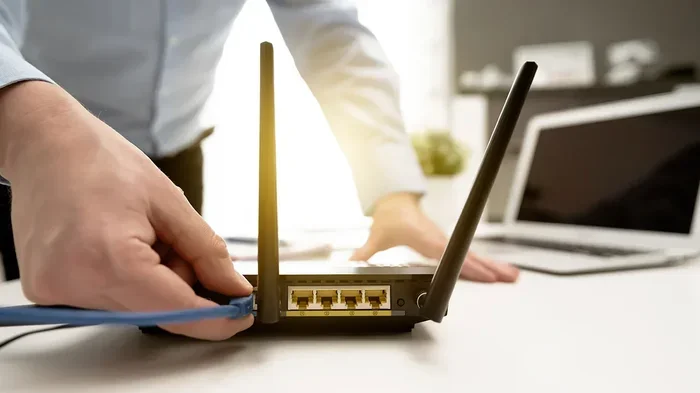
First, make sure your device is connected to the Tenda router. You can connect using WiFi or an Ethernet cable. WiFi is the easiest option for most people. Just select your Tenda network from the list of available networks on your phone, tablet, or computer.
If you are setting up a brand new router, the default WiFi name and password are printed on a sticker on the back of the device. Look for the network SSID and the temporary password. Connect using those details.
Step 2: Open Your Web Browser
Once connected, open any web browser on your device. Chrome, Firefox, Safari, and Edge all work fine. There is no need to download any special software. The admin panel is accessed through a simple web page.
Step 3: Type in the Router IP Address
Now, type your router’s IP address into the address bar at the top of the browser. Most Tenda routers use 192.168.0.1 or 192.168.1.1. Press Enter, and the login page should appear.
If those IP addresses do not work, you can try tendawifi.com as an alternative. Some newer Tenda models also support this domain name for quick access. If none of these work, you can find the correct IP by checking your device’s network settings.
On Windows, open Command Prompt and type ipconfig. Look for the Default Gateway address. On Mac, go to System Preferences, then Network, and look for the router listed next to Router. This is your gateway address.
Step 4: Enter Your Login Credentials
The login page will ask for a username and password. For most Tenda routers, the default username is admin and the password is also admin. Some models use guest as the default password. Check the sticker on your router to confirm the exact defaults.
If you have already changed the password and forgotten it, do not worry. You can reset the router to factory settings by pressing and holding the reset button on the back for about 10 seconds. This will restore all default settings, including the login credentials.
Step 5: Explore the Admin Dashboard
Once you log in successfully, you will see the main dashboard. From here, you can access all the important settings. The layout may vary slightly depending on your Tenda model, but the core options are generally the same across the line.
Take a moment to familiarize yourself with the different sections. You will typically find options for WiFi settings, network security, device management, and system tools. Each section opens up a world of customization possibilities.
Key Settings You Can Adjust in the Tenda Admin Panel
Now that you are logged in, let us look at the most useful settings you can change. These adjustments will help you get the most out of your Tenda router and keep your network running smoothly.
Change Your WiFi Name and Password
The first thing most people do is update their WiFi name and password. The default name is usually something generic like “Tenda_XXXX.” Changing it makes your network easy to identify and adds a layer of personalization.
Go to the Wireless Settings section to make changes. You will see fields for the network name (SSID) and password. Choose a strong password that includes letters, numbers, and special characters. Avoid using personal information like your name or address.
Update Your Network Security Type
Security is crucial for protecting your home network. In the Wireless Security section, you can choose between WPA, WPA2, and WPA3 encryption. WPA3 is the most secure option if your devices support it. WPA2 is a solid choice for most households and works with nearly all devices.
Never leave your network open or use WEP encryption. WEP is outdated and easy to crack. Always use at least WPA2 to keep strangers out of your network.
Set Up Parental Controls
Tenda routers often include parental control features. These let you block certain websites, set time limits for internet use, and restrict access for specific devices. You can find these options under the Parental Control or Access Control section of the admin panel.
This is a great feature for families. You can create profiles for each child and customize their internet access. Some Tenda models even allow you to pause the internet for specific devices with a single tap.
Manage Connected Devices
The admin panel shows you a list of all devices connected to your network. You can see their names, IP addresses, and connection status. If you notice an unfamiliar device, you can block it from accessing your internet.
Managing connected devices is especially important if you live in an apartment building or a densely populated area. Neighbors might try to access your WiFi if it is not properly secured. Regularly checking your device list helps you stay on top of who is using your network.
Update Router Firmware
Firmware updates keep your router running smoothly and securely. Manufacturers release updates to fix bugs, improve performance, and patch security vulnerabilities. Check the System Tools or Firmware Update section in your admin panel to see if an update is available.
Most Tenda routers have an automatic update feature. You can turn this on so your router always runs the latest software. If automatic updates are not available, make a habit of checking manually every few months.
Troubleshooting Common Access Problems
Sometimes you may run into issues when trying to access your Tenda router admin settings. Here are the most common problems and how to fix them.
Cannot Reach the Login Page
If the login page does not load, first check your connection. Make sure your device is connected to the Tenda router’s WiFi network. Try typing the IP address again carefully. A simple typo can cause the page not to load.
If the problem persists, try using a different browser. Sometimes browser extensions or cached data can interfere with the login page. Clearing your browser cache often solves this issue.
Forgot Your Login Password
If you changed the admin password and cannot remember it, a factory reset is your best option. Locate the small reset button on the back of your router. Use a paperclip or pin to press and hold it for 10 to 15 seconds. The router will restart and revert to factory settings.
Keep in mind that a factory reset erases all custom settings. You will need to set up your WiFi name, password, and other preferences again. Write down your new credentials and store them in a safe place.
Slow or Unstable Connection After Login
If your connection becomes slow after accessing the admin panel, check for any changes you may have made accidentally. Sometimes toggling a setting can disrupt your network. If you are unsure, you can reset the router and start fresh.
Also, consider the placement of your router. Walls, furniture, and electronic devices can interfere with the WiFi signal. Placing your router in a central, open location often improves performance significantly.
Tips for Securing Your Tenda Router
Keeping your Tenda router secure should be a top priority. An unsecured network can leave your personal data vulnerable. Here are some simple but effective steps you can take.
- Change default login credentials: The default admin username and password are well known. Changing them makes it much harder for unauthorized users to access your settings.
- Use WPA3 or WPA2 encryption: Never use WEP or leave your network open. Strong encryption is your first line of defense.
- Disable WPS: Wi-Fi Protected Setup is convenient but has known security weaknesses. Turn it off in the Wireless Settings if you do not need it.
- Keep firmware updated: Regular updates patch security flaws and improve stability. Check for updates at least once a month.
- Use a strong WiFi password: A long, complex password is much harder to guess. Aim for at least 12 characters with a mix of letters, numbers, and symbols.
- Disable remote management: Unless you specifically need it, turn off remote access to your router admin panel. This prevents outside users from reaching your settings.
Taking these precautions ensures your home network stays safe and reliable. It only takes a few minutes but provides peace of mind for months and years to come.
Tenda Router vs Other Options: What You Should Know
When it comes to home networking, Tenda is not the only brand available. Many people also use routers from Spectrum, Netgear, TP-Link, and other manufacturers. Each brand has its strengths, and choosing the right one depends on your needs.
If you are currently renting a modem or router from your internet provider, you might consider buying your own equipment. For example, if you are a Spectrum customer, you can check whether you are allowed to change out your router with Spectrum. Buying your own router can save you money in the long run and give you more control over your settings.
Similarly, if you want better coverage throughout your home, you might explore mesh WiFi systems. You can add mesh WiFi to an existing router to extend your signal to every room. This is especially helpful for larger homes or buildings with thick walls that block WiFi signals.
Tenda routers are a solid choice for most households. They offer a good balance of performance, features, and affordability. The admin panel is easy to navigate, and the setup process is beginner-friendly. Whether you are a casual internet user or someone who wants more control over your network, Tenda has options that work well.
Using the Tenda WiFi App as an Alternative
Not everyone wants to log into a web-based admin panel. Tenda offers a mobile app that lets you manage many settings from your phone. The Tenda WiFi app is available for both iOS and Android devices. It provides a user-friendly way to monitor and control your network.
With the app, you can check which devices are connected, set up parental controls, and run speed tests. The app also makes it easy to create a QR code for your WiFi network. This way, guests can connect without asking for your password. You can scan the code and share it with visitors quickly and conveniently.
The app is not a full replacement for the admin panel, but it covers most everyday tasks. If you prefer managing your network from your phone, the Tenda app is a great companion to your router.
Final Thoughts
Accessing your Tenda Wifi Router admin settings opens up a world of possibilities. You can customize your network, boost security, and troubleshoot issues without calling for help. The process is simpler than most people think, and once you are inside, the options are intuitive and easy to use.
Start by connecting to your router, entering the IP address, and logging in with your credentials. From there, explore the settings and make adjustments that fit your needs. Always prioritize security by using strong passwords and keeping your firmware updated.
Remember, your router is the gateway to your entire home network. Taking a few minutes to understand and manage it properly pays off in the long run. You will enjoy faster speeds, better coverage, and greater peace of mind knowing your network is secure and optimized for your household.
Frequently Asked Questions
What is the default IP address for a Tenda router?
Most Tenda routers use 192.168.0.1 or 192.168.1.1 as their default IP address. You can also try tendawifi.com in some cases. Check the label on the back of your router or the user manual to confirm the correct address for your specific model.
What are the default login credentials for Tenda routers?
The default username is usually admin and the password is also admin on most Tenda models. Some newer routers use guest as the default password. Always check the sticker on your router for the exact default credentials printed on your device.
Can I access my Tenda router settings from my phone?
Yes, you can access your Tenda router admin settings from your phone as long as you are connected to the router’s WiFi network. Simply open your mobile browser and type in the router IP address. You can also use the Tenda WiFi app for a more streamlined experience on your mobile device.
How do I reset my Tenda router if I forgot the admin password?
Press and hold the reset button on the back of your router for 10 to 15 seconds using a paperclip or pin. This restores factory settings, including the default login credentials. Keep in mind that all custom settings will be erased, so you will need to reconfigure your WiFi name and password afterward.
Why can I not access the Tenda router admin page?
Common reasons include entering the wrong IP address, not being connected to the router’s network, or browser cache issues. Double-check your connection and the IP address you are using. Try a different browser or clearing your cache if the page still does not load.
Is it safe to change settings in the Tenda admin panel?
Yes, it is safe as long as you know what you are changing. Stick to settings you understand, like WiFi name, password, and security type. Avoid changing advanced settings unless you are confident in what they do. When in doubt, write down your original settings before making any changes.
=== CONCLUSION ===
Accessing your Tenda Wifi Router admin settings is easier than you might think. With just a few simple steps, you can take full control of your home network. From changing your WiFi password to updating firmware and managing connected devices, the admin panel gives you everything you need.
Remember to always secure your network with strong passwords and up-to-date encryption. Keep your firmware current and regularly check which devices are connected. These small habits make a big difference in keeping your network fast, reliable, and safe.
Now that you know how to access and manage your Tenda router, you can troubleshoot issues on your own and fine-tune your network to match your needs. Enjoy the confidence that comes with knowing you are in full control of your home WiFi setup.