Can I Leave My Laptop Plugged Into a Docking Station Forever
Can I Leave My Laptop Plugged Into a Docking Station Forever? Yes, you can, but it requires smart power management to protect your battery and device. Leaving your laptop connected to the dock constantly offers a seamless workspace, yet it can cause battery drain and heat buildup over time. This guide explains exactly what happens when you keep your laptop plugged in around the clock and how to maximize battery health while enjoying the convenience of a desktop replacement setup.
Many people ask, Can I Leave My Laptop Plugged Into a Docking Station Forever. The short answer is yes. But the full answer is a bit more complicated. When you connect your laptop to a docking station, you turn it into a powerful desktop replacement. You get extra screens, a full keyboard, and plenty of ports. This setup changes how you work and play every single day. It feels like you have a permanent home base for your digital life.
Leaving your laptop plugged in all the time feels so convenient. You never have to hunt for your power adapter. Your workspace stays set up exactly how you like it. You just sit down, open the lid, and start working. However, keeping your device connected to the dock 24/7 comes with some risks. You need to understand how this affects your laptop battery and overall performance. Many users do not realize that a permanent dock setup can slowly damage their machine if they are not careful. The convenience is real, but it must be balanced with proper power management.
In this article, we will explore what happens when you leave your laptop docked. We will look at the good, the bad, and the best ways to manage your setup. Whether you use your laptop for work or play, this guide will help you make smart choices. Let us dive into the details of charging cycle management and power management. By the end, you will know exactly how to keep your laptop healthy while enjoying the freedom of a docked setup. You will learn the secrets that tech experts use to keep their devices running strong for years.
Key Takeaways
- Yes, you can: Leaving your laptop plugged into a docking station forever is generally safe if you manage power settings correctly.
- Battery health matters: Constant charging can degrade your laptop battery faster without a charge limit feature.
- Heat is the enemy: A docked laptop needs proper ventilation to prevent overheating and thermal throttling.
- Use battery saver mode: Enable power management features to reduce strain on the battery while docked.
- Unplug occasionally: Letting the battery discharge to 20% and recharge once a month helps maintain battery capacity.
📑 Table of Contents
What Happens When You Leave Your Laptop Plugged In?
When you keep your laptop connected to the dock, the AC power flows directly to your device. The laptop runs on this external power while the battery sits idle. This setup is great for performance, but it changes how your battery behaves. Understanding this process is the first step to protecting your laptop.
When you are plugged into the dock, your laptop prioritizes running on external electricity. It does not pull from the battery unless the power goes out. This means your battery gets a break from discharging. While resting sounds good, staying at a full charge puts stress on the lithium-ion cells inside the battery. The chemicals inside the battery are most stable when they are between 20% and 80%. When you leave it plugged in forever, the battery stays at 100%. This constant high voltage causes the electrolyte to break down faster than normal.
The Battery Charge Cycle Explained
A normal charging cycle happens when you use battery power from 100% down to zero. When you leave your laptop plugged in, you skip these cycles. Your battery stays at 100% all the time. While this sounds perfect, it puts stress on the battery cells. Lithium-ion batteries do not like staying at full charge for too long. They begin to degrade faster when they are constantly full. Over time, you will notice the battery does not hold a charge as well as it used to. This is a natural process, but it happens much faster when the battery is always at 100%.
Think of it like a rubber band. If you stretch a rubber band and leave it stretched, it loses its elasticity. Your battery works the same way. Keeping it at maximum tension (100% charge) wears it out. This is why many modern laptops have a feature to limit the charge. It is a simple way to reduce the stress on your laptop battery without giving up the convenience of your dock.
Heat Generation and Its Effects
Another big factor is heat. When your laptop runs on AC power, it uses more energy. This extra energy turns into heat. A docked laptop often sits in one place, which can block airflow. If your laptop gets too hot, it might slow down. This is called thermal throttling. Heat is the number one enemy of electronic parts. It can reduce the lifespan of your battery and other components. You might notice the fan running louder or the bottom of the laptop feeling warm. These are signs that your device needs better heat dissipation.
When your laptop is docked, the air vents on the bottom or sides might be covered by the desk or the dock itself. This traps hot air inside the chassis. Over time, this trapped heat can cause permanent damage to the internal hardware. The battery drain might also increase because the battery has to work harder to regulate its temperature. Keeping your laptop cool is essential for long-term health.
The Pros of Keeping Your Laptop Docked Permanently
Despite the risks, there are many good reasons to keep your laptop plugged in to the dock. Let us look at the advantages of this setup. For many professionals, the benefits far outweigh the drawbacks. A well-configured dock turns any laptop into a powerful workstation.
Seamless Workflow and Convenience
Having a permanent dock setup means you never lose your workflow. You plug in one cable, and your laptop becomes a full desktop. You get access to an external monitor, a mouse, and a keyboard instantly. This is perfect for people who work from home. You save time and avoid the hassle of plugging and unplugging cables every day. When you sit down at your desk, everything is ready to go. You can start working right away without any delays. This seamless experience is a huge productivity booster.
Imagine you are in the middle of an important video call. You close your laptop to put it in your bag, and you lose your connection. With a docking station, you just close the lid and walk away. When you return, everything is exactly where you left it. You do not have to reconnect your monitors or reconfigure your audio. This kind of convenience is why so many people choose to leave their laptop plugged in all the time. It removes friction from your daily routine.
Desktop Replacement Power
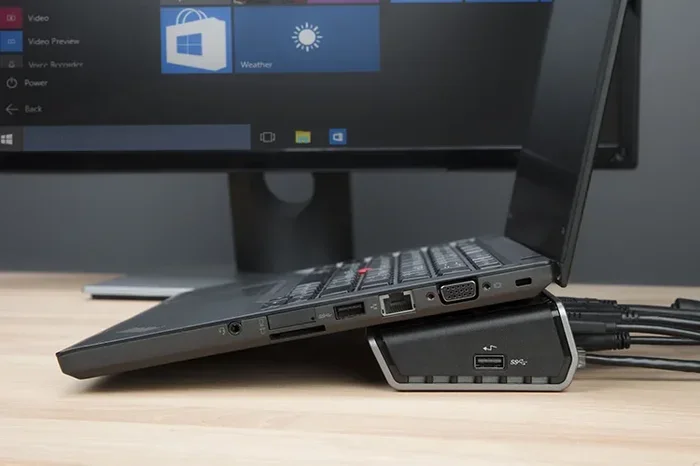
A docking station acts as a central hub. It connects to a USB hub, Ethernet, and audio devices. When your laptop is docked, it draws steady power from the wall. This steady power allows your laptop to run heavy tasks without worrying about battery drain. You can run multiple programs at once without the laptop switching to power-saving mode. Video editors and programmers love this setup because it gives their machine constant, stable power. The desktop replacement experience feels much more like a traditional computer.
Running on AC power also means your laptop can deliver maximum performance. When you are on battery, the system limits the processor speed to save energy. But when you are docked, you unlock the full power of your hardware. This is especially important for demanding applications like 3D rendering or gaming. The external monitor setup also gives you more screen real estate, which helps you multitask efficiently.
The Cons and Risks of Leaving It Docked
It is important to understand the downsides of a permanent dock setup. Ignoring these risks can shorten the life of your laptop. Being aware of these issues helps you take preventive action. No piece of technology is perfect, and a docked setup is no exception.
Battery Degradation Over Time
The biggest risk is battery degradation. When your battery stays at 100% charge, the chemical inside the battery becomes unstable. Over months, you will notice your battery does not last as long. You might find yourself needing to charge your laptop more often, even when it is unplugged. This is a clear sign of battery drain caused by constant charging. A degraded battery means your laptop becomes less portable. You might need to replace the battery sooner than expected, which can be costly.
Laptop batteries are designed to go through a certain number of cycles before they wear out. A cycle is defined as using 100% of the battery capacity, though not necessarily all at once. When you leave your laptop plugged in forever, you are not using cycles, but you are still wearing out the battery through a process called calendar aging. The high voltage of a full charge accelerates this aging process. This is why keeping your battery between 40% and 80% is often recommended by experts.
Overheating and Component Stress
When your laptop sits on a desk connected to a dock, the bottom vents might get blocked. If the heat dissipation is poor, your laptop will overheat. Overheating causes laptop overheating symptoms like a loud fan, slow performance, and shutdowns. A laptop stand can help, but you must still be careful about where you place your docked setup. Constant heat also stresses the internal components. The motherboard and RAM can wear out faster in a hot environment. Keeping your laptop cool is essential for long-term use.
Another hidden risk is the expansion of the battery due to heat. A swollen battery is a serious safety hazard. It can push against the screen or the trackpad, causing damage. In rare cases, it can even cause a fire. While this is an extreme case, it highlights the importance of managing heat. If you notice your laptop getting very hot or the battery swelling, you should stop using it immediately and seek professional help.
How to Safely Keep Your Laptop Plugged Into a Docking Station
You do not have to choose between convenience and battery health. With the right steps, you can keep your laptop docked forever without ruining the battery. Here are the best practices for a safe setup. These tips will help you enjoy your docking station without worry.
Battery Charge Thresholds and Limits
Many modern laptops have a built-in charge limit feature. This setting stops the battery from charging past 80%. You can find this in your power management settings. By using a charge limit, you greatly reduce the stress on your battery. This simple trick can make your battery last for years. Different brands call this feature different names. Some call it battery protection, while others call it longevity mode. No matter the name, the goal is the same. It prevents the battery from sitting at maximum voltage all the time.
For example, if you are a Lenovo user, you can use the Vantage app to set a battery charge threshold. Apple laptops have a similar feature called Optimized Battery Charging. Dell and HP also offer power management utilities that include this setting. Enabling this feature is one of the best things you can do if you plan to leave your laptop plugged in permanently. It gives you the convenience of a full dock setup while protecting your battery from the stress of constant charging.
Ventilation and Cooling Tips
Make sure your laptop has plenty of space to breathe. Do not push it against the wall or bury it under papers. Use a laptop stand to lift the back of the machine. This improves airflow and helps with heat dissipation. Keeping your laptop cool is the best way to protect it while it is docked. You should also clean the vents regularly. Dust buildup can block airflow and cause overheating. A simple can of compressed air can make a big difference. Good ventilation is your first line of defense against heat damage.
You should also consider the room temperature where your laptop sits. A cool room is much better for a docked laptop than a warm one. Avoid placing your laptop near radiators or sunny windows. If you feel the bottom of your laptop getting hot, give it a break. Turn it off for a few hours to let it cool down. These small habits can extend the life of your laptop battery significantly.
Quick Tips for Daily Use
- Always use the original power adapter that came with your laptop.
- Clean your laptop vents every week to prevent dust buildup.
- Turn on battery saver mode even when you are plugged in.
- Unplug your laptop once a month to let the battery discharge.
- Keep your laptop in a cool, dry room away from direct sunlight.
- Use a USB hub to reduce the load on your laptop’s ports.
- Check your power management settings every few months.
Common Mistakes to Avoid
One common mistake is ignoring the heat. People think because the laptop is on a desk, it cannot overheat. Another mistake is using a cheap power adapter. A low-quality adapter can send unstable power to your laptop, which damages the battery over time. Never ignore warning signs like a hot chassis or a swollen battery. Another error is forgetting to update your power management software. Manufacturers often release updates that improve power management and battery charging algorithms.
Some users make the mistake of closing their laptop while it is docked and the screen is off. This puts the laptop in sleep mode, but it is still drawing power and generating heat. If you are going away for a long time, it is better to shut the laptop down completely or undock it. Another mistake is using the laptop on a soft surface like a bed while docked. Soft surfaces block the vents instantly and can cause rapid overheating.
Expert Insights on Long-Term Dock Use
According to hardware experts, modern laptops are smart. They stop drawing power once the battery hits 100%. However, they still experience a slight trickle charge to stay at 100%. This is why enabling a charge limit is the best advice. Experts also suggest that if you use your laptop as a desktop 90% of the time, remove the battery if possible, or keep it between 40% and 80%. Some pros even recommend using your laptop on battery power for a few hours each week. This keeps the battery cells active and healthy. A little maintenance goes a long way in extending the life of your device.
Tech specialists also recommend using an uninterruptible power supply, or UPS, with your dock. A power adapter can be affected by power surges or outages. A UPS keeps your laptop running smoothly and protects the battery from sudden electrical changes. This is especially important if you live in an area with unstable electricity. Taking these small steps can save you a lot of money and frustration in the long run.
Docked vs. Undocked: Which is Better for Your Battery?
Here is a quick look at how both setups compare. Understanding the differences helps you make the best choice for your needs. There is no one-size-fits-all answer, but the data can guide you.
| Feature | Plugged Into Dock | Running on Battery |
|---|---|---|
| Convenience | Very high | Low |
| Battery Lifespan | Can decrease faster | Stays healthier |
| Heat Output | Higher | Lower |
| Performance | Stable and strong | May throttle to save power |
| Mobility | Zero mobility | Full mobility |
| Power Reliability | Dependent on outlet | Independent |
As you can see, both setups have trade-offs. The best choice depends on how you use your laptop. If you need maximum performance and convenience, docking is the way to go. If you care deeply about long-term battery health, you might want to limit your dock time. Finding the right balance is the key to a happy setup. Many users find a middle ground by docking their laptop at the office but using it on battery at home.
Conclusion
So, can you leave your laptop plugged into a docking station forever? Yes, you can. But you must be smart about it. By managing your power management settings and keeping your laptop cool, you can enjoy the benefits of a permanent dock setup. Pay attention to your laptop battery health and use a charge limit if your laptop supports it.
Remember, a little care goes a long way. Your docking station gives you the freedom of a desktop, but you still need to protect your machine. Follow the tips in this guide, and your laptop will stay healthy for years to come. Keep your laptop plugged in, stay productive, and enjoy your workspace without worry. Your setup will serve you well for many years if you treat it right.
Frequently Asked Questions
Is it bad to leave your laptop plugged in all the time?
It is not necessarily bad, but it can reduce your battery lifespan over time. When a battery stays at 100% charge constantly, it degrades faster. Using a charge limit feature helps prevent this and keeps your laptop battery healthy.
How can I stop my laptop battery from draining while docked?
You can enable battery saver mode and set a charge limit in your power management settings. These features stop the battery from charging past 80%, which keeps it healthier while you use AC power through the docking station.
Does a docking station cause laptop overheating?
A dock itself does not cause overheating, but a docked laptop might run warmer because it is using more power. Poor airflow around the laptop can make the heat worse, so use a laptop stand for better heat dissipation and cooling.
Should I unplug my laptop from the docking station every night?
You do not need to unplug it every night if you have a charge limit set. However, letting the battery discharge to about 20% and then recharge once a month helps maintain the overall battery health and charge cycle balance.
Can I use a third-party docking station with my laptop?
Yes, but you should choose a high-quality dock to ensure stable power delivery. A cheap USB hub or power adapter might send inconsistent voltage, which can harm your laptop battery and other internal parts over time.
What is the best way to use a laptop with a docking station?
The best way is to keep your laptop plugged in for convenience but enable battery charge limits. Make sure your laptop has good ventilation and use the original power adapter for the safest, most reliable desktop replacement setup.