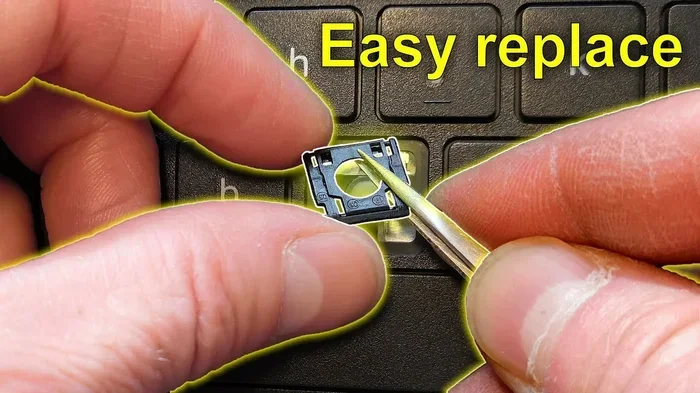
Can I Get A Replacement Key For My Laptop Right Now
Yes, you can get a replacement key for your laptop right now through several easy methods. Whether your key fell off, broke, or stopped working, this guide covers every option from DIY kits to professional repair. We will walk you through the cost, where to buy parts, and how to replace a single key in minutes.
Have you ever been typing away on your laptop and suddenly a key just pops off? Or maybe you spilled a drink, and now one of the keys sticks or won’t work at all. It is a frustrating moment, but the good news is that you can get a replacement key for your laptop right now. You do not need to buy a whole new keyboard or even a new laptop. In most cases, replacing a single key is quick, easy, and affordable.
Whether your laptop key fell off during normal use or it broke after an accident, there are several ways to fix the problem. You can buy individual replacement keys online, use a DIY kit, or visit a repair shop. This guide will walk you through every option so you can get back to typing without delay. We will cover costs, tools, step-by-step instructions, and tips to prevent future damage.
Key Takeaways
- Replacement keys are widely available: You can find individual keys online, at electronics stores, or through your laptop manufacturer.
- DIY replacement is simple: Most laptop keys pop on and off with a small tool and a little patience.
- Costs range from $1 to $20 for single keys: Full keyboard replacements cost much more, usually $50 to $150.
- Check your laptop model first: Keys are model-specific, so you need the exact part number or key code.
- Warranty may cover the cost: If your laptop is still under warranty, the manufacturer might replace the key for free.
- Act quickly when a key is lost: Missing keys can affect typing speed and accuracy over time.
📑 Table of Contents
Why Laptop Keys Come Off or Break
Understanding why keys fail can help you prevent it from happening again. Laptop keys are not built to last forever, and several common causes lead to key damage or loss.
Normal Wear and Tear
Over time, the plastic parts under each key wear down. The laptop key clip that holds the key in place becomes loose. This is especially common with frequently used keys like the spacebar, enter key, and shift keys. After months or years of daily typing, a key may start wobbling and eventually fall off.
Spills and Liquid Damage
Liquid spills are one of the top causes of keyboard problems. Water, coffee, or soda can seep under the key and corrode the metal contacts beneath. In many cases, the key cap itself cracks or warps from the heat or acidity of the liquid. A stuck laptop key after a spill often means the underlying mechanism is damaged.
Accidental Drops and Impacts
Dropping your laptop or pressing too hard on a key can snap the small plastic pieces that hold the key in place. Even a minor bump can cause a broken laptop key to pop off. This is especially true for slim laptops, where the keys are more fragile due to the thin design.
Manufacturing Defects
Sometimes a key fails because of a defect right out of the box. The laptop key retractor — the small metal piece that connects the key to the keyboard circuit — may be poorly attached. In such cases, you may be entitled to a free replacement if your laptop is still under warranty.
How to Replace a Single Laptop Key
Replacing one key on your laptop is simpler than most people think. You do not need to be a tech expert. With the right parts and a little care, you can do it in under ten minutes.
Step-by-Step Replacement Guide
Follow these steps to replace a missing laptop key or a broken one:
- Remove the old key cap carefully. If the key is still attached but broken, use a small flathead screwdriver or a key puller to gently pry it up. Work from the edges to avoid damaging the keyboard key replacement mechanism underneath.
- Inspect the retainer clip. The metal or plastic clip beneath the key should still be in place. If it came off too, gently press it back into the socket on the keyboard base.
- Align the new key cap. Place the replacement key over the retainer clip. Make sure the hooks on the bottom of the key cap line up with the slots in the clip.
- Press the key down firmly. Apply even pressure across the key cap until it clicks into place. You should feel it snap securely onto the laptop key parts underneath.
- Test the key. Type the key several times to make sure it registers properly and feels firm.
Tools You Will Need
You do not need many tools for this job. Here is a short list:
- A small flathead screwdriver or plastic spudger
- A key puller tool (optional but helpful)
- The replacement key cap and retainer clip
- A soft, clean cloth to work on
- Isopropyl alcohol (for cleaning the area if there was a spill)
Quick Tips for a Smooth Replacement
Here are some expert tips that make the process easier:
- Take a photo of the keyboard before you remove any keys so you remember the layout.
- Work on a soft surface like a towel so tiny parts do not roll away.
- Never force a key cap into place. If it does not fit, double-check the alignment.
- Clean the area around the socket before installing the new key to remove dust or debris.
- Buy a keyboard key replacement kit that includes multiple keys in case you need more than one.
Where to Buy Replacement Laptop Keys
Finding the right replacement key is the most important step. Since keys are model-specific, you need to know your exact laptop brand and model number before shopping.
Online Retailers
Websites like Amazon, eBay, and AliExpress sell individual replacement keys. Search using your laptop model number and the specific key you need. For example, search for “replacement key for Dell XPS 15 spacebar” rather than just “laptop key.” This gives you the best chance of finding the exact match.
Manufacturer Websites
Many laptop manufacturers sell original replacement parts directly on their websites. Brands like Dell, HP, Lenovo, Apple, and Asus all have dedicated parts stores. Buying from the manufacturer ensures the best fit and quality. However, prices are often higher than third-party sellers.
Local Electronics Repair Shops
If you prefer not to DIY, a local repair shop can replace the key for you. They usually have a stock of replacement laptop key parts and the tools needed. Call ahead to confirm they can get your specific key in stock or order it for you.
What to Look for When Buying
- Exact laptop model compatibility
- The key code or part number (usually printed on the back of the key cap)
- Whether the kit includes the retainer clip and scissor mechanism
- Reviews from other buyers
- Warranty or return policy from the seller
Laptop Key Replacement Cost
One of the most common questions people ask is, “How much does it cost to replace a laptop key?” The answer depends on where you buy the parts and whether you do it yourself or hire a professional.
| Replacement Option | Estimated Cost | Time Required |
|---|---|---|
| Buy a single key online and DIY | $1 – $5 | 10 – 20 minutes |
| Buy a key replacement kit | $5 – $15 | 30 – 60 minutes |
| Professional repair at a shop | $20 – $50 | 1 – 2 hours |
| Manufacturer replacement service | $30 – $80 | 3 – 7 business days |
| Full keyboard replacement | $50 – $150 | 1 – 3 hours |
As you can see, replacing a single key is the cheapest and fastest option. A laptop key replacement cost of just a few dollars is much better than paying for a full keyboard swap. If only one or two keys are damaged, always start with the individual key replacement approach.
Is It Covered by Warranty?
If your laptop is still under warranty, check with the manufacturer before paying for anything. Many warranties cover keyboard defects, including keys that stop working or fall off due to manufacturing issues. Apple, Dell, HP, and Lenovo all have different warranty terms, so read the fine print or call their support line to ask.
When to Replace the Entire Keyboard
Replacing a single key works great for one or two damaged keys. But what if multiple keys are broken or the whole keyboard is malfunctioning? In that case, you may need a full laptop keyboard replacement.
Signs You Need a Full Keyboard Replacement
- Five or more keys are broken or missing
- Several keys stick or do not register when pressed
- There is visible liquid damage across the keyboard
- The keyboard feels loose or unstable overall
- The backlight on the keyboard is not working (on supported models)
DIY Full Keyboard Replacement
Replacing the entire keyboard is more involved but still doable for most users. You will need a Phillips-head screwdriver, a plastic opening tool, and a compatible replacement keyboard. Search YouTube for a tutorial specific to your laptop model. It is very helpful to watch someone walk through the process before you start.
Professional Full Keyboard Replacement
If you are not comfortable opening your laptop, a professional repair service is the way to go. They can source the right keyboard and install it correctly. Expect to pay between $50 and $150 depending on your laptop brand and model. This option is especially worth it for premium laptops like MacBooks where the keyboard is tightly integrated.
Tips to Prevent Future Key Damage
Once you have replaced your broken or missing key, you will want to keep it working. A few simple habits can extend the life of your laptop keyboard keys significantly.
- Keep drinks away from your laptop. This is the single most effective way to prevent keyboard damage. Use a spill-proof water bottle if you must have a drink nearby.
- Do not press keys too hard. Laptop keys are designed for light, gentle presses. Slamming down on the keyboard can damage the mechanisms over time.
- Clean your keyboard regularly. Use compressed air to blow out crumbs and dust once a week. For sticky keys, gently clean around them with a cotton swab dipped in isopropyl alcohol.
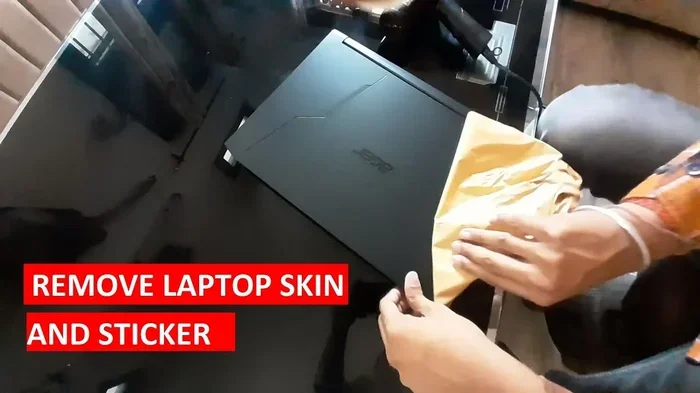
- Use a laptop cover or skin. A protective cover shields the keyboard from dust, crumbs, and minor impacts when you close or carry your laptop.
- Avoid eating over your keyboard. Crumbs from chips, crumbs, and other food particles can work their way under the keys and cause them to stick or malfunction.
- Handle your laptop with care. Do not drop it, and avoid placing heavy objects on the closed laptop that could press on the keys and damage the mechanisms underneath.
Following these simple tips can save you the trouble and cost of needing another replacement key for laptop in the near future.
Final Thoughts
Dealing with a broken or missing key on your laptop does not have to be stressful or expensive. The answer to “Can I get a replacement key for my laptop?” is a clear and resounding yes. You have many options available right now, from affordable DIY kits to professional repair services. Whether you choose to replace a single key yourself or seek help from a technician, the process is straightforward and the results are immediate.
Start by identifying your laptop model and finding the right replacement key. Check if your warranty covers the repair. Then decide whether you want to tackle the job yourself or hand it over to a professional. No matter which path you choose, getting that replacement laptop key fixed quickly will restore your typing comfort and keep your workflow running smoothly.
Do not let a single broken key ruin your laptop experience. Take action today and get your keyboard back to working condition. Your fingers will thank you the next time you sit down to type an email, write a report, or chat with friends online.
Frequently Asked Questions
Can I use a replacement key from a different laptop model?
It is not recommended. Laptop keys are model-specific, meaning the size, shape, and mechanism differ between brands and models. Using the wrong key will not fit properly and may damage the keyboard. Always match the replacement key to your exact laptop model number.
How long does it take to replace a single laptop key?
Most people can replace a single key in 10 to 20 minutes. If you are doing it for the first time, it may take a little longer as you get used to the process. Watching a quick video tutorial beforehand can save you time and frustration.
Is it cheaper to replace a key myself or pay a professional?
DIY replacement is almost always cheaper. A single replacement key costs just $1 to $5 online, and the tools you need are things you likely already have. Professional repair costs between $20 and $50 for labor, so you pay more for convenience.
Will replacing a laptop key void my warranty?
In most cases, no. Replacing a single key yourself does not typically void the warranty. However, if you open the laptop casing or damage other parts during the process, it could affect your coverage. Check your specific warranty terms or contact the manufacturer before attempting any repair.
What should I do if the key cap is cracked but the mechanism still works?
You can replace just the key cap without changing the mechanism underneath. Many sellers offer key caps separately for just a dollar or two. This is the most affordable and easiest fix for a cracked key that still functions properly.
Can spilled water permanently damage a laptop keyboard?
It depends on how quickly you act. If you spill liquid on your keyboard, turn off the laptop immediately, unplug it, and flip it upside down to let the liquid drain. Let it dry completely for at least 24 hours before turning it back on. If the liquid has reached the circuit board, professional repair may be needed. Acting fast greatly reduces the risk of permanent damage.