Can I Edit 4k Video On My Laptop And Still Have Fun
Yes, you can edit 4K video on your laptop if you have the right setup. This guide covers the hardware requirements, best video editing software, and practical tips to make 4K video editing smooth and fun. You will learn what specs matter most, which tools to use, and how to avoid common pitfalls.
Key Takeaways
- Laptop specs matter: A strong processor, enough RAM, and a dedicated graphics card make 4K editing possible on most modern laptops.
- Software choice is key: Free and paid options exist that handle 4K footage well, even on mid-range machines.
- Proxy editing saves time: Using lower-resolution copies of your clips keeps playback smooth without sacrificing final quality.
- Storage speed counts: An SSD is essential for handling large 4K files and reducing render times.
- Thermal management matters: Keeping your laptop cool prevents throttling and maintains steady performance during long edits.
- You do not need a gaming laptop: A well-configured budget machine can handle 4K editing with the right workflow.
- Start simple and scale up: Begin with basic cuts and effects, then explore color grading and advanced features as you grow.
📑 Table of Contents
- What Does It Mean to Edit 4K Video?
- Can Your Laptop Handle 4K Video Editing?
- Best Software for Editing 4K Videos on a Laptop
- Tips to Make 4K Editing Smoother on Any Laptop
- Common Mistakes People Make When Editing 4K on Laptops
- Expert Tips to Speed Up Your 4K Editing Workflow
- Is a Gaming Laptop Better for 4K Editing?
- Conclusion
What Does It Mean to Edit 4K Video?
Editing 4K video means working with footage that has a resolution of 3840 by 2160 pixels. That is four times the detail of standard high definition. Every frame contains over eight million pixels. Your laptop has to process all of that data in real time.
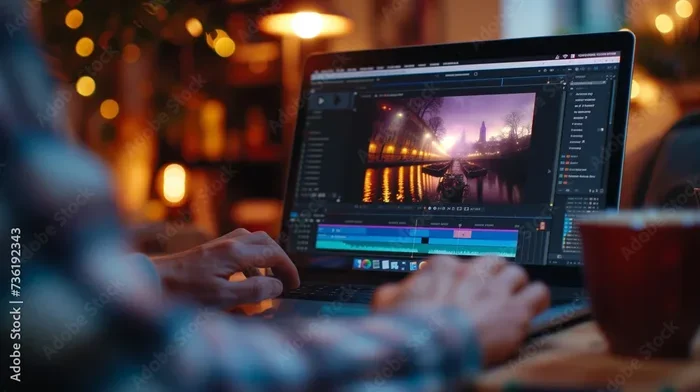
When you edit 4K video, you are doing more than just cutting clips. You are adjusting color, adding transitions, applying effects, and mixing audio. Each of these tasks demands laptop performance on a different level. The more effects you add, the harder your machine has to work.
4K video editing is not just for Hollywood professionals anymore. Many creators use laptops to edit content for YouTube, Instagram, and TikTok. The tools have become more accessible. The hardware has caught up. You do not need a massive desktop workstation anymore.
But there is a catch. Not every laptop can handle this workload equally. Your results depend heavily on your laptop specs. Understanding what matters most helps you make smart choices. It also saves you from frustrating slowdowns and crashes.
Can I Edit 4k Video On My Laptop and still enjoy the process? Absolutely. With the right knowledge and setup, you can create stunning content without tearing your hair out. Let us break down exactly what you need.
Can Your Laptop Handle 4K Video Editing?
The short answer is: it depends. Your laptop’s hardware determines whether smooth 4K video editing is possible. Some machines handle it effortlessly. Others struggle just to play back a clip without stuttering. Knowing what to look for makes all the difference.
Processor Speed Matters Most
Your processor speed is the engine of your editing workflow. It handles decoding video frames, applying effects, and encoding the final export. For 4K video editing, you want at least an Intel Core i7 or AMD Ryzen 7 processor. Newer chips like the 13th or 14th generation Intel Core i7 deliver excellent results.
Clock speed matters too. A base speed of 2.5 GHz or higher is ideal. But turbo boost speeds above 4.5 GHz make a real difference when you are scrubbing through timeline clips. The processor also affects rendering time. A faster chip means less waiting and more creating.
RAM: The Unsung Hero of Video Editing
RAM for video editing is critical. Random access memory holds your active project while you work. When you open a 4K video file, it loads into RAM before your processor can edit it. More RAM means smoother playback and faster response times.
For basic 4K video editing, 16 GB of RAM is the minimum. But 32 GB gives you much more breathing room. You can run background apps while editing. You can preview effects without lag. If you plan to work with multiple video tracks, go for 32 GB or more.
Graphics Card and GPU Acceleration
A graphics card handles the heavy lifting for video previews and effects. Many video editing software programs use GPU acceleration. This means your graphics card shares the workload with your processor. A dedicated GPU makes a noticeable difference in video playback smoothness.
NVIDIA GeForce GTX and RTX series cards are popular choices for laptop editing. Even mid-range GPUs like the RTX 3050 or 4050 can handle 4K work. AMD Radeon RX series cards also perform well. The key is to have a dedicated GPU, not just integrated graphics.
Storage Speed and Capacity
Storage space for 4K video fills up fast. A single minute of 4K footage can take up 400 MB or more. A 30-minute project can easily exceed 10 GB. You need both capacity and speed.
An SSD (solid state drive) is non-negotiable for 4K video editing. It loads files quickly and reduces rendering time. A traditional hard drive will bottleneck your workflow. Aim for at least 512 GB of SSD storage. 1 TB gives you much more room for projects and raw footage.
Comparison Table: Laptop Types for 4K Editing
| Laptop Type | Processor | RAM | GPU | 4K Editing Capability |
|---|---|---|---|---|
| Budget Ultrabook | Intel Core i5 | 8 GB | Integrated | Basic cuts only, slow playback |
| Mid-Range Laptop | Intel Core i7 | 16 GB | Entry-level dedicated | Good for simple edits, proxy workflow recommended |
| Creator Laptop | Intel Core i7/i9 | 32 GB | Mid-range dedicated GPU | Smooth 4K editing with effects |
| High-End Laptop | Intel Core i9 | 32-64 GB | High-end dedicated GPU | Professional-grade 4K editing with advanced effects |
Quick Tips: Check Your Laptop Specs
- Windows users: Go to Settings, then System, then About. Look for your processor, RAM, and GPU details.
- Mac users: Click the Apple menu, then About This Mac. You will see your chip, memory, and graphics information.
- Check your GPU: Open Device Manager (Windows) or System Information (Mac) to confirm you have a dedicated graphics card.
- Test playback: Try playing a 4K video clip in your media player before starting an edit. If it stutters, you may need to adjust your workflow.
Best Software for Editing 4K Videos on a Laptop
Choosing the right video editing software is just as important as having good hardware. Some programs are lightweight and run well on modest machines. Others demand powerful laptop performance to unlock their full potential. The best choice depends on your budget, skill level, and editing goals.
Free Options That Handle 4K Well
DaVinci Resolve is a standout free option. It offers professional-grade color grading tools and supports 4K video resolution natively. The free version includes most features you need. It runs well on laptops with dedicated GPUs. The learning curve is steeper than some other programs, but the results are worth it.
CapCut is another excellent free choice, especially for beginners. It is designed for quick, social-media-friendly edits. It handles 4K video files smoothly on most modern laptops. The interface is simple and intuitive. You can export at high export settings without paying a dime.
Shotcut is an open-source editor that supports many video codecs. It runs on lower-end hardware better than many competitors. It is not as polished as DaVinci Resolve, but it gets the job done for basic 4K video editing.
Paid Options Worth the Investment
Adobe Premiere Pro remains the industry standard for video editing software. It integrates seamlessly with After Effects and other Adobe tools. It supports GPU acceleration and handles 4K footage well. The subscription model can be pricey, but the features are unmatched.
Final Cut Pro is the go-to choice for Mac users. It is optimized for Apple hardware and delivers excellent video playback performance. It uses hardware acceleration efficiently. If you have a MacBook with an M-series chip, Final Cut Pro is a fantastic option for 4K video editing.
Filmora strikes a great balance between ease of use and capability. It is beginner-friendly but offers enough features for intermediate editors. It runs well on a range of laptop specs. The free version adds a watermark, but the paid version removes it.
How to Choose the Right Software
- Assess your laptop specs. Match the software to your hardware capabilities.
- Consider your skill level. Beginners should start with simpler interfaces like CapCut or Filmora.
- Think about your workflow. If you need advanced color grading, DaVinci Resolve excels.
- Check codec support. Make sure the software supports the video codecs your camera uses.
- Test before committing. Most programs offer free trials. Use them to test video playback on your machine.
Tips to Make 4K Editing Smoother on Any Laptop
Even if your laptop specs are not top-of-the-line, you can still edit 4K video effectively. The trick is to work smarter, not harder. A few smart adjustments can transform a choppy experience into a smooth one.
Use Proxy Editing
Proxy editing is a game-changer for laptop editing. It creates lower-resolution copies of your 4K clips. You edit with these lighter files. The software then links them back to the original 4K footage for the final export. This means smooth video playback even on weaker hardware.
Most professional video editing software includes built-in proxy workflows. DaVinci Resolve calls it “Optimize Media.” Premiere Pro uses “Proxy Workflow.” CapCut has a simplified version called “Low Resolution Preview.” Enabling proxies can cut your rendering time and eliminate playback lag.
Close Unnecessary Programs
Every open program uses RAM for video editing and processor speed. Close your web browser, music apps, and background processes before you start editing. This frees up resources for your video editing software. You will notice smoother video playback and faster response times.
Adjust Playback Quality
You do not always need full 4K resolution while editing. Lowering the playback quality to 1080p or 720p reduces the load on your laptop performance. Most editors let you adjust this in the playback settings. You can always switch back to full resolution for final checks before export.
Keep Your Laptop Cool
Thermal throttling is a silent killer of laptop editing performance. When your laptop gets too hot, it slows down the processor to prevent damage. This causes stuttering playback and longer rendering time. Use a cooling pad or elevate your laptop on a hard surface. Keep the vents unobstructed. Clean the fans regularly.
Optimize Your Export Settings
When it is time to export, choose settings wisely. A very high bitrate increases file size and rendering time. A very low bitrate reduces quality. Find the sweet spot for your needs. For YouTube uploads, 4K at 30 fps with a bitrate of 35-45 Mbps works well. For social media, 1080p exports are often faster and still look great.
Quick Tips for Smoother 4K Editing
- Use an external drive: Store raw footage on an external SSD to free up internal storage speed.
- Update your drivers: Keep your GPU drivers current for the best codec support and performance.
- Work in segments: Edit one section at a time instead of loading the entire project at once.
- Use keyboard shortcuts: They speed up your editing workflow and reduce strain.
- Save frequently: 4K projects can crash unexpectedly. Auto-save every few minutes.
Common Mistakes People Make When Editing 4K on Laptops
Even experienced creators make mistakes that slow down their 4K video editing process. Avoiding these pitfalls saves time, frustration, and sometimes expensive hardware replacements. Here are the most common errors and how to fix them.
Skipping Proxy Workflows
Many beginners try to edit full-resolution 4K clips directly. This overwhelms most laptops and leads to choppy video playback. Skipping proxy workflows is the single biggest mistake new editors make. Always create proxies for a smoother editing workflow.
Ignoring Thermal Management
Laptops overheat during intensive 4K video editing sessions. Thermal throttling kicks in and tanks your laptop performance. People often blame the software when the real issue is heat. Use a cooling pad, work on a hard surface, and take breaks during long sessions.
Underestimating Storage Needs
Storage space for 4K projects adds up quickly. A full hard drive slows down your system dramatically. People often run out of space mid-project and lose progress. Keep at least 20% of your drive free at all times. Use external drives for archiving finished projects.
Using the Wrong Codec
Not all video codecs are created equal. Some are highly compressed and hard to decode in real time. Others are designed for efficient editing. H.264 and H.265 are common but can strain laptop performance. If possible, transcode your footage to a more edit-friendly codec like ProRes before starting your project.
Overloading the Timeline
Adding too many effects, transitions, and video tracks at once can crash even powerful machines. Build your edit gradually. Add effects one at a time. Preview each addition before moving on. This keeps your editing workflow stable and predictable.
Neglecting to Back Up
Laptops can fail, files can corrupt, and accidents happen. Many editors lose hours of work because they did not back up their project. Use cloud storage for project files. Keep a copy on an external drive. A solid backup routine protects your 4K video editing projects.
Expert Tips to Speed Up Your 4K Editing Workflow
Expert Insights: Professional video editors use specific strategies to stay productive. These techniques work on laptops of all sizes. They help you edit 4K video faster and with less frustration.
Organize Your Files Before You Start
Create a clear folder structure before importing footage. Name your files logically. Sort clips into bins within your video editing software. A well-organized project loads faster and keeps your editing workflow efficient. Spend 15 minutes organizing and save hours of searching later.
Use Smart Render Features
Many editors support smart render or “render in to out” features. These only re-encode the parts of your timeline that changed. This dramatically cuts rendering time when you make small tweaks. Learn your software’s render options and use them wisely.
Leverage Cloud Collaboration
If your laptop performance is limited, consider offloading rendering to cloud services. Some platforms offer cloud-based rendering that uses remote servers. This frees up your machine for other tasks while the export completes in the background.
Invest in an External Monitor
An external monitor with 4K resolution gives you more screen real estate. You can see your timeline, preview window, and effects panel simultaneously. This reduces the need to zoom in and out constantly. It also makes color grading more accurate and enjoyable.
Batch Your Exports
Do not export one video at a time if you have multiple projects. Queue up all your exports and let them run overnight. Most video editing software supports batch exporting. This maximizes your laptop performance during off-hours and saves you productive daytime time.
Expert Insight: The Power of Pre-Editing
Professional editors often do a rough cut before diving into details. They trim clips, arrange the sequence, and lock the timing first. Only then do they add effects, color grading, and audio mixing. This staged approach prevents unnecessary re-rendering and keeps the editing workflow moving forward.
Is a Gaming Laptop Better for 4K Editing?
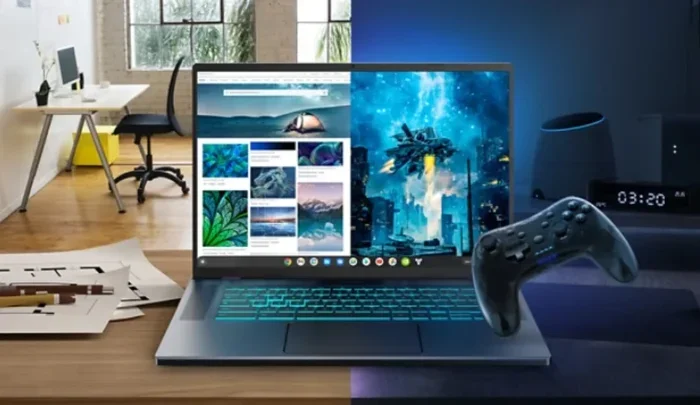
Many people assume they need a gaming laptop for 4K video editing. Gaming laptops do have powerful graphics cards and fast processors. They also tend to have high refresh rate screens that make video playback feel smoother. But they are not the only option.
A gaming laptop excels at 4K video editing because of its dedicated hardware. The GPU handles effects and transitions with ease. The cooling system manages heat during long sessions. But gaming laptops are often bulky, heavy, and expensive. They also have short battery life under heavy workloads.
A creator-focused laptop can be just as capable for 4K video editing. These machines balance performance with portability. They often have better color-accurate displays. They run cooler and quieter. For most editing workflows, a creator laptop is the smarter choice.
The real answer is this: any laptop with a dedicated GPU, 16 GB or more of RAM, and a fast SSD can handle 4K video editing well. You do not need to spend extra on features you do not need. Focus on the specs that matter for your specific work.
Conclusion
Can I Edit 4k Video On My Laptop and still have a great time? The answer is a resounding yes. You do not need a supercomputer or a massive budget. You need the right laptop specs, the right video editing software, and a smart workflow.
Start by checking your laptop performance. Make sure your processor speed, RAM for video editing, and graphics card meet the basics. Choose video editing software that fits your skill level and hardware. Use proxy workflows to keep video playback smooth. Avoid common mistakes like ignoring thermal management or skipping backups.
4K video editing on a laptop is more accessible than ever. The tools are better. The hardware is more capable. And the community of creators sharing tips and tricks keeps growing. Whether you are making content for YouTube, editing family memories, or building a professional portfolio, your laptop can handle it.
Now you have the knowledge to get started. Pick your video editing software, organize your footage, and start creating. Can I Edit 4k Video On My Laptop? You absolutely can. And the best part? You can still have fun doing it.
Frequently Asked Questions
Do I need a special laptop to edit 4K video?
You do not need a special or expensive laptop. Any modern laptop with a dedicated GPU, at least 16 GB of RAM, and an SSD can handle basic 4K editing. Higher-end projects benefit from stronger processor speed and more RAM, but entry-level machines can still produce great results with the right workflow.
How much RAM do I need for 4K video editing?
16 GB of RAM is the minimum for smooth 4K video editing. If you work with complex timelines, multiple effects, or heavy color grading, 32 GB provides a much better experience. More RAM means less lag and faster rendering time during your editing workflow.
Can I edit 4K video on a laptop without a dedicated graphics card?
Yes, but your experience will be limited. Integrated graphics can handle simple cuts and basic playback. However, adding effects, transitions, and color grading will likely cause stuttering. A dedicated GPU dramatically improves video playback and reduces rendering time for 4K video editing.
What is the best free software for editing 4K video on a laptop?
DaVinci Resolve is widely considered the best free option for 4K video editing. It offers professional-grade tools including advanced color grading and codec support. CapCut is another excellent free choice for beginners who want a simpler interface and faster results.
Why does my laptop lag when I edit 4K video?
Lagging usually happens because your laptop performance is being overwhelmed by the file size and processing demands of 4K footage. Common causes include insufficient RAM, lack of a dedicated GPU, slow storage, or thermal throttling. Using proxy clips and closing background programs can significantly reduce lag.
How long does it take to render a 4K video on a laptop?
Rendering time varies widely based on your laptop specs. A mid-range laptop might take 20 to 45 minutes for a 5-minute 4K video. A high-end machine can cut that time in half. Using GPU acceleration and optimizing export settings helps reduce rendering time significantly.