About Macromedia Flash Basic Parts and How They Work
About Macromedia Flash Basic Parts and how they work is essential knowledge for anyone interested in animation and interactive design. Flash Basic provides the foundational building blocks like the timeline, stage, layers, and tools panel that make animation possible. Understanding these core components helps beginners and intermediate users create engaging Flash animations with confidence. This guide breaks down each part in simple, easy-to-follow language. By the end, you will know exactly how every piece fits together.
Macromedia Flash changed the way people think about animation on the web. Before Flash, creating interactive content required complex coding and expensive software. Flash Basic made it accessible to everyday designers and hobbyists. It gave them a powerful set of tools without overwhelming them with technical jargon. Today, many people still reference Flash as a landmark tool in digital design history.
When you open Flash Basic for the first time, the interface can feel a bit intimidating. There are panels, menus, timelines, and tools scattered across the screen. But once you understand the basic parts, everything starts to make sense. This guide will walk you through each component step by step. You will learn what every part does and how they all work together to bring your creative ideas to life.
Key Takeaways
- The Stage and Timeline are the two most important parts of any Flash project where all creative work happens.
- Flash symbols like movie clips, buttons, and graphics let you reuse assets and keep file sizes small.
- Keyframes and frames control the flow of animation, making movement smooth and precise.
- Flash layers help you organize your work and prevent elements from overlapping unintentionally.
- Tweening (both shape and motion) saves time by letting Flash auto-generate animations between keyframes.
- ActionScript adds interactivity, turning simple animations into engaging experiences.
- The Library panel stores all your assets and keeps your project organized and efficient.
📑 Table of Contents
- The Stage: Where Your Animation Comes Alive
- The Timeline: The Heartbeat of Flash Animation
- Flash Symbols: Your Reusable Building Blocks
- The Tools Panel: Your Creative Toolbox
- Tweening: Making Animation Effortless
- The Library Panel: Organizing Your Assets
- ActionScript: Adding Interactivity to Your Flash Projects
- The Properties Panel: Fine-Tuning Your Work
- Common Mistakes Beginners Make with Flash Basic Parts
- Expert Insights: Tips from Seasoned Flash Designers
- Conclusion: Bringing It All Together
The Stage: Where Your Animation Comes Alive
The stage is the canvas where you place all your visual elements. Think of it as a blank piece of paper before you start drawing. Everything you see in the final output comes from objects placed on the stage. It is the central workspace in Flash Basic and the most visible part of the interface.
Understanding Stage Dimensions
Flash lets you set the stage size before you begin working. The default dimensions are usually 550 pixels wide by 400 pixels tall. You can change these settings to match your project needs. For web banners, you might want a wider, shorter stage. For full-screen animations, you would choose larger dimensions. Setting the right stage size early saves you time and effort later.
Here are some quick tips for working with the stage:
- Always plan your stage size before adding content.
- Use the grid and guides to align objects precisely.
- Zoom in and out to work on details or see the big picture.
- Keep important elements within the safe area to avoid cropping.
The Timeline: The Heartbeat of Flash Animation
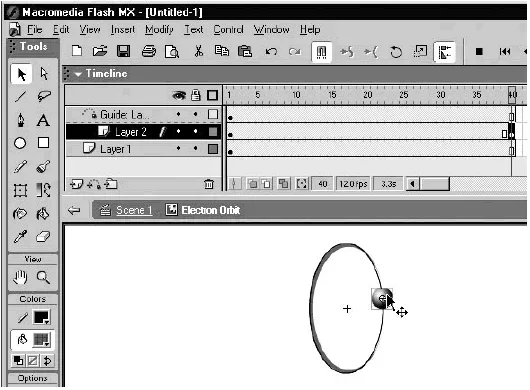
The timeline is arguably the most powerful feature in Flash Basic. It controls the timing and sequence of everything that happens in your animation. Without the timeline, you would have no way to create movement or change. It is the engine that drives every Flash project forward.
Frames and Keyframes Explained
The timeline is made up of frames and keyframes. A frame represents a single moment in time. When you string many frames together, they create the illusion of motion. A keyframe is a special frame where you define a major change. For example, you might place a ball on the left side of the stage in frame one and on the right side in frame twenty. Flash fills in the movement between those two keyframes automatically.
Here is how frames and keyframes work together:
- You place a keyframe at the starting position of an object.
- You place another keyframe at the ending position.
- Flash calculates the in-between frames using tweening.
- The result is smooth, fluid animation without manual drawing.
Layer Organization on the Timeline
Layers sit on top of each other in the timeline, much like transparent sheets of paper stacked together. Each layer can hold a different element of your animation. The top layer appears in front, and the bottom layer appears behind. This stacking system gives you complete control over what the viewer sees at any given moment.
Using layers properly is one of the best habits you can build early. It keeps your project clean and makes editing much easier later on. Name your layers clearly, such as “Background,” “Character,” and “Text,” so you always know what is what.
Flash Symbols: Your Reusable Building Blocks
Symbols are one of the most important concepts in Flash Basic. A symbol is a reusable asset that you create once and use many times. When you update a symbol, every instance of it on the stage updates automatically. This feature saves enormous amounts of time and keeps your file sizes manageable.
Types of Flash Symbols
Flash Basic offers three main types of symbols. Each type serves a different purpose and works in its own way. Understanding the differences helps you choose the right symbol for each situation.
- Graphic Symbols: These are static images or animated visuals. They are tied to the main timeline and play when the main timeline plays. Use graphic symbols for backgrounds, illustrations, and decorative elements.
- Movie Clip Symbols: These are independent animations that play on their own timeline. They can contain their own layers, keyframes, and actions. Movie clips are perfect for complex animations that need to loop or play independently.
- Button Symbols: These create interactive areas that respond to mouse clicks and hovers. Button symbols have four states: Up, Over, Down, and Hit. They are essential for building navigation menus and interactive interfaces.
Why Symbols Matter for Performance
Using symbols has a big impact on file performance. Instead of embedding the same image fifty times, you store it once as a symbol and reference it fifty times. This dramatically reduces the overall file size. Smaller files load faster and run smoother, especially in Flash Player. For any serious Flash project, symbols are not optional, they are essential.
The Tools Panel: Your Creative Toolbox
The tools panel sits on the left side of the Flash workspace. It contains every drawing, selection, and editing tool you need to create your project. At first glance, the panel might look overwhelming with all its options. But most users find that they rely on the same handful of tools over and over again.
Essential Drawing Tools
Flash Basic includes a variety of drawing tools that let you create vector graphics from scratch. Unlike raster images, vector graphics scale without losing quality. This makes them ideal for animations that need to look sharp at any size.
- Rectangle Tool: Draws perfect rectangles and squares with customizable corner radius.
- Oval Tool: Creates circles and ellipses of any size and proportion.
- Pencil Tool: Lets you draw freehand lines with a natural, hand-drawn feel.
- Brush Tool: Paints filled areas with various brush shapes and sizes.
- Pen Tool: Offers precise control over curves and paths for advanced drawing.
- Text Tool: Adds text to the stage with full font styling options.
Selection and Transform Tools
Once you have drawn something, you need tools to move, resize, and reshape it. The selection tool lets you click and drag objects around the stage. The free transform tool lets you rotate, skew, and scale objects with ease. The sub-selection tool gives you fine control over individual anchor points on a path.
These tools form the backbone of your daily workflow in Flash. Mastering them early will speed up your work and improve your results significantly.
Tweening: Making Animation Effortless
Tweening is one of the features that made Flash famous. It stands for “in-betweening,” which means generating the frames between two keyframes automatically. Instead of drawing every single frame by hand, you define the start and end points and let Flash do the heavy lifting. This approach saves hours of tedious work and produces smooth, professional-quality animations.
Motion Tween vs Shape Tween
Flash Basic offers two main types of tweening. Each one serves a different creative purpose and works with different types of objects.
Motion Tween moves, rotates, scales, or changes the color of a symbol instance over time. For example, you can make a car symbol drive across the screen by setting its starting position and ending position as keyframes. Flash fills in all the intermediate positions to create smooth movement. Motion tweens are incredibly versatile and form the basis of most Flash animations.
Shape Tween transforms one shape into another. You might start with a circle and end with a square. Flash calculates how the shape changes frame by frame, creating a morphing effect. Shape tweens only work with raw drawing objects, not symbols. They are perfect for creative transitions and fluid shape transformations.
| Feature | Motion Tween | Shape Tween |
|---|---|---|
| Works With | Symbol instances | Raw drawing objects |
| Best For | Movement and positioning | Morphing and shape changes |
| Controls | Position, rotation, scale, color | Shape, color, position |
| Complexity | Beginner-friendly | Intermediate level |
| Common Use | Object movement across screen | Logo reveals, fluid transitions |
The Library Panel: Organizing Your Assets
The library panel is where Flash stores every asset in your project. This includes symbols, imported images, sound files, and video clips. Think of it as a filing cabinet for everything you use in your animation. Without the library, you would need to re-create assets every time you wanted to use them.
Managing Your Library Effectively
A well-organized library makes your workflow much smoother. As your project grows, the number of assets can quickly pile up. Taking a few minutes to organize your library pays off in the long run.
- Create folders for different asset types like “Characters,” “Backgrounds,” and “Sounds.”
- Name every asset clearly so you can find it quickly.
- Delete unused assets regularly to keep the file size down.
- Use the “Replace” feature to swap one asset for another without breaking your animations.
The library also shows you how many times each asset is used in the project. This information helps you identify duplicate assets and consolidate them. Keeping your library lean and clean is a hallmark of a well-built Flash project.
ActionScript: Adding Interactivity to Your Flash Projects
While Flash Basic focuses on visual design, ActionScript is the scripting language that brings interactivity to your projects. It is a version of JavaScript adapted specifically for the Flash environment. With ActionScript, you can make buttons clickable, create games, build forms, and control how your animation plays.
ActionScript Basics for Beginners
You do not need to be a programmer to use basic ActionScript. Flash Basic introduces simple commands that anyone can learn. For example, you can attach a script to a button that tells it to go to a specific frame when clicked. This single line of code transforms a static animation into an interactive experience.
Here are some common uses for ActionScript in Flash Basic projects:
- Controlling play, pause, and stop functions on the timeline.
- Navigating to different frames or scenes when buttons are clicked.
- Loading external images or SWF files dynamically.
- Creating simple quiz interactions with score tracking.
- Responding to keyboard and mouse input for game controls.
As you grow more comfortable with Flash, learning ActionScript opens up entirely new creative possibilities. Start with simple scripts and gradually work your way up to more complex interactions. There are many online resources and communities dedicated to helping Flash learners master this powerful language.
The Properties Panel: Fine-Tuning Your Work
The properties panel appears at the bottom of the Flash workspace. It shows you detailed information about whatever you have selected on the stage. This panel is your go-to place for adjusting colors, sizes, positions, and other attributes of your objects.
When you select a text box, the properties panel lets you change the font, size, color, and alignment. When you select a shape, you can adjust its fill color, stroke color, and line thickness. The panel changes dynamically based on what you have selected, making it a versatile and essential tool in your daily workflow.
Common Mistakes Beginners Make with Flash Basic Parts
Even the most enthusiastic Flash beginners run into common pitfalls. Knowing what these mistakes are helps you avoid them and work more efficiently from the start.
- Skipping the use of symbols: Many beginners draw everything directly on the stage. This leads to bloated file sizes and difficult editing later. Always convert reusable elements into symbols.
- Ignoring layers: Placing all elements on a single layer creates a messy timeline and makes selective editing nearly impossible. Use multiple layers from the beginning.
- Overworking keyframes: Putting a keyframe on every single frame wastes time and increases file size. Use blank keyframes and let Flash tween the in-between frames.
- Forgetting to test often: Testing your movie frequently catches errors early and saves you from major rework later.
- Not naming layers and symbols: Unnamed layers and generic symbol names make projects confusing, especially when collaborating with others.
Expert Insights: Tips from Seasoned Flash Designers
Experienced Flash designers have learned a few tricks over the years that can save you significant time and frustration. Here are some insights from professionals who have spent years working with Flash Basic.
Tip One: Always use the shortcut keys. Flash is packed with keyboard shortcuts that speed up your workflow dramatically. Learning just five or six shortcuts per week can double your productivity within a month.
Tip Two: Break complex animations into smaller movie clips. Instead of building one massive animation on the main timeline, create separate movie clips for each character or element. This modular approach makes editing much easier and keeps your timeline manageable.
Tip Three: Save your work frequently and use version control. Flash files can become corrupted, and losing hours of work is devastating. Keep backup copies and use descriptive file names like “banner_v2_final” to track your progress.
Conclusion: Bringing It All Together
Understanding About Macromedia Flash Basic Parts is the foundation of creating great Flash animations and interactive content. The stage gives you a canvas, the timeline gives you control over timing, and symbols give you the power of reuse and efficiency. The tools panel and properties panel let you draw and refine with precision, while tweening makes animation accessible to everyone.
Layers keep your project organized, the library keeps your assets manageable, and ActionScript adds the interactivity that sets great projects apart. Together, these parts form a complete creative ecosystem that has inspired millions of designers worldwide. Whether you are building a simple banner ad or a complex interactive game, mastering these basic parts is the first and most important step.
Now that you understand how each component works, it is time to open Flash and start experimenting. The best way to learn is by doing. Create a simple animation today using the parts you have learned about here. You will be amazed at what you can build when you understand the fundamentals. About Macromedia Flash Basic Parts is not just theoretical knowledge, it is the practical toolkit that turns your creative vision into reality.
Frequently Asked Questions
What is Macromedia Flash Basic used for?
Macromedia Flash Basic is used for creating vector animations, interactive websites, games, and rich internet applications. It provides a simplified set of tools that makes it easy for beginners to start designing and animating without a steep learning curve.
How do Flash symbols save time and file size?
Flash symbols let you create an asset once and reuse it as many times as you need. When you update the original symbol, every instance updates automatically. Because Flash only stores the symbol data once, your file size stays much smaller than if you embedded the same graphic multiple times.
What is the difference between a keyframe and a regular frame?
A keyframe is a frame where you define a specific change, such as a new position or a new shape. A regular frame simply continues the content from the previous keyframe. Keyframes are the anchors of your animation, while regular frames fill in the gaps between them.
Do I need to know how to code to use Flash Basic?
No, you do not need to know how to code to start using Flash Basic. The visual tools and timeline make it possible to create animations without writing any scripts. However, learning basic ActionScript can add powerful interactivity to your projects as you grow more comfortable.
Can I import images and sounds into Flash?
Yes, Flash Basic supports importing various image formats like JPEG, PNG, and GIF, as well as sound files like MP3 and WAV. Imported assets appear in your library and can be placed on the stage or used in animations just like native Flash content.
Is Macromedia Flash still relevant today?
While Adobe officially ended support for Flash Player in 2020, the principles and techniques you learn in Flash Basic remain valuable. Many of the concepts like timelines, keyframes, symbols, and tweening carry over to modern animation tools. Understanding Flash also gives you insight into the history of web animation and interactive design.
=== CONCLUSION ===
About Macromedia Flash Basic Parts and how they work is a topic that opens the door to creative digital expression. From the stage and timeline to symbols, tweening, and ActionScript, each part plays a vital role in the animation process. By understanding these foundational components, you gain the confidence and skills to tackle more complex projects over time.
Start with the basics, practice regularly, and do not be afraid to experiment. Flash Basic is more than just an old software tool, it is a learning platform that teaches core principles of animation and interactive design that apply to modern creative work. Apply what you have learned here, and watch your skills grow with every project you complete.