Yes You Can Add A Mesh Router To T Mobile Home Internet
You can definitely add a mesh router to T-Mobile home internet to boost your whole-home Wi-Fi coverage and eliminate frustrating dead zones. T-Mobile’s gateway router works as a modem and router, but adding a mesh system removes signal weak spots and improves your internet speed boost. This guide shows you exactly how to set it up and why it is worth the effort.
If you use T-Mobile home internet, you know how great the service can be. T-Mobile gives you fast 5G speeds. You do not need a phone line or a cable connection. But you might also know the frustration of weak Wi-Fi signals. A single router can only do so much. You may ask, can you add a mesh router to T-Mobile home internet? The answer is a clear and simple yes. Adding a mesh router changes everything. It brings strong internet to every corner of your home.
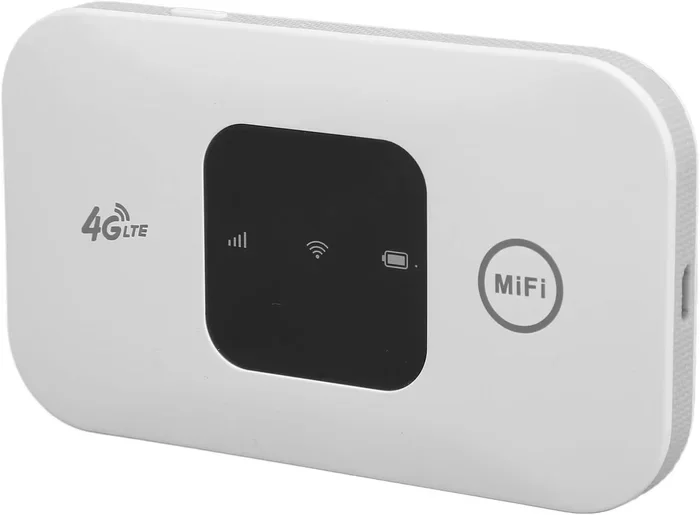
T-Mobile gives you a gateway device. This device works as a modem and a router. It connects to the 5G network outside your home. It also broadcasts Wi-Fi inside your house. But it is often not enough for large houses. It can not push a strong signal through thick walls. A mesh network fixes this problem. It uses multiple nodes to spread the Wi-Fi signal. This gives you whole-home Wi-Fi coverage. In this guide, we will show you how to add a mesh router to T-Mobile home internet. We will also share tips to get the best results. You will learn how to boost your signal strength. You will learn how to remove dead zones. You will get faster speeds in the bedroom and the garage.
Many people think they need to buy a new internet plan. But that is not true. You can keep your T-Mobile plan and just improve your home setup. A good mesh system works perfectly with T-Mobile 5G Home Internet. It boosts your signal strength. It removes dead zones. You will get faster speeds in the bedroom and the garage. Let us look at why this upgrade is so important. A mesh network is a smart investment for any home.
Key Takeaways
- Easy Setup: You can add a mesh router to T-Mobile home internet in just a few simple steps.
- Better Coverage: A mesh network eliminates dead zones and boosts your signal strength everywhere.
- Faster Speeds: Using a dedicated mesh router helps improve your overall internet speed boost.
- Works with Any Brand: You can use popular systems like eero, Netgear, or Google Nest Wi-Fi with T-Mobile.
- No Extra Fees: Adding your own router saves money compared to renting equipment from T-Mobile.
- Seamless Roaming: A mesh system keeps your devices connected to the strongest node automatically.
📑 Table of Contents
- Why T-Mobile Home Internet Needs a Mesh Router
- How to Add a Mesh Router to T-Mobile Home Internet
- Best Mesh Routers for T-Mobile Home Internet
- Benefits of Using a Mesh Network with T-Mobile
- Common Mistakes to Avoid When Setting Up Your Mesh Router
- Expert Insights on T-Mobile Home Internet and Mesh Routers
- How to Test Your Mesh Network Setup
- Conclusion
Why T-Mobile Home Internet Needs a Mesh Router
T-Mobile home internet is a great service. It uses 5G signals to give you fast internet. You do not need a phone line or a cable connection. But the T-Mobile internet gateway they give you has limits. It is a single device that does two jobs. It connects to the 5G network outside. And it broadcasts Wi-Fi inside your home.
Understanding the T-Mobile Gateway
The T-Mobile gateway is a smart device. It has a built-in modem and router. For small apartments, it works very well. But for larger homes, it often falls short. The Wi-Fi signal gets weak as it travels far. You might see slow internet in the back bedroom. The garage might have no signal at all. This is a very common problem. It happens because the gateway is not built for big spaces.
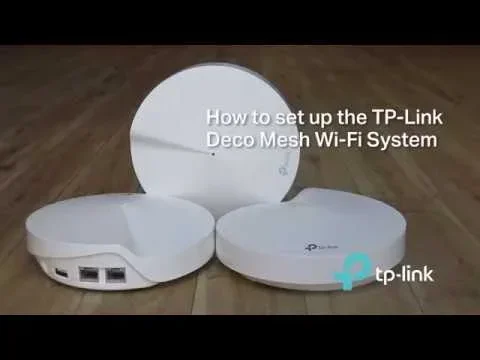
When you add a mesh router, you change this. The mesh router takes the signal from the gateway. It then sends it out through multiple nodes. Each node is like a mini-router. They work together to cover your whole house. This is called a mesh network. It is much better than a single router. You get strong signal strength in every room. You can watch movies without buffering. You can play games without lag. The mesh system handles it all.
Common Wi-Fi Problems with T-Mobile
Many users face Wi-Fi issues with their T-Mobile setup. These issues can be very annoying. A weak signal can ruin your day. You might miss important video calls. You might experience slow downloads. A Wi-Fi extender might seem like a fix, but it often slows down your network. Here are the most common problems people face:
- Dead zones in the living room or basement
- Slow streaming speeds when everyone is home
- Dropped connections in the backyard
- Weak signal strength on the second floor
- Buffering videos during peak hours
- Online games lagging or disconnecting
- Smart home devices losing connection
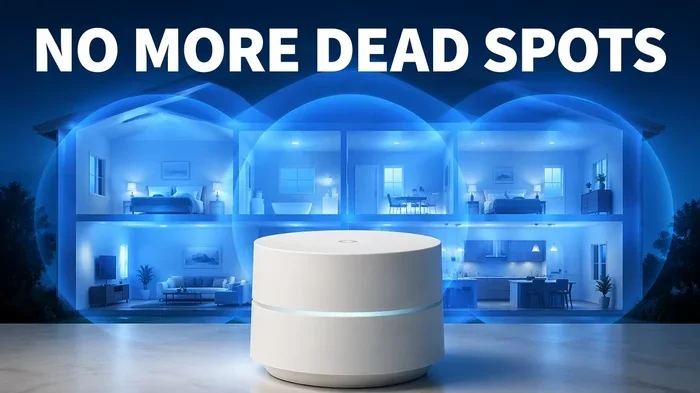
A mesh network fixes all of these issues. It puts nodes in the areas with weak signals. The nodes talk to each other. They share the internet load evenly. This means your phone or laptop always connects to the best node. You do not have to switch networks manually. The mesh system handles it all for you. It creates one big, strong network. This is the power of a mesh network.
How to Add a Mesh Router to T-Mobile Home Internet
Setting up a mesh router with T-Mobile home internet is very simple. You do not need to be a tech expert. You just need a few tools and some patience. Here is a step-by-step guide to help you. This guide will show you how to add a mesh router to T-Mobile home internet the right way.
Step 1: Choose the Right Mesh System
First, you need to buy a mesh Wi-Fi system. There are many brands on the market. You want a system that fits your home size. For small homes, a two-pack works great. For larger homes, you may need a three-pack or more. Think about how many rooms you need to cover.
Popular choices include eero, Google Nest Wi-Fi, and Netgear Orbi. You can also look at the Netgear Nighthawk for a great option. These are all trusted brands. They work well with T-Mobile 5G Home Internet. Look for a system that supports Wi-Fi 6. Wi-Fi 6 gives you faster speeds and better range. It also handles many devices at once. This is important for busy households. You might have phones, tablets, and smart TVs all online at the same time.
Step 2: Decide on Your Connection Method
You have two main ways to connect the mesh router to the T-Mobile gateway. You can use a standard connection. Or you can use bridge mode. Both methods work. But bridge mode is often the better choice for most people.
- Option A: Standard Connection. You plug an Ethernet cable from the T-Mobile gateway into the mesh router. The mesh router then broadcasts the Wi-Fi. This is easy to set up. It is a quick way to get started.
- Option B: Bridge Mode. You put the T-Mobile gateway in bridge mode. This turns off its router functions. The gateway becomes just a modem. Then you connect the mesh router directly. This is the best way to avoid double NAT issues. Double NAT can slow down your internet speed boost.
Double NAT can cause problems. It can make online games lag. It can also block some apps from working right. Bridge mode keeps your network clean and fast. It is the preferred method for most users. It helps your mesh network run at its best.
Step 3: Place Your Mesh Nodes
Placement is key for a mesh network. You do not want to put nodes too close together. But you also do not want them too far apart. A good rule is to keep nodes within 30 to 40 feet of each other. Place one node near the T-Mobile gateway. Then place other nodes in areas with weak signals. This will improve your home Wi-Fi coverage a lot. Walk around your house and find the weak spots. Put a node in the middle of the weak spot and the gateway. This keeps your network range strong.
Best Mesh Routers for T-Mobile Home Internet
Not all mesh routers are the same. You want a system that works well with T-Mobile 5G Home Internet. The right router will give you the best performance. It will also give you a strong internet speed boost. Here are some of the best mesh routers you can buy today.
eero Pro 6E
The eero Pro 6E is a top choice for many homes. It uses Wi-Fi 6E technology. This means it has three bands. Two bands are for your devices. One band is for backhaul. Backhaul is the connection between the nodes. A dedicated backhaul keeps your wireless router speeds fast. The eero app is very easy to use. You can set up parental controls in just a few taps. It is a great choice for families. It also has a sleek design that looks good in any room.
Netgear Orbi RBK853
If you need serious coverage, the Netgear Orbi is a powerhouse. It is a tri-band system. It uses a dedicated backhaul channel. This means your internet speed does not drop when you move around the house. It is perfect for homes with many smart devices. You can connect cameras, phones, and laptops all at once. The signal strength stays very strong. It is also great for large properties. The Orbi system can cover up to 5,500 square feet.
Google Nest Wi-Fi Pro
The Google Nest Wi-Fi Pro is a sleek and simple option. It supports Wi-Fi 6. It is very affordable for what it offers. It works great for medium-sized homes. It also works well with Google smart home devices. If you use Google Home, this is a great pick. It gives you whole-home Wi-Fi coverage without a big price tag. The setup process is very simple. You just plug it in and follow the app steps.
Benefits of Using a Mesh Network with T-Mobile
Why should you add a mesh router to your T-Mobile setup? The benefits are huge. A mesh network changes how you use the internet at home. Here are the main advantages you will get when you add a mesh router to T-Mobile home internet.
Whole-Home Wi-Fi Coverage
The biggest advantage of a mesh system is whole-home Wi-Fi coverage. With a single router, you get a limited range. The signal gets weak in far-away rooms. A mesh network uses multiple nodes. Each node spreads the signal further. This means you get strong internet in the bedroom, the bathroom, and the garage. You can say goodbye to dead zones forever. You can work from home without interruptions. Your kids can stream their favorite shows without buffering.
Seamless Roaming
Traditional routers force your phone to switch connections. When you walk from the living room to the bedroom, your phone might drop the signal. A mesh network handles this automatically. It is called seamless roaming. Your phone connects to the nearest node. You do not even notice the switch. This makes video calls and online gaming much smoother. You will not get dropped calls anymore. You can walk around the house and stay connected.
Easy Network Management
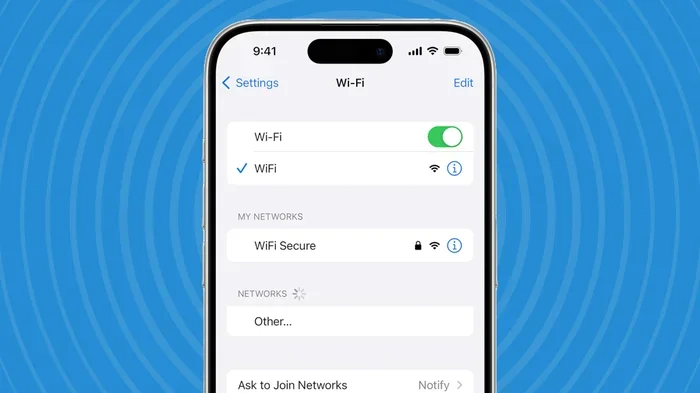
Most mesh systems come with a mobile app. You can manage your home Wi-Fi coverage from your phone. You can run speed tests with one tap. You can pause the internet for kids at bedtime. You can also see which devices are connected. This makes wireless router setup and maintenance very simple. You do not need a computer to manage your network. Everything is right in your hand.
Better Security for Your Family
A mesh network also offers better security for your home. Most mesh systems come with built-in security features. These features protect your home network from hackers. You can get automatic updates to keep your network safe. Some systems also offer parental controls. Parental controls let you block bad websites. They let you pause internet time for kids. This keeps your family safe online. It gives you peace of mind every day. You do not have to worry about strange devices on your network.
Supporting Many Devices
Modern homes have many smart devices. You might have smart TVs, cameras, and phones. A single router can struggle with all of them. A mesh network handles many devices easily. It spreads the data load across all nodes. This means your internet speed boost stays strong. You can stream, game, and browse all at once. No one has to wait for the network to catch up.
Common Mistakes to Avoid When Setting Up Your Mesh Router
Even with the best gear, mistakes can happen. Many people make simple errors during setup. These errors can slow down your network. Here are the most common mistakes to avoid when you add a mesh router to T-Mobile home internet.
Placing Nodes Too Far Apart
Mesh nodes need to talk to each other. If you place them too far apart, the signal gets weak. A good rule of thumb is to keep nodes within 30 to 40 feet of each other. You want them close enough to share data. But far enough to cover different rooms. This keeps your network range strong and stable. If a node is too far away, it will slow down the whole network.
Ignoring the Gateway Settings
If you do not put the T-Mobile gateway in bridge mode, you might run into conflicts. This is a common mesh network mistake. When you use two routers at once, you can get double NAT. Double NAT can slow down your connection. It can also block some online games and apps. Always check your gateway settings before you start. A quick check can save you a lot of headaches later.
Using Old Ethernet Cables
If you connect nodes with a cable, use a modern Cat6 or Cat6a cable. Old cables can limit your internet speed boost. They might not support fast speeds. Good cables make a big difference in performance. Do not cheap out on this part of the setup. Spend a few extra dollars on good cables. It is worth it for the better speed.
Forgetting to Update Firmware
Mesh routers need software updates. These updates fix bugs and improve security. They can also boost your Wi-Fi speed. Check the app for updates regularly. Keeping your firmware up to date is very important. It ensures your mesh network runs at its best. Updates also add new features to your system.
Expert Insights on T-Mobile Home Internet and Mesh Routers
How Experts Optimize Home Networks
Networking experts recommend using a dedicated wireless router for T-Mobile home internet. The gateway is fine for basic browsing. But for streaming, gaming, and working from home, a mesh system is essential. It future-proofs your home network. You get the best possible performance from your T-Mobile plan.
Experts also suggest using Ethernet backhaul. This means connecting nodes with cables. It is the fastest and most reliable method. Wireless backhaul is good too. But a wired connection gives you the best results. It takes full advantage of your internet speed boost. If you can run cables, do it. It makes a huge difference in your network performance. Your games will run smoother. Your streams will look clearer.
Is It Worth the Investment?
Absolutely. A good mesh router costs less than renting equipment from T-Mobile for a year. Plus, you get much better performance. You own the equipment. You can upgrade it whenever you want. It is a smart investment for any home. You will wonder how you ever lived without it. A mesh network gives you control over your internet. It is the best way to improve your T-Mobile internet gateway setup.
How to Test Your Mesh Network Setup
After you set up your mesh router, you should test it. Testing helps you make sure everything works right. You want to check the signal strength in every room. You also want to check your internet speed. A good test takes just a few minutes.
You can use a free app like Speedtest by Ookla. Open the app on your phone. Walk around your house and run a test in each room. Write down the speeds in a notebook. You should see strong speeds in every area. If a room is slow, move the node closer. This is how you optimize your home Wi-Fi coverage.
Testing also helps you find the best node placement. You want the nodes to be close enough to share data. But far enough to cover the room. A little trial and error goes a long way. It ensures you get the best internet speed boost possible. Do not skip this step. It makes a big difference.
Conclusion
So, can you add a mesh router to T-Mobile home internet? Yes, you absolutely can. It is one of the best ways to improve your home network. A mesh router T-Mobile home internet setup gives you fast speeds and reliable coverage. You can say goodbye to frustrating dead zones and slow connections. Your internet experience will be so much better.
Take the time to choose the right system. Follow the setup steps carefully. Enjoy the benefits of a strong, seamless Wi-Fi network. Your home internet experience will never be the same. Start your setup today and feel the difference. A mesh network is a game changer for T-Mobile users.
Frequently Asked Questions
Do I need to put my T-Mobile gateway in bridge mode?
Yes, putting the gateway in bridge mode is highly recommended. It turns off the gateway’s router functions. This prevents double NAT issues that can slow down your connection. It allows your new mesh router to work at its best.
Will a mesh router speed up my T-Mobile internet?
A mesh router will not increase your base internet speed from T-Mobile. However, it will improve the Wi-Fi speed throughout your home. It eliminates dead zones and reduces signal drops. This means you get the full speed of your plan in every room.
Can I use any brand of mesh router with T-Mobile?
Yes, you can use any brand that works with your modem. Popular choices include eero, Google Nest, and Netgear. Just make sure the system supports your internet speed tier. Most modern mesh systems work perfectly with T-Mobile 5G Home Internet.
How many mesh nodes do I need for my home?
This depends on the size of your home. A two-pack is usually enough for small to medium homes. Larger homes may need a three-pack or more. Place nodes in central locations for the best home Wi-Fi coverage.
Is it hard to set up a mesh router?
No, setting up a mesh router is very easy. Most systems come with a simple mobile app. The app walks you through the process step-by-step. You can have your whole-home Wi-Fi running in less than 30 minutes.
Can I use my old T-Mobile router with a mesh system?
You can, but it is better to let the mesh system handle the routing. If you keep the old router, put it in bridge mode. This ensures both devices work together smoothly without causing network conflicts.