Can A Camera Be Connected To A Phone With These Tips
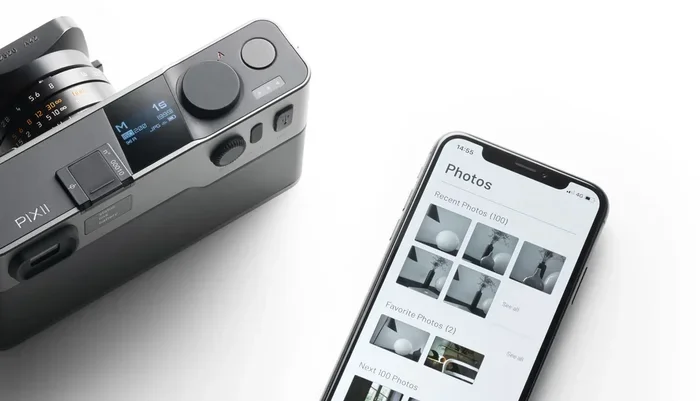
Can a camera be connected to a phone? Absolutely yes! Whether you use Bluetooth, WiFi, or a USB cable, linking your camera to your smartphone opens up a world of convenience for photo transfer, remote shooting, and instant sharing. This guide covers every method, common problems, and expert tips to make the process simple and fast.
Have you ever wanted to share a stunning photo the moment you captured it? Or maybe you needed to use your phone as a remote viewfinder while shooting? The answer to the question can a camera be connected to a phone is a resounding yes. In today’s digital world, connecting your camera to your smartphone is not just possible, it is incredibly easy. Whether you are a professional photographer or someone who loves snapping casual photos, knowing how to link these two devices gives you serious flexibility. Let us walk through every method, tip, and trick you need to make this work seamlessly.
Connecting a camera to a phone is one of those small tech upgrades that changes everything. You no longer need to remove your memory card or sit at a computer just to share images. With wireless transfer, you can send photos directly to your phone in seconds. This is especially helpful for parents, travelers, and social media enthusiasts. In this guide, we will explore all the ways you can pair your camera with your smartphone. We will also cover common problems and how to fix them. So grab your camera and phone, and let us get started.
Key Takeaways
- Multiple Connection Methods: You can connect a camera to a phone using WiFi, Bluetooth, USB cables, or wireless adapters depending on your devices.
- Wireless Options Are Easiest: Most modern cameras support WiFi or Bluetooth, making phone pairing quick and cable-free.
- Camera Apps Simplify Everything: Manufacturer apps like Canon Camera Connect, Nikon SnapBridge, and Sony Imaging Edge offer seamless control.
- Troubleshooting Is Common: Connection issues often stem from outdated firmware, disabled WiFi, or incompatible settings.
- Transfer Speed Varies: WiFi transfers are slower than USB, but wireless methods offer unmatched convenience for everyday use.
📑 Table of Contents
- Why Connecting Your Camera to Your Phone Matters
- How to Connect a Camera to a Phone Using WiFi
- Using Bluetooth to Link Your Camera and Phone
- Connecting with a USB Cable
- Using Wireless Adapters and SD Card Readers
- Top Camera Apps That Make Phone Connection Easy
- Common Problems and How to Fix Them
- Expert Tips for Seamless Camera-to-Phone Workflow
- Comparing Connection Methods
- Final Thoughts
Why Connecting Your Camera to Your Phone Matters
You might wonder why bother connecting a camera to a phone at all. The reasons are plenty, and they go far beyond simple convenience. When you connect a camera to a phone, you unlock a whole new level of creative control and sharing power.
Instant Photo Sharing
Gone are the days of waiting to get home before you can share your photos. With a direct connection, you can post images to social media within minutes of taking them. This is a game changer for event photographers, travel bloggers, and anyone who wants real-time engagement with their audience.
Remote Camera Control
Using your phone as a remote control for your camera is incredibly useful. You can adjust settings, trigger the shutter, and frame your shot from a distance. This works great for self-portraits, group photos, and long-exposure shots where touching the camera is not an option.
Better Workflow for Content Creators
If you create video content or run a blog, having your photos on your phone immediately speeds up your workflow. You can edit, caption, and publish without ever touching a computer. Many creators also use their phone screens as a larger, more familiar interface for reviewing shots.
How to Connect a Camera to a Phone Using WiFi
WiFi is the most popular wireless method for connecting a camera to a phone. Most modern cameras, from entry-level models to professional gear, come with built-in WiFi. The process is straightforward once you know the steps.
Step-by-Step WiFi Connection Guide
Here is how you can set up a WiFi connection between your camera and phone:
- Turn on your camera and go to the WiFi or Network menu in the settings.
- Select the option to enable WiFi or create a hotspot.
- On your phone, open your WiFi settings and look for the camera’s network name.
- Connect to the camera’s WiFi network using the password shown on your camera screen.
- Download the manufacturer’s app if prompted, such as Canon Camera Connect or Nikon SnapBridge.
- Open the app and follow the on-screen instructions to pair your devices.
Once connected, you can transfer photos, adjust settings, and even shoot remotely. The speed of transfer depends on your camera model and the WiFi standard it supports. Newer cameras with WiFi 5 or WiFi 6 transfer files much faster than older models.
Best Practices for WiFi Connections
Keep your camera and phone close during the initial pairing process. Once paired, the connection range is usually around 10 to 30 feet. Also, make sure your camera battery is sufficiently charged, as WiFi usage drains power faster than normal shooting. If you plan to use wireless camera connection for extended sessions, consider carrying a portable charger.
Using Bluetooth to Link Your Camera and Phone
Bluetooth offers a different approach to phone camera pairing. While WiFi handles large file transfers, Bluetooth is perfect for maintaining a low-energy, always-on connection between your devices. Many modern cameras now support Bluetooth Low Energy (BLE) for background connectivity.
How Bluetooth Pairing Works
The Bluetooth method works differently from WiFi. Instead of creating a separate network, Bluetooth keeps your camera and phone in constant communication at a low power cost. Here is what you need to do:
- Enable Bluetooth on both your camera and phone.
- Open the camera’s Bluetooth settings and set it to discoverable mode.
- On your phone, go to Bluetooth settings and look for your camera in the list of available devices.
- Tap to pair and confirm the connection on both screens.
- Download the companion app for your camera brand to manage the connection.
Bluetooth is ideal for transferring smaller files like JPEGs quickly. It also uses less battery than WiFi. However, the transfer speed is slower compared to WiFi or USB, so it works best for quick preview images rather than large RAW files.
Which Cameras Support Bluetooth?
Most cameras released after 2018 include Bluetooth support. Popular brands like Canon, Nikon, Sony, Fujifilm, and Panasonic offer Bluetooth in many of their models. If you are unsure whether your camera has Bluetooth, check the specifications on the manufacturer’s website or in your camera manual.
Connecting with a USB Cable
When speed matters most, a USB cable connection is your best bet for camera to smartphone transfers. This method is reliable, fast, and does not depend on wireless signals. It is especially useful when you are working with large files or need to transfer dozens of photos quickly.
Types of USB Connections
Different cameras use different USB connectors. Here are the most common types you will encounter:
- USB-C: The newest and fastest standard found in modern cameras.
- Micro-USB: Still common in older and budget camera models.
- Mini-USB: Found on some legacy cameras and older equipment.
- Lightning or USB-C to iPhone: Apple users may need a specific adapter for direct connection.
How to Transfer Photos via USB
Follow these simple steps to transfer files using a USB cable:
- Connect your camera to your phone using the appropriate USB cable or OTG adapter.
- On your camera, select the PC or USB mode from the menu.
- Your phone should recognize the camera as a storage device.
- Open your phone’s file manager and navigate to the camera’s storage.
- Copy or move the photos you want to your phone’s gallery.
USB connections are the fastest method for image transfer between cameras and phones. You can transfer hundreds of high-resolution photos in just a few minutes. The main downside is that you need the right cable and sometimes an adapter, which adds an extra step to your workflow.
Using Wireless Adapters and SD Card Readers
Not all cameras have built-in WiFi or Bluetooth. In those cases, wireless adapters and mobile SD card readers come to the rescue. These small accessories plug directly into your camera’s SD card slot or USB port and create a wireless bridge to your phone.
Popular Wireless Adapters
Here are some widely used options for adding wireless capability to your camera:
- Sony Wireless Flash Adapter: Works with select Sony models for wireless file transfer.
- Canon WFT-E7: A wireless file transmitter for Canon cameras that enables FTP and email transfer.
- Portable WiFi SD Cards: These cards create their own WiFi network, allowing direct phone access to your photos.
- Mobile Card Readers: Small Bluetooth or WiFi-enabled readers that accept SD cards and connect to your phone wirelessly.
These accessories are especially useful for older camera models that do not have modern wireless features built in. They are also great for photographers who want a dedicated transfer device that does not drain their camera battery. A quick search for wireless camera connection accessories will reveal many affordable options that work with most camera brands.
Quick Tips for Wireless Adapters
- Always format your SD card before using it with a wireless adapter.
- Keep the adapter firmware updated for the best performance.
- Use a high-speed SD card to avoid bottlenecks during transfer.
- Check compatibility with your specific camera model before purchasing.
Top Camera Apps That Make Phone Connection Easy
The right app can make all the difference when you are connecting a camera to a phone. Most camera manufacturers offer free apps designed specifically for their cameras. These apps handle pairing, file transfer, and remote control in one unified interface.
Canon Camera Connect
Canon’s official app works with most Canon cameras that have WiFi or Bluetooth. It lets you transfer photos, adjust settings remotely, and even print directly from your phone using a compatible Canon printer. The app is intuitive and works reliably for most users.
Nikon SnapBridge
Nikon SnapBridge is a powerful tool for Nikon camera owners. It automatically transfers photos in the background using Bluetooth and handles both JPEG and RAW file transfers. The app also provides remote control functionality and GPS tagging for your images.
Sony Imaging Edge
Sony’s app offers a comprehensive suite of features including remote shooting, file transfer, and image editing tools. It supports a wide range of Sony cameras and provides a smooth, stable connection experience. Many Sony users consider this the best companion app in the industry.
Fujifilm Camera Remote
Fujifilm’s app provides straightforward remote control and file transfer. It is lightweight and easy to use, making it a great choice for Fujifilm camera owners who want a simple, no-fuss connection experience.
Common Problems and How to Fix Them
Even with the best setup, you may run into issues when trying to connect a camera to a phone. Most problems are easy to solve with a few simple steps. Here are the most common issues and their fixes.
Camera Not Showing Up on Phone
If your phone cannot detect your camera, the first thing to check is whether WiFi or Bluetooth is enabled on both devices. Make sure your camera is in pairing or discoverable mode. Restarting both devices often resolves temporary connection glitches. You should also check that your camera firmware is up to date, as outdated firmware can cause compatibility issues.
Slow Transfer Speeds
Slow transfers are frustrating but usually easy to fix. If you are using WiFi, move closer to your camera to strengthen the signal. Avoid transferring files in areas with heavy network congestion. For USB connections, try a different cable or port. Using a USB 3.0 cable instead of USB 2.0 can dramatically improve transfer speeds.
App Crashes or Freezes
If the camera companion app keeps crashing, try updating it to the latest version. Clearing the app cache on your phone can also help. If the problem persists, uninstall and reinstall the app. Make sure your phone operating system is compatible with the app version you are using.
Battery Draining Quickly
Wireless connections drain camera batteries faster than regular shooting. To conserve battery, turn off WiFi or Bluetooth when you are not actively transferring files. Using a larger battery or an external power source can also help during long sessions.
Expert Tips for Seamless Camera-to-Phone Workflow
Professional photographers and content creators use specific strategies to make their camera-to-phone workflow smooth and efficient. Here are some expert tips you can adopt today.
Set Up Auto-Transfer for Key Shots
Many camera apps let you configure auto-transfer settings. You can choose to automatically send only your best photos to your phone, saving time and storage space. This is particularly useful during events or vacations when you take hundreds of shots.
Use Your Phone for Immediate Editing
Once your photos are on your phone, you can use editing apps like Lightroom Mobile or Snapseed to enhance them instantly. This allows you to share polished images on social media within minutes of capturing them. It is a huge advantage for anyone building an online presence.
Keep Your Devices Updated
Regular firmware updates for your camera and app updates for your phone ensure the best compatibility. Manufacturers often release updates that fix bugs and improve connection stability. Checking for updates once a month is a good habit to build.
Invest in a Good OTG Adapter
If you plan to use USB connections frequently, a quality On-The-Go (OTG) adapter is a worthwhile investment. It allows you to connect USB cables to your phone without worrying about compatibility issues. Look for adapters that support USB-C and Micro-USB for maximum versatility.
Organize Your Files After Transfer
Once photos are on your phone, take a few minutes to organize them into folders or albums. This makes it much easier to find specific images later and keeps your gallery clutter-free. Many camera apps offer built-in organization tools that can automate this process.
Comparing Connection Methods
Choosing the right connection method depends on your needs and your camera’s capabilities. Here is a quick comparison of the main options available for connecting a camera to a phone.
| Feature | WiFi | Bluetooth | USB Cable | Wireless Adapter |
|---|---|---|---|---|
| Transfer Speed | Medium | Slow | Fast | Medium |
| Convenience | High | Very High | Medium | High |
| Battery Usage | High | Low | Low | Medium |
| Setup Difficulty | Easy | Easy | Easy | Moderate |
| Best For | File Transfer | Background Sync | Large Transfers | Older Cameras |
For most users, WiFi offers the best balance of speed and convenience. Bluetooth is excellent for maintaining a constant connection with minimal battery drain. USB cables are unbeatable for speed when you need to transfer large batches of photos quickly. Wireless adapters are the go-to solution for older cameras that lack modern connectivity features.
When choosing your method, consider what matters most to you. If you want instant sharing, WiFi is your best friend. If you want a hands-free always-on connection, Bluetooth wins. If you need raw speed, nothing beats a good old USB cable. And if your camera is older, a wireless adapter can breathe new life into it.
Many photographers also use a combination of methods depending on the situation. For example, you might use Bluetooth for everyday background syncing and switch to WiFi or USB when you need to transfer a large batch of files. This flexible approach gives you the best of all worlds.
Final Thoughts
So, can a camera be connected to a phone? The answer is a clear and definitive yes. Whether you prefer WiFi, Bluetooth, USB, or a wireless adapter, there is a method that fits your needs and your camera. The key is to understand your options and choose the one that works best for your shooting style.
Connecting your camera to your phone is one of the simplest yet most impactful upgrades you can make to your photography workflow. It saves time, improves sharing, and gives you creative control right from your pocket. Start with the method that feels most natural to you and experiment from there. Once you experience the convenience of having your photos instantly available on your phone, you will never go back to the old way of doing things.
Remember to keep your devices updated, use the right apps, and troubleshoot issues as they arise. With a little practice, connecting your camera to your phone will become second nature. And for more tips on making your tech life easier, check out our guide on 10 Gadgets To Make Moms Life Easier for additional helpful technology recommendations. Happy shooting and sharing!
Take some time today to explore the connection options on your camera. You might be surprised at how much more enjoyable and efficient your photography becomes when your camera and phone work together as a team. The future of photography is connected, and you are already one step ahead by learning how to make it work for you.
Frequently Asked Questions
Can I connect any camera to any phone?
Most modern cameras can connect to most smartphones, but compatibility depends on the connection method and camera features. WiFi and Bluetooth cameras work with both Android and iPhone devices. However, very old cameras without wireless features may need a wireless adapter or USB OTG cable to connect. Always check your camera’s specifications to confirm what connection options are available.
Is it safe to transfer photos wirelessly between my camera and phone?
Yes, wireless transfers are generally safe because the connection is direct between your camera and phone. The data does not pass through the internet or cloud servers. However, you should always use the official manufacturer app for the most secure and reliable connection. Avoid using third-party apps from unknown sources, as they may compromise your data privacy.
Why does my camera keep disconnecting from my phone?
Camera disconnections are usually caused by weak signals, battery saver settings, or outdated firmware. Move closer to your camera and ensure both devices have sufficient battery. Disable battery optimization for the camera app on your phone. If the problem persists, update your camera firmware and the companion app to the latest versions.
Can I use my phone to control my camera’s settings remotely?
Absolutely. Most camera companion apps allow you to adjust shutter speed, aperture, ISO, and other settings from your phone screen. This is especially useful for tripod shots, self-portraits, and time-lapse photography. The remote control feature works over WiFi or Bluetooth depending on your camera model.
What is the fastest way to transfer photos from a camera to a phone?
A USB cable connection is the fastest method for transferring photos. USB 3.0 cables can move large batches of high-resolution images in just a few minutes. WiFi transfers are slower but more convenient for smaller batches. For the best of both worlds, use USB for large transfers and Bluetooth for quick, automatic syncing of your favorite shots.
Do I need an internet connection to connect my camera to my phone?
No, you do not need an internet connection. WiFi camera connections create a local network between your devices, and Bluetooth pairs directly without any internet access. USB transfers also work offline. The only time you need internet is if you are using cloud-based apps or uploading photos to social media after the transfer is complete.